
Vector search, embedding recipes, and a Tables popover
Dynomatic 1.1.0 adds vector search and embedding recipes for DynamoDB vector indexes, moves the Tables page into a sidebar popover, and puts table settings one click from any query tab.
Vector search, embedding recipes, and a Tables popover
Dynomatic 1.1.0 is built around DynamoDB vector indexes. You can create an index, write an embedding recipe that fills its vector attribute, backfill and verify the results, then search the table by meaning from the query tab. Around that, local export has been rebuilt around a dialog with a live preview and background jobs, the Tables page has become a sidebar popover, table settings open from inside any query tab, the Import wizard has been rebuilt, and PartiQL statements are validated as you type.
Vector search
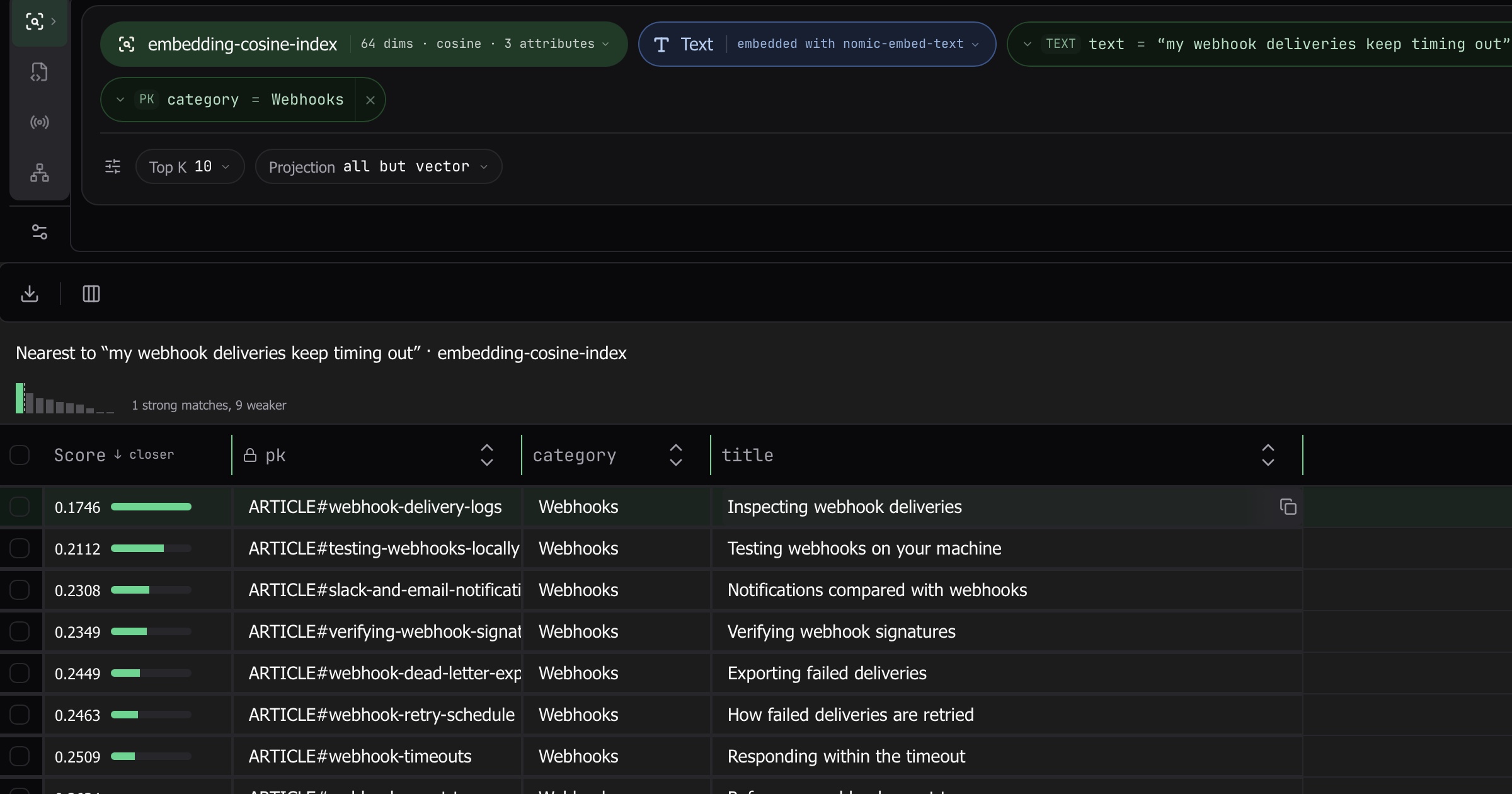
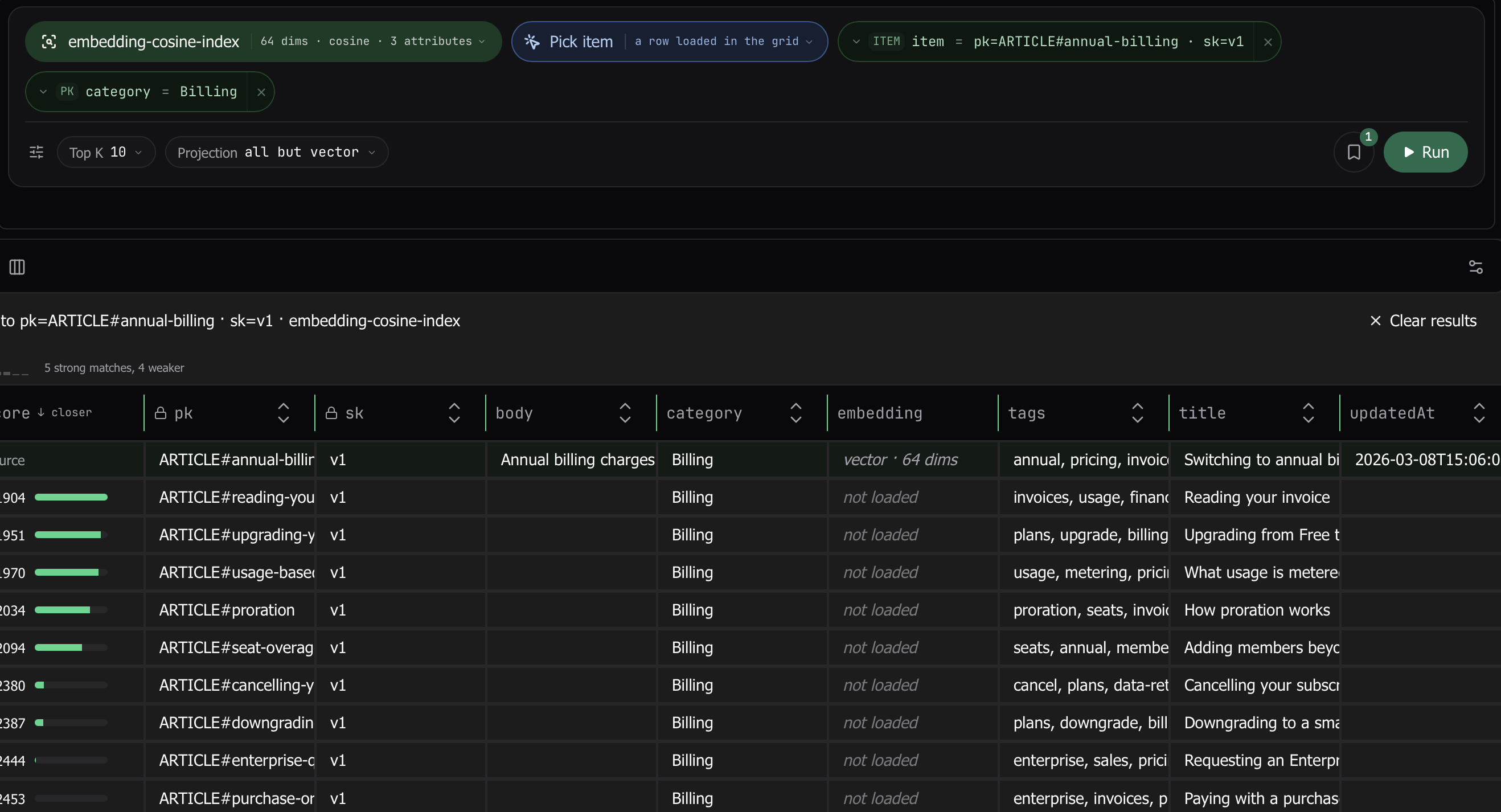
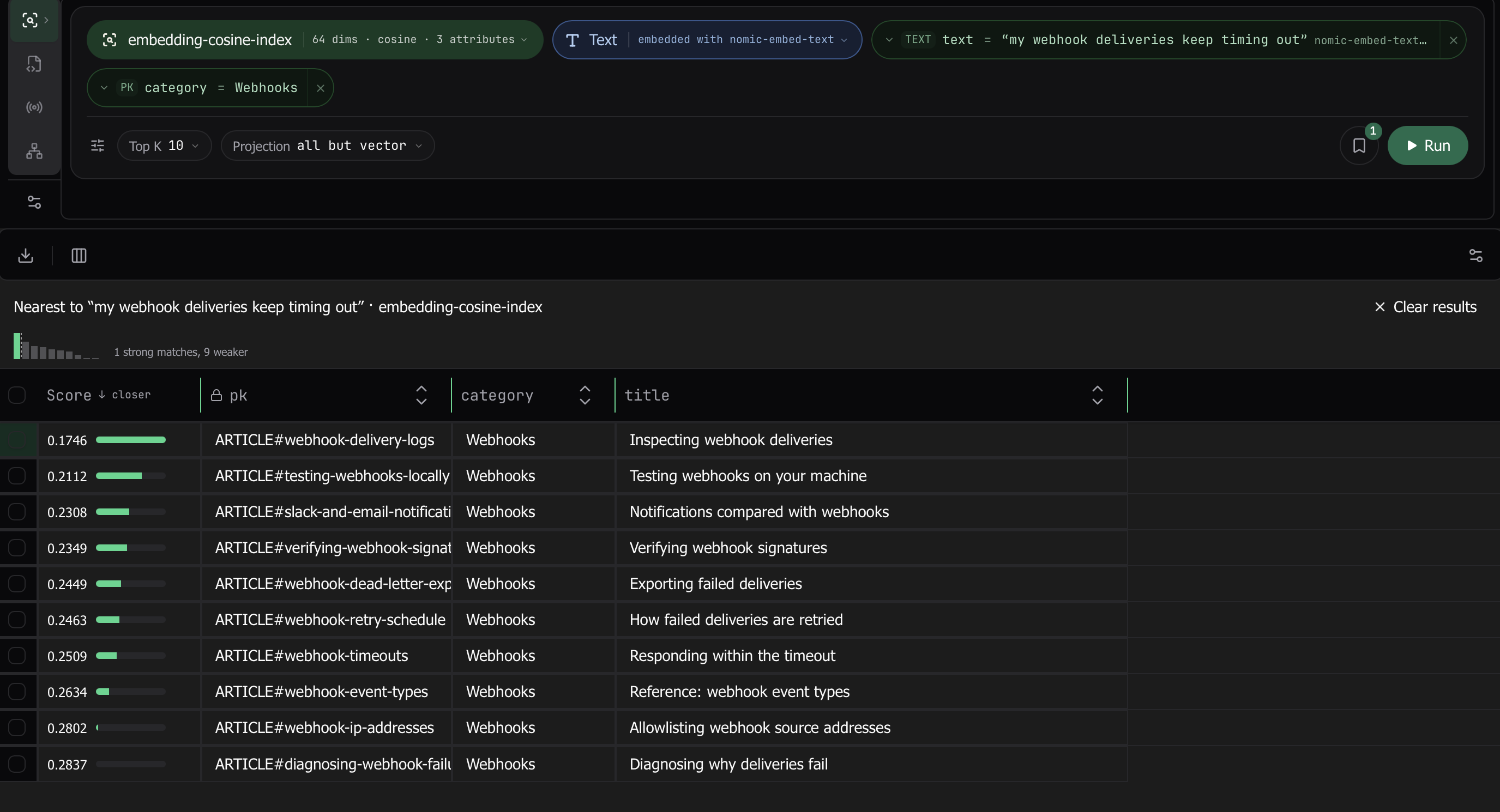
Tables with a vector index get a fourth query flavor in the Query rail, next to Filters, PartiQL, and Schema. Pick the index, supply a query vector, and run. The query vector can be pasted as an array, taken from an item you pick in the grid, or typed as plain text, in which case Dynomatic embeds the text with the same model the index’s recipe uses. Indexes with a hash search schema get a “Search within” condition, and equality filters on the index’s inline attributes can be added as pills. Results come back ranked with a relevance score column, and the header strip shows the score distribution with the cliff marked so you can see where the strong matches end.
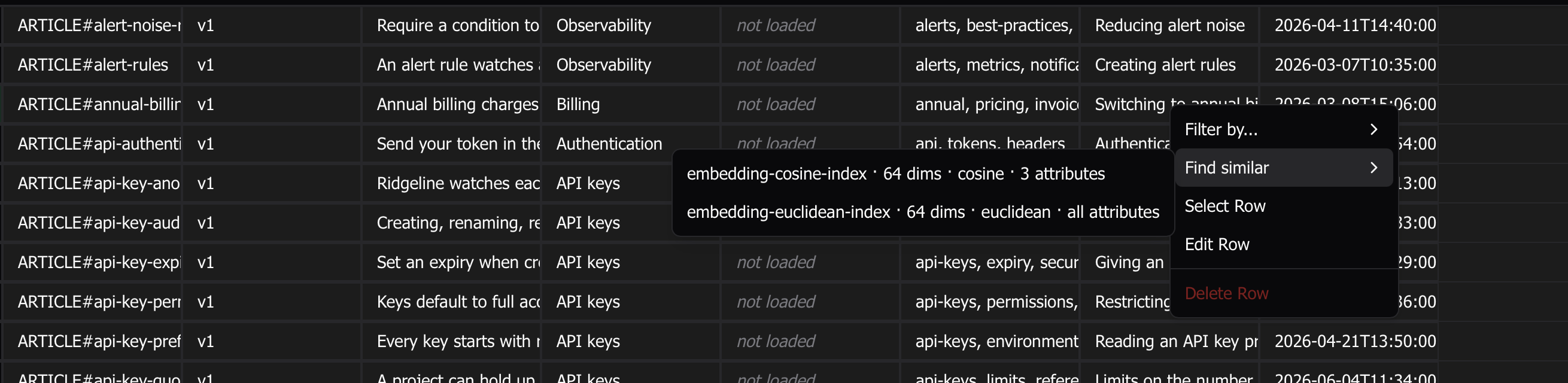
The Filters flavor gets a “Find similar” action in the row context menu for any row that carries an index’s vector. It fills the Vector search pills from that row, runs the search, and switches you to the Vector search flavor with the source row pinned above the hits. Your Filters results stay as they were, one click away. A table with a vector index now opens on the Vector search flavor.
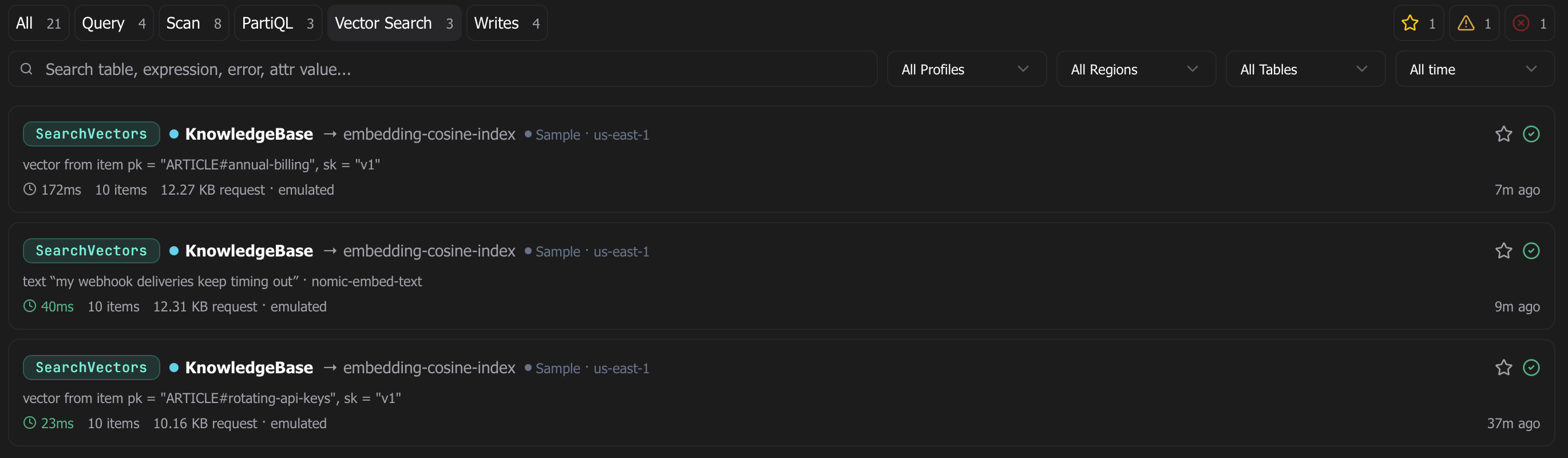
Saved queries work for vector searches and remember the source you used (a vector, an item key, or the text), so a saved text search reopens without embedding again. The History page gains a Vector Search pill, and each run records the request size. Vector search availability follows what DescribeTable reports, so it works against AWS, Dynoxide 1.1.0, and any other endpoint that serves vector indexes.
Embedding recipes, backfill, and verification
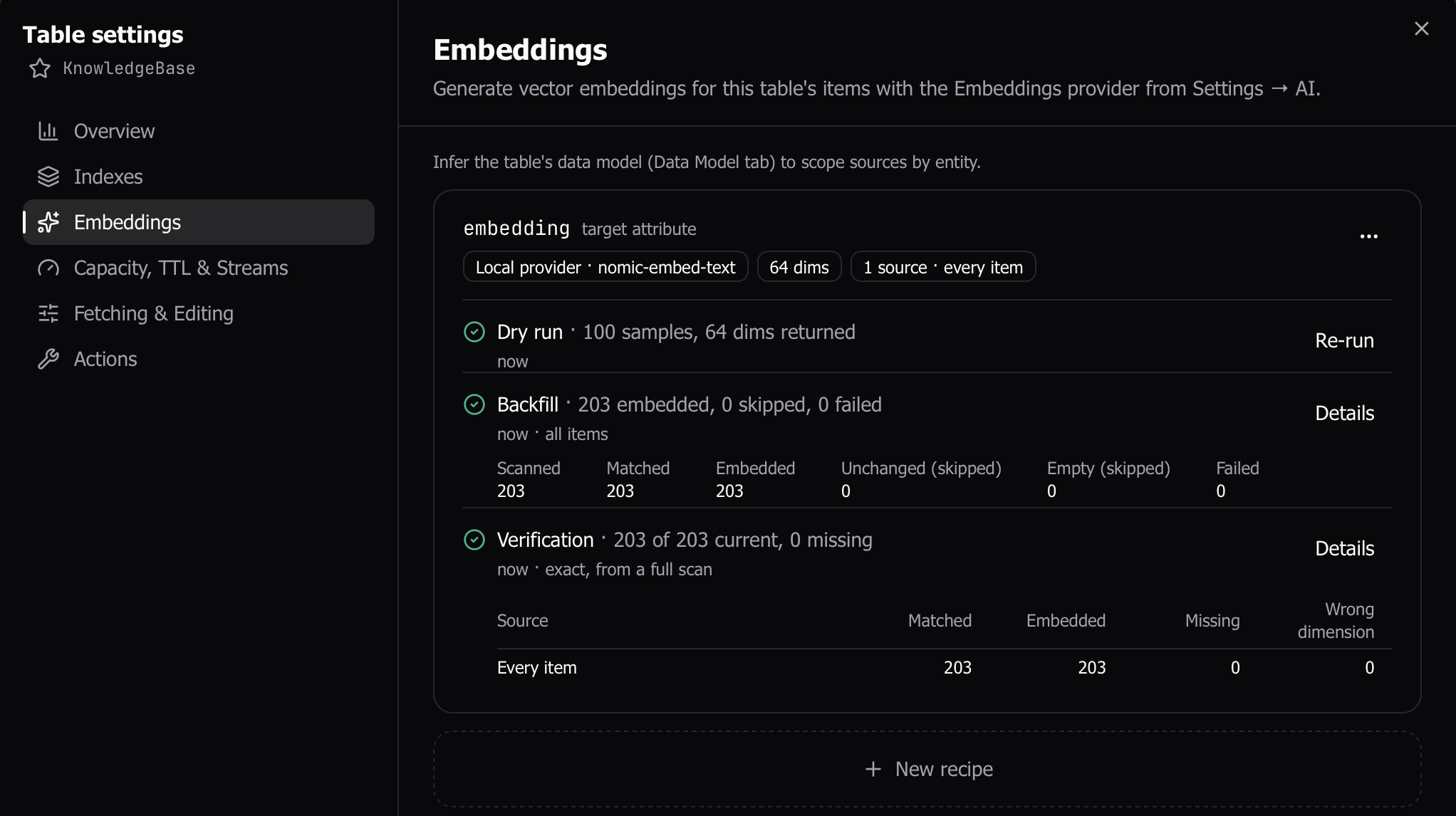
Table settings has a new Embeddings section. A recipe names the target vector attribute, the embedding model and dimensions, and one template per entity (for example, title plus body) built with the same template input used elsewhere in the app. The editor shows a live preview of what each source renders for a real item as you type, and opens clean instead of in an error state.
Run a dry run first: one bounded scan pass, one embedding call per matched source, and an estimate of how many items will be touched. Then start the backfill. It runs in the background with a checkpoint after every page of writes, so you can pause, resume, or cancel, and a run interrupted by an app restart is paused at its last checkpoint and offers to resume from there. Items DynamoDB rejects during the backfill are listed under the run with their key and DynamoDB’s message. Verification scans the table and reports matched, embedded, missing, wrong-dimension, and foreign items per source.
Embedding calls go through the same consent gate as Enhance with AI, per provider and per capability. Backfills on a production table require a typed confirmation.
Vector indexes in Table settings
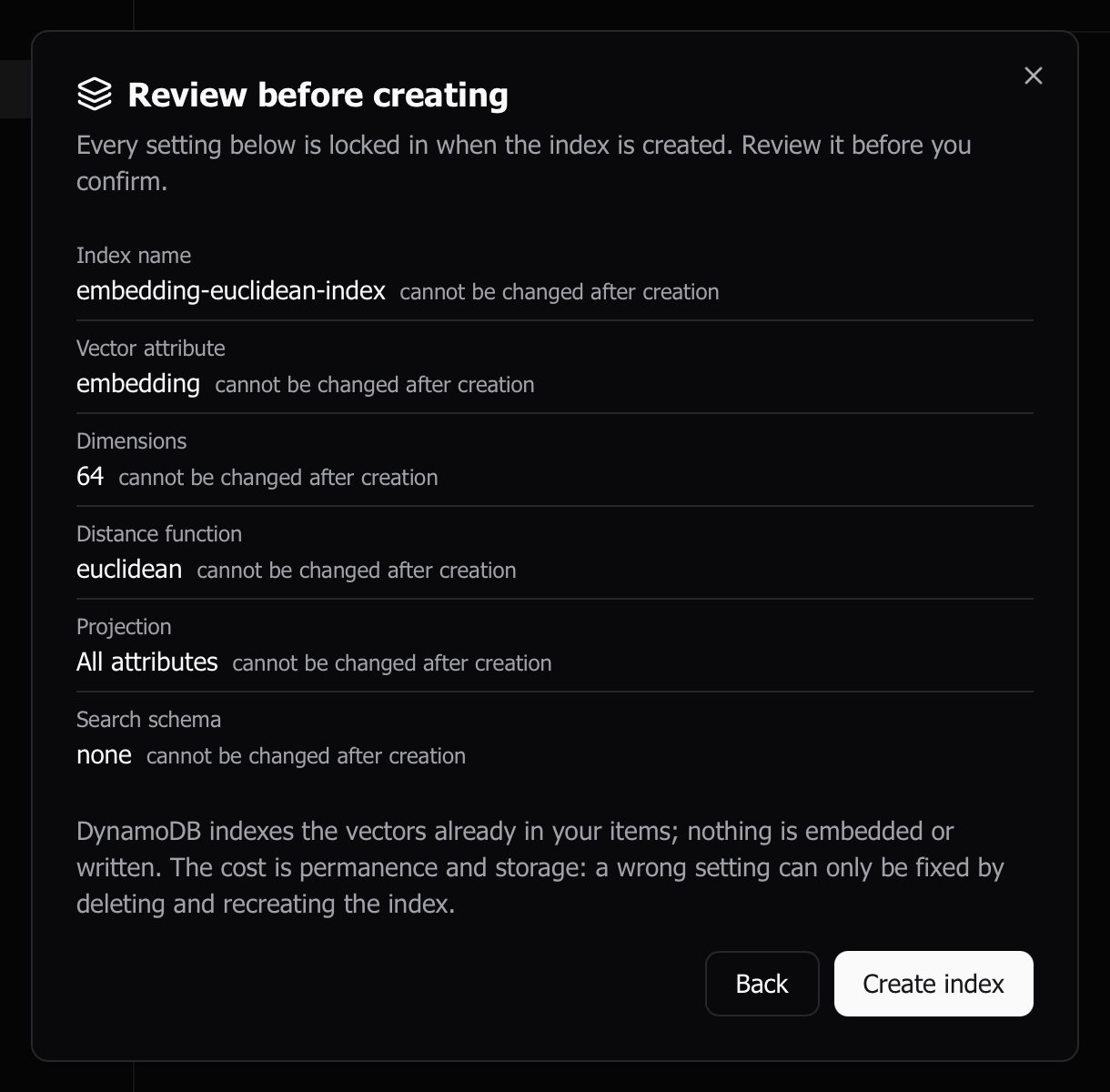
Manage Indexes can now create and delete vector indexes. Create walks through an edit step, a review step that marks every setting immutable, a production gate with the typed table name, and a waiting state that dispatches once the table returns to ACTIVE. Dimensions are prefilled from a matching recipe when one exists. The Indexes section in Table settings lists vector indexes with their coverage and reported size, and has a Refresh button.
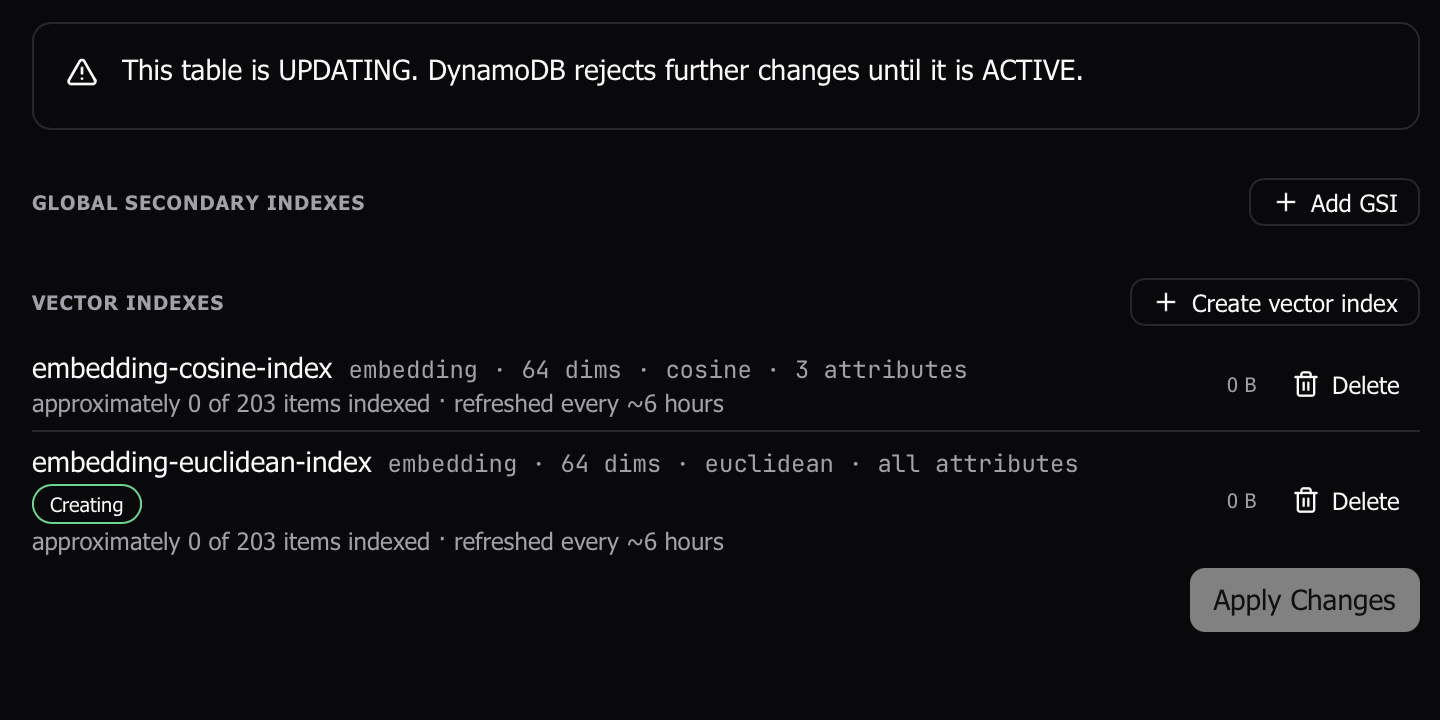
While an index is creating, updating, or deleting, every index surface shows a lifecycle pill, and Dynomatic re-describes the table every few seconds until the last index goes ACTIVE, without unmounting the grid or any cell editor you have open. The Delete Table dialog names any index still in flight and warns that DynamoDB will refuse the delete.
Export gets a dialog, more formats, and background jobs
Export to JSON and Export to CSV have been replaced by a single Export item that opens a dialog. Options sit on the left and a preview of the first five rows on the right, rendered by the same writer that produces the file, so what you see is what lands on disk. Formats are JSON, JSON Lines, CSV, and DynamoDB JSON, which keeps every type exactly and re-imports through the Import wizard without loss. Pick which attributes to include and in what order. CSV has dialect presets for Excel US, Excel Europe, and tab-separated, a choice between embedding nested attributes as JSON or flattening them to dotted paths, formula protection for cells that start with =, and an empty-cell-or-NULL choice for missing attributes. The options are remembered per table.
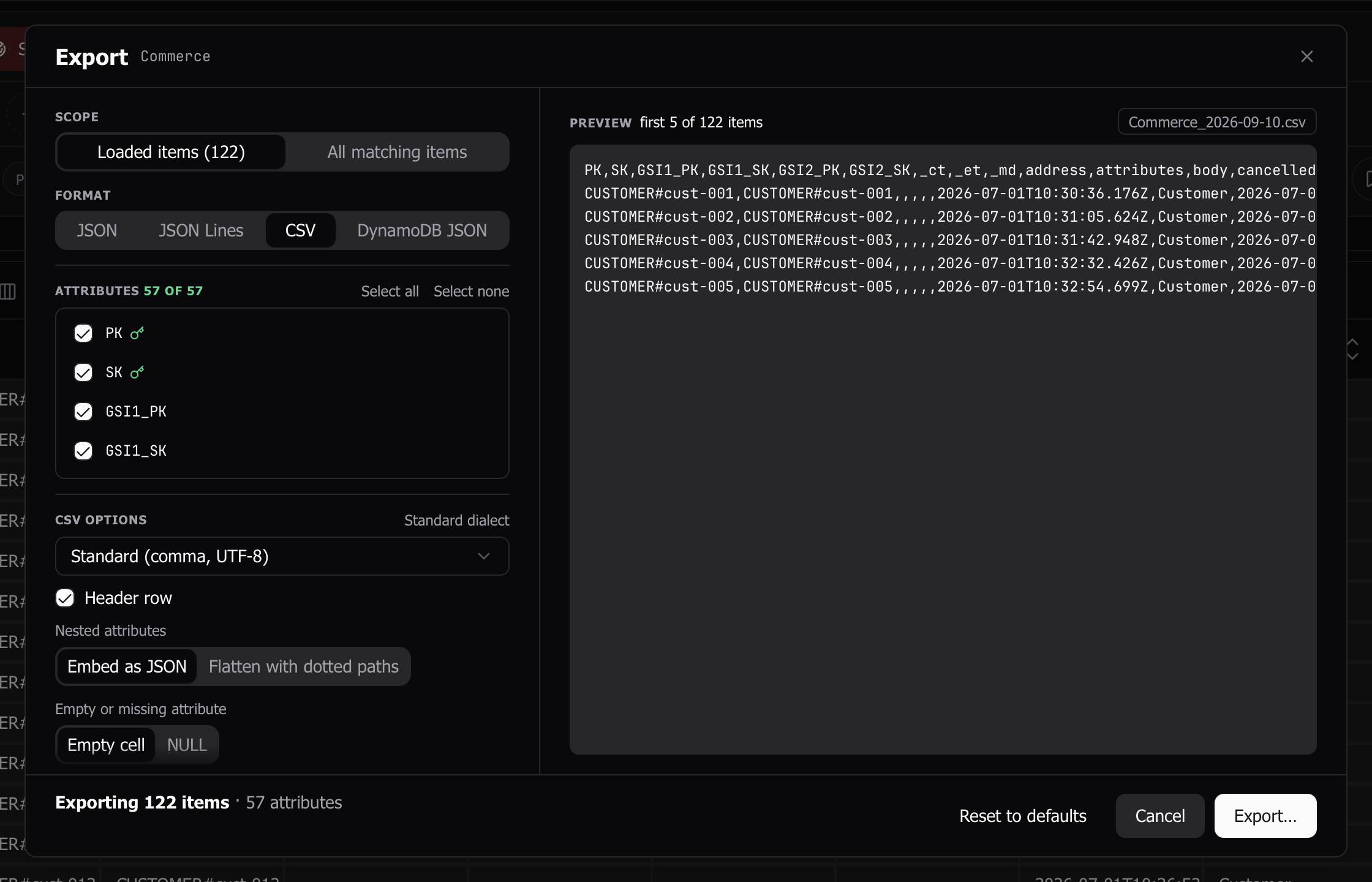
The scope control chooses Loaded items, Selected items, or All matching items. All matching items re-runs the tab’s current query or scan in the background, with the same conditions, filters, index, and projection, and streams every item to one file. The dialog closes as soon as you pick a destination, and the footer shows an estimate of items, size, and read capacity before you start. A production table asks for confirmation first.
Every export, including loaded and selected rows, now runs as a background job behind a footer pill, so a large export never freezes the app. Click the pill to open the Exports panel, which lists local and S3 jobs together with live item, byte, and capacity counters, a progress bar with an estimated time left, and Cancel, Retry, Reveal in Finder, and Copy path actions. Expanding a row shows the scope, format, attribute count, and the query that was run.
Local exports write a checkpoint after every page. An export that is cancelled, fails, or is interrupted by an app restart comes back in the panel as Interrupted and can be resumed from where it stopped or discarded, and its partial file is never left where the app cannot account for it. An item the chosen format cannot represent is skipped rather than failing the export. The skipped count shows in the panel, each skipped item is written to an errors file beside the export with its key and the reason, and the completion toast offers to show them.
The Tables page is now a popover
The Tables page has been replaced by a popover in the sidebar. Press ⌘2 or click Tables to open it: fuzzy search is focused immediately, environment chips filter the list, favorites sort first, and arrow keys plus Enter open a table. Every row keeps its right-click actions and a link into Table settings, and the footer has Create table. Old /tables links redirect to the dashboard. The status bar’s table count now applies the workspace prefix filter it always claimed to.
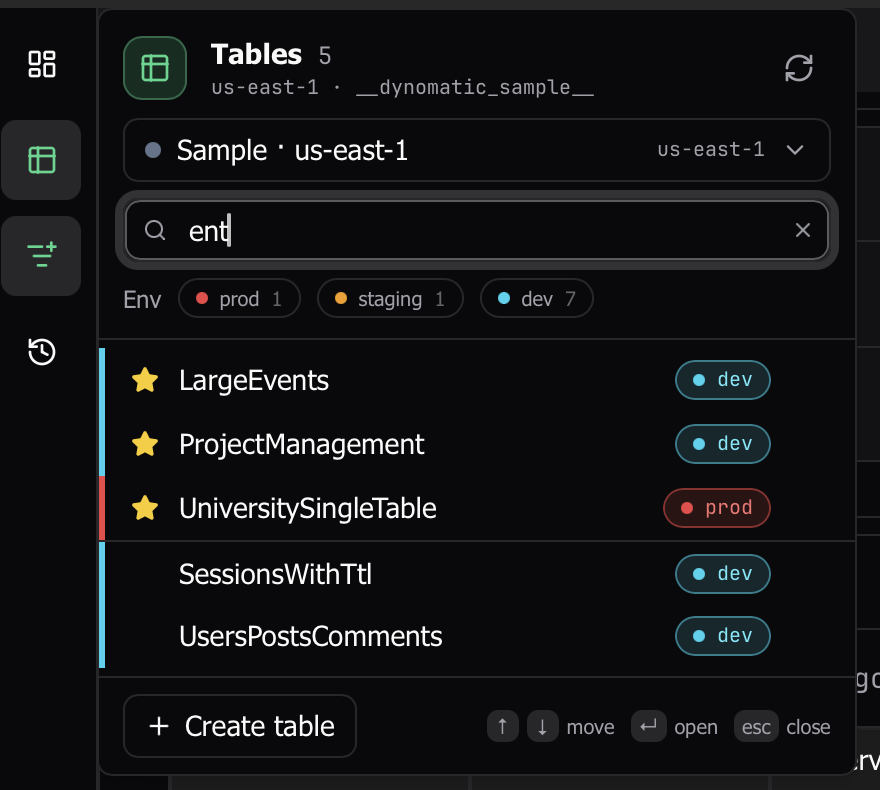
Table settings from the query rail
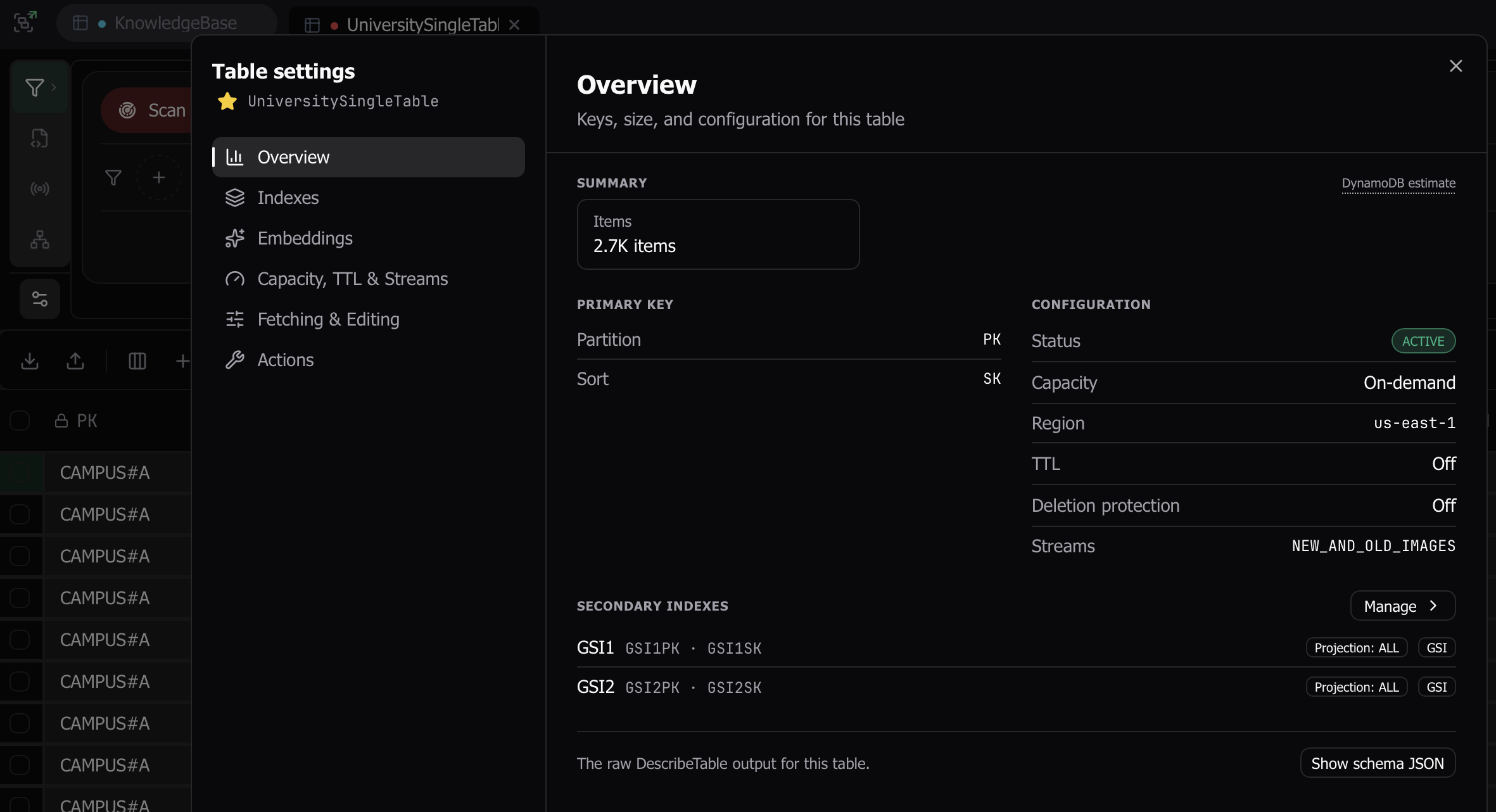
Every query tab has a Table settings control under the rail’s tabs. It opens a dialog with Overview (item count, size, average item size, primary key, secondary indexes, capacity, TTL, deletion protection, streams, and the schema JSON), Indexes, Embeddings, Capacity, TTL & Streams, Fetching & Editing, and Actions, so you can inspect or change a table without leaving the tab. Editing is locked with a stated reason on plans without table CRUD, and the same gate now applies to the underlying commands. The per-table fetch overrides in the results toolbar are now labeled “Override table settings” to keep the two apart.
A refreshed Import wizard
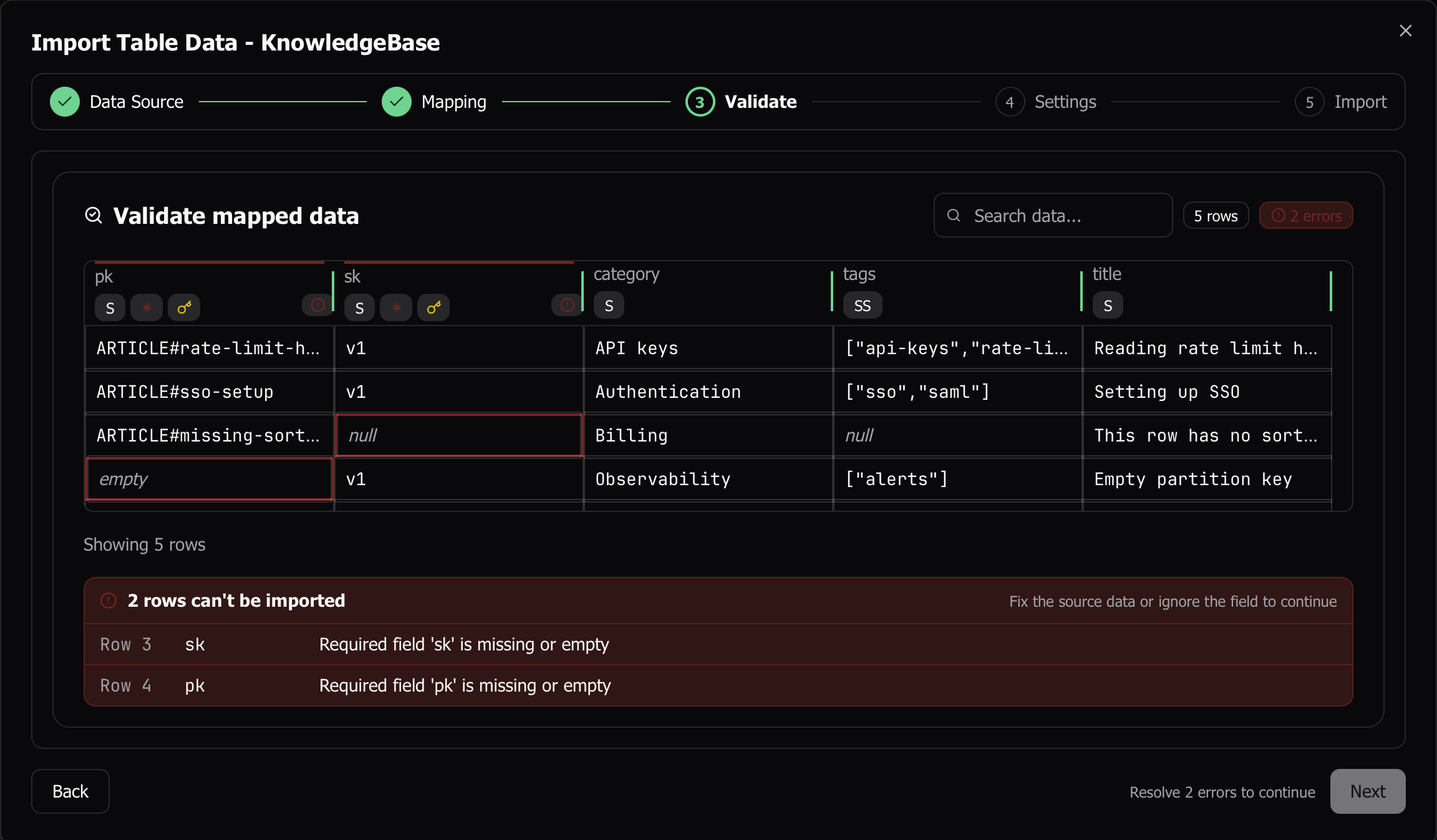
The Import wizard has a step rail and a consistent footer. The Validate step renders map and list cells as a JSON summary instead of [object Object], lists every error in a panel, and keeps Next inert until they are resolved. The Settings step describes each option and summarizes them in a chip. Once an import is running the dialog stays locked, Stop halts the queue while keeping the counts, and any batch DynamoDB rejects is listed with its item count, first and last key, and the error message, with a Copy button.
PartiQL validates as you type
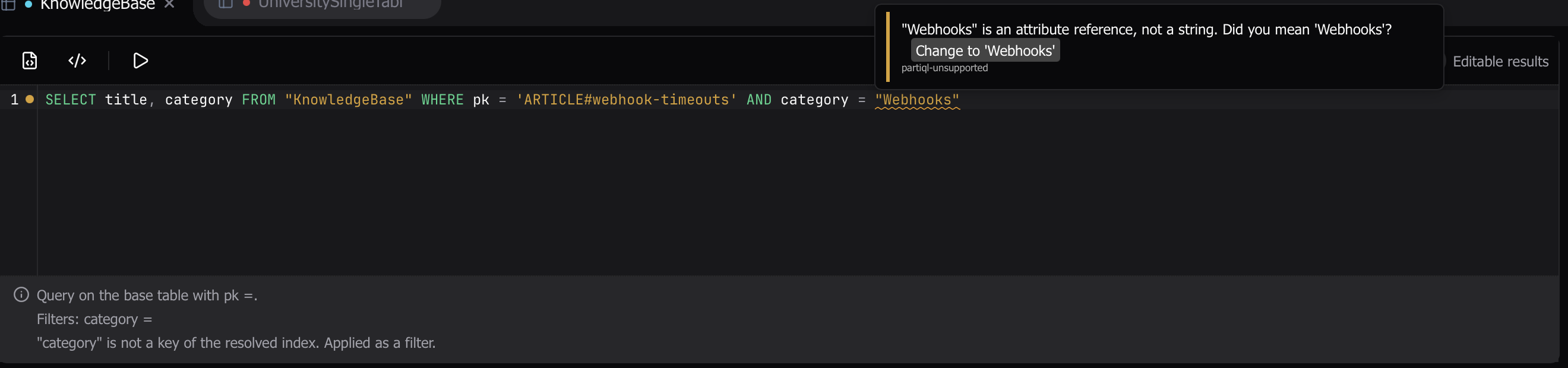
The PartiQL editor now runs a full parser on every keystroke. Syntax errors are underlined and block Run. Constructs DynamoDB rejects, such as an unsupported IN form, are shown as warnings with a quick fix, and DynamoDB stays the final arbiter for anything the parser only suspects. Template variables inside a statement are understood and never produce false errors.
Workspaces follow your profiles
- Renaming a profile in the editor now carries its workspace along: tabs, saved queries, settings, and schema mappings keep working under the new name, and a rename that would collide with an existing workspace is refused with the conflict named.
- When a profile disappears from your AWS config, its workspace row shows a “Profile missing” badge and offers to archive the workspace, listing what it owns. If the profile comes back, the workspace is revived automatically. Archived workspaces are listed in the connections popover, where you can delete one and its data for good.
- Two profiles that resolve to the same AWS account and region get a “Same account” badge and a merge offer. Merging keeps one workspace and moves everything owned by the others into it. Choose “Keep separate” to dismiss the offer. Table settings are shared between same-account siblings either way.
- Dynomatic records the AWS account id for each workspace when it connects, which is what powers the same-account detection.
AI settings split into Completions and Embeddings
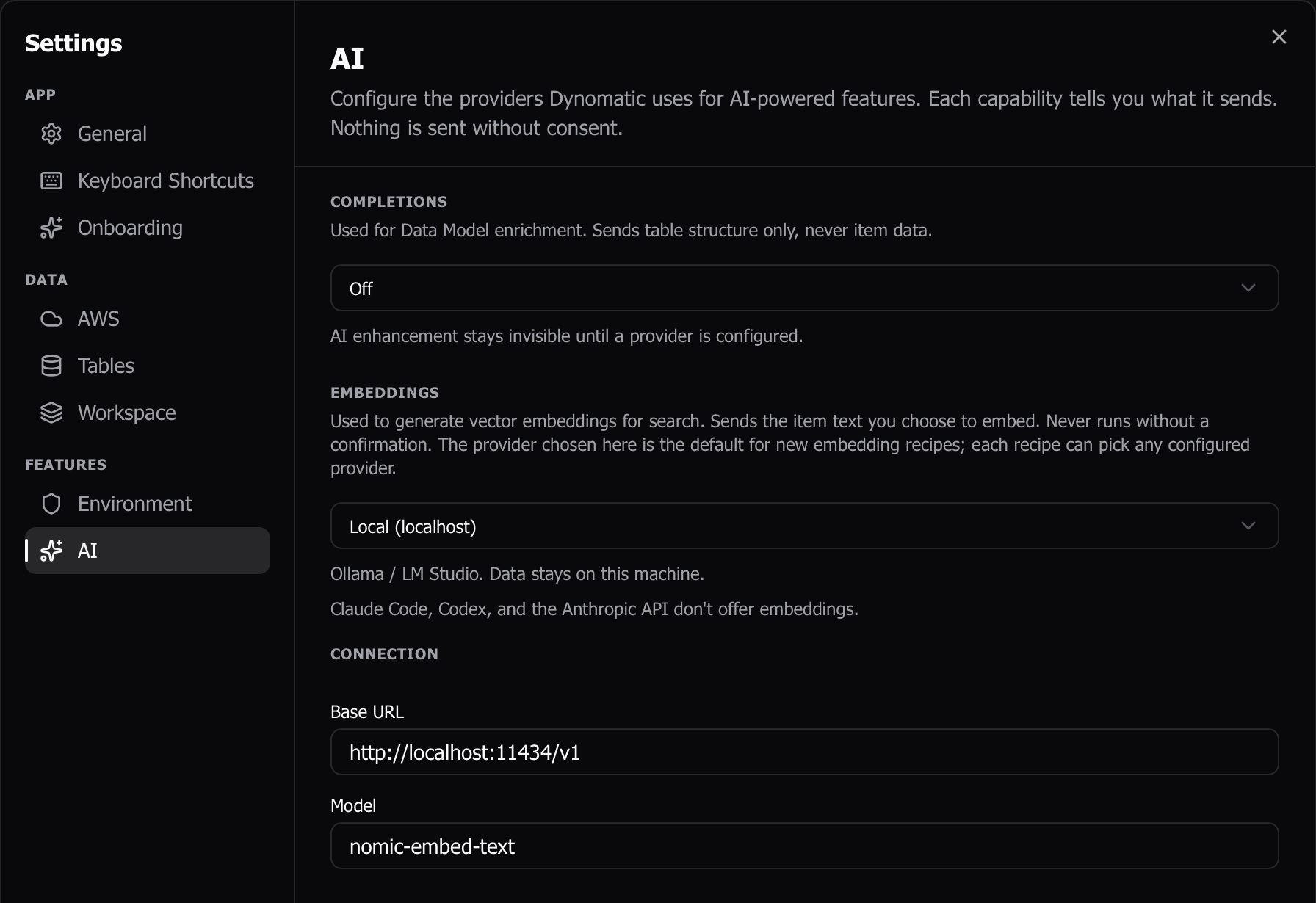
Settings → AI now has two sections. Completions covers Enhance with AI, and Embeddings covers recipes. Each picks its own provider from the kinds that support that capability, with the connection fields shared when both use the same provider. The Bedrock model picker lists embedding models in the Embeddings section, and Test reports the dimensions an embedding model returns.
Sample Mode
Sample Mode ships with Dynoxide 1.1.0, which serves vector indexes. A new KnowledgeBase table holds 203 help-center articles with a cosine vector index, a seeded embedding recipe, and a saved vector query, so you can try vector search without an AWS account. The Embeddings pane is live on sample tables under the same consent gates as production. Consumed capacity in Sample Mode now follows DynamoDB’s rules, so the RCU and WCU figures read the same as on AWS. Re-entering Sample Mode after a relaunch no longer reseeds the whole database, which takes about a second instead of twelve.
Other improvements
- Schema mode has a Key fields toggle for the table’s physical key columns, including GSI keys from other entities. Turn it off to hide them. The choice is remembered per table.
- A Projection pill on the Filters bar chooses which attributes Scan and Query return. Vector attributes are left out by default, the choice is saved per table, and a cell that was left out reads “not loaded”, so a scan of a vector table no longer pulls every vector.
- Inferred access patterns that listed the same children under several names (a building’s rooms, courses, and so on) now collapse into one ListSubtree or ListSiblings pattern.
- Numbers pass through the scripting bridge with their exact DynamoDB precision, and binary attributes arrive intact.
- Profiles created by
aws loginno longer fail with a raw NoRegion error. Dynomatic passes the sign-in region to credential export and logout, and a missing region names the exact config section to fix. - Opening several tabs on an MFA profile at once no longer prompts for a code more than once or burns the one-time code.
- Unhiding a relationship in the Data Model returns it to Inferred instead of leaving it marked as curated.
- Quitting Dynomatic now stops the Dynoxide and local-model sidecars instead of leaving them running until the next launch.
- Stopping a running Python script works even when another script tab is busy.
- Leaving Sample Mode removes the sample workspace from the switcher and dashboard right away, and Reset no longer leaves the session pointed at a deleted workspace.