
Sample mode, Excel-style cell navigation, and a redesigned table actions bar
Try Dynomatic without an AWS account, navigate the data table like a spreadsheet, and see exactly what you've staged (added, modified, deleted) without opening a dialog.
Sample mode, Excel-style cell navigation, and a redesigned table actions bar
A big release. You can now try Dynomatic without an AWS account, the data table feels like a spreadsheet under your fingertips, and the new table actions bar keeps your pending edits visible at all times. No more opening a dialog just to find out what you’ve changed.
Sample mode
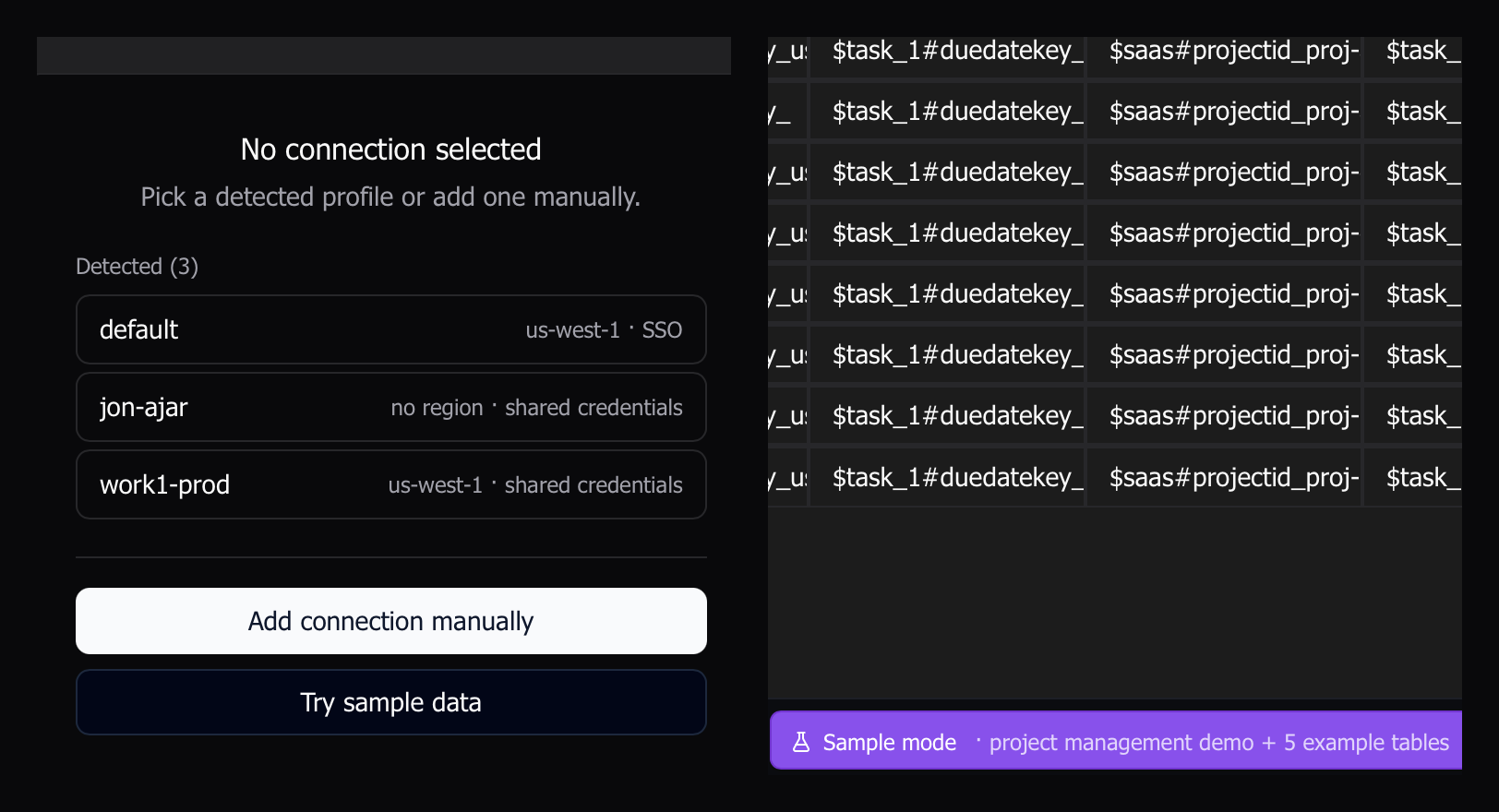
You no longer need an AWS account to try Dynomatic. The new empty state (what you see on a fresh install) offers a Try sample data path that boots a local DynamoDB instance (dynoxide), seeds it with realistic sample tables, and drops you straight into the app. Everything works against the sample profile exactly as it does against a real account: queries, the data table, history, schema, and the editor. When you’re done exploring, Reset Sample Data clears the seeded rows in one click. No JVM, no Docker. Dynomatic bundles the local DDB sidecar for you.
Already past the onboarding stage? Existing users can reset the onboarding experience from Settings to drop back into the new launcher and pick up sample mode from there.
Excel-style cell navigation in the data table
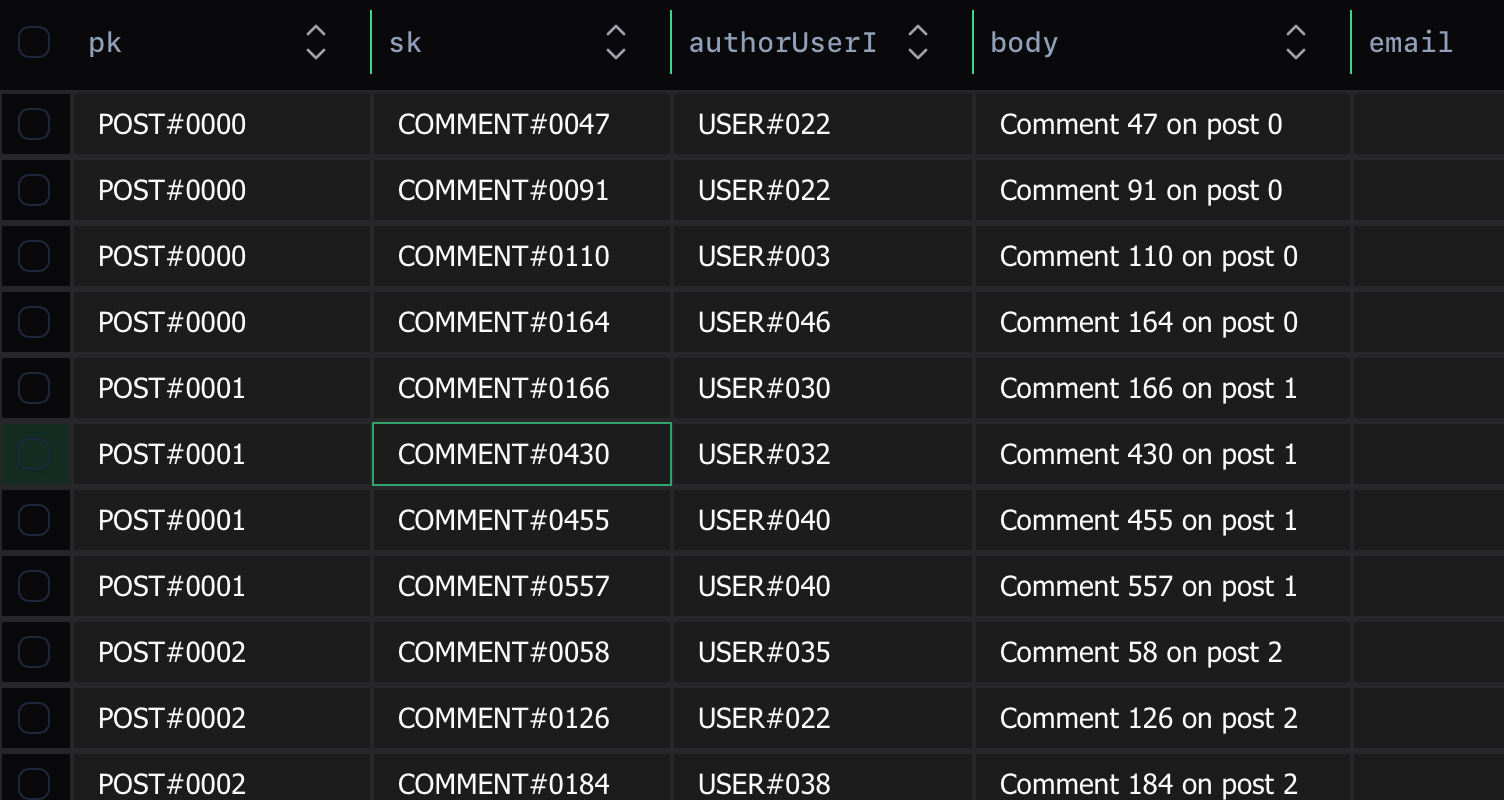
The data table now navigates cell-by-cell instead of row-by-row. Arrow keys move between cells with edge clamping, Cmd/Ctrl+Arrow jumps to the edge of the table in that direction, and Enter starts editing the focused cell. The active cell picks up a green border; the active row’s pinned columns pick up a subtle tint so you don’t lose your place when you scroll horizontally. If you’ve ever wanted Dynomatic to feel more like a spreadsheet under your hands, this is it.
Redesigned table actions bar with at-a-glance pending changes
The data table’s bottom toolbars are gone. A single 48 px table actions bar sits above the data table, hosting Export / Import / Columns / Add row, and selecting any row slides it into a takeover that exposes Delete / Copy to Table / Copy to clipboard the moment you need them.
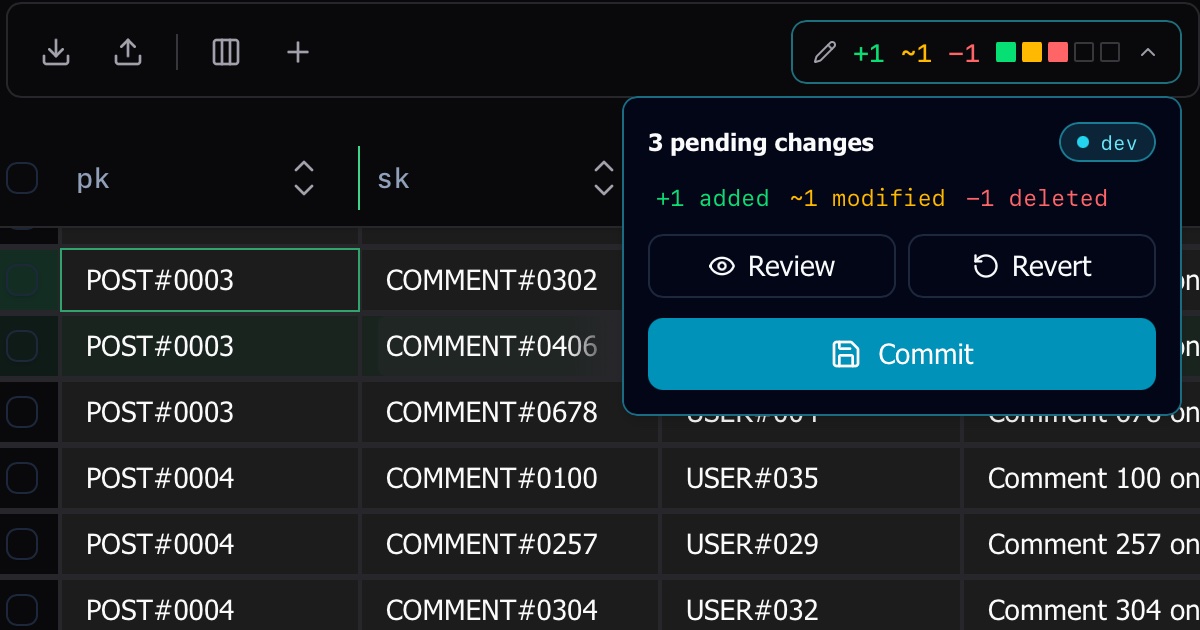
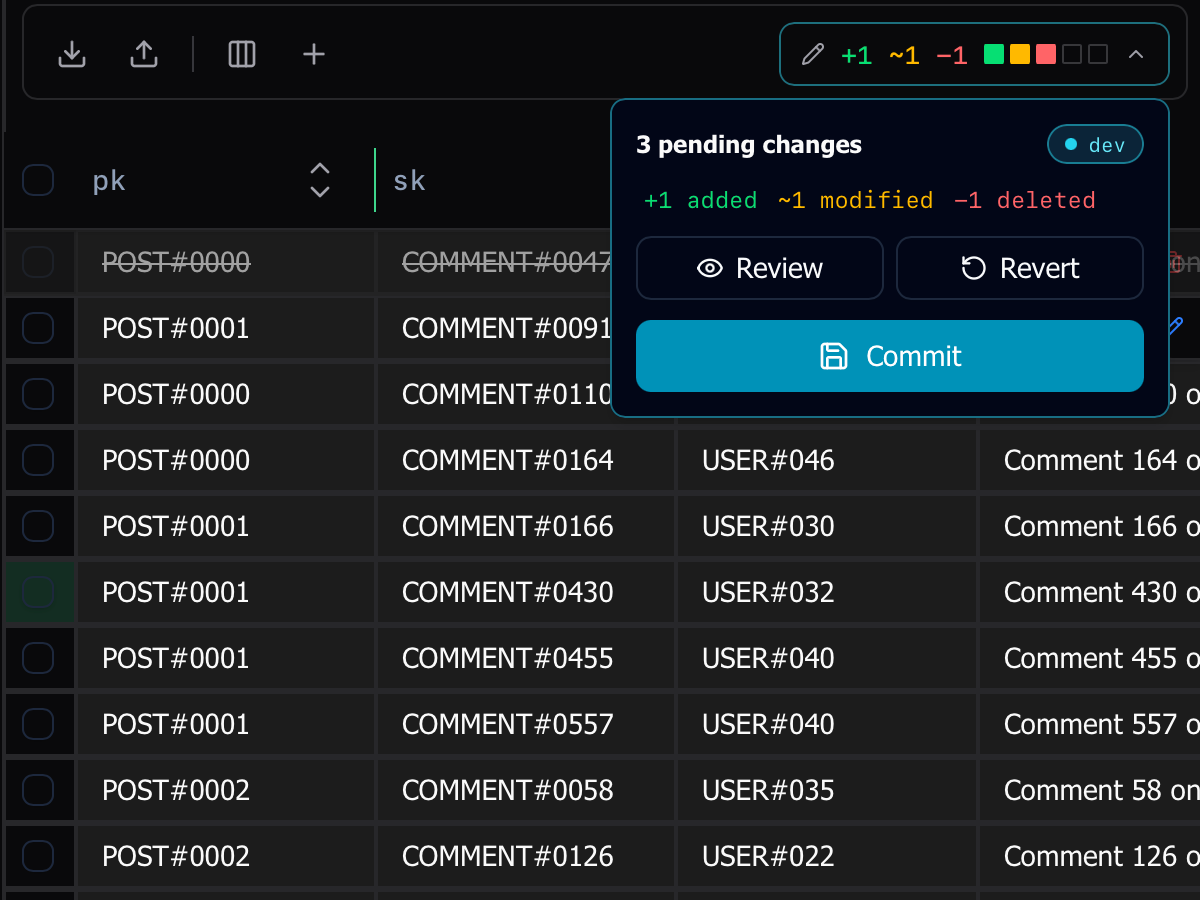
The headline addition is the pending-change DiffChip on the right edge of the bar. Previous releases hid your staged edits behind a dialog; now a running tally is always on screen: +1 added, ~2 modified, −1 deleted in colored counts, alongside a strip of squares with one square per pending edit so you can see the shape of your changeset at a glance. The chip and its popover are tinted to match the active environment, so a quick look at the toolbar tells you which environment is about to be committed to. Click the chip and the popover surfaces the same tallies in full text, a prominent Commit button under Review and Revert, and the environment pill in the corner. Or click any individual square in the chip to deep-link straight into the Pending Changes dialog with that change type pre-filtered.
Down at the bottom, the status bar adopted grouped pills: profile, region and session timer all live in compact footer pills along with the quick-access table selector and table count.
Other improvements
- Path-based onboarding replaces the old 6-step wizard. On launch, Dynomatic detects local AWS profiles and offers them as one-click entry points alongside Add connection and Try sample data.
- Command History filters: free-text search across table, index, expression, error, profile, and attribute values; a Date range select with All time / Last hour / Today / Last 7 days / Last 30 days presets; and dedicated Region and Table selects. The existing operation and status pill counts now preview “what would show if I clicked this.”
- Keyboard shortcuts for sidebar navigation: Cmd/Ctrl+1…5 jump straight to Dashboard, Tables, Query, Schema Query, and History. Cmd/Ctrl+Shift+F/P/R open Feedback, Profile, and Region.
:querypalette filter: type:queryin the command palette to scope results to your saved queries.- Theme picker moved out of the sidebar and into General Settings where it belongs.
- Prompt before opening duplicate table tabs: clicking a table you already have open now confirms instead of silently switching focus.
- Better error messages: the UI now surfaces the actual Rust error from the backend instead of a generic “something went wrong”.
- Manage link appears next to your plan name on the user card, so subscription management is one click closer.
- Data table polish: row heights, filter-menu overflow, and the inline editor’s side-flip behavior near the right edge are all fixed.
- Update check spinner: the “Check for updates” button now shows a spinner while the check is in flight instead of looking inert.