
Live-tail DynamoDB Streams, a unified export menu, and per-table settings
A live-tail DynamoDB Streams viewer, one always-visible export menu with one-click JSON/CSV copy, per-table fetch overrides, guided in-app tours, and a fix for a copy-to-clipboard crash.
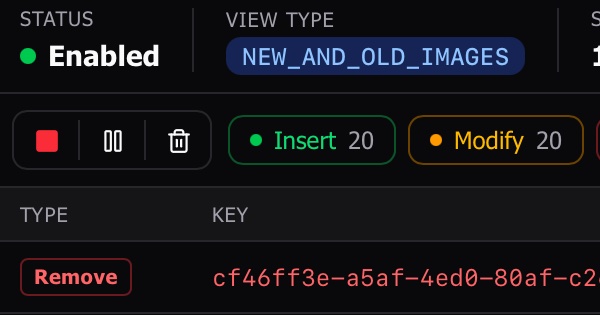
Live-tail your DynamoDB Streams
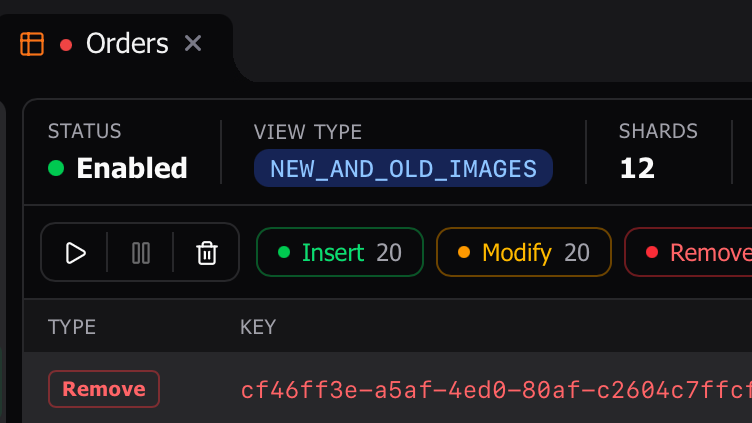
Stream-enabled tables get a new Streams tab in the table view. Start a tail and inserts, modifies, and removes stream in as they happen — no manual refresh. The transport controls let you Start/Stop, Pause/Resume, and Clear the buffer, and a status pill shows whether the tail is Live, Paused, Throttled, Idle, or in an error state.
Each event lands in a grid with its type, partition/sort key, approximate size, and millisecond-precision timestamp. Selecting one opens a detail panel that uses the same change-diff language as pending changes: modified fields show the old value struck through next to the new one, added fields are green, removed fields are red, and TTL-expiry deletions get their own badge. Filter the buffer by event type or search by key value (press / to jump to search), and the captured records survive switching tabs or navigating away and back.
The Streams Viewer is available on paid plans and appears only for tables that have streams enabled.
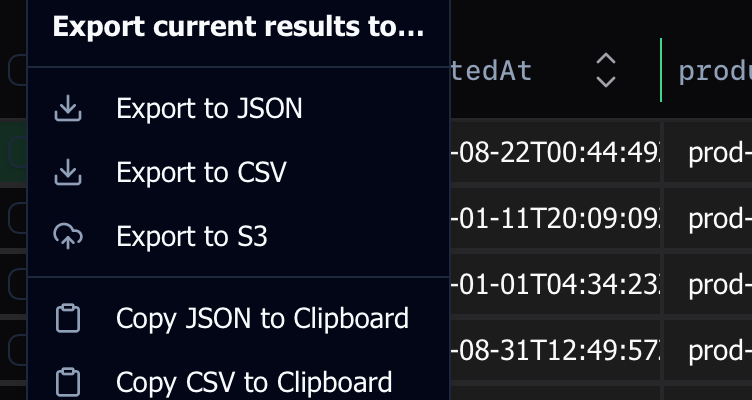
One menu for every export
Exporting and copying are now consolidated behind a single export menu that’s always visible in the table action bar — in both normal mode and when you have rows selected. Export to JSON and Export to CSV are now explicit choices with a format-locked save dialog, instead of guessing the format from the filename you type. Alongside them, Copy JSON and Copy CSV put the same data on your clipboard in one click.
When you’ve selected rows, the menu scopes to just those rows and sits next to Copy-to-Table; with nothing selected it acts on the whole result set. Export to S3 remains a whole-table action on paid plans. Clipboard copies are capped at the same row limit as file exports, with a toast letting you know when a copy was clamped.
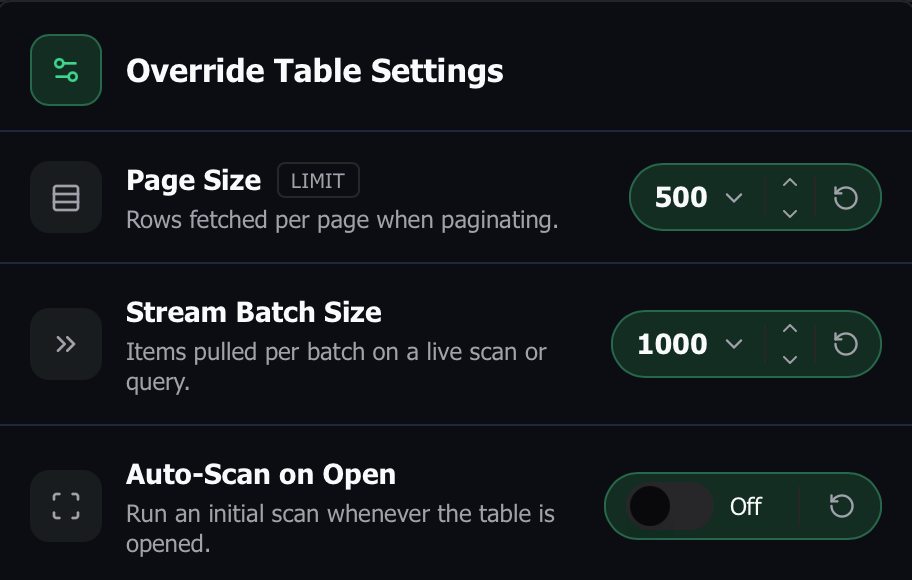
Per-table fetch settings
A new settings control on the table toolbar lets you override fetch behavior for an individual table without changing your global defaults. You can set the page size (limit), stream batch size, and auto-scan on open per table; leave a field empty to inherit the global value, which is shown inline as a placeholder. Numeric fields offer quick presets (100/250/500/1000) and steppers, auto-scan is a simple switch, and any field can be reset back to the global with one click.
When a table has overrides, a green badge appears on the toolbar control so you can tell at a glance. Setting an override equal to the global value cleanly collapses back to “inherit,” so the badge and overrides only ever reflect a real difference.
Short guided tours
A few of the app’s surfaces now offer a short, anchored walkthrough the first time you reach them — a small bubble that points at a control, with a highlight ring, that you can step through or dismiss with Esc. The first tours cover the streaming query controls, the connection/workspace row, and the new Streams Viewer toolbar. They appear once and stay out of your way afterward, and you can replay them anytime with Reset feature tours in Onboarding settings.
Other improvements
- Fixed a crash that could occur when copying to the clipboard on macOS. Clipboard reads and writes now run on the main thread, resolving a segfault that some copy actions hit in 0.9.2.
A small patch tightening up sample mode and the query builder.
- Fixed a crash in sample mode when working with the query builder, and added a status-bar pill that makes it clear when you’re viewing sample data.
- Run and Refresh in the query builder are now blocked when the associated workspace isn’t connected, so you no longer fire a query against a workspace that can’t answer it.
- Fixed a regression that kept the filter menu from showing fields — it now picks up columns from cached results, so you can filter on those fields without re-fetching first.