
An MCP server, a rebuilt command palette, and background jobs
Dynomatic 1.2.0 lets AI agents work through the app with an MCP server, rebuilds the command palette, and moves long writes and imports into background jobs you can pause and resume.
An MCP server, a rebuilt command palette, and background jobs
Dynomatic 1.2.0 adds an MCP server, so Claude Code, Cursor, Codex, and other agents can work through the app you already have open. We rebuilt the command palette so it reaches every command in the app. Long writes, imports, and embedding backfills now run as background jobs that pace themselves to the table’s capacity and survive a quit. This release also lets you bulk edit rows, undo single writes from a new History mode, import DynamoDB exports from S3, and see what a scan will cost before you run it.
Connect AI agents through the MCP server
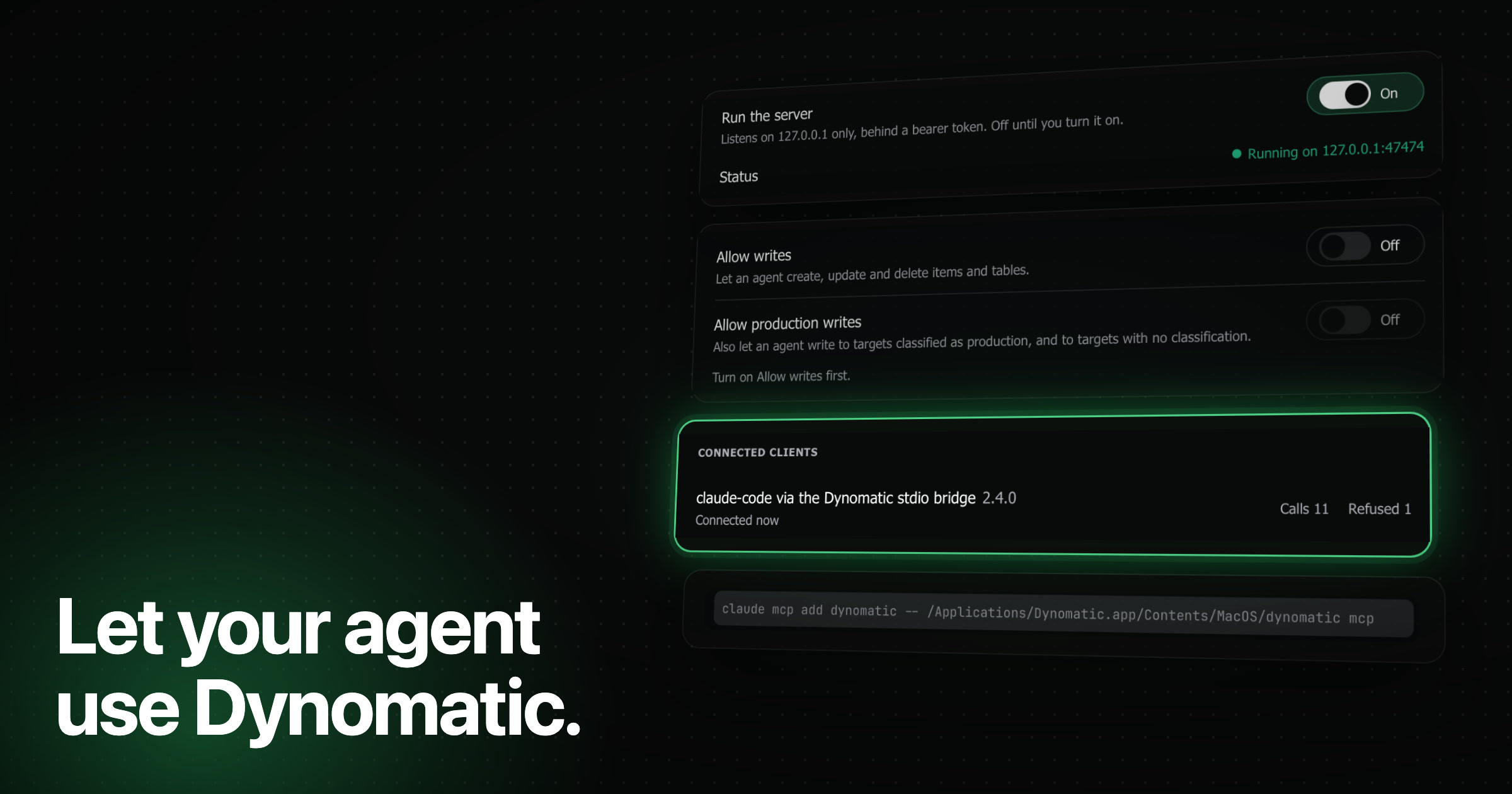
Dynomatic now runs a Model Context Protocol server inside the app. An agent that connects gets tools to list profiles, describe tables, run queries and PartiQL, write items, run scripts, export data, and open a table in front of you. On a table with a vector index, it can also search by meaning. Every call uses the profiles and sessions you already have, so an SSO or MFA session you signed in to covers the agent too. The server listens only on 127.0.0.1, and no credential ever reaches the agent.
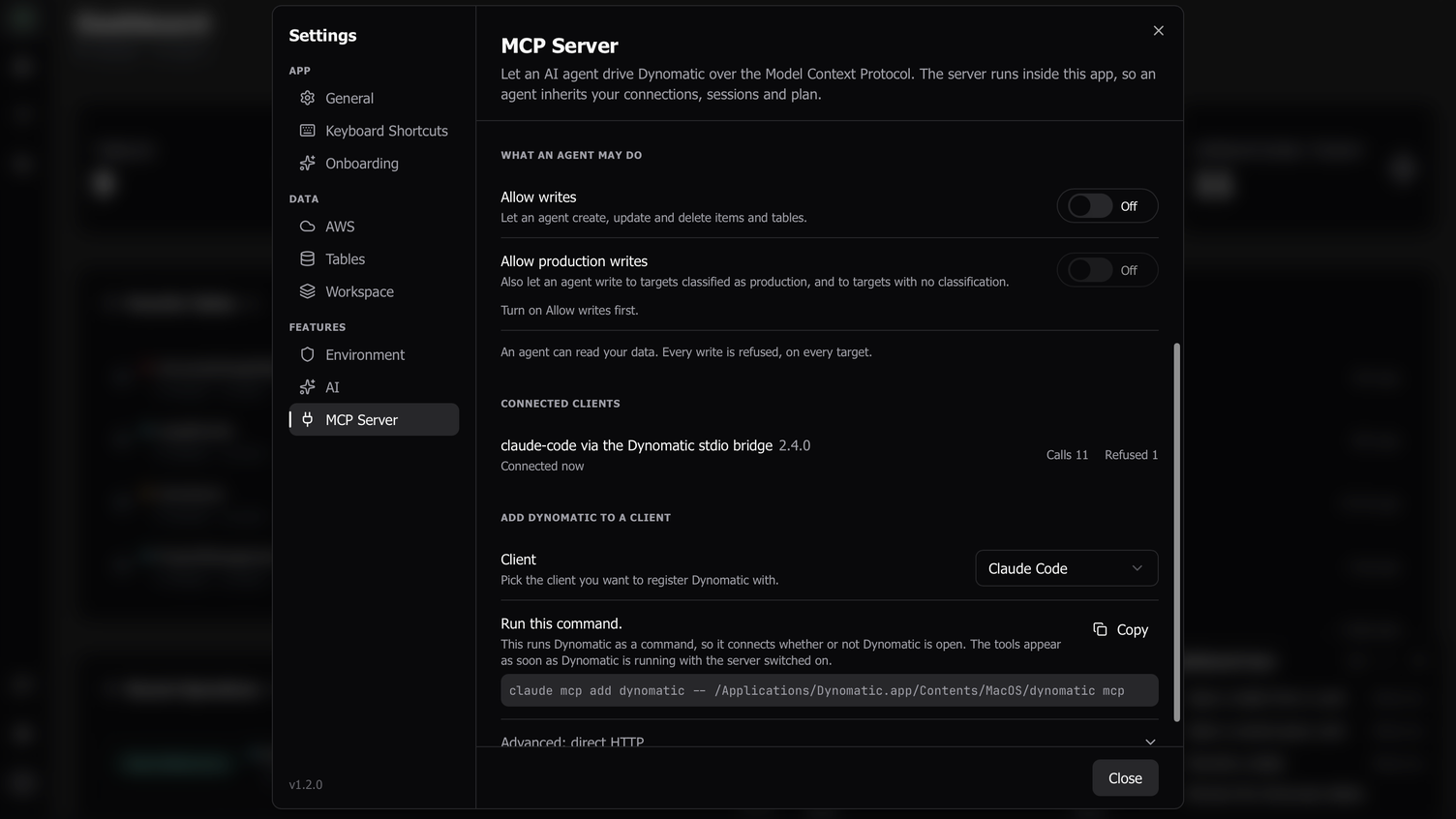
The server is off until you turn it on in Settings → MCP Server. It starts read-only. Allow writes lets an agent write to tables classified as staging or development. Allow production writes lets it write to every other table, including tables Dynomatic could not classify. When the server refuses a call, the answer tells the agent which switch to turn on. The pane lists each connected client with its Calls and Refused counts, and lets you reveal or rotate the access token.
Add Dynomatic to a client prints the registration for Claude Code, Claude Desktop, Cursor, VS Code, Windsurf, Zed, Codex, or any other client, with this build’s path filled in. The recommended form runs dynomatic mcp, a bridge built into the same binary. With the bridge, no token goes into a config file, and the client keeps working after you rotate the token or restart the app.
When an agent wants to show you a table, show_table fills the query into a query tab and waits for you to press Run. Exports that an agent starts appear in the footer pill, the same as your own. The MCP server needs the Pro plan, but it works without one in Sample Mode. The MCP server docs cover every tool and refusal.
A rebuilt command palette
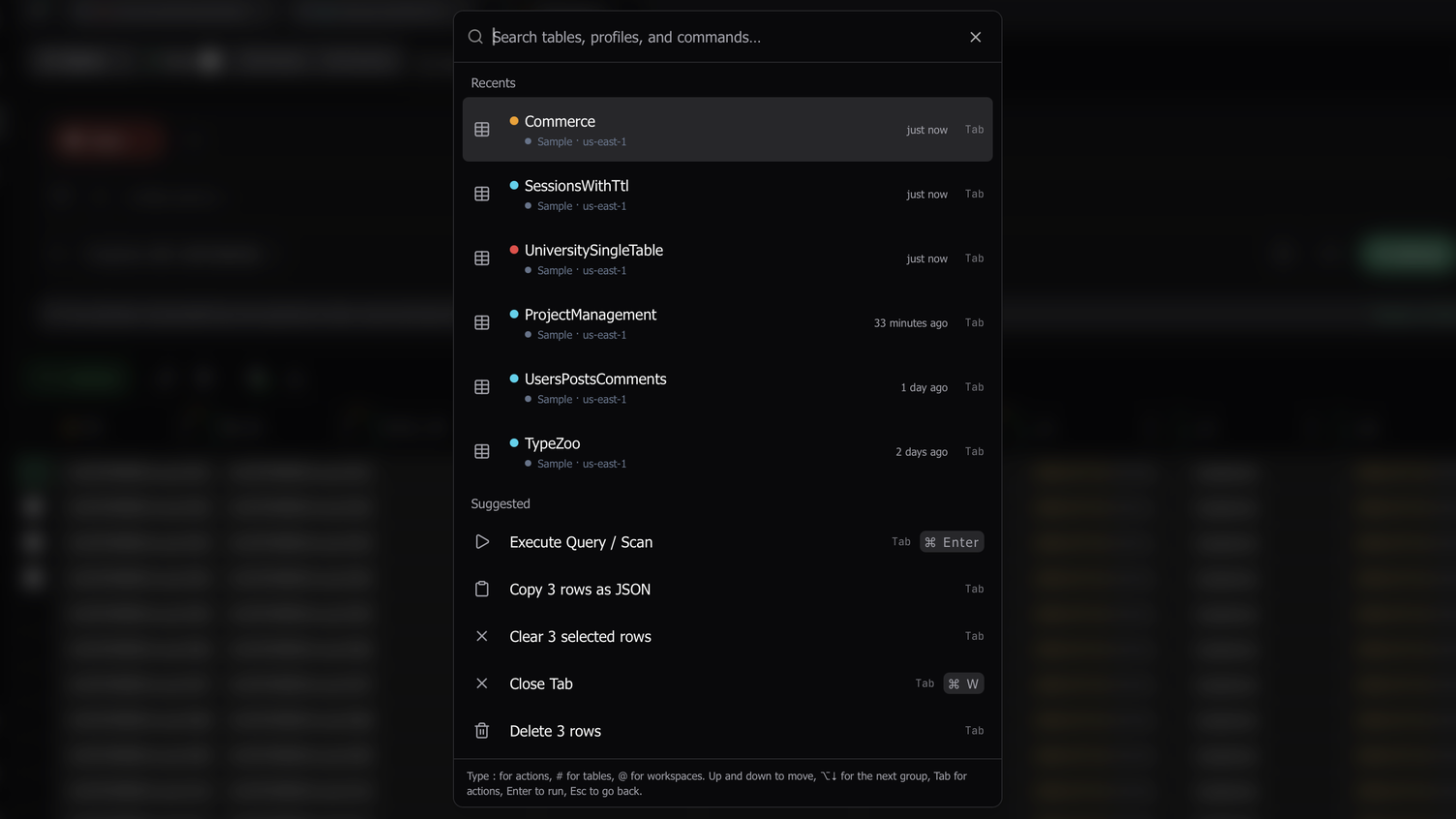
Every button, menu item, and shortcut in the app now runs a command from one shared list, and the palette searches that whole list. It also searches your tables, favorites, saved queries, saved tab groups, and workspaces. To open the palette, press ⌘ K on macOS or Ctrl + K on Windows and Linux.
- Before you type, the palette lists your recent tables and commands. It also suggests commands for what is in front of you, such as the commands for the rows you have selected.
- Rows you choose often rank higher. The boost fades over a few weeks if you stop choosing them.
- To search one kind of result, start with
:for commands,#for tables, or@for workspaces. - A command whose name ends in
…opens a page inside the palette. Query by index…, Switch to tab…, Sort results…, and Connect a workspace… list their choices there. - To see a row’s actions, press Tab.
- To jump between groups, press
⌥ ↓or⌥ ↑. - Destructive commands ask for confirmation first.
- Selection commands show the real count, as in Delete 3 rows.
- You can give any command a keyboard shortcut in Settings → Keyboard Shortcuts, which now has a search field.
Background jobs for large writes and imports
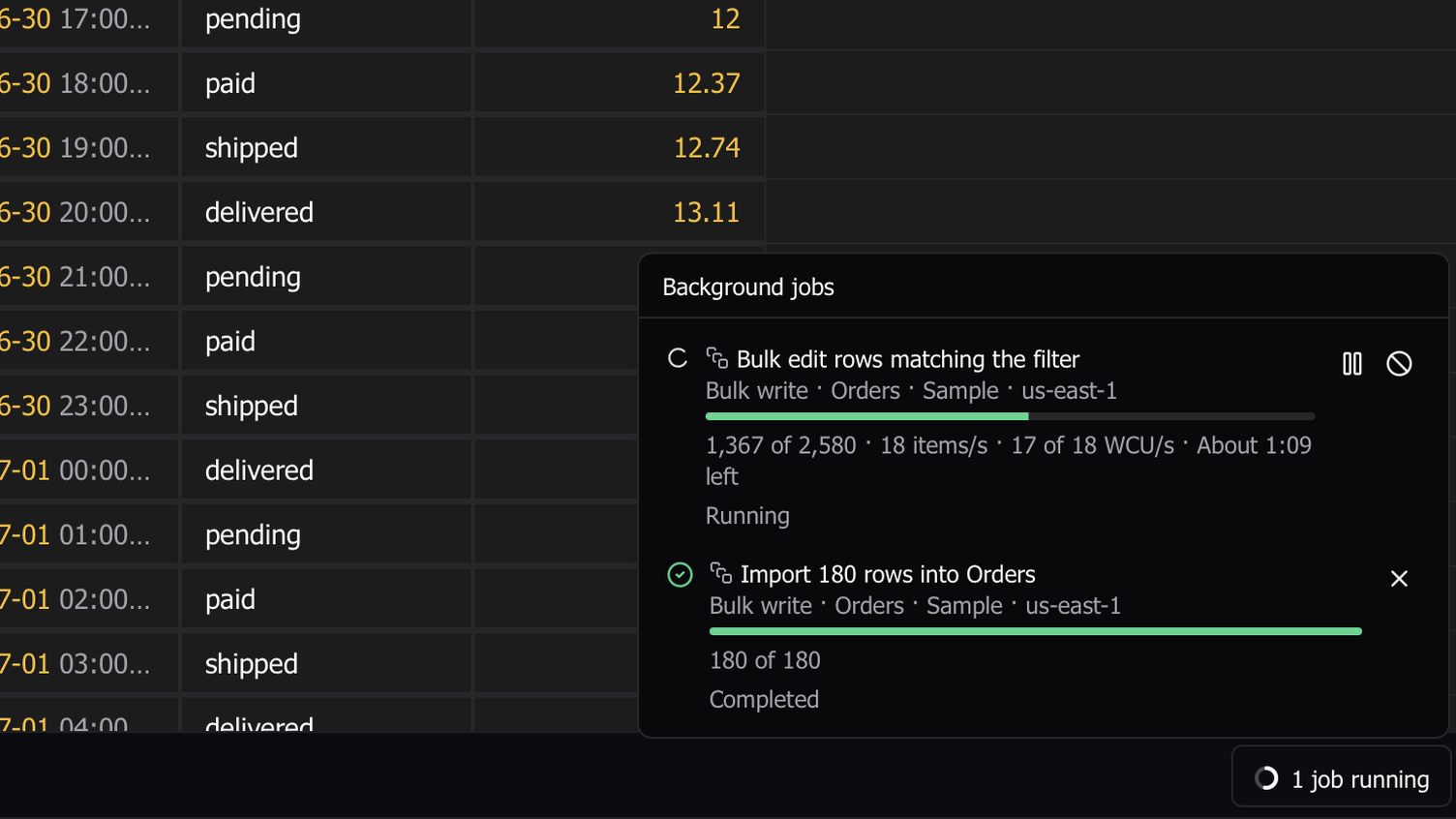
Large writes now run as background jobs behind a Jobs pill in the footer. Large commits from the grid, bulk edits over every matching row, file and S3 imports, large text imports, and embedding backfills all run as jobs. After you start a native DynamoDB import, a job follows it until DynamoDB finishes. The Jobs panel shows live counters for each job and lets you pause, resume, cancel, or retry it.
Each job paces itself to the table. When DynamoDB throttles, the job backs off, and when the throttling stops, it speeds up again. Two jobs on the same table share one write budget, so together they never write faster than one job could. Reads that feed a job use at most 70% of the table’s read capacity. When you quit Dynomatic, it pauses running jobs at a checkpoint, and they resume where they stopped. A finished job adds one entry to History with the capacity it consumed.
Bulk edit rows and commit as one transaction
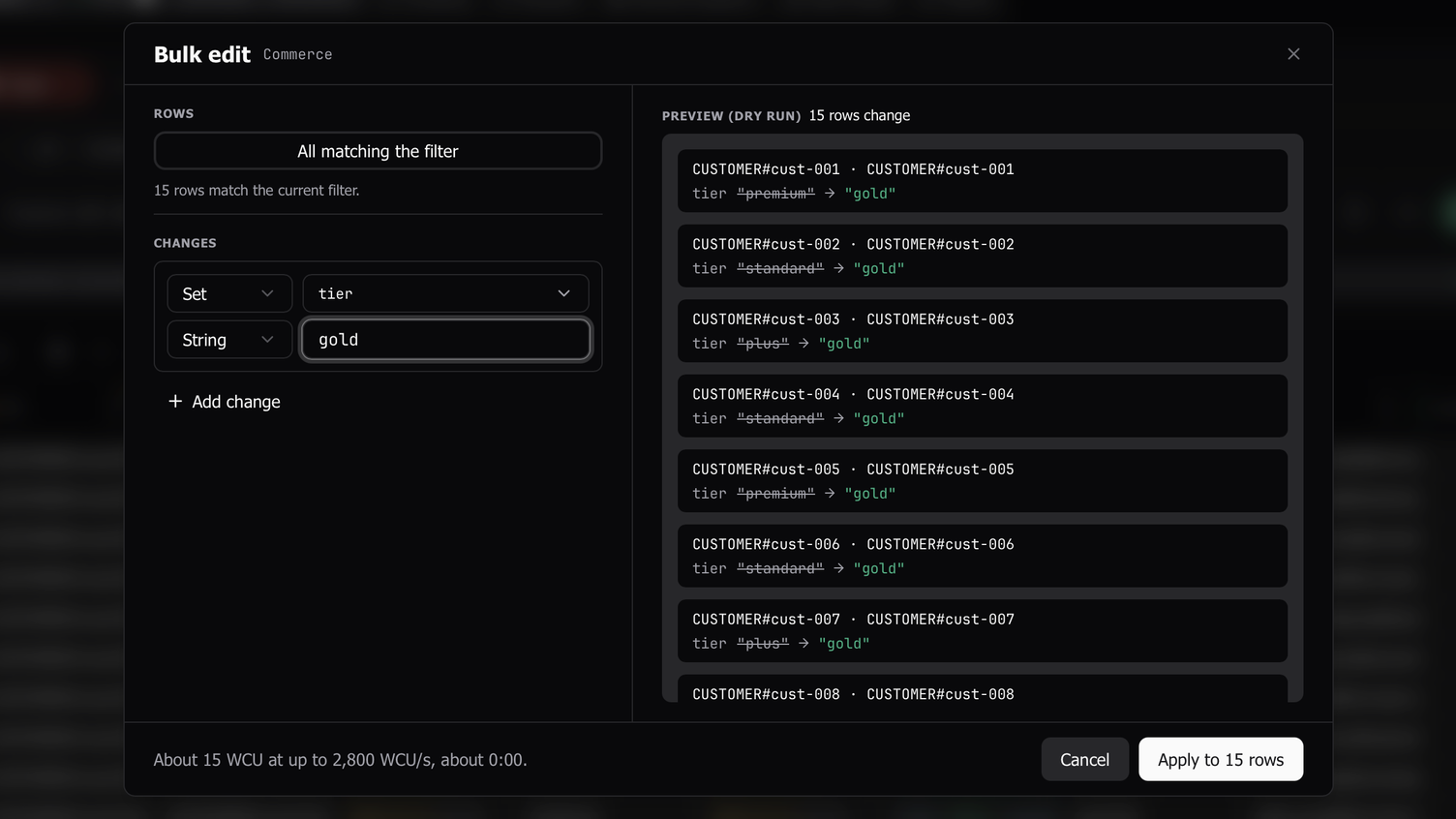
The new Bulk edit dialog sets attributes to a typed value, or removes them, across the selected rows or every row the current filter matches. The right side of the dialog shows a dry run of each change before Dynomatic writes anything. Stage adds the changes for the selected rows to your pending changes for review. Apply writes the change to every matching row as a background job.
You cannot edit the table’s primary key. You can edit secondary index keys, and each change row notes which indexes the item moves into or out of. To open Bulk edit, use the Filters toolbar, the selection bar, or the palette.
The pending changes popover and the Pending Changes sheet have a Commit as one transaction checkbox. When you check it, Dynomatic sends every pending change in one TransactWriteItems call, so either all of them land or none do.
History mode with undo
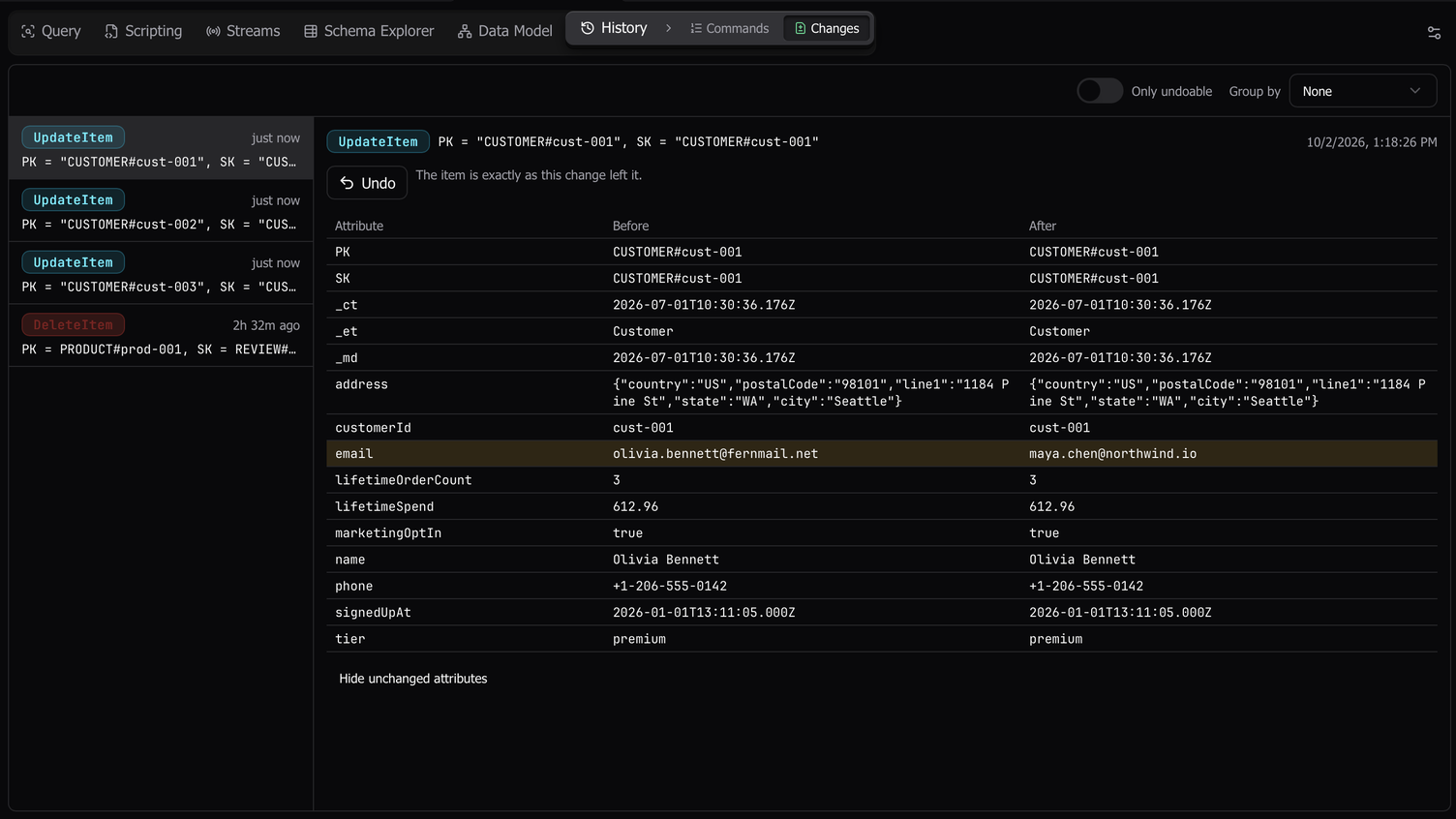
Query tabs have a new History mode with two views. Commands lists the History page’s entries for the tab’s table. Changes lists the writes to the table, shows an attribute diff for each single-item write, and offers Undo.
Undo restores only the attributes that the change touched. It runs only if a consistent read finds those attributes as the change left them, so it never overwrites a later edit. You can group changes by item key. The Only undoable switch checks each change and hides the ones you can no longer undo. Because each check reads the item, the switch asks before it uses read capacity.
Import DynamoDB exports from S3 and JSON files
The Data Source step of the Import wizard has two new tabs.
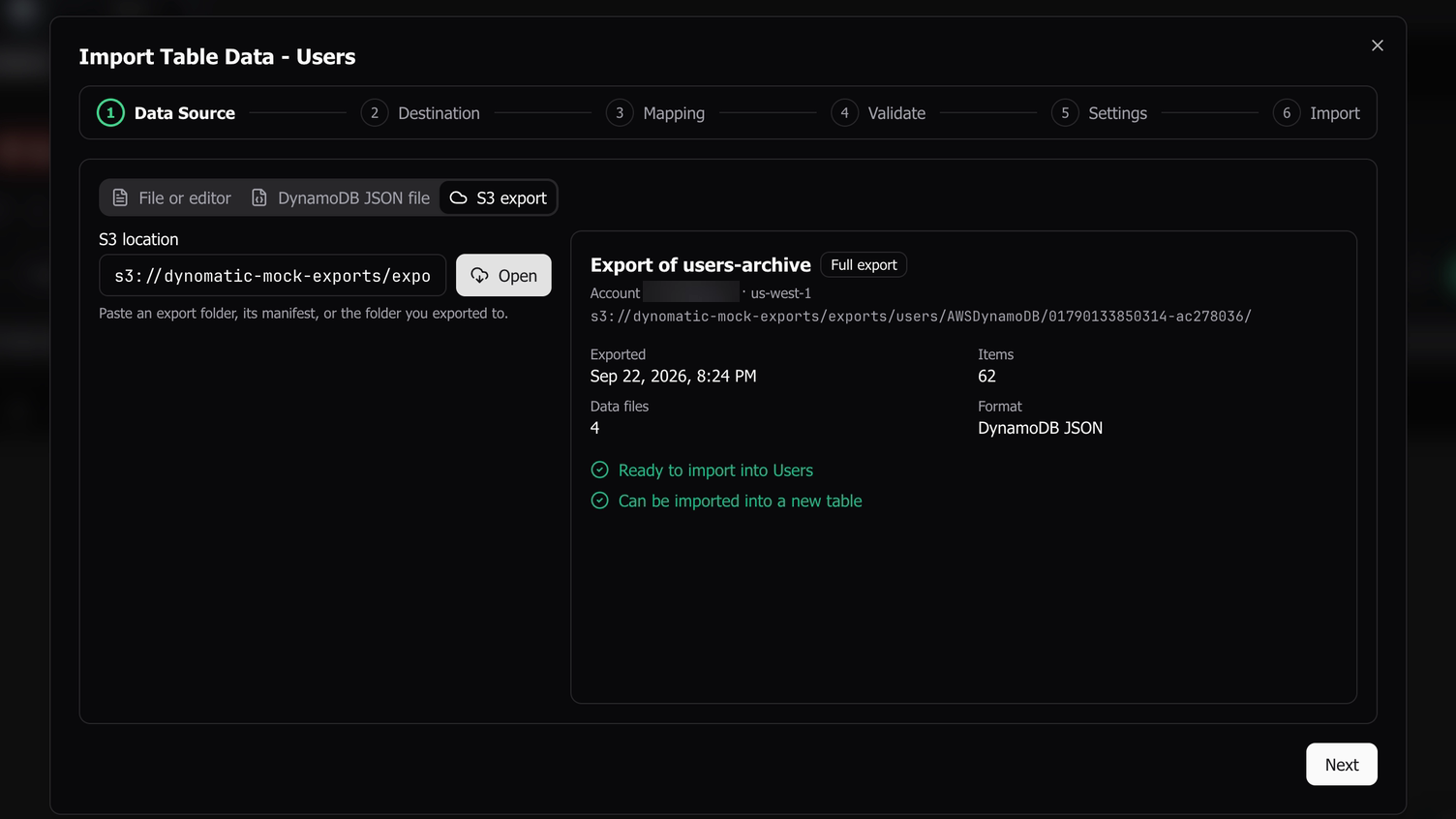
S3 export opens a DynamoDB native export from an s3:// URI or an S3 URL. The address can point to the export, to a folder of exports, or to any file inside an export. The tab also lists your recent exports, so you can pick one with a click. A full export in DynamoDB JSON format streams into an existing table through the Mapping and Validate steps. A full export in either format, DynamoDB JSON or Ion, can also go into a new table through DynamoDB’s own ImportTable. That path uses the same Basic and Indexes steps as Create table. Dynomatic copies the source table’s GSIs, and you can set capacity for each GSI.
DynamoDB JSON file reads a file from disk. The file can be a JSON array of items or JSON Lines, plain or gzipped. Dynomatic streams the file into the table and never loads the whole file into memory.
With the Vector Search plan, an import can also embed rows that arrive without vectors. It uses the table’s embedding recipe.
A results grid that reads your data
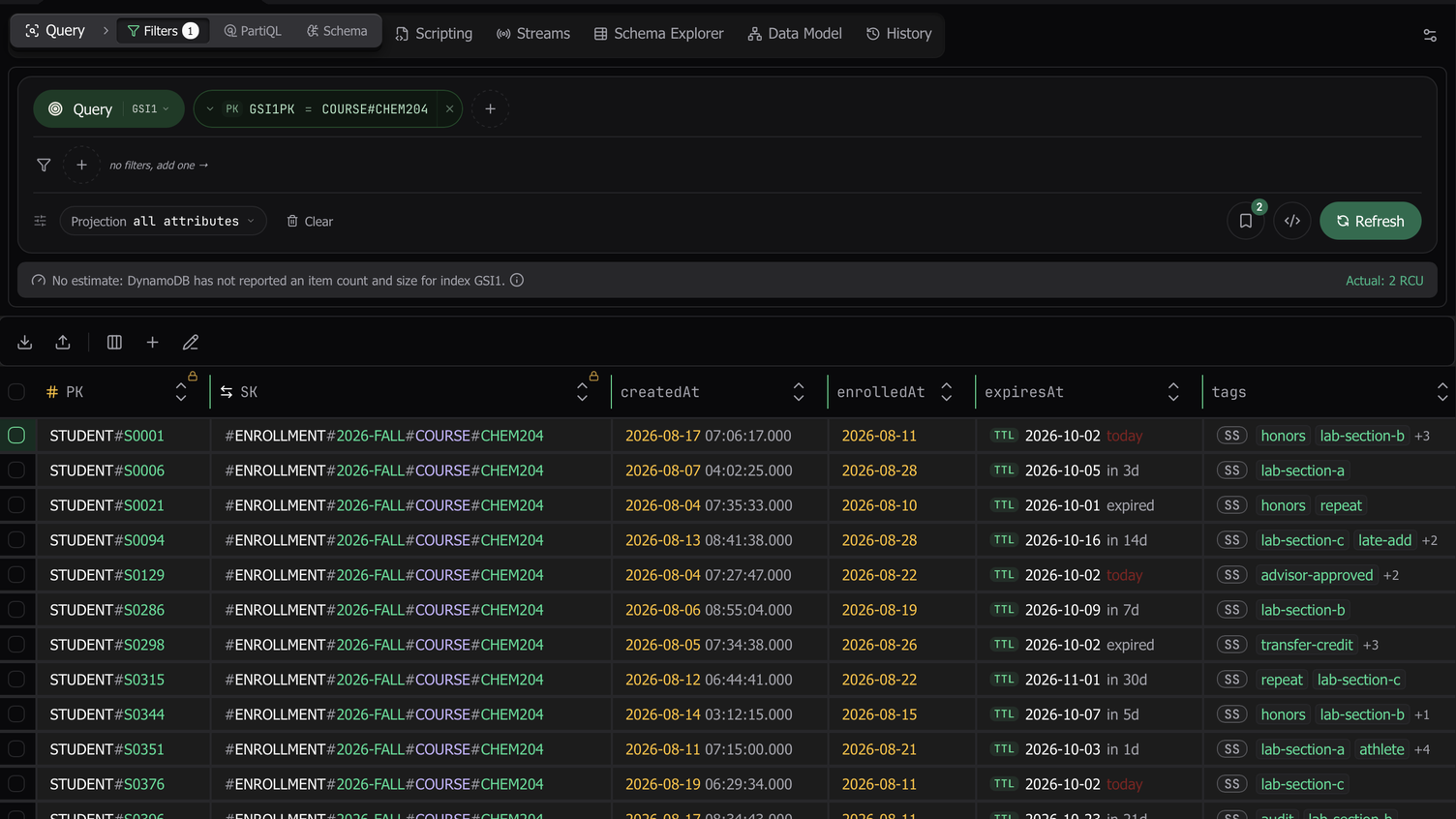
- The grid colors each cell by its DynamoDB type, with the colors of your editor theme. Sets and lists get a type badge.
- The header marks the primary key columns.
- When a key value matches an entity template from your data model, the grid shows each segment of the key in its own color.
- Date columns render as dates. The grid detects ISO 8601, RFC 2822, and epoch seconds or milliseconds. The date editor offers the precision the column already uses.
- The TTL attribute shows a badge with its expiry date in your time zone and how far away that date is. An expiry later today shows
today, and a past expiry showsexpired. The TTL editor takes a date and time, a duration from now, or the raw number. - Sets and lists show as many chips as fit the column before
+N. Before, they always showed three. - Map keys keep a stable order in each column, with the most common keys first. The order stays the same as more pages load.
See what a read will cost
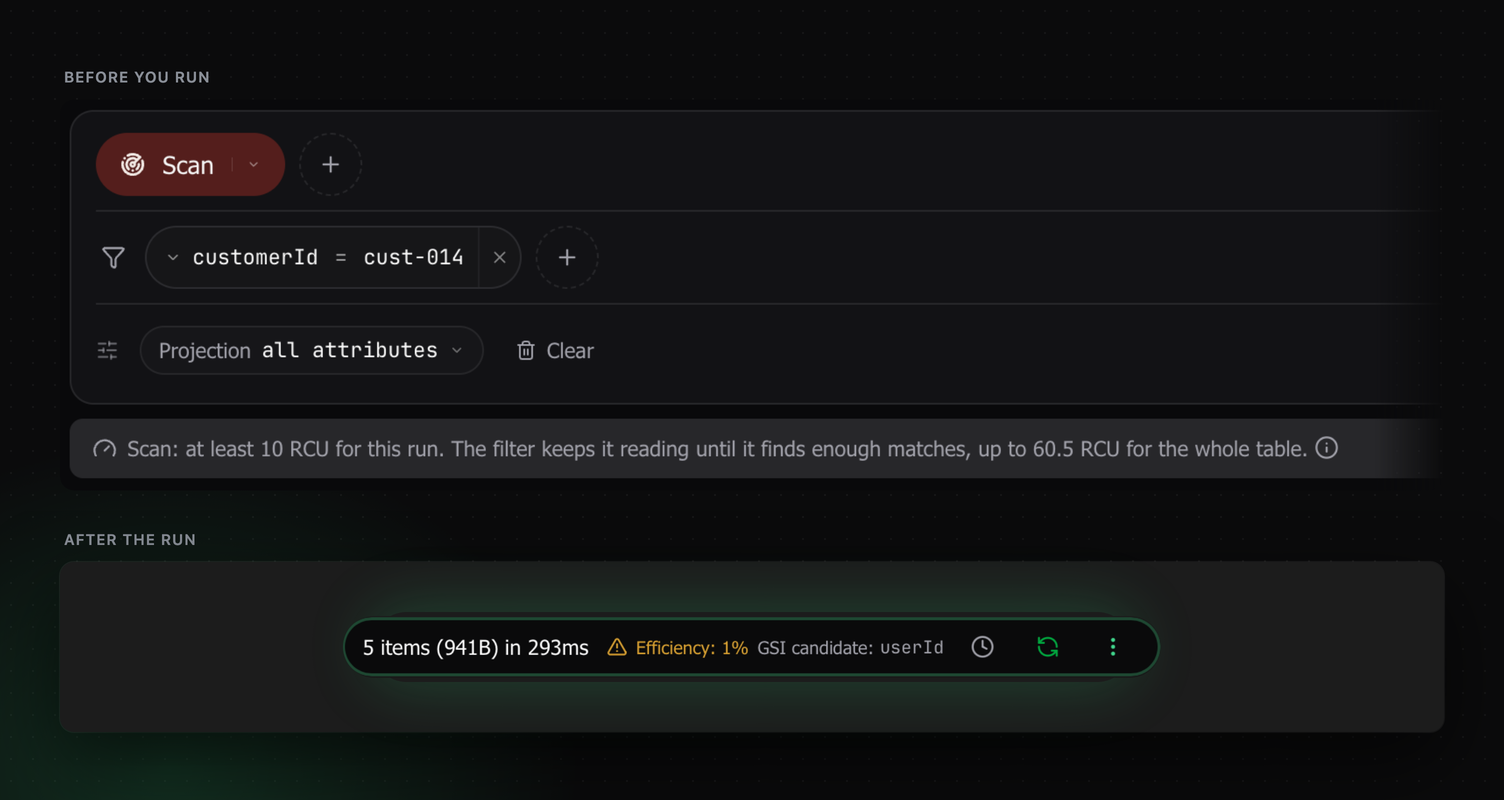
Before you run a scan or a query, the Filters builder shows an estimate of the read capacity it will use. The estimate comes from the table and index sizes that DynamoDB reports.
While a scan runs, a warning can appear beside the progress label. It appears when the scan has read at least 1,000 items and the filter has discarded at least nine in ten of them. The warning names the filtered attributes as candidates for a GSI. After the run, the readout shows the read units the run used and how many of the scanned items it returned.
The History page has a new capacity strip. It totals read and write units per table and per index, for either the retained history or the operations since launch, and it flags wasteful scans.
A new mode bar and Schema Explorer
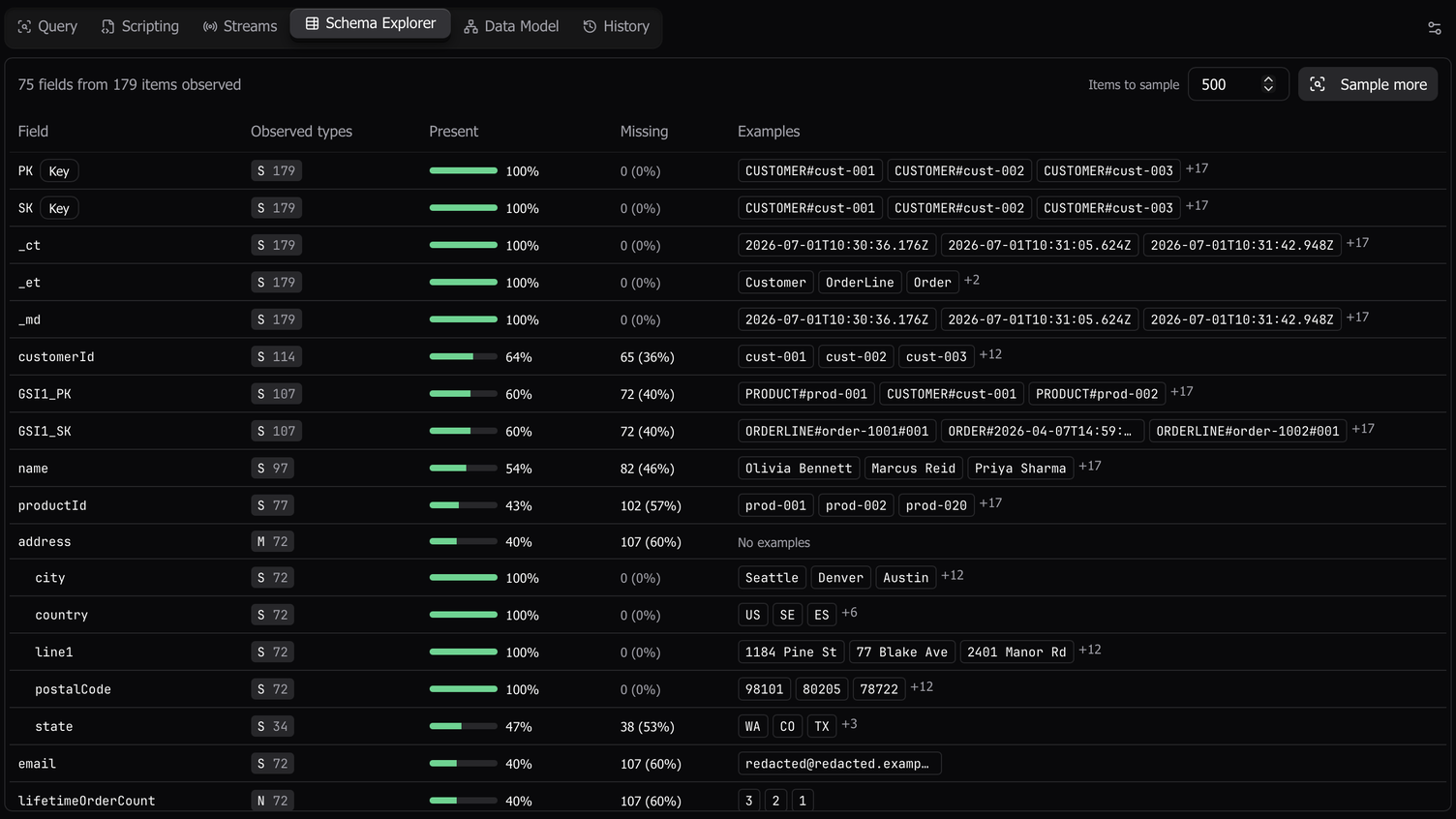
One header row replaces the action rail in query tabs. The active mode shows as a raised key, with its views beside it, and Table settings is in the same row. Mode switches animate, unless your system is set to reduce motion.
The new Schema Explorer mode lists every attribute path that Dynomatic has captured for the table. For each path, it shows the types with their counts, how often the path is present, and example values. If Dynomatic has not captured the table yet, Schema Explorer offers to sample a number of items that you choose.
Dynomatic now reads a table’s schema again when you open its tab and the saved schema is more than five minutes old. To pick up a change made outside the app right away, click Refresh schema in Table settings.
PartiQL write scripts and transactions
The PartiQL editor now runs several INSERT, UPDATE, or DELETE statements as one script. To apply them all or none, check Run in transaction, and Dynomatic sends them in one ExecuteTransaction call. If you leave it unchecked, the statements run in order and stop at the first failure. The error names the failed statement and how many statements ran before it.
Create a vector index and its embeddings in one step
The Create vector index dialog now asks where the vectors come from. If you choose Generate embeddings and set up a recipe, Dynomatic runs the backfill as a background job and creates the index when the backfill finishes. Dynomatic saves the pending index, so you can close the dialog or restart the app without losing it.
Workspaces in one popover
The workspace popover in the status bar lists your connected workspaces and the ones you have set aside, with the time you last used each one. One dialog adds and edits a workspace, and you can give each workspace its own color and icon. Workspaces on a local endpoint show as Local, with their port. The separate region and profile pills are gone.
Better Linux support
- Dynomatic now ships as an rpm and as an AUR package, in addition to the deb and the AppImage.
- Dynomatic stores secrets in the Secret Service (GNOME Keyring or KWallet), so you stay signed in after a reboot. If you signed in on an earlier build and have not rebooted since, sign in once more after you update.
- Links now open through the desktop portal. Before, Sign in with Browser did nothing in the AppImage. While Dynomatic waits for the browser sign-in, the sign-in screen shows the link with Copy link and Open again.
- The AppImage no longer opens a blank window on Wayland.
- Sample Mode starts again from the AppImage.
Other improvements
- You can open the current filter as a TypeScript or Python script from the Filters builder or the palette.
- You can set a Limit for each query from the operation menu. Saved queries keep the Limit.
- When you quit, Dynomatic asks whether to pick up where you left off. Resume opens the next launch where you quit, and Start on Dashboard opens it on the Dashboard.
- Attribute pickers in Filters, PartiQL completions, Import Mapping, and export list a table’s captured attributes before your first read.
- Table settings shows the real point-in-time recovery status and saves changes to it. Before, it always showed PITR as off.
- Saving Streams settings in Table settings now changes the table. Before, the save reported success and changed nothing.
- PartiQL results stay in the grid when you go to History or Tables and come back.
- The AWS Regions dropdown in Settings scrolls again.
- Sign-in no longer fails when your computer’s clock is ahead of the server’s clock.
- Enhance with AI now works with Claude Sonnet 5, the default Anthropic model.