
Search loaded items, a permission grid for AI agents, and computed columns
Dynomatic 1.3.0 searches the rows you have loaded, lets an agent's call ask you first, and adds computed columns you can turn on as an experiment.
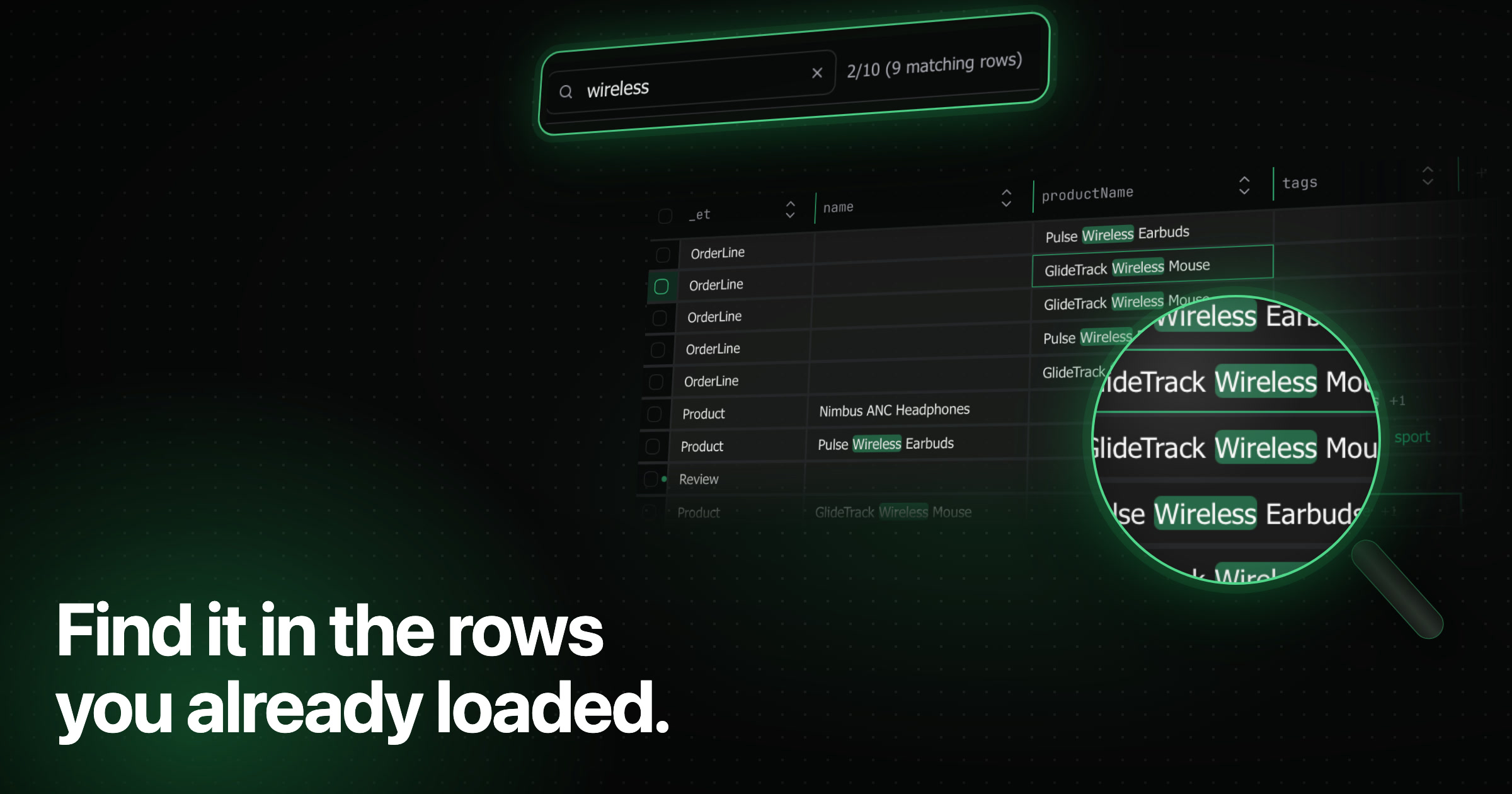
Dynomatic 1.3.0 adds a search box to every results grid that filters the rows you have already loaded, with no new read from DynamoDB. The MCP server’s two write switches become a grid of capabilities by environment, and any cell in it can ask you before an agent’s call runs. Virtual fields, an experiment you turn on in Settings, add columns that Dynomatic computes from each item. This release also starts Stream History and the live tail at a time you pick, exports only the items a query matches to S3, imports saved queries from Dynobase, and makes every environment badge say where its environment came from.
Search loaded items
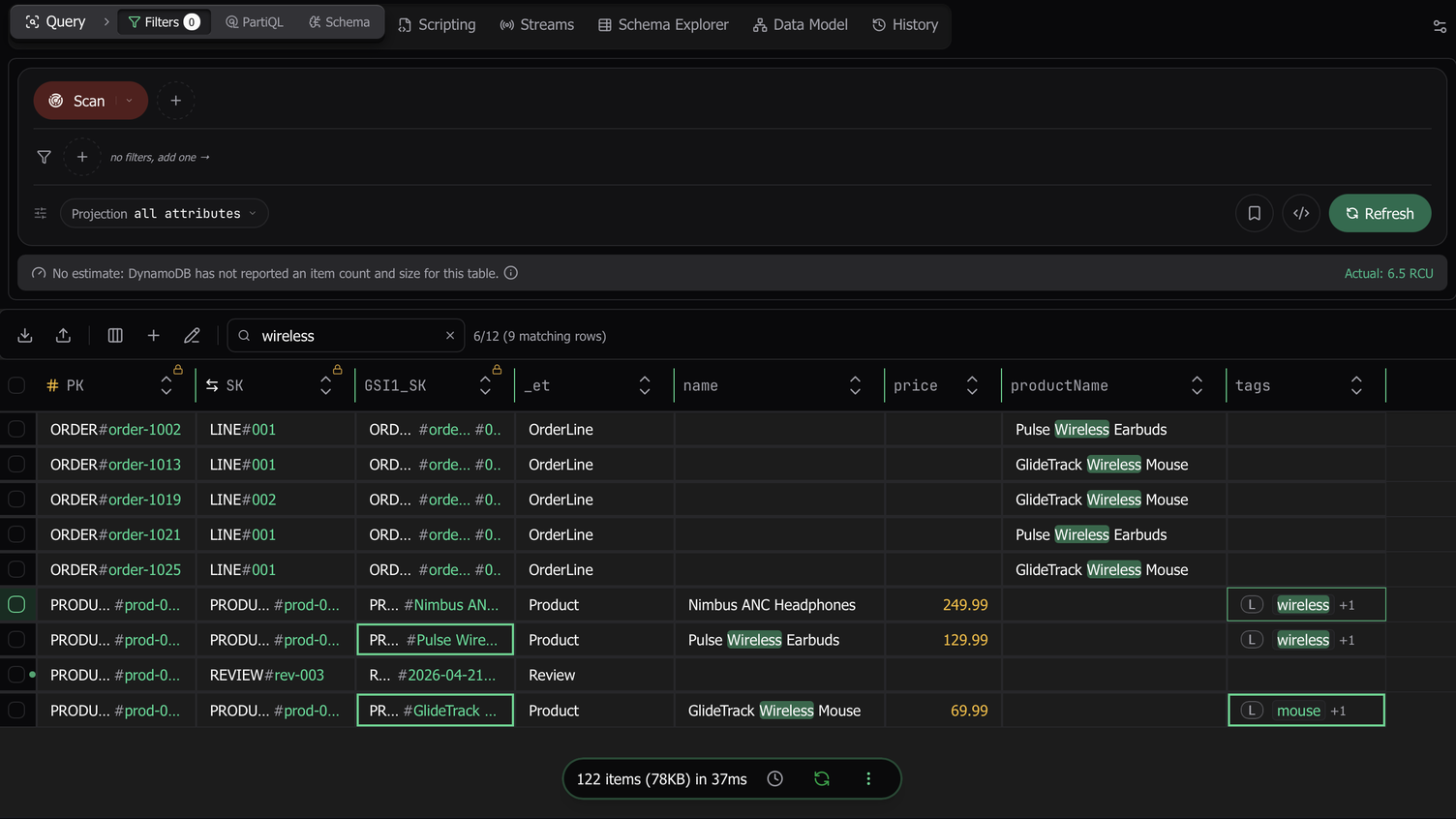
To open Search loaded items on a results grid, press ⌘ F on macOS or Ctrl + F on Windows and Linux, or click the search icon at the end of the action bar. It works on Filters, PartiQL, Schema-Aware Query, and vector search results. The grid keeps only the loaded items that contain every word you type, in any attribute, hidden columns included. Quotes keep a phrase together, and case does not matter. Dynomatic sends nothing to DynamoDB, and it searches the pages you load later with Load more as they arrive.
- The grid marks every hit in green, inside set and list chips and nested map keys too. A cell that matched but cannot show the hit, such as a formatted date or a value behind
+N, gets a green ring, and its tooltip names the match. - A row that matched only in hidden columns shows a dot in its selection gutter. Hover the dot to see which columns matched.
- Enter moves to the next matching cell and Shift+Enter to the previous one, and the grid scrolls to it. The count line reads
3/41 (213 matching rows). - While a search is on, the Export menu and the clipboard copies offer Matching or All loaded. Matching writes exactly the rows the grid shows.
- The search reads an edited cell by its pending value. A new row you are still filling in always shows.
- The search belongs to its tab. It stays when you switch tabs or run the query again. Escape clears it, and a second Escape closes the box.
- In the PartiQL editor,
⌘ Fstill opens the editor’s own find.
Agent permissions for the MCP server
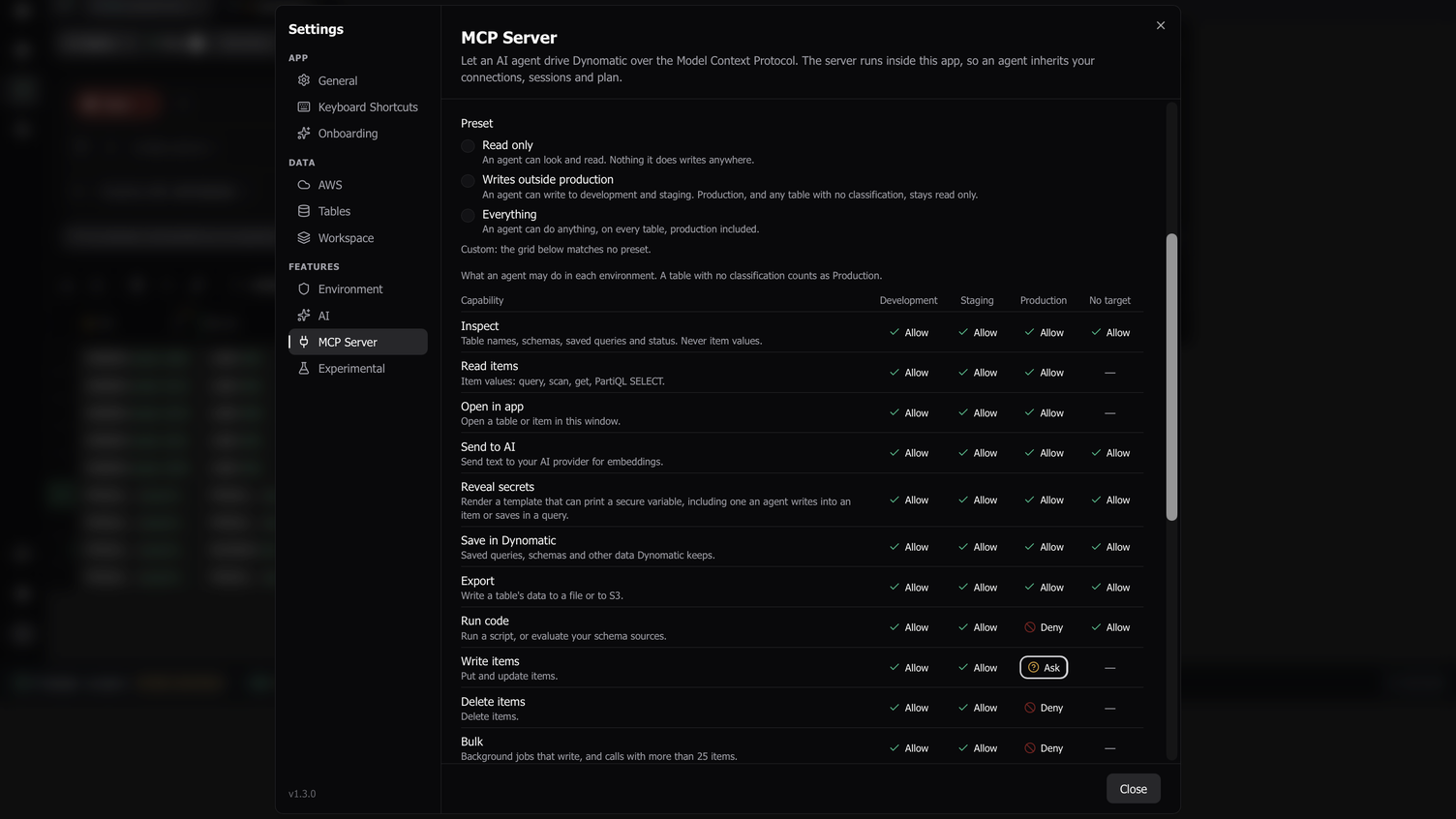
Settings → MCP Server replaces the Allow writes and Allow production writes switches with a grid. Each row is a capability: Inspect, Read items, Open in app, Send to AI, Reveal secrets, Save in Dynomatic, Export, Run code, Write items, Delete items, Bulk, Change tables, and Delete tables. Each column is an environment, Development, Staging, or Production, plus No target for calls that name no profile. Each cell is Allow, Ask, or Deny. Dynomatic judges a table with no classification in the Production column.
Three presets fill the grid: Read only (the default), Writes outside production, and Everything. If you had turned on the old switches, the update fills the grid with the preset they meant, so your agents can do what they could before. A write of more than 25 items in one call also needs Bulk, and a call that would print a secure, keychain, or keyring variable needs Reveal secrets.
A cell set to Ask holds the call and asks you in the app. The dialog names the client, the tool, the capabilities the call needs, and the table with its environment, and it shows the arguments the agent sent. Decline has the focus, so a stray Enter never approves, and Esc declines. Decline all from this client answers every request that client has waiting. Decide later puts the dialog away, and a pill in the status bar brings it back. You have two minutes to answer, and the dialog counts down.
A workspace can override the grid for agent calls on its profile and region. To edit an override, right-click a workspace row and choose Agent permissions, or open the workspace’s actions in the ⌘ K palette. Settings lists every override. An override sets Development, Staging, and Production separately, or one value for all three, and any slot can inherit from the grid. A workspace you disconnect keeps its override, so setting a workspace aside never widens what an agent may do.
A background job that an agent starts keeps answering to the grid while it runs. If a cell it needs turns to Deny, the job pauses at its next key, and the Jobs footer says the agent may no longer write to that table. You can still resume it yourself. An export an agent started is cancelled instead.
Computed columns with virtual fields
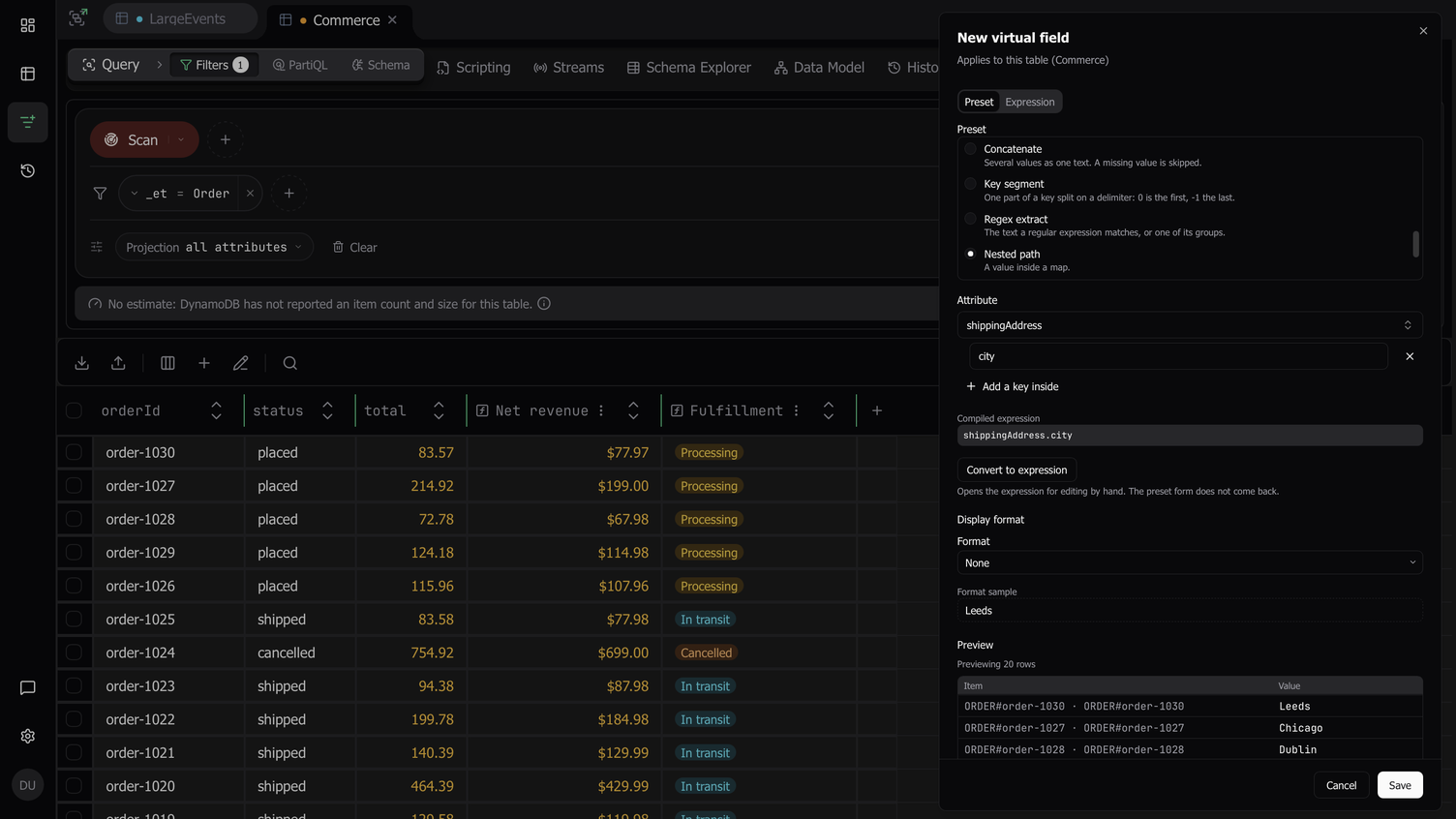
A virtual field is a column that Dynomatic computes from each item with a JSONata expression. Dynomatic stores the field’s definition and computes its values in the grid, and it writes nothing to DynamoDB. Virtual fields are an experiment. To try them, turn on Virtual fields in Settings → Experimental. They need a paid plan.
To add a field, click + at the end of the column headers, or choose Add virtual field from the Columns menu or the palette. You can also right-click a cell and choose Derive field from this attribute. The field dialog has two tabs. Preset offers 21 short forms that write the expression for you, such as Count, Sum, Percentage, Epoch to date, Key segment, Regex extract, and Lookup table, and lists the ones that suit your starting attribute first. Expression is a JSONata editor that completes attribute names and nested keys from the rows you have loaded. A preview under the editor evaluates the expression on your selected rows, or on the first 20 rows, as you type.
A display format changes how a cell draws its value and leaves the value alone. The formats are Number, Currency, Percent, File size, Date, Time ago, Badge, and Link.
Computed columns sort by their values, and Search loaded items matches them. Copy value copies the stored value, so a Currency cell that shows $1,234.50 copies 1234.5. A pending edit recomputes its row before you commit it. When the expression fails on an item, the cell shows a red mark with the error in its tooltip.
Read DynamoDB Streams from a point in time
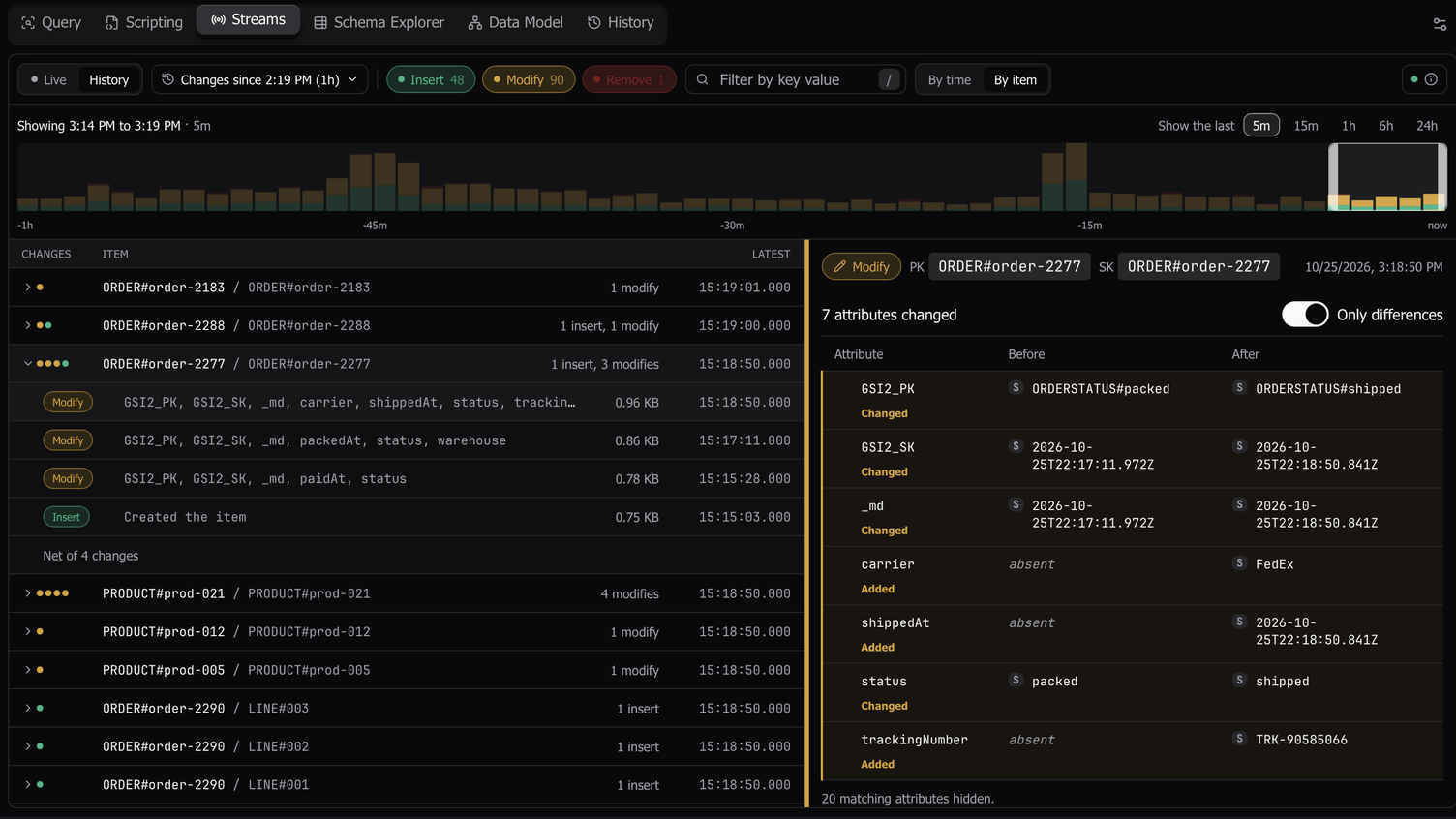
View history used to read the stream’s full 24 hours. Now it reads the last hour by default. Its menu offers the last 15 minutes, the last 6 hours, the oldest available record, or a custom time in the last 24 hours. A shorter window skips the parts of the stream that ended before it starts, so it finishes sooner, and the cost warning names the window it will read. The toolbar says what History read, as in “Changes since 1:19 PM (1h 8m)”. Start from reads again from another time. Load earlier reads one more hour, everything retained, or back to a custom time, and keeps what you already loaded.
The live tail gains Start at… before it runs and Rewind… while it runs. Both begin the tail now, 1, 5, or 15 minutes ago, or at a custom time in the last 24 hours. While the tail catches up to the present, its status pill reads “Catching up · N records”. A rewind keeps the events you have and skips the ones it already holds.
The viewer’s controls now fit in one toolbar.
- The toolbar holds a Live / History switch, then the transport or the History range, the event-type chips, search, a By time / By item switch, and a details button. The details popover shows the stream’s status, view type, shard count, and ARN.
- The timeline names the window the table shows, as in “Showing 2:12 PM to 2:17 PM · 5m”, and keeps the
5mto24hsnaps beside the histogram. The chip counts cover that window. - The detail panel shows a change the way Compare shows two items. Before and After sit side by side, changed, added, and removed attributes are marked, and nested maps and lists open in place. Only differences is on by default, and each tab remembers it.
- By item groups the loaded events by item, with counts by event type. Opening a group selects its newest change and lists each change with the attributes it changed. A group with more than one change ends with a Net change row that compares the item before its oldest loaded change with the item after its newest.
- A History read that finds nothing now says “No changes since 2:32 PM.” Before, the previous read’s rows stayed on screen.
- On a local endpoint that cannot start at a time, such as Dynoxide or Sample Mode, History reads from the oldest record, hides what came before your start, and says so.
Export only the items a query matches to S3
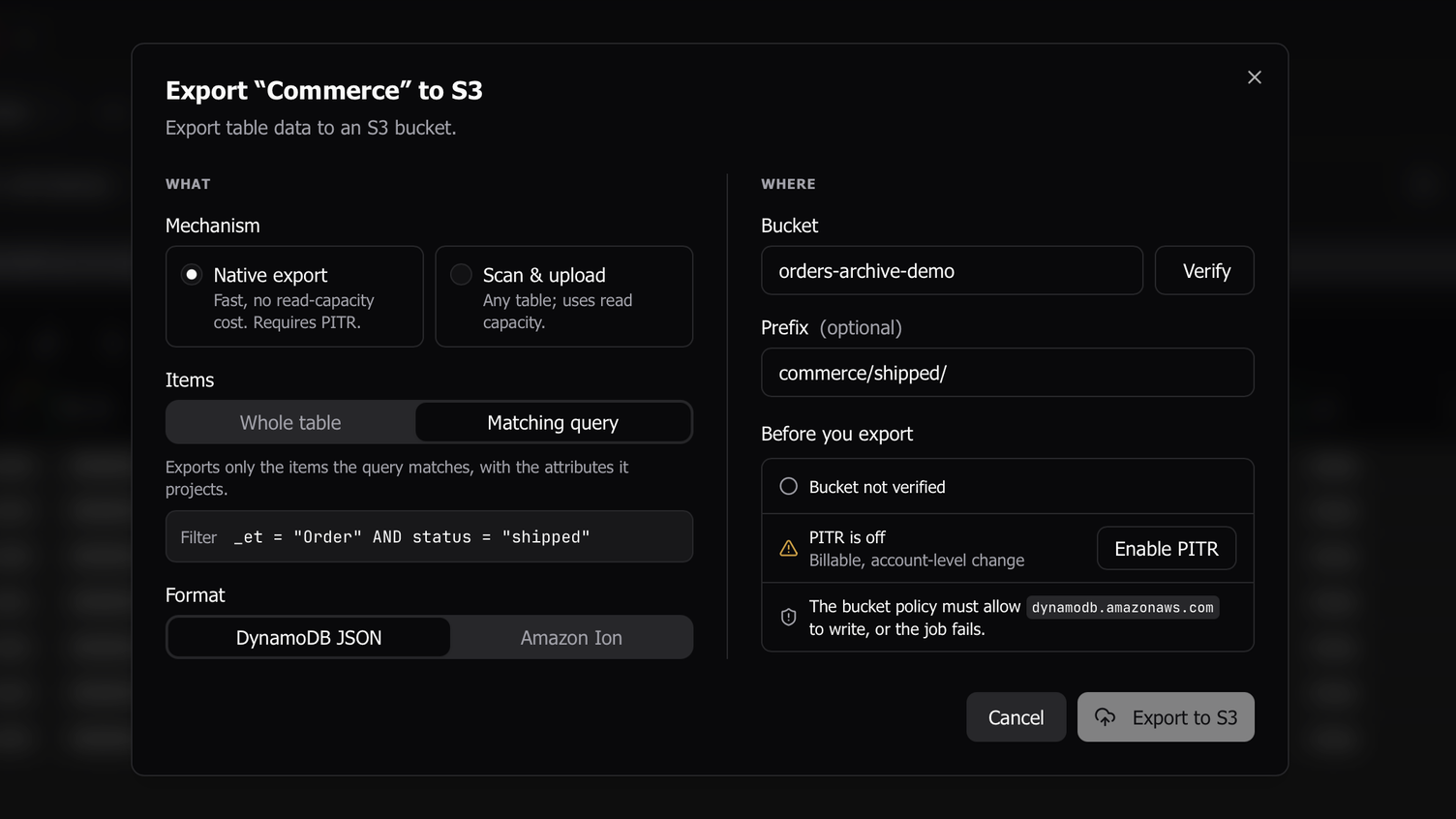
DynamoDB’s native export now accepts a filter, and Export to S3 uses it. When you open Export to S3 from a query tab that shows a Filters query, the Native mechanism has a new Items choice, Whole table (the default) or Matching query. Matching query lists the conditions it will send, with names and values written out. DynamoDB then exports only the items they match, with the attributes the query projects. A Query on the base table keeps its key condition, so the export reads only that partition. A query on an index exports the base-table items the index holds. Retry sends the same filter again.
The Export to S3 dialog now has two columns, What and Where, so it fits the default window without scrolling. Where ends with a Before you export checklist that covers bucket verification, point-in-time recovery, and the bucket policy or read capacity.
Import saved queries and scripts from Dynobase
Settings → General → Import from Dynobase, or the palette command of the same name, reads a file from Dynobase’s Export workspace. It brings your favorites, default queries, and history in as saved queries and scripts. Dynobase settings, profiles, and the Single-Table Designer stay behind. The import is open on every plan, and the preview marks saved queries or scripts that your plan does not include.
First, you map each Dynobase profile and region to a workspace, or choose Don’t import. Dynomatic fills in a connection when exactly one workspace matches it. The preview counts what will come in and lists every entry it cannot import, with the reason. Dynomatic skips a query with any condition it cannot run the same way, rather than importing part of it.
Simple filters become builder queries, and SQL becomes a PartiQL script. Code becomes a TypeScript script, with a comment saying that it was written for Dynobase’s AWS SDK v2 run(dynamoDB) and needs porting. Dynomatic removes duplicate history entries per table. The import never overwrites a saved query or script that has the same name, so a second import of the same file writes nothing.
Environment badges that say why
The app, the MCP server, and background jobs now decide a table’s environment by the same rule. A table’s own classification wins. Otherwise a table under a production profile is production. Under any other profile whose tables span more than one environment, the table is Not verified. Before, such a profile showed its most common environment with a “mixed” marker.
A Not verified table gets the same precautions as production, worded as not verified. Its commit button is red, and opening it runs no scan. Exporting every matching item and undoing a change in History ask first. The MCP server and background jobs treat it, and every unclassified table, as production.
Every badge now names its basis in its tooltip, as in “Production, detected automatically” or “Development, inherited from profile”. Table settings prints the short form beside the badge.
- Broad words such as
test,local, andqacount only as a whole first or last segment of a name, soab-test-resultsandLocalStoressay nothing. A name with words of two environments, such asdev-to-prod-migration, takes its profile’s environment. - A profile’s tables decide its environment only when at least half of them, and at least two, are classified, and 70% of those agree.
- A profile on
localhostor another loopback address counts that as evidence of development, not as the verdict. A production word in the profile name or the account alias wins, because a tunnel to production listens onlocalhosttoo, soprod-tunnelonlocalhost:8000reads production. - Rules take effect when you save them. Creating, editing, or deleting a rule re-classifies every profile and table it matches, and the badges update without a reload.
- Re-classify All in Settings → Environment re-classifies every stored profile and region and says how many it covered.
After you update, Dynomatic re-classifies every stored profile once. Your overrides stay as you set them.
Other improvements
- When the tab has pending changes, bulk edit’s Apply first asks whether to Commit and apply, Discard and apply, or Cancel. Before, the job wrote around the pending changes, and committing them afterwards overwrote what the job had written.
- When an imported ElectroDB or DynamoDB-Toolbox schema is bound to the table, the grid splits key cells with the labels that schema declares. This includes entities with too few items to infer a template from.
- Selection actions use the grid as it is now. After a sort, Compare, Copy as JSON, and Export take the selected rows in on-screen order, and after a refetch they use the refetched values. When a search hides selected rows, the pill reads “3 selected, 1 hidden”, and the actions still cover all of them. The focused cell stays on its row through a sort or a refetch.
- Columns no longer jump as you scroll sideways through a wide grid after the grid sizes its columns or you resize one.
- ISO 8601 and RFC 2822 values show as dates even in a column with only a few items.
- SSO and MFA errors name the AWS error. A role that AWS SSO no longer assigns reads “GetRoleCredentials failed for role R in account A: ForbiddenException: No access” instead of “service error”. Screens that showed
[object Object]for a failed call now show the message. The reconnect toast closes once its workspace gets new credentials, including from a terminalaws sso login. - The profile list keeps names and regions whole beside their badges, and the Connect a workspace rows show the same type and environment badges. Right-click a workspace row to Switch to it, Connect or Disconnect it, Edit it, open its Agent permissions, or Delete it.
- Once a vector index reads Deleting, its attribute is an ordinary attribute again. Filters return it, its cells edit like any list, and bulk edit can remove it.
- Schema import now extracts ElectroDB and DynamoDB-Toolbox files that spread a value from another package at module scope, such as a zod enum’s options.
- A background job’s consumed write capacity survives a crash or a force quit, so the resumed job and its History entry count every saved write.