Table links, related items in the grid, and virtual fields for every paid plan
Dynomatic 1.4.0 turns virtual fields on for every paid plan, links tables so a grid shows related items, and adds the Orbit sample tables.
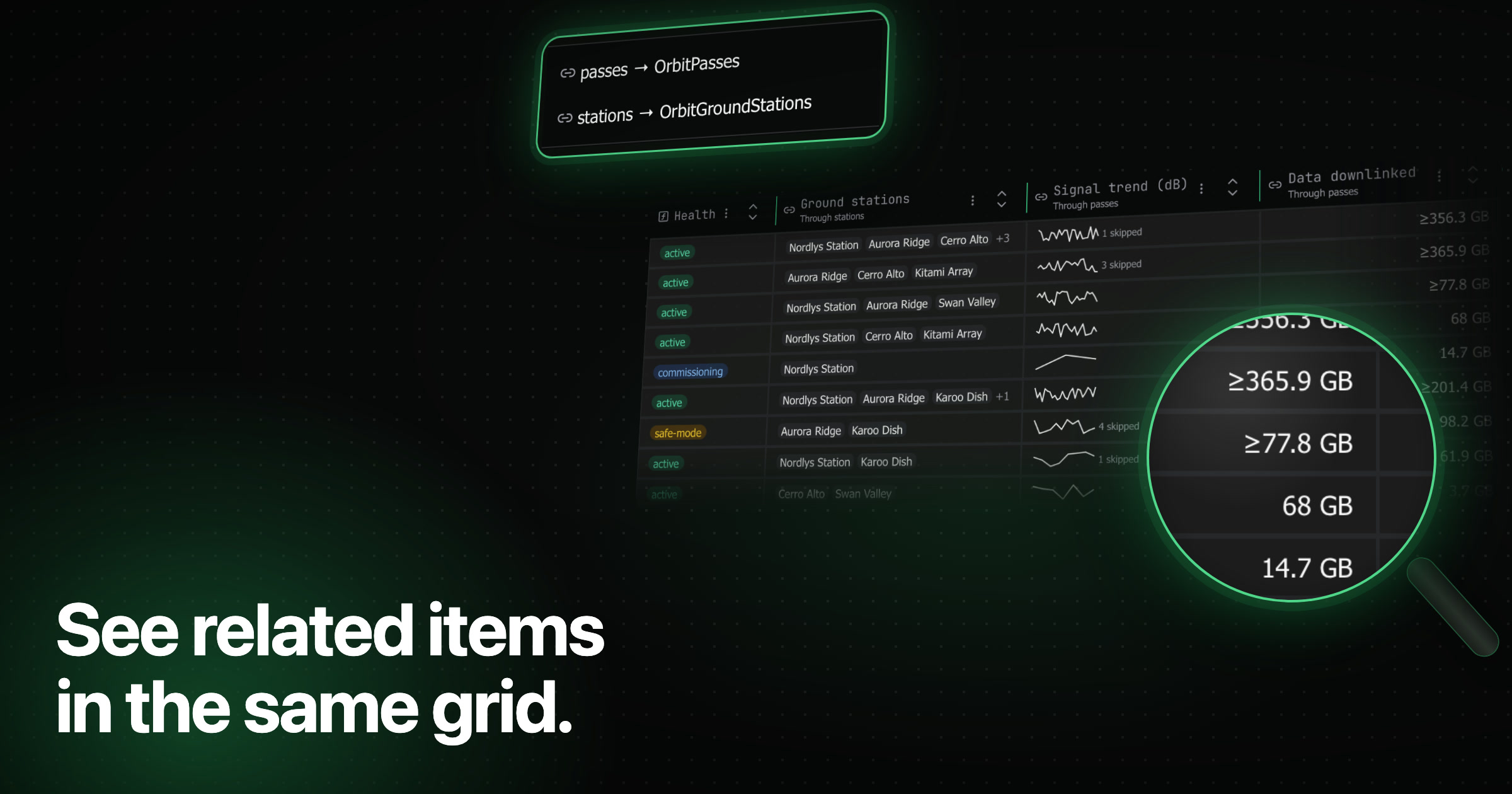
Dynomatic 1.4.0 takes virtual fields out of Experimental. A table link now lets a field read items from another table, so a grid can show a customer’s name beside an order, or a count and a total of an order’s lines. Computed values also show in the item view, Compare, exports, filters, and MCP answers. Sample Mode adds three Orbit tables that open with links and fields already saved, and the MCP server keeps its token when the app restarts. The Free plan also gets larger: it connects any AWS CLI profile, has no open-tab limit, and exports every row you have loaded.
Virtual fields are on for every paid plan
Virtual fields no longer need a switch in Settings → Experimental. On a paid plan, every results grid has a Virtual fields button beside Columns. A virtual field is a column that Dynomatic computes from each item with a JSONata expression. Dynomatic stores the field’s definition and writes nothing to DynamoDB. How virtual fields and table links work explains the parts, and Create a virtual field walks through the dialog.
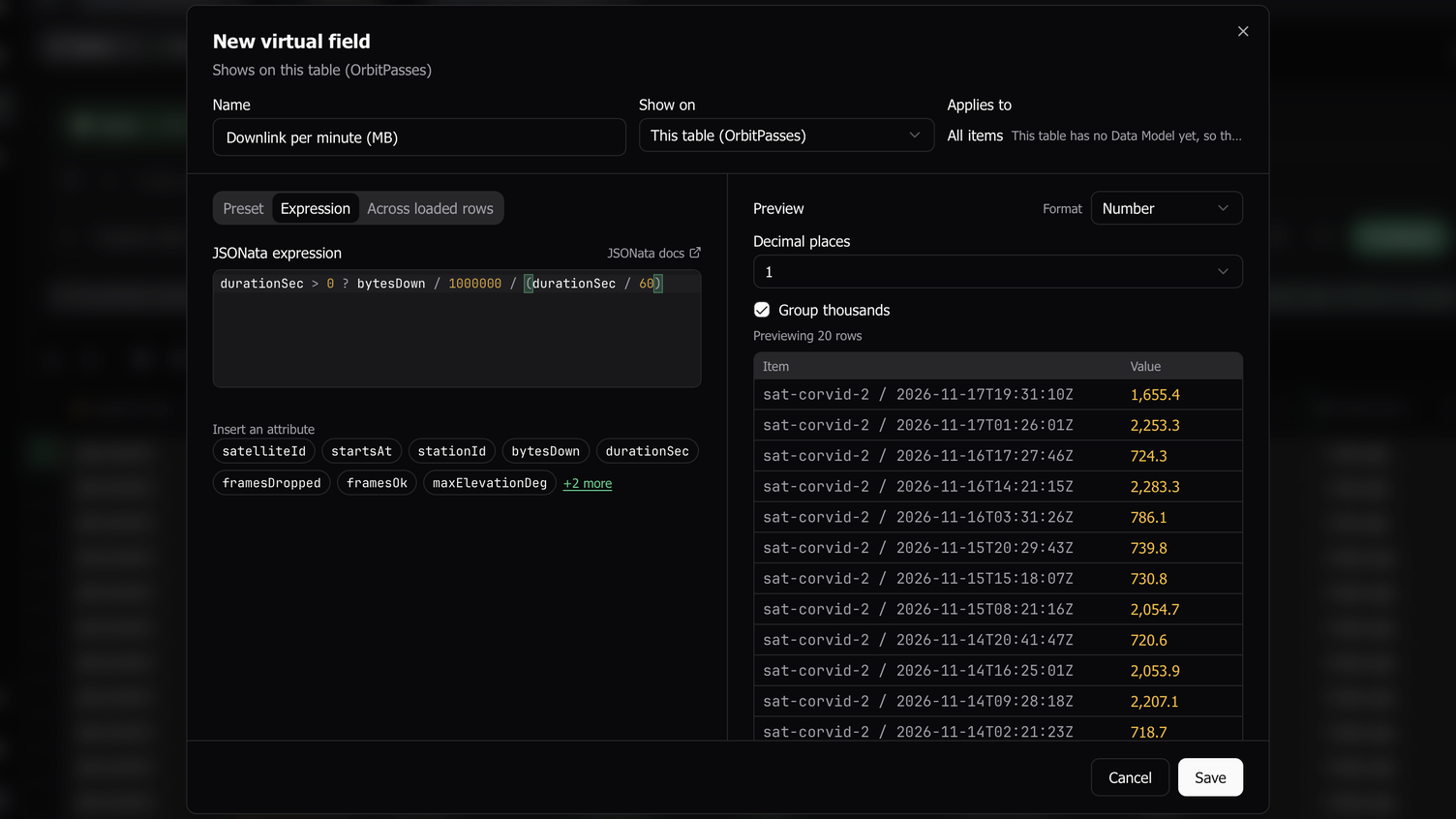
The field dialog is wider and has two panes. The left pane holds the Preset, Expression, or Across loaded rows form. The right pane always shows the preview with the Format select, so you see the values while you type.
- Suggested fields. The Virtual fields menu lists up to six fields that fit the rows you have loaded, such as “Count of tags” or a segment of a key. Add opens the dialog with the preset, the attribute, and a name filled in.
- Across loaded rows. A new tab makes a field that depends on every loaded row: Rank, Share of total, Running total, or Duplicate count. The column header says Depends on loaded rows, because the values change as more pages load.
- Describe it. With an AI provider set up for completions, type what the field should compute and Write expression asks the provider for the JSONata.
- Applies to. On a table with a Data Model, a field can apply to one entity. Rows of other entities show a dimmed dash, and the expression never runs on them.
- Show on. A field can show on this table, on every table in the workspace, or on all workspaces. Copy fields as JSON and Paste fields move a set of fields to another table, and Paste lists what will happen to each field before it saves anything. See Share and reuse fields.
- New functions. Expressions can call
$itemSize(),$capacityUnits(),$hash(),$decodeBase64(),$gunzip(),$geohashDecode(),$consoleUrl(),$vectorNorm(),$cosine(),$var(), and$indexes()beside JSONata’s own functions. The editor completes each one after$with its signature. The expression reference lists them all.
A table with no fields shows a short tour the first time its grid shows the Virtual fields button.
Link tables and read related items in the grid
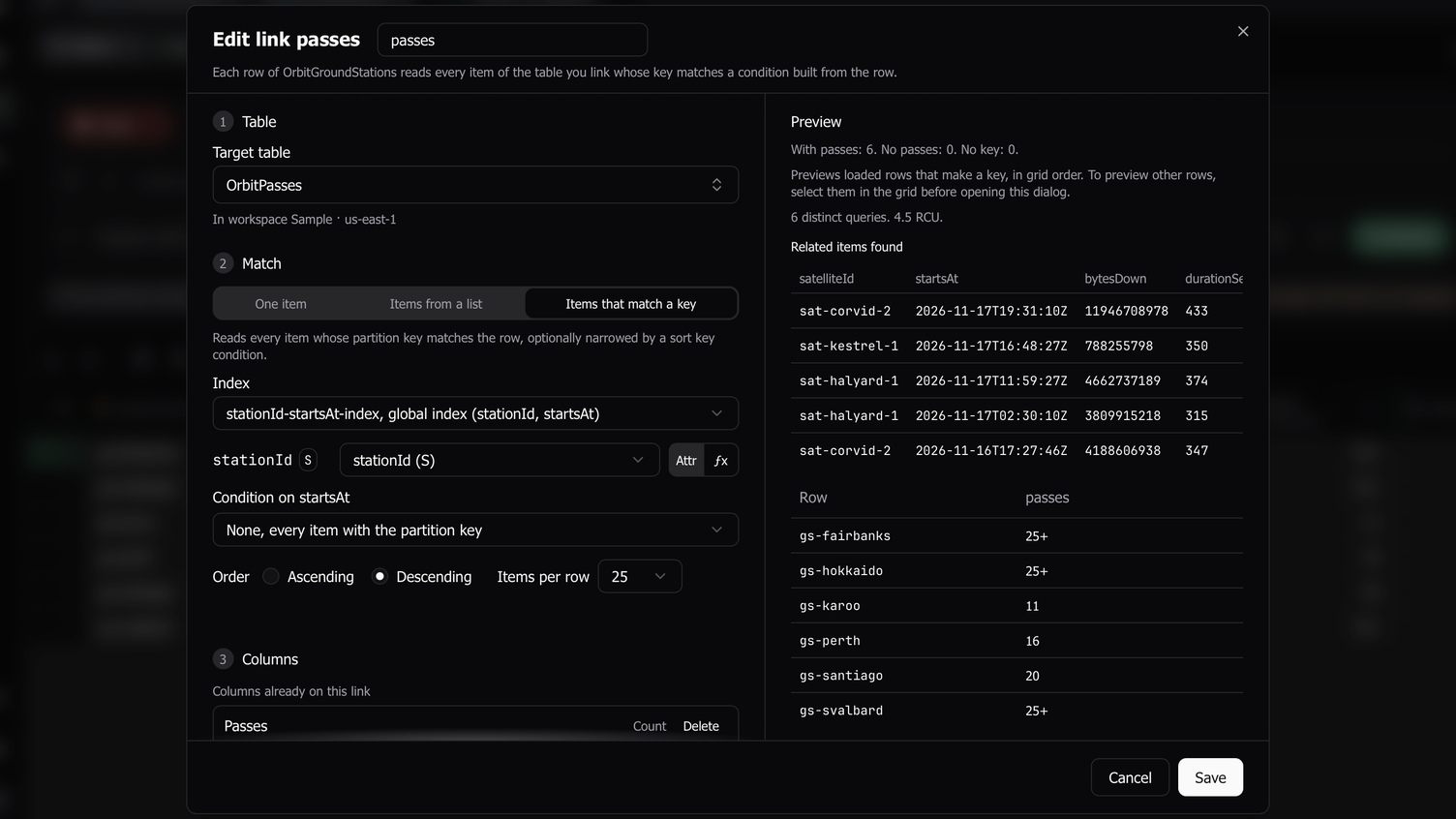
A table link tells Dynomatic how to find items in another table from each row of the open table, like a join. Links in the results toolbar holds the table’s links and Link another table…. The link dialog builds the target table’s key from the row’s attributes and previews how many rows find an item and what the reads cost.
A related column shows one attribute of the item a link reads. Its header carries a link icon and names the link, such as “Through customer”. In an expression, $related("customer") returns the linked item, so a field can calculate with attributes from both tables. Link another table has the steps.
- The target can be a table in another workspace, which may be another AWS account or region. While that workspace is signed out, the link’s cells show an error that names it, and nothing is sent to either account.
- Suggested links in the Links menu ranks candidate links from the loaded rows and confirms the top three with a read of at most 10 rows each. Each suggestion shows its evidence, such as “10 of 10 found”. Nothing is read until you open the list.
- Dynomatic reads related items by page. Equal keys are read once, so 100 orders over 40 customers cost one request of 40 keys. A column you hide reads nothing while hidden.
- The cost strip shows Related reads beside Actual, such as “Related reads: 4 RCU in 2 requests”. Cell states, limits, and reads covers what each read costs.
Counts, chips, totals, and sparklines from related items
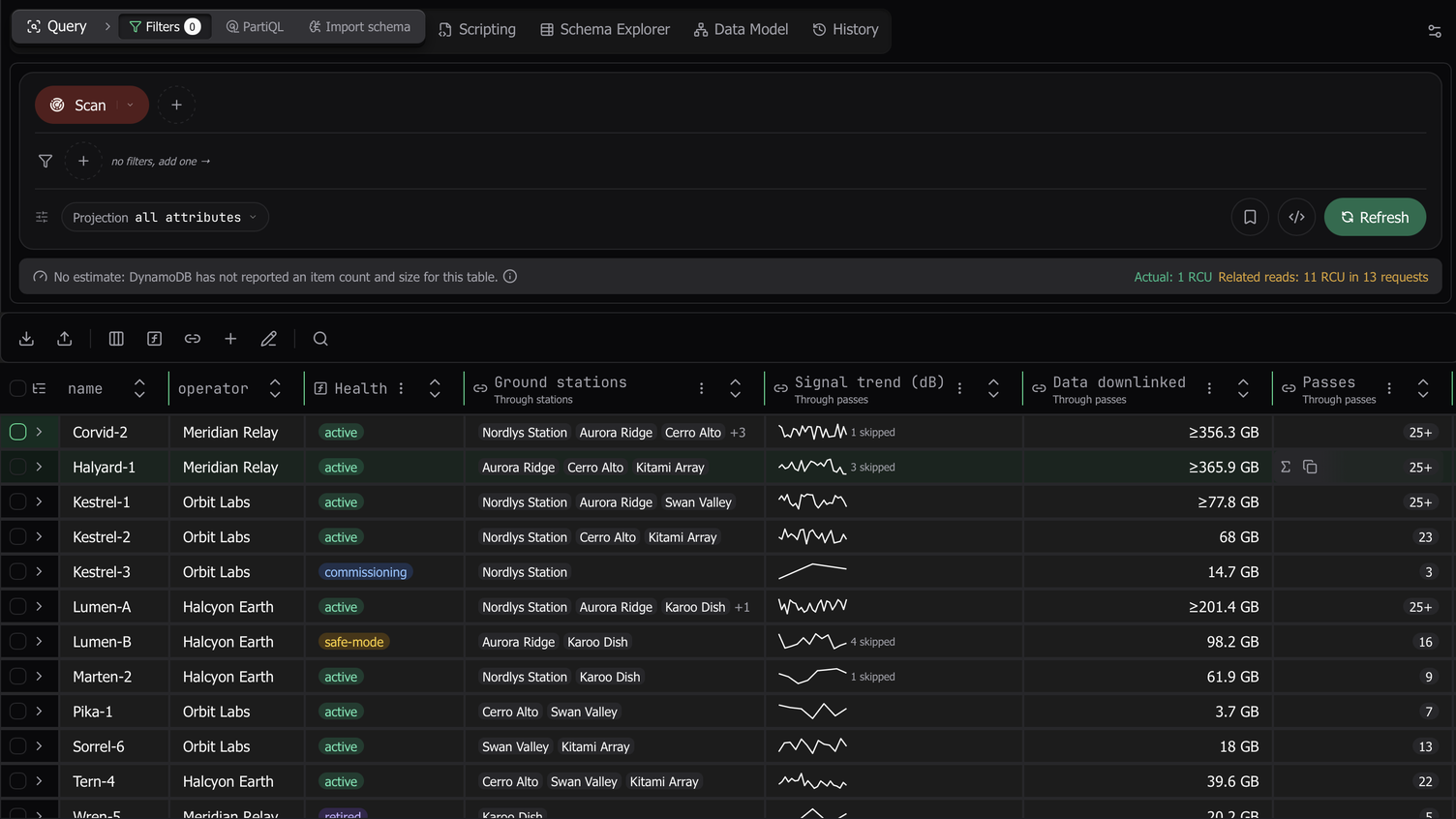
A query link reads every item that matches a key condition, for one-to-many data such as an order’s lines. A collection column sums up those items in one cell. Add column in the link dialog offers four kinds.
- Count shows how many related items the row has.
- Chips shows an attribute’s values from the first items, then how many more, such as
SKU-1SKU-7+4. - Aggregate shows the value of a JSONata expression over the row’s items as
$items, such as$sum($items.amount), in the display format you choose. - Sparkline draws a numeric attribute across the items.
A link reads a set number of items per row. When a row has more, the cell covers only the first ones and says so. A count reads 25+. An aggregate shows ≥ when the full value can only be larger, and ~ otherwise. Compute Exact reads that one cell’s items to the end and replaces the value. It is in the cell’s context menu, on the Σ button that shows on hover, and on ⌘ Enter (Ctrl + Enter on Windows and Linux). A row with more than 1,000 related items, or more than 16 MiB of them, shows an error instead of a partial answer. Why related values can be partial explains the marks, and Get an exact related value shows Compute Exact.
- Click a collection cell to open a peek, a small table of the row’s related items with Load more.
- The chevron in a row’s gutter opens a read-only sub-grid of the row’s related items under the row.
- One row per related item in the Links menu shows the table joined with a link’s items, like a left join.
- Open all in new tab opens the target table on the exact Query the link reads for the row.
Follow related records covers all four.
Virtual fields in the item view, Compare, exports, filters, and MCP
Computed values now show everywhere the grid’s values go. Sort, filter, and export computed values has the details.
- Item view. In the Edit and Add row sheets, Document mode lists the table’s fields in a read-only Computed group marked “Not stored in DynamoDB”. The values follow your draft, so changing an attribute a field reads updates its row before you save.
- Compare. Compare 2 items adds a Computed group. It compares stored values, so
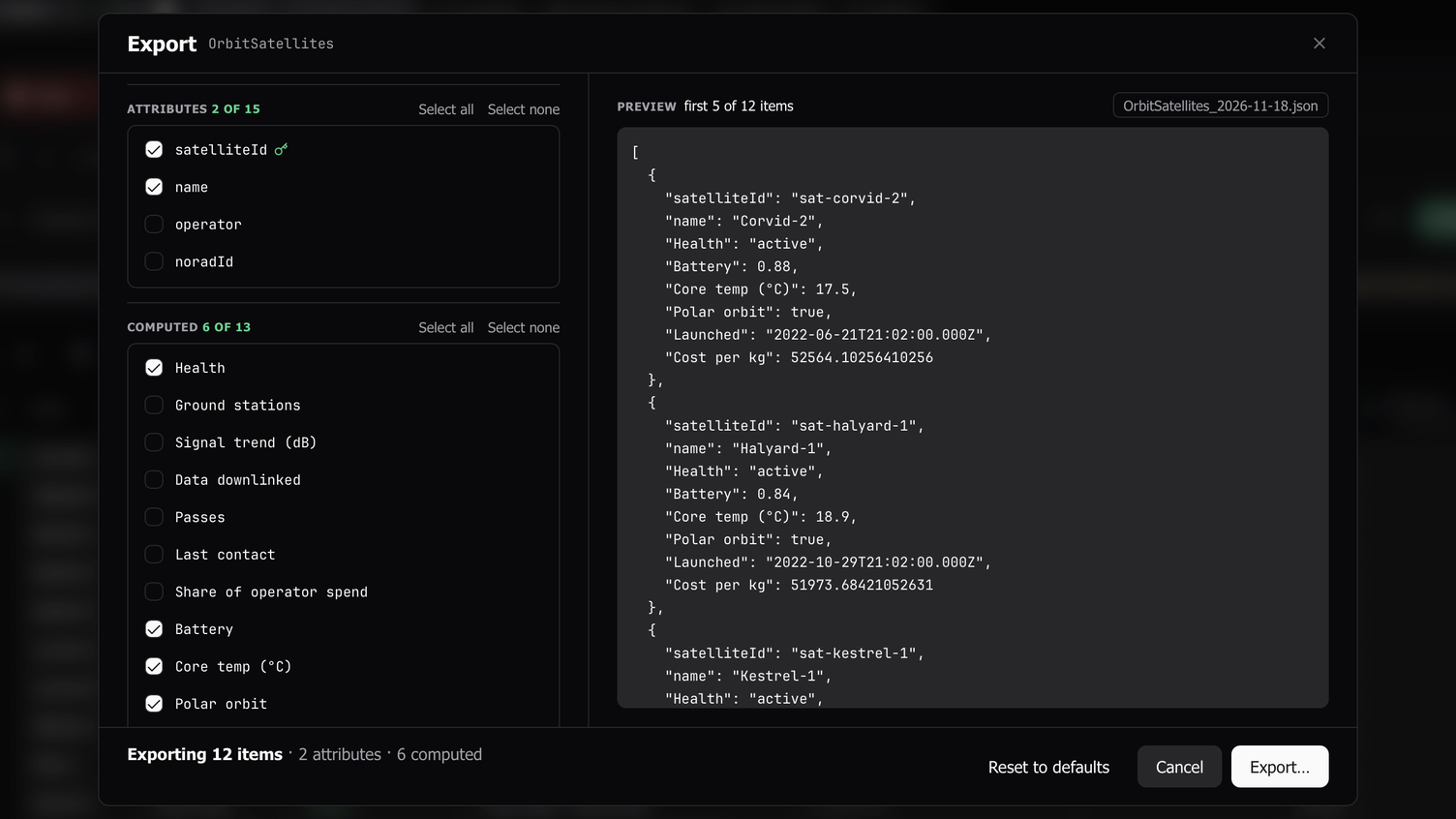
1.50equals1.5, and a differing row counts toward Only differences. - Export. The export dialog has a Computed section that starts with the computed columns the grid shows. A value is written as stored, never in its display format. An export that includes a collection column reads each row’s related items to the end first, so a file never holds a partial value.
- Filters. The Add filter menu lists your fields under Computed fields (loaded rows only). A computed filter narrows the rows already loaded. The DynamoDB request never carries it, so it never changes what a page reads or costs.
- MCP. The
query,scan, andget_itemtools takeincludeVirtualFields: trueand return each item’s computed values undervirtual, beside the item. A newlist_virtual_fieldstool lists a table’s fields and links. See the MCP docs.
Orbit sample tables for virtual fields
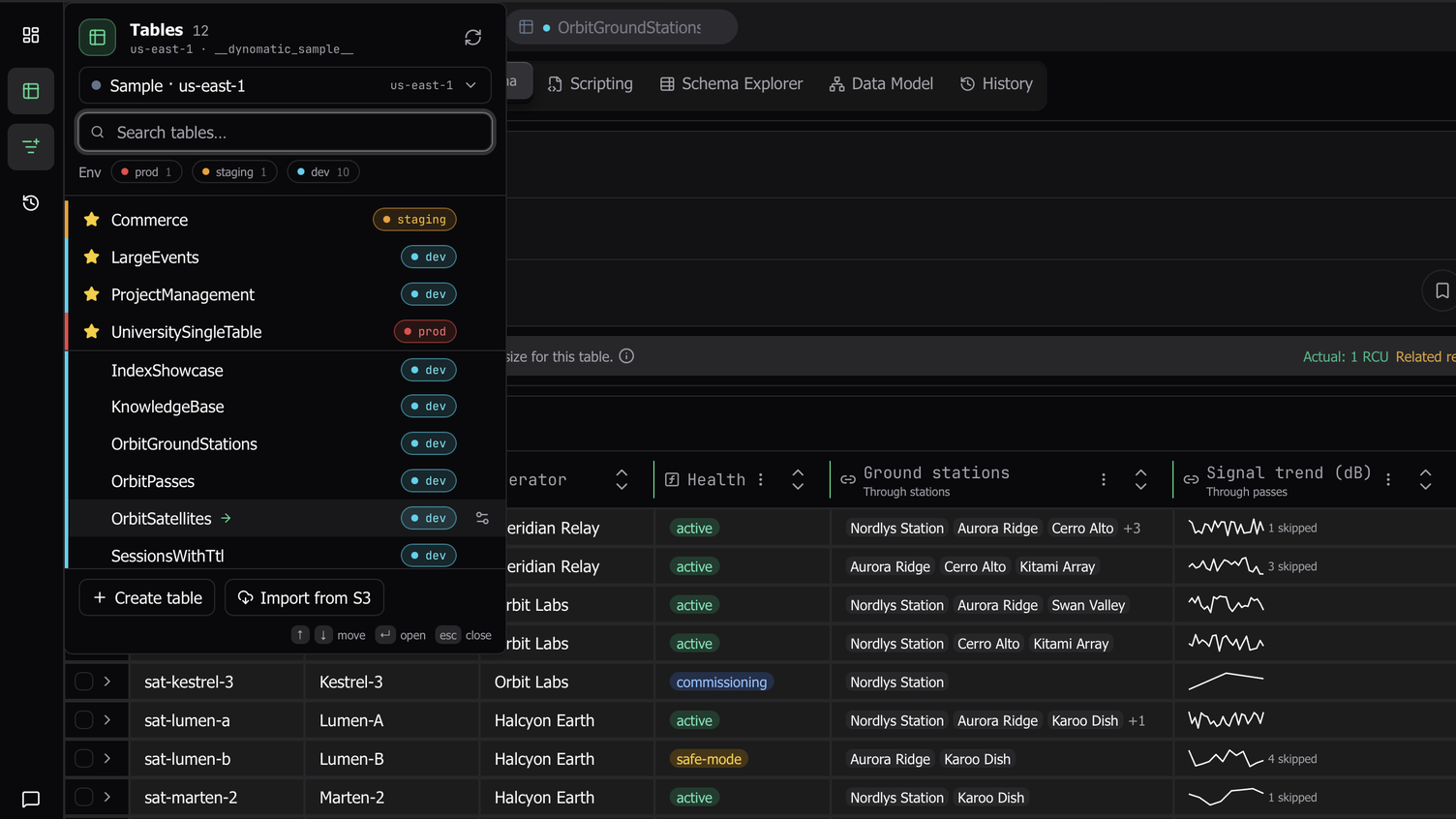
Sample Mode now seeds twelve tables. The three new ones belong to a small satellite operator, Orbit: OrbitSatellites, OrbitGroundStations, and OrbitPasses. They open with saved table links and virtual fields, so every kind of field shows on real-looking data with no setup and no AWS account.
OrbitSatellites shows each satellite’s health as a badge, its battery as a percentage, a core temperature unpacked from a gzip blob with $gunzip, and, through its links, a pass count, a signal sparkline, the data downlinked, and its ground stations as chips. Pass counts run from 3 to 46 per satellite and the links read 25 items per row, so some counts are exact and others read 25+ until you run Compute Exact. Explore the Orbit sample tables is a guided tour of them.
A larger Free plan
After the trial ends, the Free plan now works as an everyday DynamoDB client. The plans page lists what each plan includes.
- AWS CLI profiles. A profile from
~/.aws/configor~/.aws/credentialsconnects on Free with any sign-in: static keys, SSO, MFA, AWS Login,credential_process, or an assume-role chain. Creating and managing profiles inside Dynomatic stays on the paid plans. - Open tabs. Free has no open-tab limit. It used to stop at two.
- Exports. Loaded, selected, and search-matching rows export in full on every plan, to a file or the clipboard. All matching items reads DynamoDB again, so on Free it still stops at 25 rows. Import on Free still stops at 25 rows.
Custom endpoints now need a paid plan. A profile that sets endpoint_url, which covers DynamoDB Local, LocalStack, and private endpoints, shows a lock in the workspace picker on Free, and Dynomatic sends nothing to it. FIPS, dual-stack, GovCloud, and China regions are not custom endpoints and work on Free. The trial includes custom endpoints, and Sample Mode still runs on every plan with no AWS account. See Custom endpoints.
An MCP token that survives a restart
The MCP server used to make a new bearer token each time Dynomatic launched, so a client with the token in its config stopped working after every restart. The token now stays the same until you click Rotate. After this update the server makes one new token, so paste it into your HTTP clients once.
The server’s on switch and port also stay as you set them. Before, changing any other setting, or quitting with ⌘ Q right after turning the server on, could turn it off again.
Other improvements
- Signing in with an account that has no organization now tells you to finish setting it up at app.dynomatic.io. Before, it said the server sent a response the app could not read.
- A workspace table filter you cleared stays cleared. For people who still had the old global prefix filter, it used to come back at the next launch.
- A tab keeps its loaded rows while another tab is in front.
- Reset column layout clears every saved column visibility choice, and Copy value copies a cell’s pending edit.
- A disabled environment rule no longer classifies tables. An AWS account that several profiles share takes the most protective of their environments, so it reads Production if any one of them does.
- An AssumeRole failure shows the STS error code. Hand edits to your AWS credential files are picked up at the next connections refresh.
- Exported maps write their keys in the same order at every depth, so two exports of the same item compare equal.
- Schema import reads ElectroDB files written as CommonJS, and ElectroDB entities keep the order they were captured in.
- Cancelling a request right after you start it now stops it. Before, a cancel that arrived too early was lost.
- Red and amber status text on tinted backgrounds now meets AA contrast, and file sizes read in KiB.