Virtual fields
Create a virtual field
Add a computed column from a preset or a JSONata expression, check it in the live preview, choose a display format, and save it.
A virtual field adds a read-only column to a table’s results grid. You write what it computes, check the result on loaded rows, and choose how it draws. Nothing is written to DynamoDB. Virtual fields need a paid plan or a trial, and Sample mode lifts that gate.
Open the field dialog
Load some rows first, so the preview has items to work on. Then use any of these:
- The + button at the end of the column header row.
- Virtual fields in the results toolbar, then Add virtual field.
- Derive Field From This Attribute in the context menu of an attribute cell that holds a value. The dialog opens with that attribute in the expression, and the presets that suit its type come first.
- Add virtual field in the command palette, for the open table tab.
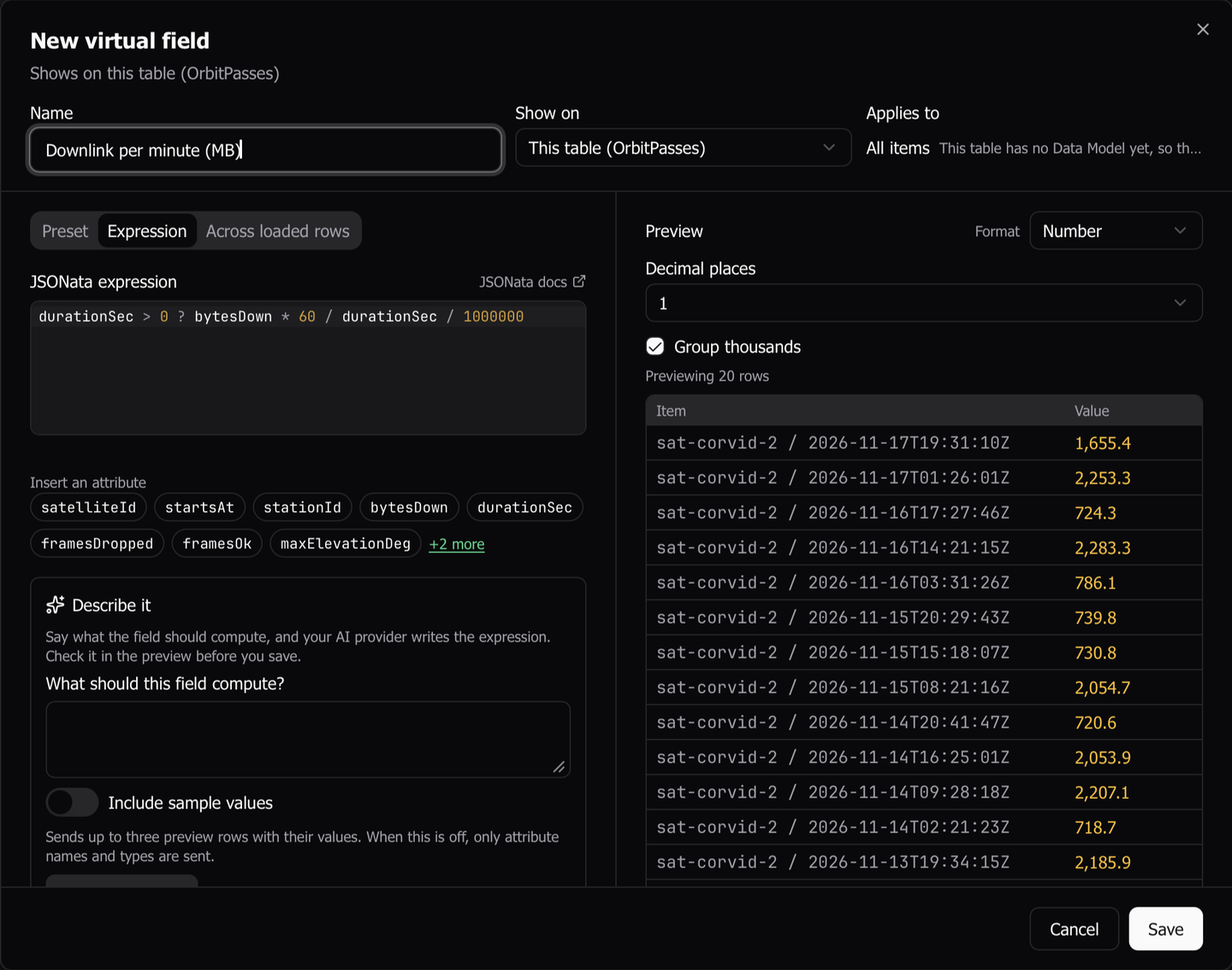
The top row holds Name, Show on and Applies to. The left pane chooses how the value is computed: Preset, Expression or Across loaded rows. The right pane always shows the preview, with Format in its header. The dialog belongs to its tab, so switching tabs and back keeps your draft.
Type a Name that no other field on the table has.
Write an expression
- Choose Expression. A new field opens here.
- Type a JSONata expression that reads the item, such as
launchCostUsd / massKg. Name an attribute by its path with no$. - To insert an attribute, click its chip under Insert an attribute. The chip inserts the name, quoted as JSONata needs, at the cursor.
The editor completes attribute names at the start of a path and the keys inside a map after a dot. It completes JSONata’s functions and Dynomatic’s own after $. Press Ctrl + Space to open completions with nothing typed. JSONata docs beside the editor opens the language reference at docs.jsonata.org.
When the expression does not compile, the engine’s message shows under the editor and the whole expression is marked. Save stays blocked until it compiles.
Expression reference lists the variables and the Dynomatic functions, such as $gunzip and $related.
Start from a preset
- Choose Preset. The presets that suit the starting attribute come first, and Show all presets lists the rest.
- Choose a preset. The list collapses to it, and Change opens the list again.
- Fill in the form. A wrong value, such as a key segment of
0, shows its error at once.
The dialog shows the JSONata expression the form compiles to. To edit that expression by hand, click Convert to expression. The change is one way, and the form does not come back.
Presets and display formats lists all 22 presets.
Check the preview
About 150 ms after you stop typing, the preview evaluates the draft and lists each row’s key and value.
- With rows selected when the dialog opened, it evaluates those rows, up to 100.
- Without a selection, it evaluates the first 100 rows the grid shows and lists 20, with the rows that give a value first.
- An expression that calls
$related, and a field computed across loaded rows, preview the first 20 rows.
A row shows its value in the chosen format, No value, its runtime error, or that it is still evaluating. The status line above the rows says what it holds, such as Previewing 20 rows, and counts rows that give an error or no value. A runtime error on some rows does not block Save. Preview outcomes explains each one.
To preview other rows, close the dialog, select those rows in the grid, and open it again.
Choose a display format
- Open Format in the preview’s header.
- Choose a format, such as Number, Currency, Percent, Date or Badge.
- Fill in the settings that appear under the header. The preview redraws every row.
For Badge, click Add N values from the preview to add a row for each value the preview shows, then pick a color for each. For Link, type a URL template that contains {value}.
A format changes only how the cell draws. Sort, search, Copy Value, export and agents use the stored value.
Compute across loaded rows
Choose Across loaded rows for a value that depends on every loaded row rather than one item.
- Choose Rank, Share of total, Running total or Duplicate count.
- In Value, type a per-row expression, such as
bytesDown. For Duplicate count, type the Key that rows share, such asPK. - For a rank, share or running total within groups, type the group’s expression in Within each (optional), such as
satelliteId. - For Rank, set Order to Highest first or Lowest first.
The column says Depends on loaded rows under its name. Loading a page, editing a row or sorting the grid computes it again. Running total follows the grid’s current sort, and its column cannot be sorted by itself. A field computed across loaded rows cannot call $related or $relatedAll.
Let AI write the expression
Describe it shows on the Expression tab when an AI provider is set up for completions. It needs the Data Model gate as well as the Virtual fields gate, and both come with a paid plan.
- Under What should this field compute?, describe the value, such as
total of price times qty across line items. - To send up to three preview rows with their values, turn on Include sample values. With it off, Dynomatic sends only the description and the attribute names and types.
- Click Write expression.
An answer that compiles replaces the expression in the editor, unsaved, and the preview runs it. An answer that does not compile keeps the editor as it was and offers Retry. The first request for a table’s AWS account asks for consent, unless you already gave it for the Data Model’s AI features.
Save the field
Click Save. While Save cannot save, it stays focusable and the footer says why, such as an empty name or an expression that does not compile.
The new column joins the end of the grid, and the grid scrolls to it. A toast counts how many loaded rows have a value, such as Added total: 18 of 20 loaded rows have a value. Its column is at the end of the grid. A field that reads a link gets no count, because counting would read every row’s related items.
Add a suggested field
Dynomatic suggests up to six fields from the table’s first 500 loaded rows, such as a key segment, an epoch as a date, or the length of a list.
- Click Virtual fields in the results toolbar. A one-line hint under the toolbar opens the same menu from Show suggestions.
- Under Suggested fields, click Add on a suggestion. The dialog opens on Preset with the preset, the attribute and a name filled in.
- Check the preview and click Save.
Dismiss hides a suggestion on that table, and Dynomatic remembers the choice.
Edit or delete a field
- Click the field menu button in the column’s header.
- Choose Edit field to reopen the dialog, or Delete field to remove the field.
Delete asks you to confirm. Its message names the field and says that the column leaves this table’s grid and nothing in DynamoDB changes. A related or collection column has Delete field only. Change it in the link dialog instead.
To show a field on more tables, or to copy fields to another table, see Share and reuse fields.
Last updated on