Virtual fields
Link another table
Build another table's key from each row, read the matching items, and add related columns and summaries such as counts, chips, totals and sparklines.
A table link reads items from another table, or from the same table, for each row of the grid. Columns read through the link show what it found. Nothing is written to either table. Links need the same paid plan or trial as virtual fields.
The examples use the Orbit sample tables. Each pass in OrbitPasses names its satelliteId, each satellite in OrbitSatellites holds a list of groundStationIds, and OrbitPasses has the index stationId-startsAt-index.
Open the link dialog
- Load some rows, so the dialog can check keys and preview against them.
- Click Links in the results toolbar.
- Click Link another table….
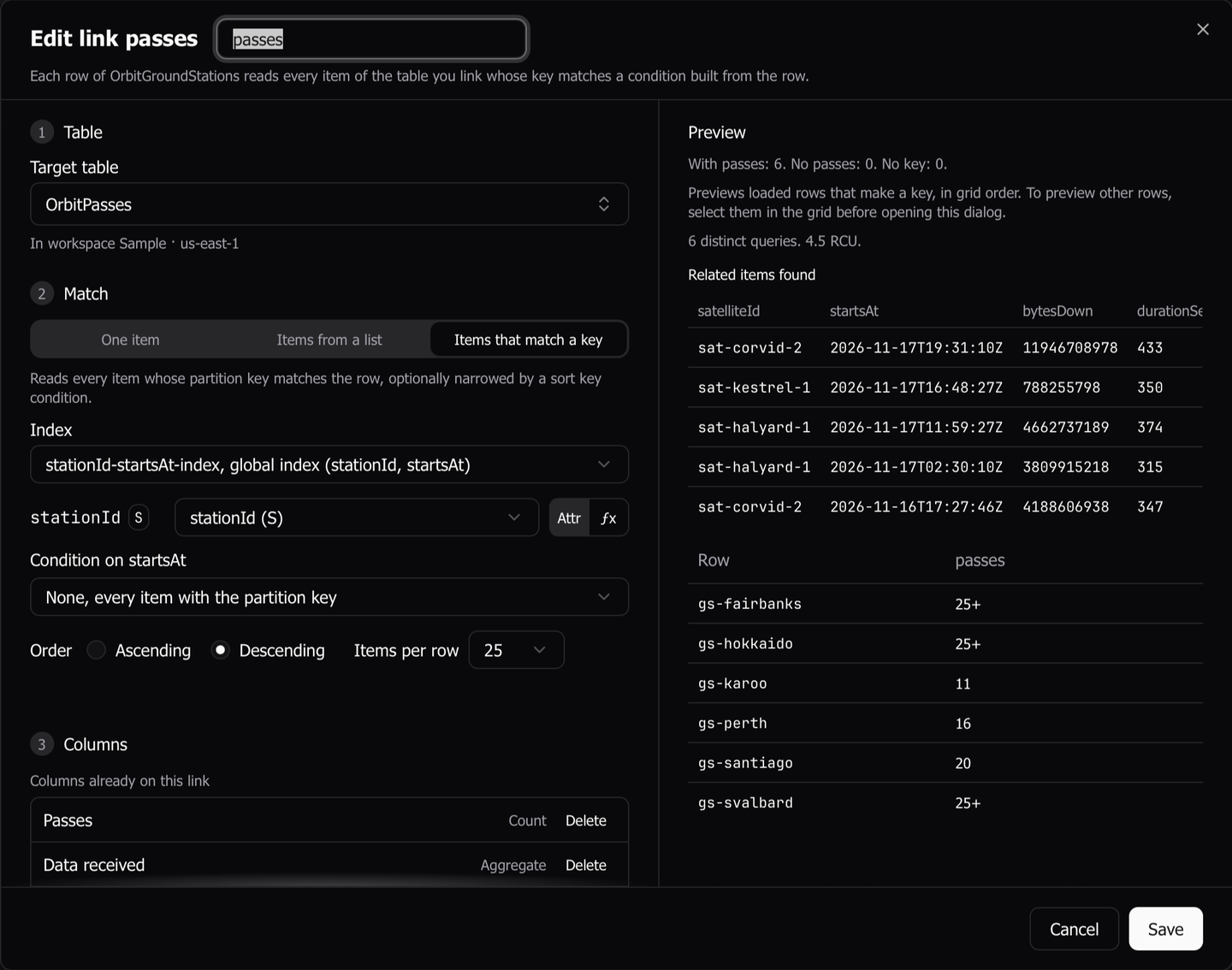
The dialog has three numbered steps on the left, Table, Match and Columns, and the preview on the right.
Choose the target table
- Open Target table and choose a table. The list starts with the open table’s workspace, and the open table first in it, so a table can link to its own items. Other connected workspaces follow.
- If the table you want is in a workspace that is not listed, choose that workspace under Other workspaces to connect it, sign in, or list its tables again.
Once you choose a table, the dialog reads its key schema. The line under the picker names the table’s workspace.
The link name in the header starts from the table’s name, so Customers gives customer. Change it if you want. No two links on one table share a name.
Choose how each row reads
Under Match, choose one of three reads.
| Read | Use it when | Orbit example |
|---|---|---|
| One item | Each row names one item of the target | Each pass reads its satellite, satellite |
| Items from a list | Each row holds a list or set of the target’s keys | Each satellite reads its ground stations, stations |
| Items that match a key | Each row owns many target items under one partition key | Each satellite reads its passes, passes |
For Items from a list, choose the attribute that holds the list or set. The dialog offers the attributes the loaded rows hold as a list, a string set, or a number set.
Map the key
The dialog shows one row for each key attribute of the target, with its name and type. For each one, choose where its value comes from.
- Attr takes an attribute of the open row.
OrbitPassesmaps the satellite’s keysatelliteIdfrom the pass’s ownsatelliteId. - ƒx takes a JSONata expression over the row, such as
"CUSTOMER#" & customerId. - Each, on a link that reads items from a list, takes each element as the key. An expression reads the element as
$value, such as"STATION#" & $value.
The dialog checks every key row against every loaded row before it reads anything.
- When no value has the key’s type, it refuses the row, as in
This gives N on the loaded rows, but the key PK of Customers is S.Dynomatic never converts a value to the key’s type. Change the attribute or the expression. - When some rows give another type, or no row has a value, it says how many rows will show no key.
- When an expression gives many rows the same bare key, such as
CUSTOMER#, it offers a guard that keys nothing on those rows, such as$exists(customerId) ? "CUSTOMER#" & customerId.
Build a query link
Choose Items that match a key to read every item under a partition key with DynamoDB Query.
- In Index, choose the base table or one of the target’s secondary indexes. Each option names its key attributes.
- Map the Partition key from an attribute or an expression.
- In the sort key’s condition, such as Condition on startsAt, keep None, every item with the partition key, or choose Equals, Less than, Less than or equal to, Greater than, Greater than or equal to, Begins with or Between. Fill in its operand from an attribute or an expression.
- Set Order to Ascending or Descending by the sort key.
- Set Items per row, from 1 to 25. The default is 10.
OrbitGroundStations links to OrbitPasses on stationId-startsAt-index, with each station’s stationId as the partition key, no sort condition, Descending, and 25 items per row.
A query link has no filter expression. A filter would read, and charge for, items it then drops, and a row’s count would be wrong. Narrow a query link with the sort key condition or an index instead. An index that projects only some attributes gets a note saying so, and it cannot show the others.
Check the preview
Once every key row fits, the preview reads the related items for up to 20 rows. It reads the rows selected when the dialog opened, or else the first loaded rows that make a key.
- For One item and Items from a list, a status line counts the rows, such as
Found: 18. No match: 1. No key: 1.Pick a row in Row to see every attribute its linked item holds. - For a query link, the status line reads like
With passes: 6. No passes: 0. No key: 0., and the next line gives the reads, such as6 distinct queries. 4.5 RCU.Related items found shows up to five of the items, and a table counts each row’s items, with25+when a row has more than it reads.
When the preview cannot read, the status line says why and Retry reads again. Preview reads count toward Related reads in the cost strip.
Add related columns
A related column shows one attribute of the related item.
- Under Columns, tick an attribute in the preview, or choose it from Add column.
- Repeat for each attribute you want.
Each column is named after the link and the attribute, such as satellite → name. Over a query link, a related column shows the attribute from the row’s first items, as a list.
The dialog adds top-level attributes only. For a nested value, write a field with an expression, such as $related("customer").address.city.
Add a collection column
A query link can sum up each row’s related items in one cell. Add column lists four displays above the attributes.
- Add Count shows how many related items the row has, such as
3, or10+when the row has more than the link reads. - Add Chips shows one attribute’s values from the first items, then how many more. Choose a top-level attribute and how many chips to show, from 1 to 10. The default is 3.
- Add Aggregate shows the value of a JSONata expression over the row’s items,
$items, in a display format you choose.OrbitSatellitesadds up its passes’ data with$sum($items.bytesDown). - Add Sparkline draws a line through one numeric attribute, oldest to newest.
Each collection column shows a live Sample cell from the preview’s items. A column is named after the link and the display, such as passes (count), unless you type a name.
On an index that does not project every attribute, the dialog refuses a chips or sparkline column over an attribute the index lacks, and refuses an aggregate outright.
Save the link
Click Save. With columns chosen, it reads like Save link and 2 columns. While it cannot save, it stays focusable and says why, such as a key row that is unmapped or refused.
The new columns join the end of the grid, and the grid scrolls to them.
Use the linked item in an expression
Any field’s expression can read a link with $related, passing the link’s name as a string literal.
bytesDown / $related("satellite").storageBytes
OrbitPasses uses this expression for Share of onboard storage. $related returns the linked item, a list of items for a link that reads from a list, or the row’s first items for a query link. To read every item of a query link, use $relatedAll. Expression reference has the details.
Add a suggested link
- Click Links, then open Suggested links. Dynomatic reads nothing until you open it.
- Read a suggestion, such as
Link customerId to Customers, with its evidence, such as10 of 10 found. - Click Add. The link dialog opens filled in. Check it and click Save.
Dismiss hides a suggestion on that table, and Dynomatic remembers the choice. Suggestions come from tables in the open table’s workspace. Query link suggestions, such as Show each order's lines, also need the Data Model gate and come from the table’s stored Data Model. The reads that confirm a suggestion count toward Related reads.
Link a table in another workspace
A link’s target can be in another workspace, so another AWS account or region. Choose it in Target table. Each link reads with its target workspace’s own profile, region and sign-in. While that workspace is signed out, needs an MFA code, or has no profile, the link’s cells show an error that names the workspace, and nothing is sent. After you sign in again, the cells read again.
Edit or delete a link
- Click Links. The menu lists the table’s links, such as
passes → OrbitPasses. - Click the edit button beside a link to open the dialog on it, or the delete button to remove it.
In the edit dialog, Columns already on this link lists the saved columns. Delete marks one for removal on save, and Keep undoes that. Cancel discards every change.
Renaming a link keeps its columns. An expression that calls $related with the old name shows an error until you change its text.
Deleting a link asks once and names the columns that go with it, as in Delete link and 2 columns. Expression fields that call the link by name stay, and show the No link named error.
Last updated on