Virtual fields
Follow related records
Open a computed value in full, peek at a row's related items, expand them under the row, join them into the grid, or open their query in a new tab.
A cell shows only what fits its column. These steps open the whole value, or the related items behind it, from the row you are on. The peek, the sub-grid, the joined view and Open all in new tab need a query link, one that reads Items that match a key.
View a whole value
- Right-click the cell and choose View Value. A double-click or Enter does the same when the cell opens nothing else, and a click does on chips over a link that has no peek.
- Read the value. The viewer names the field and the row, gives the value’s type, and shows the value in full.
- Click Copy to copy the whole value as text, or press Escape to close the viewer.
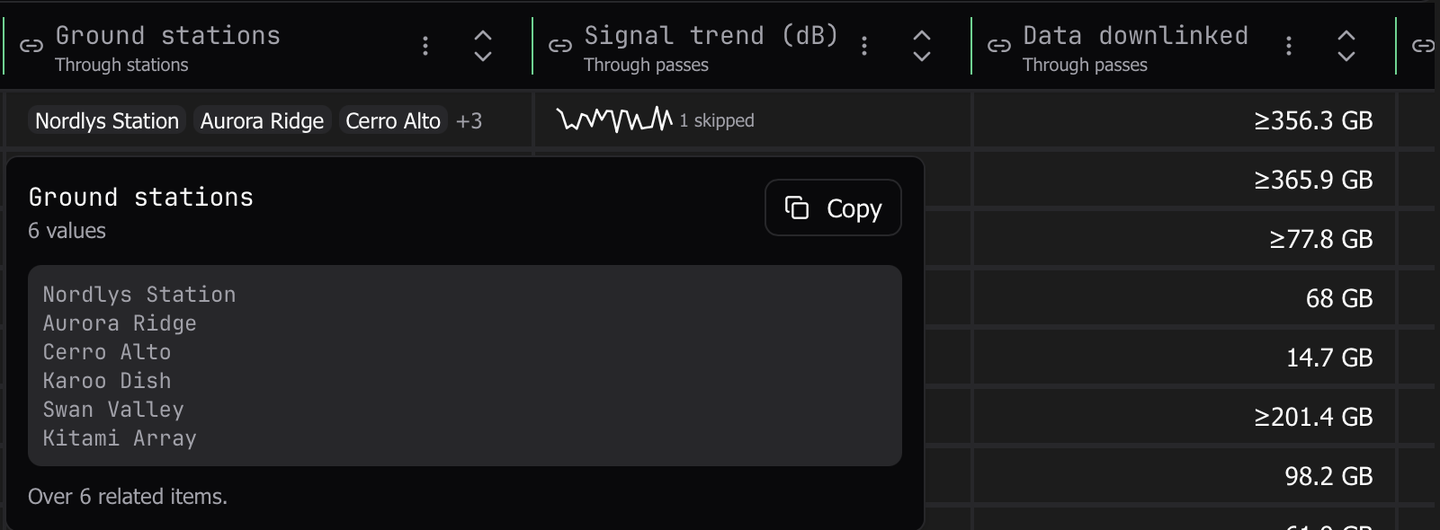
The viewer reads nothing past what the grid read. On chips or a sparkline over a query link, it shows every value of the items read so far and says when those are only the first ones. Click Read every value to read the rest for that row. The viewer shows Reading every related item… while it reads, and stops with an error past 1,000 related items or 16 MiB.
Peek at a row’s related items
- Click a collection cell over a query link, such as a count, chips or a sparkline. On a related column over a query link, double-click or press Enter. Peek at passes in the cell’s context menu, named for the link, also works.
- Read the header. It counts what has loaded, such as
25 of 25+while more remain. - Click Load more to read the next page, as many items as the link reads per row.
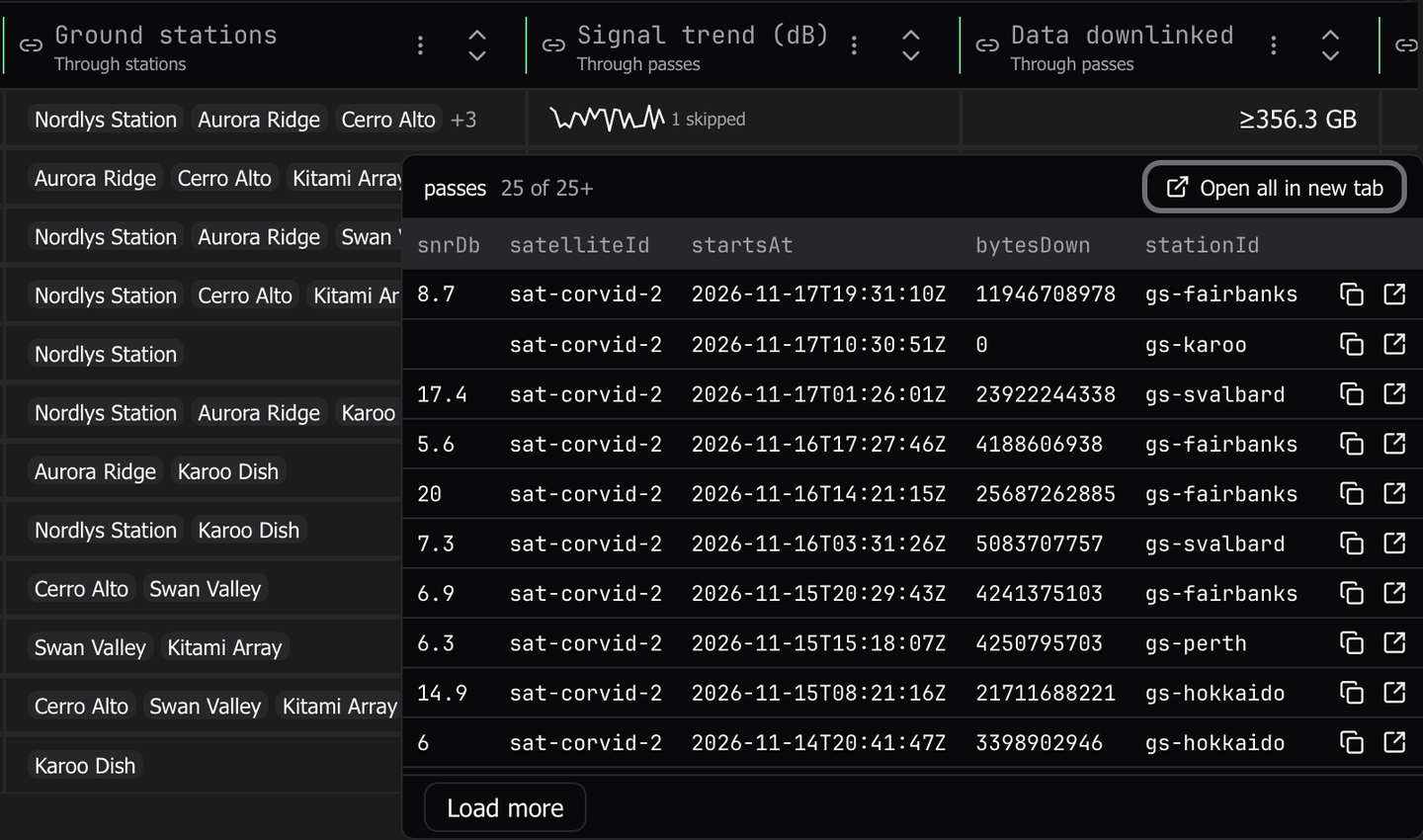
Each item row has two buttons. One copies the item as JSON. The other opens the item in a new tab of the target table, on a query for its key. Press Escape to close the peek and return to the cell.
Expand a row into a sub-grid
- Click the chevron at the start of a row, or focus the row’s gutter and press Right. The row’s related items open under it.
- Click Load more at the foot of the sub-grid for the next page.
- Click the chevron again, or press Left, to close it.
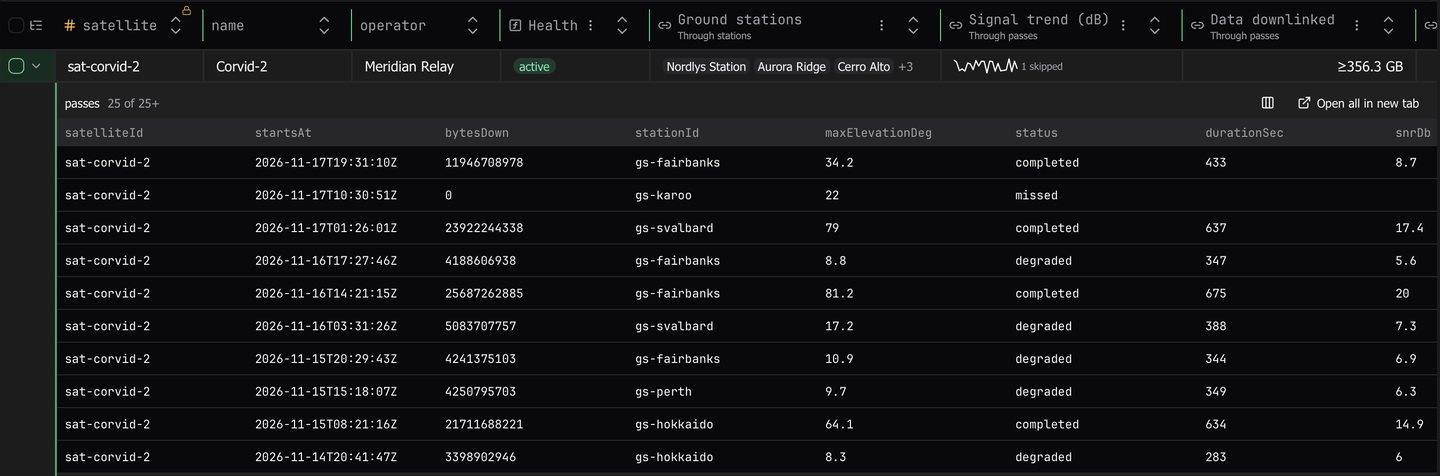
The sub-grid is read-only and shows up to 10 item rows before it scrolls. Every sub-grid of a link shows the same columns, so neighboring rows line up. The Columns button in its header chooses them.
To open or close many rows at once, use the menu button in the gutter’s header. Expand visible opens every row on screen, and Collapse all closes them. When the table has several query links, the same menu picks the link the sub-grids show.
The peek and the sub-grid share a row’s pages, so one never reads again what the other loaded.
Show one row per related item
- Click Links.
- Under One row per related item, choose a query link, such as
passes (OrbitPasses).
Each row of the table becomes one row per related item, like a SQL left join. The related items’ attributes follow the table’s own columns, named like passes → bytesDown. A row with no related items stays as one row with empty related columns. Dynomatic reads every page of each row’s query, up to 1,000 items per row.
The view is read-only. To return to the normal grid, click the banner’s button, such as Back to one row per OrbitSatellites item, or choose the link again in the menu.
Open the related items in a new tab
- Click Open all in new tab in the peek’s or the sub-grid’s header. On a query link’s column, the cell’s context menu also has it, as Open All passes in New Tab.
- Work in the new tab. It runs the exact Query the link reads for the row, with the same index, key condition and order.
- To go back, click the breadcrumb above the grid. Dynomatic returns to the source tab, scrolls to the row, and selects it.
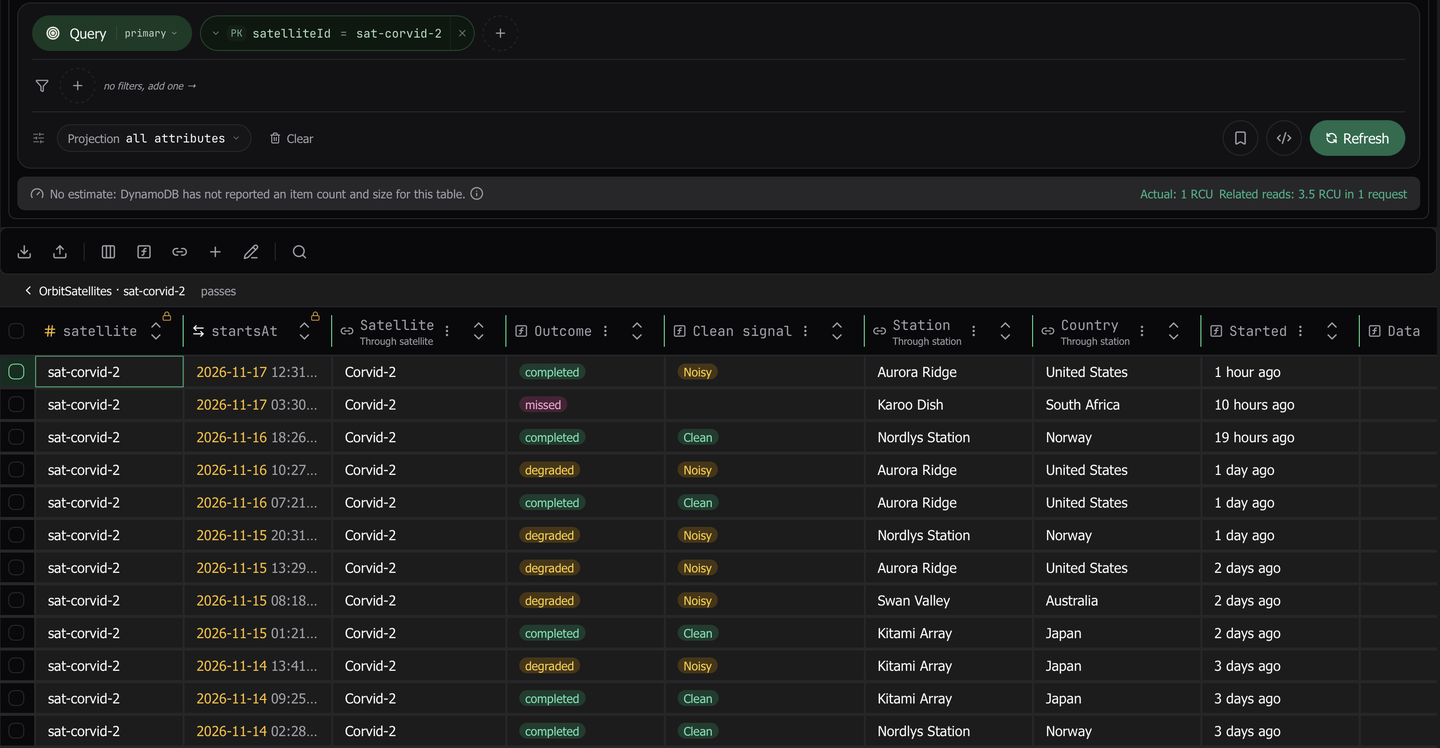
Nothing opens when the row makes no query, such as a row with no key for the link, or when the query builder cannot hold the Query exactly. A toast says why. Dynomatic never opens a wider query than the link reads.
Last updated on