
Data modeling
Data Model inference
Reverse-engineer a single-table design from the items Dynomatic has already seen, then query straight from the patterns it derives.
The Data Model tab reads the items Dynomatic has captured from a table and works backwards to the design behind them, naming the entities, their key templates, the item collections they share, the access patterns those keys support, and the relationships between them. Use it on a single-table design you inherited, or to check that the table you built matches the model you intended. Data Model requires the Pro plan.
Open it and infer
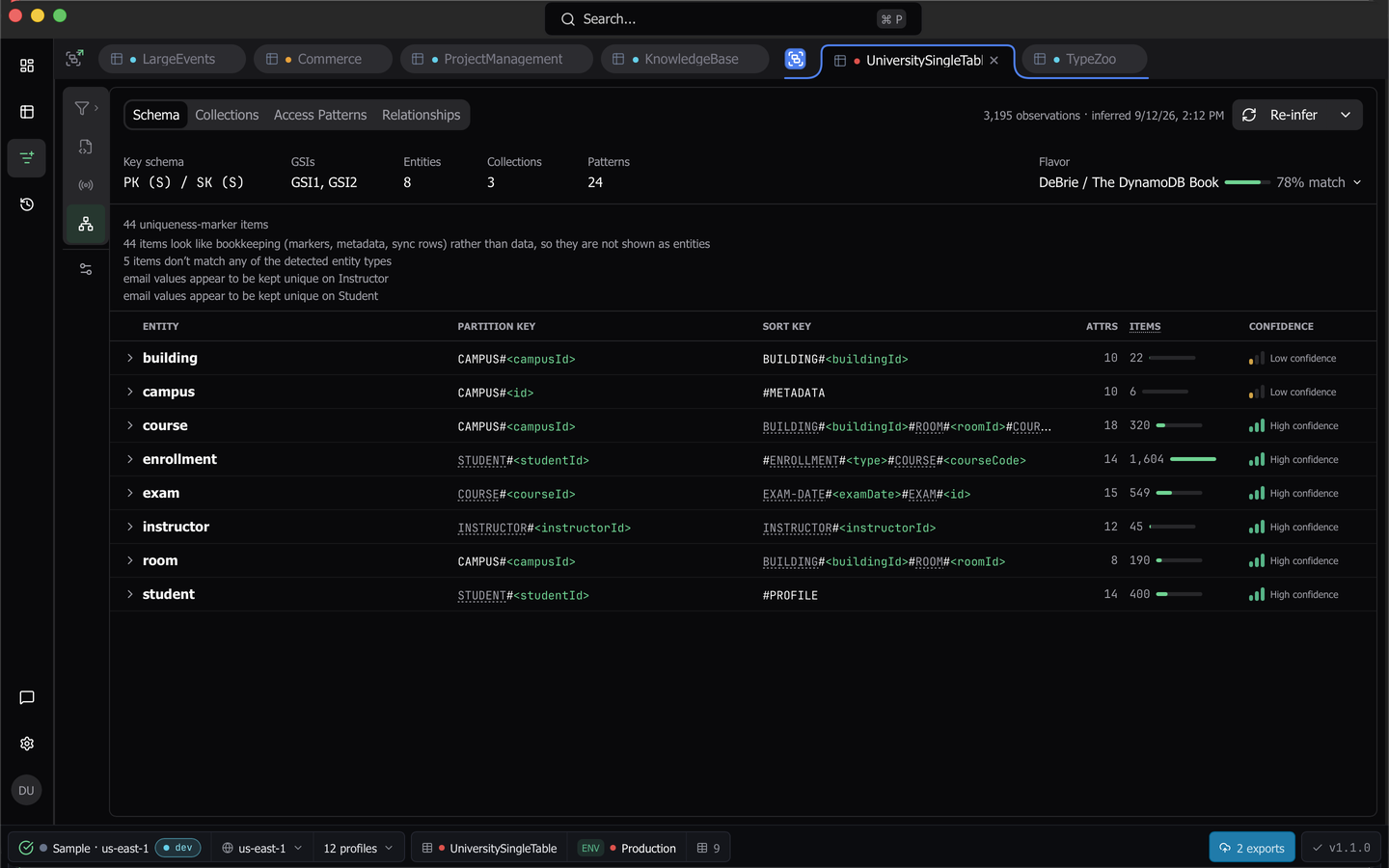
Open a table, then choose Data Model in the tab’s rail. Inference runs by itself the first time, and on a table with nothing captured yet it offers to capture a sample first. The result is stored as a versioned snapshot, so reopening the tab is instant.
The header carries the observation count and when the model was inferred, plus Re-infer to rebuild it from the current captures. A hint appears when the table’s item count has moved since the snapshot was built.
The config strip
A strip under the header states the ground truth the model was built on. It lists the key schema, the GSI names, a Vector indexes cell on tables that have one, and counts of entities, collections and patterns.
The Flavor cell opens a popover ranking the single-table conventions the table matches, each with a percentage and a hover explanation of every matched, missing and conflicting convention. Distinctive signals count double, marked with a ×2 chip. Use Set as flavor to override the detection and Clear override to undo it. A table matching nothing recognizable is a Generic table, and its model comes from the table’s own structure alone.
Reset captured data… in the More actions menu is the escape hatch. It deletes everything observed about the table along with the inferred model, and keeps what you set yourself, including relationships, annotations, the design flavor and capture settings.
Schema
The Schema sub-tab is a dense ledger with one row per entity, showing its partition and sort key templates, its attribute count, a scaled bar of how many items were observed, and a confidence level.
Expand a row to see when the entity was first and last observed, every attribute with a presence bar, the discriminator and collection role chips, and notes such as a currency warning on an entity the table’s recent activity no longer touches. Each row also jumps across to that entity’s relationships and access patterns with the search pre-filled.
Key templates are derived from the real keys, so an id-shaped constant renders as a placeholder rather than leaking a sampled value, while a genuine sentinel such as #METADATA stays verbatim.
Collections
The Collections sub-tab groups the multi-entity item collections per index.
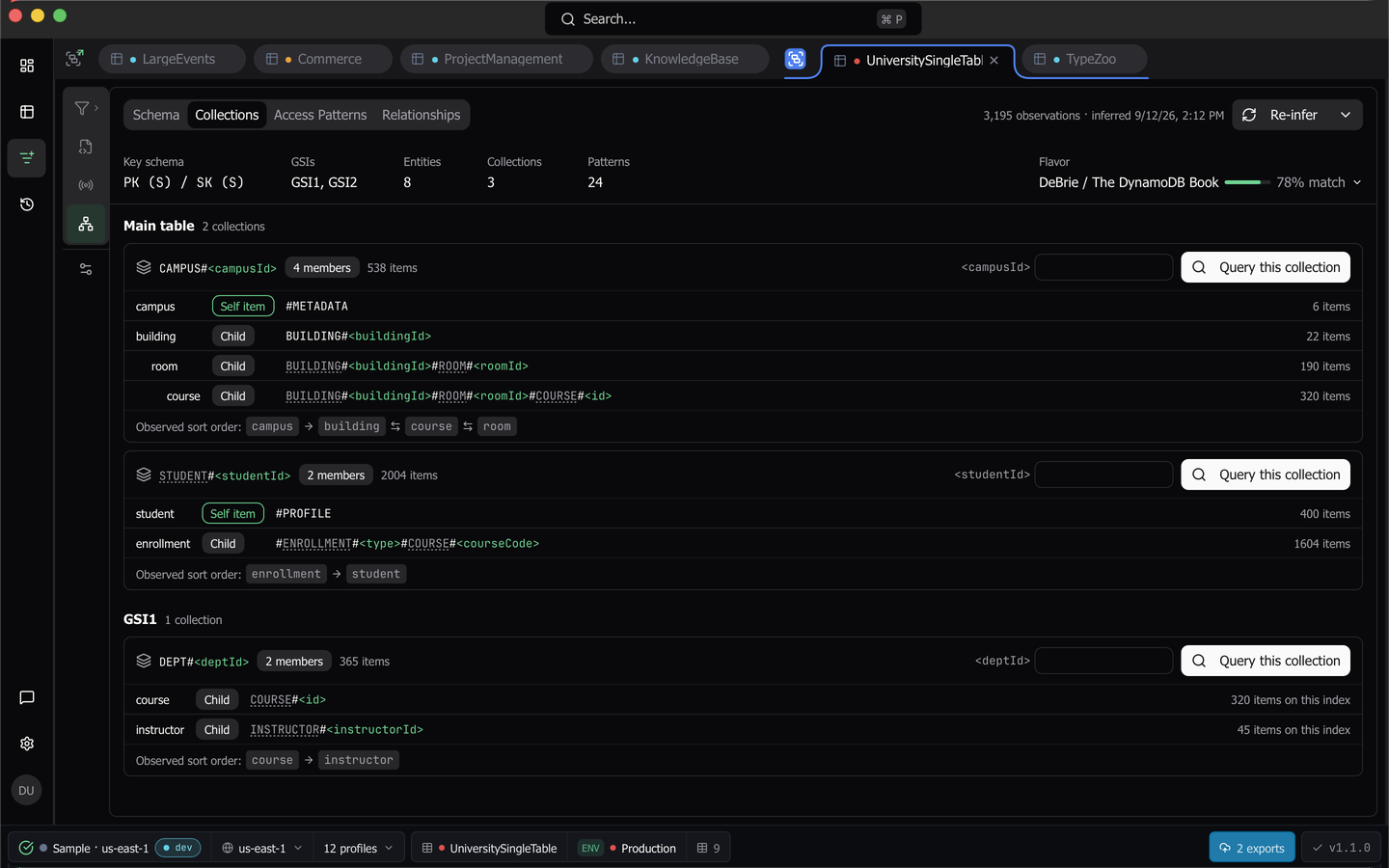
Each block gives the partition key template, member and item totals, each member’s role and sort key template, and the observed sort order. Members whose sort keys nest inside one another render indented under their parent, so a campus, building, room and course hierarchy reads as a hierarchy.
Query this collection takes the typed partition values you enter and opens the tab’s Schema query flavor with that collection selected. Partitions holding a single entity are presented as access patterns instead.
Access patterns
The Access Patterns sub-tab is a searchable list of the reads the observed keys support, each classified as Get, List children or Fetch collection.
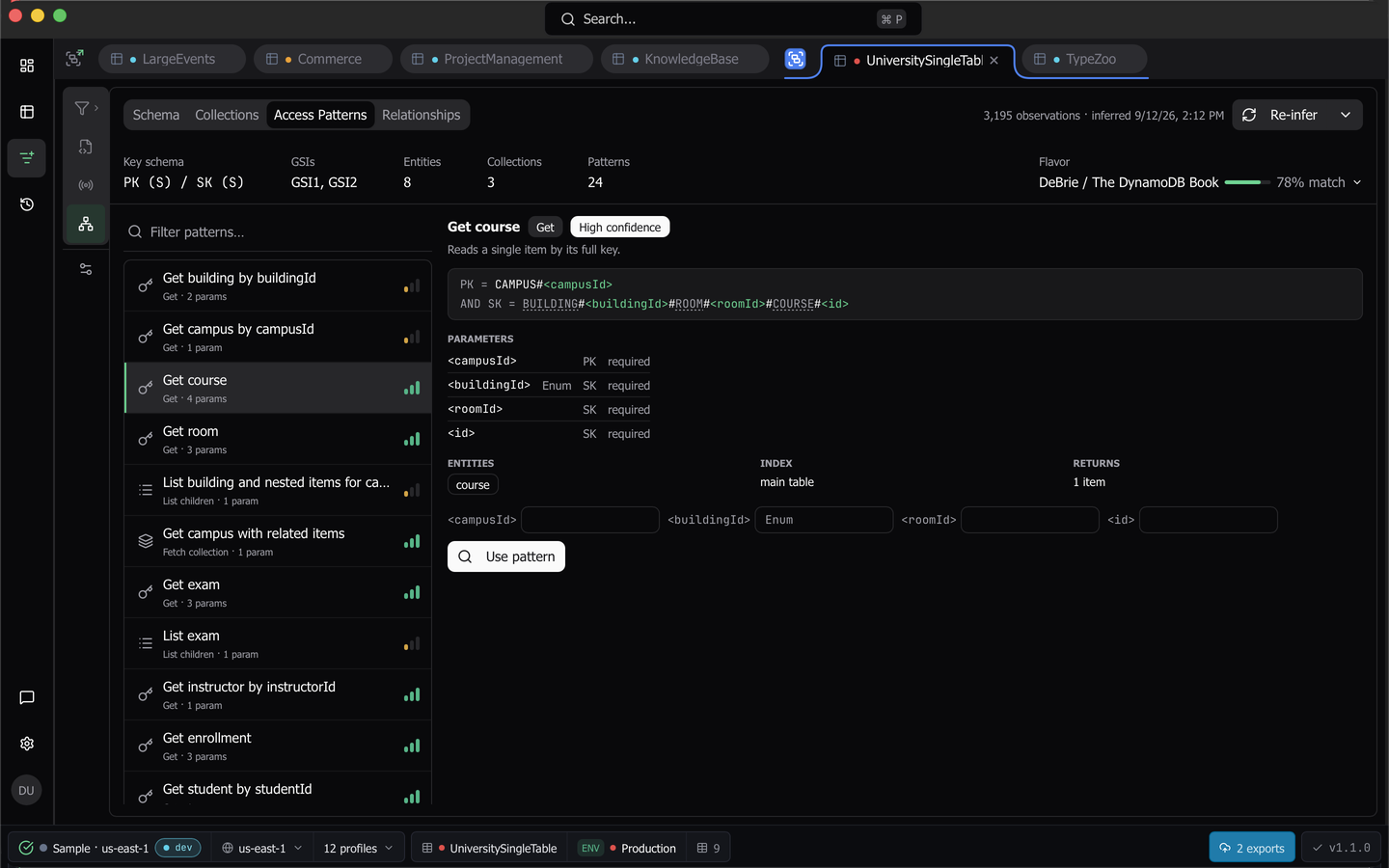
Selecting one opens a detail pane with the key condition as a code block, a parameter table, the entities involved, the index that serves it with an evidence-backed Sparse verdict, and an estimate of what it returns. Parameter inputs accept template variables. Use pattern opens the Schema query flavor at that entity and pattern with your typed inputs already filled in.
Children of one partition that share a begins_with prefix produce a single merged list pattern rather than one per entity, since their key conditions are identical. The merged detail renders its entities as a tree, and each entity chip navigates to that entity’s own Get pattern.
Relationships
The Relationships sub-tab opens on a matrix of parents against children, with one selectable glyph per relationship and a list of all of them. A toggle switches to a layered ER graph. One legend serves both views, encoding the relationship kind by line shape and its provenance by color.
Selecting a relationship opens an inspector with the parent and child item counts and the shared index. You can edit labels, and hide an inferred edge rather than deleting it. Everything you curate is stored as an overlay and survives re-inference.
Enhance with AI
Once an AI provider is configured under Settings, then AI, an Enhance with AI button appears in the header. It sends the table’s structure only, meaning the key schema, attribute names, entity and pattern structure and redacted key shapes, and never item data. The first send for a workspace and provider asks for explicit consent stating what goes where.
Results arrive as names, descriptions and notes carrying an AI badge, each dismissible back to the heuristic name. Suggested relationships arrive as pending dashed edges with Accept and Dismiss, and are never accepted for you. Your own curation always outranks the AI’s.
Last updated on