
Environments and variables
Environment classification
How Dynomatic decides which tables and profiles are production, staging, or development, and what changes once it has.
Dynomatic labels tables and profiles as Production, Staging, or Development so the app can treat a production table more carefully than a scratch one. The label drives badges, filters, write confirmations, and per-environment table defaults. Environment classification is available on Pro plans.
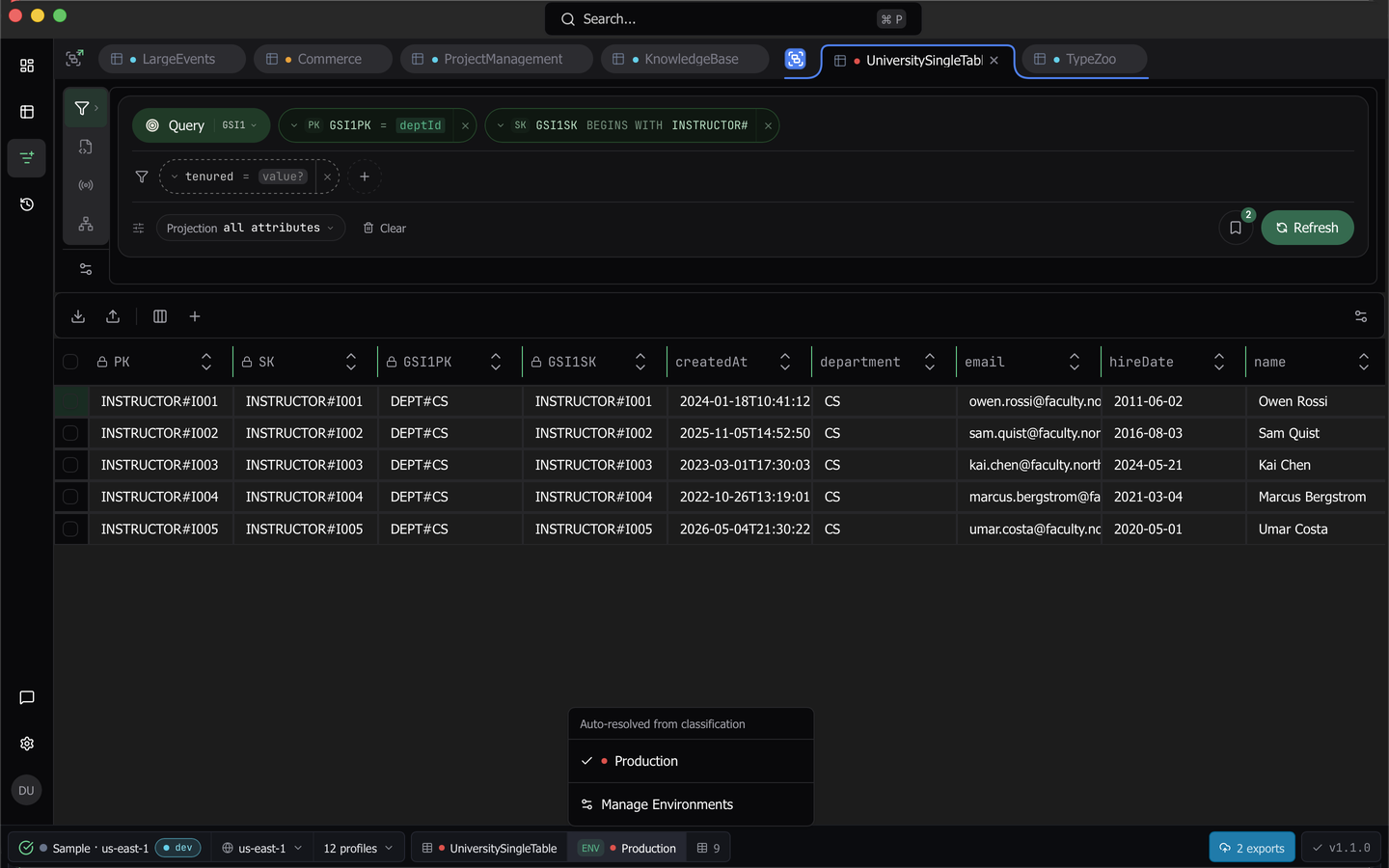
How a label is chosen
The engine scores a name instead of matching a single pattern. It splits the table or profile name into segments, weighs each segment against keyword families for production, staging, and development, and applies a penalty when the segments disagree with each other. A name that scores below the floor stays Unclassified rather than guessing, so classification is always an answer with its evidence and never a hard branch.
A profile takes a consensus label from its tables. When more than 70 percent of them agree, that environment becomes the profile’s label. Otherwise the profile reads as mixed, with the dominant environment named. The account alias read from IAM is an additional signal.
Badges carry their confidence. A classified table reads as Production (84% confidence), a table the engine has not seen yet reads Not yet classified, and a table you set yourself reads Manual override.
Override one table
Your own choice always beats the heuristics.
- Open the Tables popover and right-click a table, or open its table actions menu.
- Choose Set Environment and pick the environment you want.
- Choose Clear Override to hand the table back to the engine.
The same control lives in the table settings dialog under Environment, where the label’s origin is shown as Auto-detected, Matched a rule, or Your override. A later re-classification never overwrites an override.
Write rules
A rule is a glob pattern over a table name or a profile name, and rules outrank every heuristic.
- Open Settings, select Environment, and choose Add Rule.
- Set Target Type to a table name pattern or a profile name.
- Enter the Pattern, pick the Environment, and set a Priority. When two rules match the same name, the higher priority number wins.
- Watch the Would affect N tables preview as you type. The dialog also warns about possible conflicts with existing rules.
- Choose Create Rule. Each row in the list carries Edit rule and Delete rule.
Re-classify All runs the engine over everything again with the current rules.
What the label changes
- Environment badges on table rows, plus an Env filter in the Tables popover that narrows the list to one environment.
- The color of the commit button in the data grid.
- The confirmation shown before a script that writes runs, which adds “This workspace is classified as production.” when it applies.
- The severity of PartiQL advisories.
- Which tier of template variables resolves for a table.
- The environment dot on command history rows.
- The environment defaults described below.
Environment defaults
Settings has an Environment section with one row for each of Production, Staging, and Development, each carrying four override pills for page size, stream batch size, auto-scan on open, and lock key editing. They apply to every table the engine puts in that environment. Settings resolve from the table, then the environment, then the workspace, then the global default, so a per-table override still wins and an unclassified table skips the tier entirely.
The two switches are restrictive only. The environment tier can force auto-scan off but never on, and can lock key editing but never unlock it, so a misclassified table can only end up doing less. When the global default already sits at the restrictive value, the switch is inert and says why.
Note: Out of the box, Production auto-scan is off. A table classified as production does not scan when you open it until you ask it to. Reset the Production auto-scan pill to inherit to restore scanning, and the default does not come back once cleared.
Auto-scan has one extra rule. A table with a vector index resolves auto-scan off no matter which workspace it belongs to, because DynamoDB charges a scan for every item’s full vector even when the projection leaves it out. Only a per-table override turns it back on.
Tidy up displayed names
Classification also detects the noise in your table names. When every table in a profile starts with something like myapp-prod-, Dynomatic strips that prefix from the name it displays while leaving the real AWS name untouched. Cleanup rules are per profile and region and live in Settings under Workspace, alongside a per-profile bypass. A global Show Raw Table Names switch in Settings under Tables turns every cleanup off at once. See Settings for both.
Turn it off
Settings has an Auto-Classification switch in the Environment section. Turning it off stops the engine, dims the environment defaults, and stops the environment tier from applying. Your rules and overrides are kept.
Last updated on