
Querying
Tabs and tab groups
Keep one tab per open table, merge related tabs into colored groups, and reopen a saved group in one click.
Dynomatic keeps one tab per open table in a browser-style strip above the query panel. Tabs reorder by dragging, merge into colored groups, collapse out of the way, and come back when you restart the app.
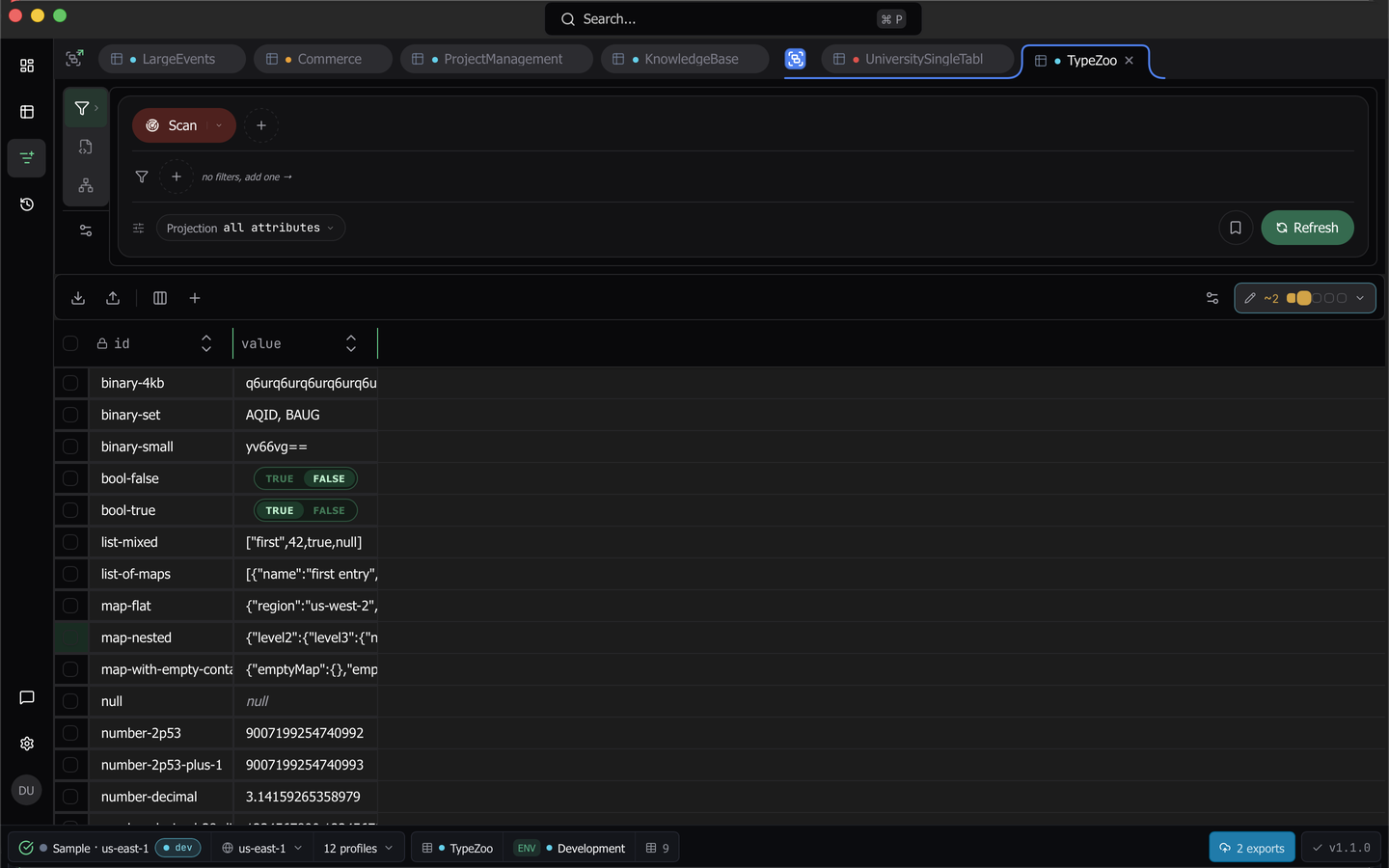
Open, switch and close
Open a table from the Tables popover, the command palette or the dashboard, and it appends a tab. Press Cmd+3 (Ctrl+3) to return to the query page and the last tab you were on. Ctrl+Tab and Ctrl+Shift+Tab step through tabs on macOS, Alt+Tab and Alt+Shift+Tab on Windows and Linux. Cmd+W (Ctrl+W) closes the current tab.
Hover a tab for its full table key, and use the copy affordance on the tab to copy the table name.
Tabs activate on pointer release rather than pointer press. Starting a drag suppresses activation entirely, so repositioning a tab never triggers a workspace switch or a read. Keyboard switching still activates immediately.
Clicking a tab activates the workspace it belongs to. A tab stays bound to its workspace for life, so disconnecting a workspace leaves its tabs open and simply unable to run until you reconnect.
Note: The free plan allows two open tabs. Close one to open another, or upgrade to Pro.
Reorder and merge
Drag a tab past a neighbor’s center to swap their positions. There is a small movement threshold, so a click that drifts a pixel or two still counts as a click.
Drop a tab onto the leading half of another tab to merge the two into a group. The group draws a colored bracket that cradles the active tab. Dragging a tab out of the group’s bounds removes it from the group.
Work with a group
Left-click the group indicator to collapse the group to a pill, and click again to expand it. A collapsed group keeps its members, and dragging the collapsed pill moves all of them. The collapse state is remembered.
Right-click the indicator for the group menu:
- Rename the group in the text box at the top.
- Pick one of twelve colors.
- Set Icon opens a searchable picker of Lucide icons, available on any group you have saved.
- Save Group makes the group persistent so it can be reopened later.
- Lock group (prevent membership changes) freezes membership on a saved group that is not workspace bound.
- Close Group closes every member tab.
- The ungroup item reads Ungroup, Ungroup (delete group) or Ungroup (keep saved) depending on how the group was created.
Saved groups
The Saved groups button at the left edge of the strip lists every group you have saved with its tab count. One click reopens every member tab. Members are remembered by workspace and table name, and a member whose workspace is no longer available is skipped rather than guessed at.
Closing a tab with unsaved edits
If a tab has pending changes, closing it opens the Unsaved Changes dialog with Cancel, Discard and Commit. Commit writes the staged rows before the tab closes. See the data grid for what pending changes are.
Opening a table that is already open
By default, opening a table that already has a tab asks what you want. The Table already open dialog offers Focus existing tab or Open new tab, with a Don’t ask again checkbox. You can also set the answer in advance under Settings.
The empty state
Close every tab and the query page shows No tabs open with a Search tables button, which opens the command palette already scoped to tables. Open tab group appears alongside it once you have at least one saved group.
Settings
Settings, General holds four tab preferences:
- Restore Tabs on Restart reopens the tabs you had when you quit.
- Group Single Tabs decides whether a lone tab still gets a group bracket.
- Group by Workspace Only When Multiple Open suppresses workspace grouping while only one workspace is in play.
- The open-table mode combo box offers Ask each time, Focus existing tab and Always open a new tab.
Last updated on