
MCP server
Connect a client
Register Dynomatic with Claude Code, Claude Desktop, Cursor, VS Code, Windsurf, Zed, Codex or anything else, over the stdio bridge or direct HTTP.
Dynomatic speaks the protocol two ways. Register once through the stdio bridge and forget about it, or point a client at the HTTP endpoint and manage the token yourself.
Settings, then MCP Server, then Add Dynomatic to a client builds the registration for you. Pick your client and the pane prints the snippet in that client’s own shape, filled in with this build’s executable path, with the config file’s location for your platform named above it. Copy puts what is on screen on the clipboard, nothing more. The picker remembers the client you chose last.
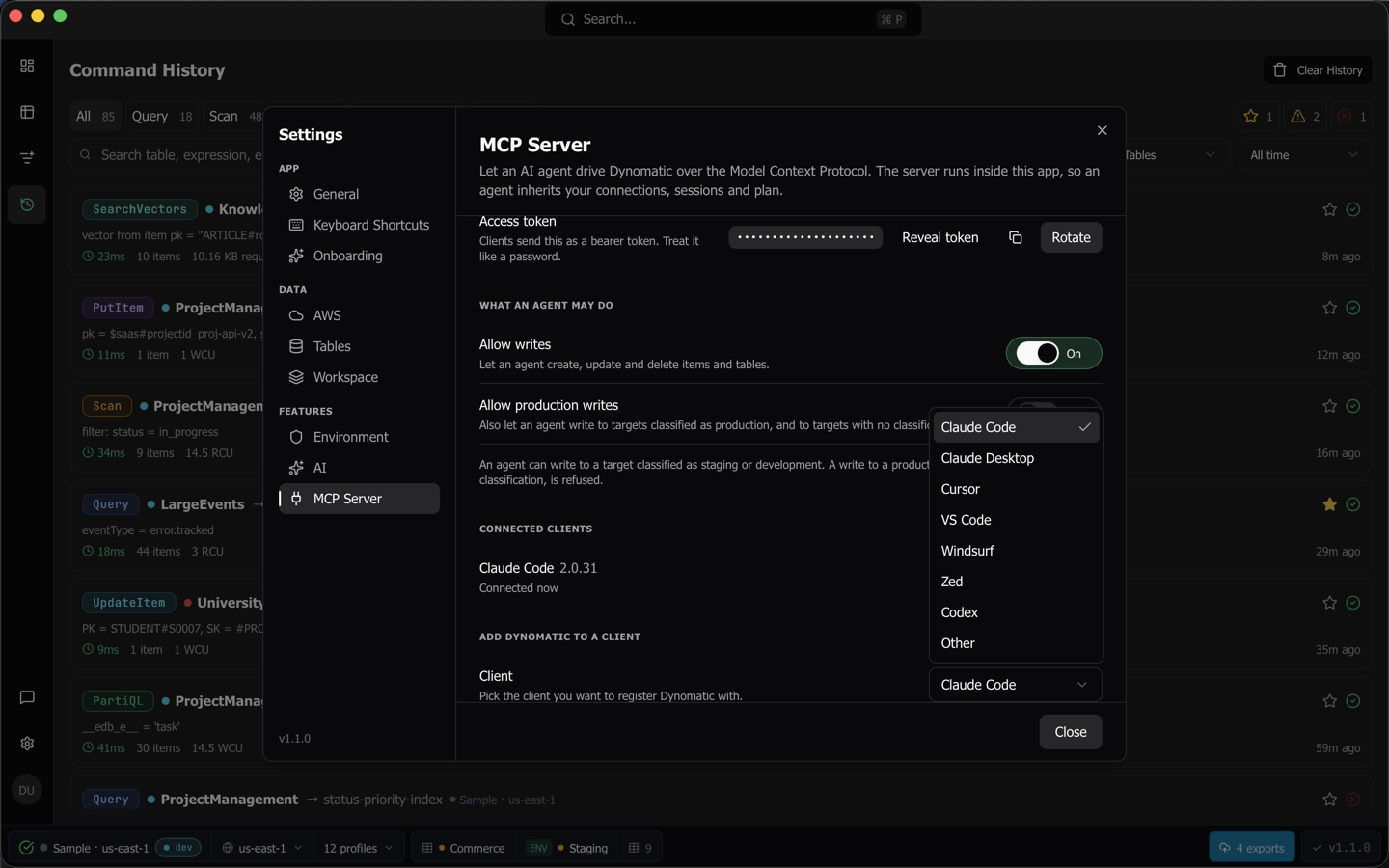
Use the stdio bridge
The same Dynomatic binary, run as dynomatic mcp, speaks the protocol on its own input and output and forwards everything to the app. Use it unless you have a reason not to.
- It connects whether or not Dynomatic is open, so a client never marks the server permanently broken.
- No token goes into any config file. The bridge reads the endpoint file the app writes.
- Rotating the token, quitting and reopening Dynomatic, and moving the server to another port are all picked up on the next call. You never edit the client config again.
- It finds the app through that endpoint file and through nothing else. It never guesses a port, and it ignores a file left behind by an app that crashed, so it cannot be pointed at whatever else happens to be listening.
- It never starts Dynomatic for you. It reads the endpoint file again on every call, so a client that registered it while the app was closed works the moment you open the app.
The snippets below use /path/to/dynomatic where Settings prints the real path. If the app cannot resolve its own executable path it prints that placeholder too, and says why, so you can finish from there.
Claude Code
Claude Code is registered by running a command, not by editing a file.
claude mcp add dynomatic -- /path/to/dynomatic mcp
Claude Desktop, Cursor, Windsurf, and anything else
{
  "mcpServers": {
    "dynomatic": {
      "command": "/path/to/dynomatic",
      "args": ["mcp"]
    }
  }
}
VS Code
VS Code names its block servers and wants the transport spelled out.
{
  "servers": {
    "dynomatic": {
      "type": "stdio",
      "command": "/path/to/dynomatic",
      "args": ["mcp"]
    }
  }
}
Zed
Zed names its block context_servers.
{
  "context_servers": {
    "dynomatic": {
      "command": "/path/to/dynomatic",
      "args": ["mcp"]
    }
  }
}
Codex
Codex takes TOML.
[mcp_servers.dynomatic]
command = "/path/to/dynomatic"
args = ["mcp"]
Where each client’s config lives
Settings prints the path for the platform you are on. All of them are here for reference.
| Client | macOS and Linux | Windows |
|---|---|---|
| Claude Code | run the command, no file | run the command, no file |
| Claude Desktop | ~/Library/Application Support/Claude/claude_desktop_config.json on macOS, ~/.config/Claude/claude_desktop_config.json on Linux |
%APPDATA%\Claude\claude_desktop_config.json |
| Cursor | ~/.cursor/mcp.json |
%USERPROFILE%\.cursor\mcp.json |
| VS Code | .vscode/mcp.json, relative to the workspace |
.vscode/mcp.json, relative to the workspace |
| Windsurf | ~/.codeium/windsurf/mcp_config.json |
%USERPROFILE%\.codeium\windsurf\mcp_config.json |
| Zed | ~/.config/zed/settings.json |
%APPDATA%\Zed\settings.json |
| Codex | ~/.codex/config.toml |
%USERPROFILE%\.codex\config.toml |
| Other | your client’s own MCP config file | your client’s own MCP config file |
For a client Dynomatic does not know, the picker’s Other entry gives the common mcpServers shape and tells you to put it in your client’s own config file, rather than printing a path it made up.
Use direct HTTP instead
Advanced: direct HTTP is collapsed until you open it. It names the URL Dynomatic answers on while it is open with the server running, and states what the HTTP form costs for the client you picked.
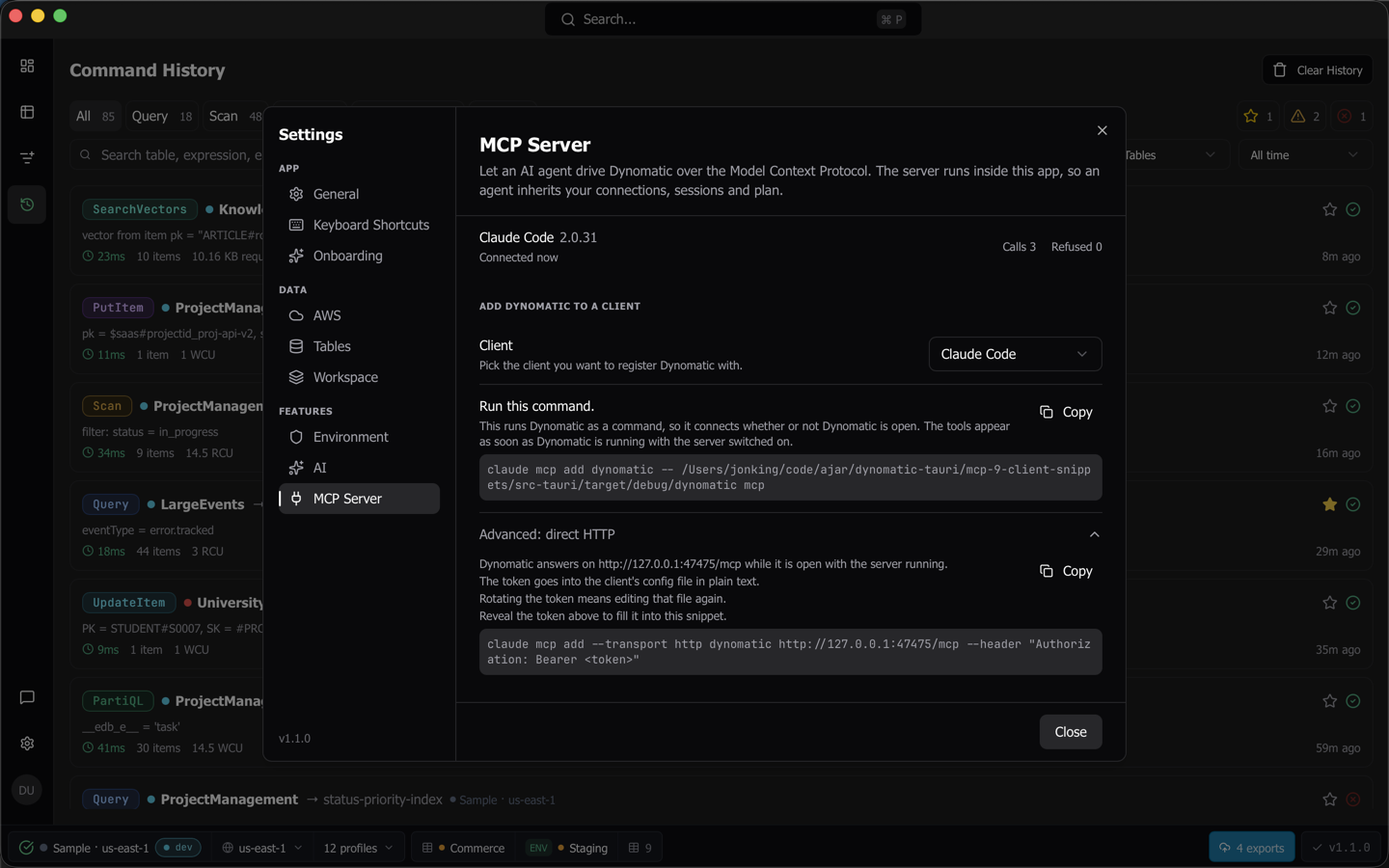
The snippets below use the default port 47474. The capture above was taken on a machine where another copy of Dynomatic held that port, so it shows 47475.
For most clients the cost is the same two sentences. The token goes into the client’s config file in plain text, and rotating the token means editing that file again. Codex is the exception. It reads the token from the DYNOMATIC_MCP_TOKEN environment variable, so the token never reaches the file, and rotating it means setting that variable again.
The snippet reads <token> until you press Reveal token in the pane above, and Copy takes what is on screen. The token reaches your clipboard only after you have asked to see it.
Claude Desktop has no direct HTTP registration, and the disclosure says so rather than printing a form it would reject. Other does the same.
claude mcp add --transport http dynomatic http://127.0.0.1:47474/mcp --header "Authorization: Bearer <token>"
{
  "mcpServers": {
    "dynomatic": {
      "url": "http://127.0.0.1:47474/mcp",
      "headers": { "Authorization": "Bearer <token>" }
    }
  }
}
Cursor takes the block above. Windsurf takes the same block with serverUrl in place of url. Zed takes it with context_servers in place of mcpServers. VS Code takes servers with "type": "http" beside the URL.
[mcp_servers.dynomatic]
url = "http://127.0.0.1:47474/mcp"
bearer_token_env_var = "DYNOMATIC_MCP_TOKEN"
Note: The direct HTTP form only answers while Dynomatic is open with the server running. A client registered this way reports a connection error when the app is closed, where a bridge-registered client reports an empty tool list and how to fix it.
What the client sees
With Dynomatic closed, or with the server switched off, a bridge-registered client connects and gets an empty tool list plus instructions naming the fix. The exact words are “Dynomatic is not running, or its MCP server is switched off, so there are no tools yet. Open Dynomatic and turn on the MCP server in Settings. The tools appear on this same connection, without restarting this client.” A tool call in that state answers with the same message and fix rather than hanging.
Open Dynomatic and turn the server on, and the tools appear on the connection the client already has. There is no restart and no re-registering. Turning the server off empties them again.
Last updated on