
MCP server
The MCP Server settings pane
The MCP Server pane in Settings, the access token, the two permission switches, and the limits the server enforces on every call.
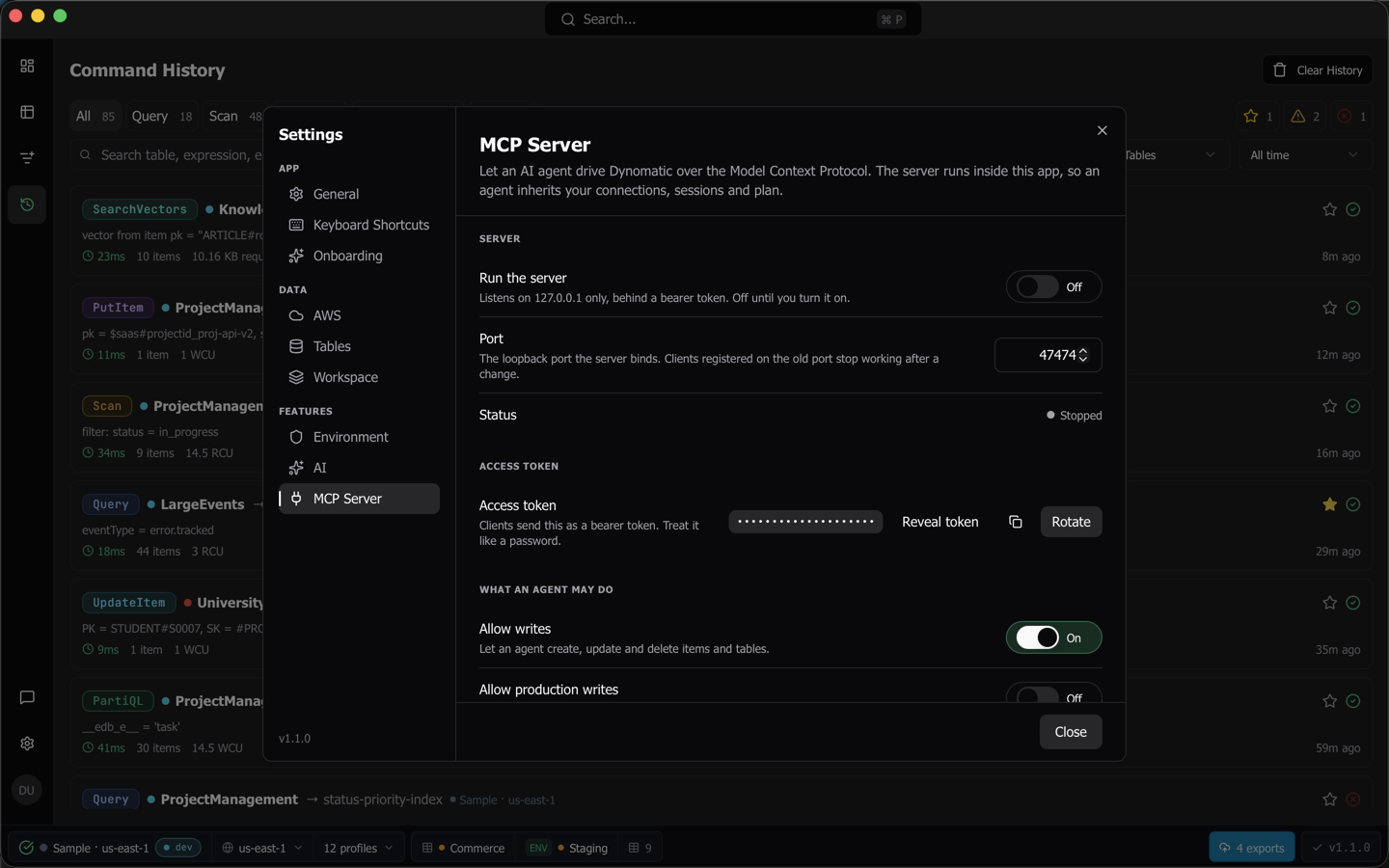
Everything about the server lives in one pane of the Settings dialog. Open Settings, then MCP Server under FEATURES. The pane needs the Pro plan, and without it the entry is not in the list at all, because an ungated user has no server to configure. Sample mode lifts the gate for the session.
Start the server
Run the server binds the port. The server listens on 127.0.0.1 only and answers nothing without a bearer token. An enabled server comes back on the next launch.
Port takes any port from 1024 to 65535 and defaults to 47474. Type a new one and press Enter, or click away, to commit it. Dynomatic never moves to a different port on its own. Troubleshooting says why.
Status says which of three things is true.
- Running on 127.0.0.1:47475 names the port that is bound. The screenshots on this page were taken on a machine where another copy of Dynomatic already held 47474, so they show the server on the next port up.
- Stopped means the switch is off.
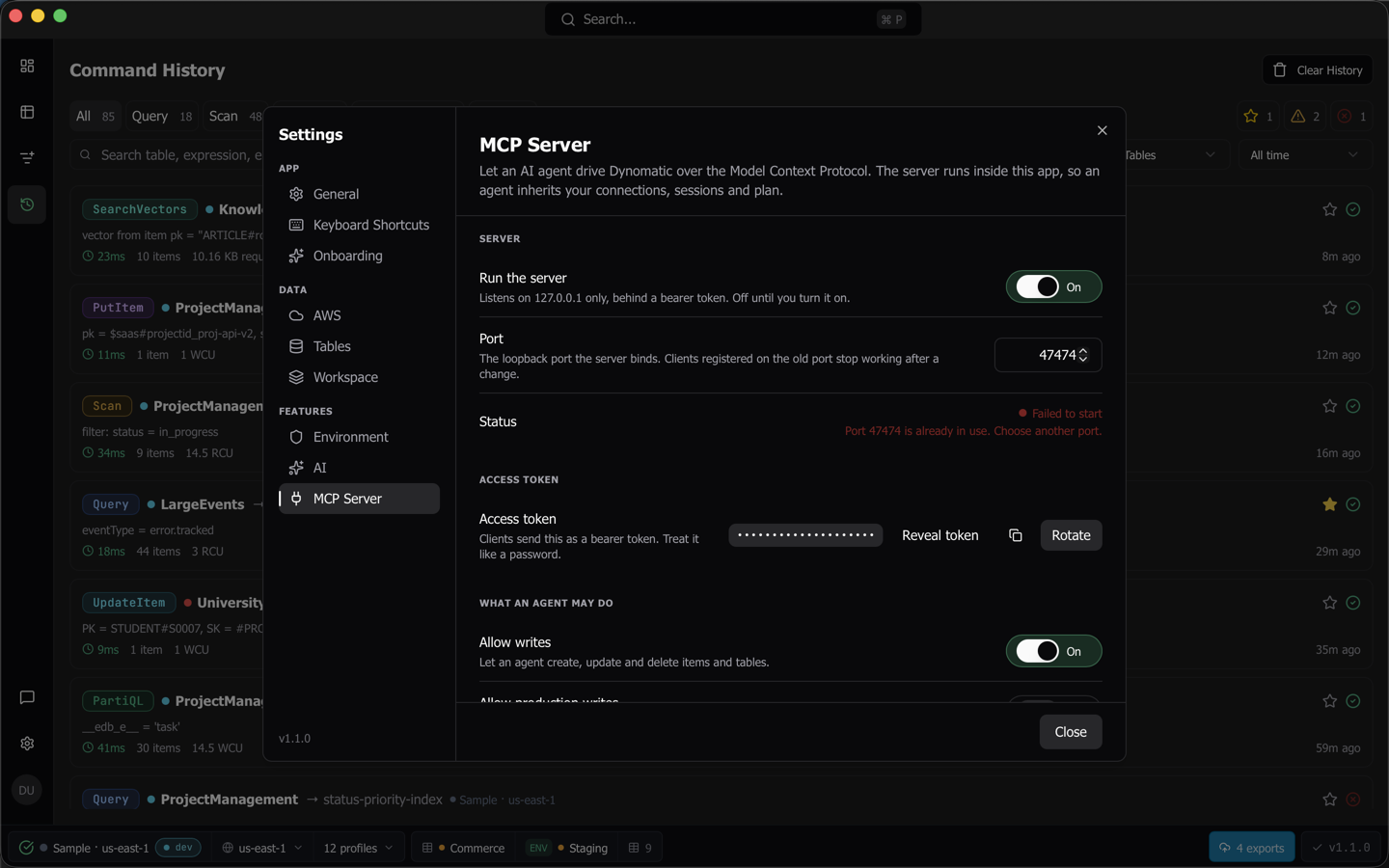
- Failed to start comes with a second line naming the cause. The most common is
Port 47474 is already in use. Choose another port.The others cover a port outside the allowed range, a plan that no longer includes the server, an operating system error binding the port, and a failure writing the endpoint file.
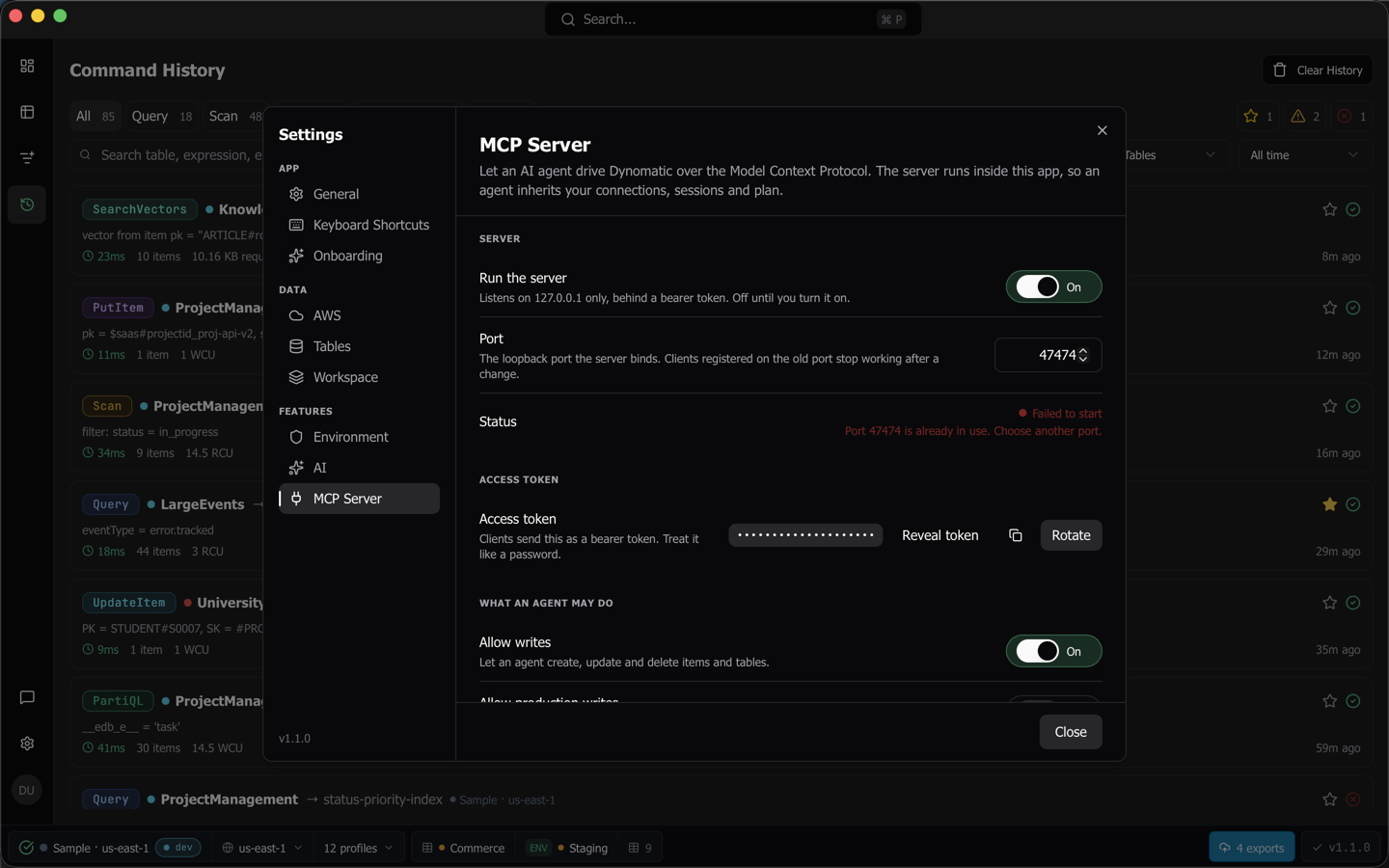
That is the failure behind the screenshots above, produced by pointing a second Dynomatic at the port the first one had.
The access token
Every request carries the token as Authorization: Bearer <token>. It is 32 random bytes, and Dynomatic compares it in constant time.
The pane shows it as dots. Reveal token shows the value, and shows it in full rather than truncating it. The copy button puts it on the clipboard. Rotate asks first, and says plainly that the current token stops working at once and every connected client has to reconnect with the new one. After a rotation the pane re-hides the token.
Tip: If you register clients through the stdio bridge, described in Connect a client, you never handle the token at all, and a rotation costs your clients nothing.
Decide what an agent may do
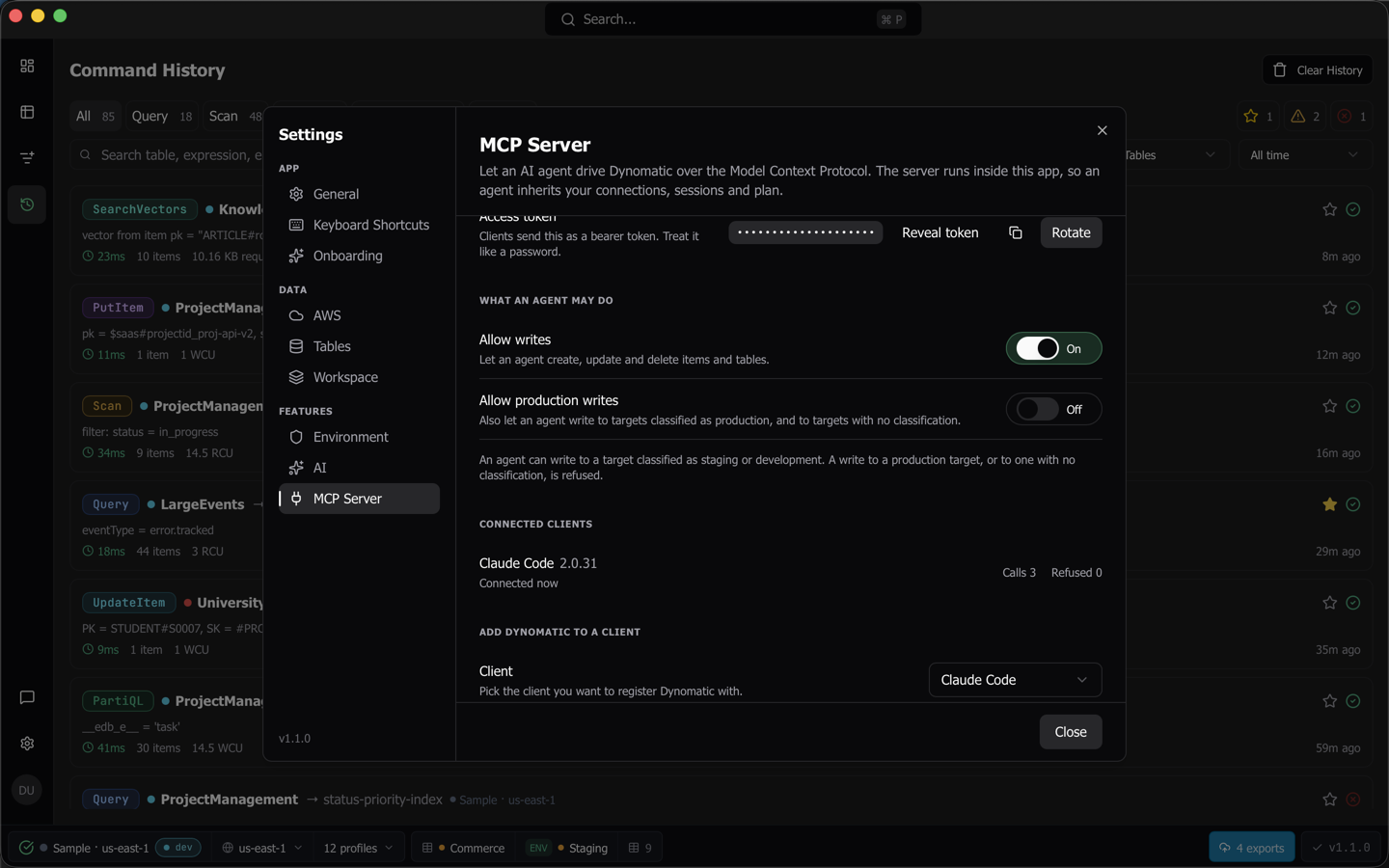
Two switches set a three-rung ladder, and the pane prints the current rung’s meaning in one line under them, so you never have to infer the answer from two checkboxes.
- Both off. “An agent can read your data. Every write is refused, on every target.”
- Allow writes on. “An agent can write to a target classified as staging or development. A write to a production target, or to one with no classification, is refused.”
- Allow production writes on as well. “An agent can write to any target, including production and targets with no classification.”
Allow production writes does nothing while Allow writes is off. It stays visible and keyboard-reachable, announces the reason “Turn on Allow writes first.”, and keeps its stored position, so turning writes back on restores the choice you made. Permissions and refusals covers what each rung admits and what an agent is told when a call is refused.
See who is connected
Connected clients lists what is connected right now, with each client’s reported name and version and when it connected. The list updates as clients come and go, and reads “No client is connected.” when nothing is.
Refused counts every answer the server turned a listed client down with, whatever did the turning down: the permission ladder, a plan gate, a per-session limit, or the 60 second ceiling. Calls counts the calls admitted past the rate and concurrency limits, so a client that keeps hitting a limit can show more refusals than calls. The one refusal counted nowhere is a connection turned away at the 32 session ceiling, because that client is never listed.
Both numbers refresh when the list changes membership or when you reopen the pane, not on every call. A client that connects and then makes a hundred calls sits at Calls 0 until one of those happens.
A client on the newer protocol carries no session id. Those share one row labeled Sessionless clients, with a note saying they cannot be told apart.
Where the token is stored
The token is never part of the settings record, because settings are broadcast to the app window on every write. It lives in the running app and in one file beside the database.
On macOS that file is ~/Library/Application Support/com.ajarsoftware.dynomatic/mcp-endpoint.json, on Linux ~/.config/com.ajarsoftware.dynomatic/mcp-endpoint.json, and on Windows %APPDATA%\com.ajarsoftware.dynomatic\mcp-endpoint.json. Dynomatic writes it with owner-only permissions, and writes it atomically, so a reader never sees a partial file or a world-readable one. Stopping the server or quitting the app removes it.
The file holds the version, the process id, the port, the URL and the token. The stdio bridge reads it to find the server, which is why a rotated token, a restarted app and a changed port all keep working without you editing any client config.
What the server enforces
- A missing or wrong bearer token is a bare 401 with no body, answered before anything else looks at the request.
- The server then validates the
HostandOriginheaders, so a web page in your browser cannot reach it. - A request body over 1 MB is refused with 413 before a byte of it is read.
- Every call runs under a 60 second ceiling. A call that passes it comes back as a
Timeoutrefusal that names the keychain or credential prompt an unattended call may be stuck behind. - One session may have 8 calls in flight and 120 calls a minute. Past either, the next call is refused with the number of milliseconds to wait.
- The server holds 32 sessions. The 33rd is refused.
- An answer over 4 MB is cut down, marked
truncated: true, and says how many items it dropped. Tools reference covers what each tool sheds first.
Every refusal and every write that reaches AWS is recorded in the app log. Where the logs are names the file and what each record holds.
Last updated on