
MCP server
Troubleshooting
The client lists no tools, a 401 after rotating, a busy port, a rate limit, and the other things that go wrong, with what each one means.
Start with the symptom. Most of these have one cause.
The client lists no tools
This is the most common one, and it has three causes.
- Dynomatic is closed, or the server is off. A client registered through the stdio bridge connects anyway and reports an empty tool list with instructions naming the fix. Open Dynomatic, open Settings, then MCP Server, and turn on Run the server. The tools appear on the connection the client already has. There is no restart and no re-registering.
- The server failed to start. Open the same pane and read the Status line. It says what went wrong.
- The plan does not include it. The MCP Server entry is not in the Settings list at all without the Pro plan. Enter Sample mode to try the whole thing on any plan, or upgrade.
A client registered over direct HTTP behaves differently. With the app closed it reports a connection error, because there is nothing listening.
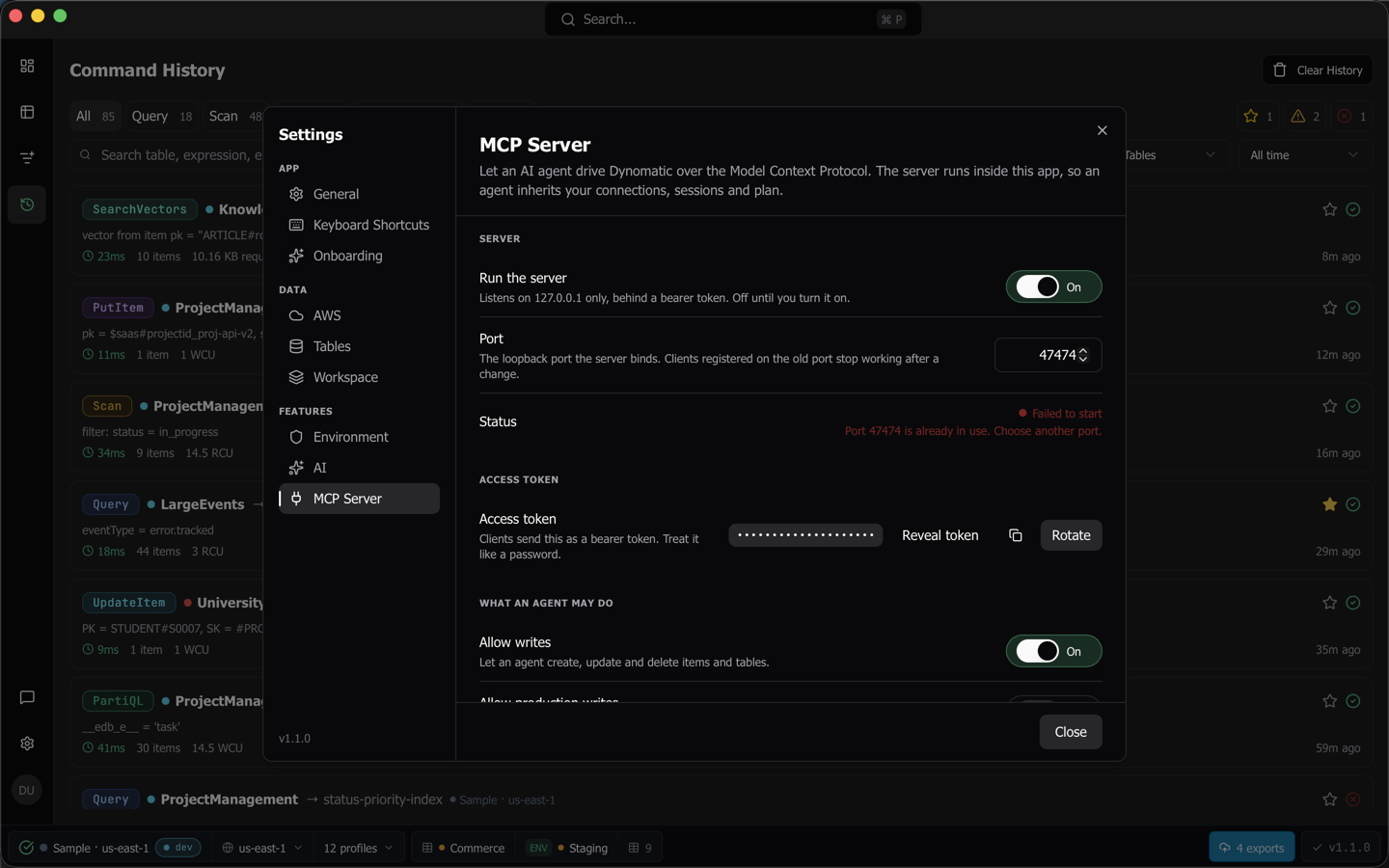
The status line says Failed to start
The second line names the cause.
Port 47474 is already in use. Choose another port.Something else holds that port. Type another one in Port and press Enter. Another copy of Dynomatic is a common culprit, since each one wants its own port. Dynomatic never moves to a free port on its own, because a client registered against the old one would then be talking to nothing.Port 47474 cannot be used. Choose a port between 1024 and 65535.The port is outside the range the server accepts.Your plan no longer includes the MCP server, so it was stopped.The entitlement changed under a running server.The port could not be bound.andThe endpoint file could not be written.carry the operating system’s own message after them.
A client gets a 401 after rotating the token
Expected, and it is what Rotate warns about. The old token stops working the moment you confirm.
A client registered through the stdio bridge picks up the new token on its next call, because the bridge re-reads the endpoint file before every request. Nothing to do.
A client registered over direct HTTP has the old token in its config file. Reveal the new one in Settings, paste it into that file, and reconnect. Codex is the exception: it reads the token from the DYNOMATIC_MCP_TOKEN environment variable, so set that variable again instead of editing the file.
A tool answers RateLimited
One session may have 8 calls in flight and 120 calls a minute. The answer says how many milliseconds to wait.
Polling export_status in a tight loop is the usual way to hit it. A poll every 500 ms fits inside the limit. A bare loop does not, and the export itself keeps running while the polls are refused.
A command answers NotHeadless
The command cannot run over the protocol at all, and the reason field says which kind of cannot. NeedsWebview, NeedsChannel and NeedsDialog mean the command drives the window, streams progress into it, or opens a file dialog. Withheld means a person decided an agent must not run it. Unclassified means nobody has decided yet. NoWindow means Dynomatic has no window open.
Call list_commands to see what does run, or use the typed tool that covers the same ground. Any command, through one tool lists the withheld groups and the reasons behind them.
export_status answers UnknownJob
Two causes, and the fix is the same.
- The client reconnected. A job belongs to the session that started it, and a reconnect is a new session. The export itself keeps running and finishes normally, and the Transfers panel in the app still shows it. Only the agent’s ability to poll it is gone.
- The job aged out. A finished job answers for an hour and is then dropped.
Start a new export, or read the result from the Transfers panel.
A write is refused and I do not know which switch
The refusal names it. WritesDisabled means Allow writes is off. ProductionRefused means the target is classified production and Allow production writes is off. TargetUnverified means Dynomatic could not establish the target’s environment, which is refused just as firmly. Permissions and refusals has all eighteen kinds and what each one wants.
environment_report tells an agent in advance which writes will go through, so it can ask you to classify a table rather than retrying.
I registered the wrong file
Each client reads its own file in its own place, and several of them use a different key name for the same thing. Open Settings, then MCP Server, then Add Dynomatic to a client, pick your client, and the pane names the file for the platform you are on above the snippet it built. Connect a client has every path in one table.
Other things that look broken and are not
- An
@-mention of a table resource finds nothing in the picker. Dynomatic advertises two URI templates and no concrete resources, and a client’s picker expands concrete resources only. Type or paste the URI with a real profile, region and table name instead. stream_recordsreturns nothing. It reads the cache the Streams viewer fills, not DynamoDB Streams. A stream this session has never drained has nothing cached.schema_profileerrors on a table. It reports what Dynomatic has observed, so a table nothing has read yet has nothing to report. Run a query or a scan on it first.list_saved_querieserrors instead of returning an empty list. No workspace exists for that profile and region, which is a different answer from a workspace with nothing saved in it.data_modelreturns null. The table has never been inferred. Callinfer_data_model, which is the Re-infer action. Reading never infers on its own, so a model stays put between explicit re-infers.- The Calls and Refused counts in Settings sit at zero. They refresh when the client list changes membership or when you reopen the pane, not on every call.
Where the logs are
Dynomatic appends to logs/main.log inside its data directory.
- macOS:
~/Library/Application Support/com.ajarsoftware.dynomatic/logs/main.log - Linux:
~/.config/com.ajarsoftware.dynomatic/logs/main.log - Windows:
%APPDATA%\com.ajarsoftware.dynomatic\logs\main.log
Every refusal and every write that reaches AWS is recorded there with the tool, the session, the profile, the region, the table and the environment verdict. Item contents and the access token are never written to it.
If something still looks wrong, Feedback and support files a bug report from inside the app.
Last updated on