
Tables
Table settings
Manage indexes, capacity, TTL, point-in-time recovery, and streams, and override how Dynomatic fetches a table.
The table settings dialog is one place for everything about a single table, covering its indexes, its capacity and lifecycle settings on AWS, and the per-table preferences Dynomatic uses when it reads the table. Open it from the Table settings button on a query tab, from the Table settings link on a row in the Tables popover, or from that row’s Update Settings and Manage Indexes menu items.
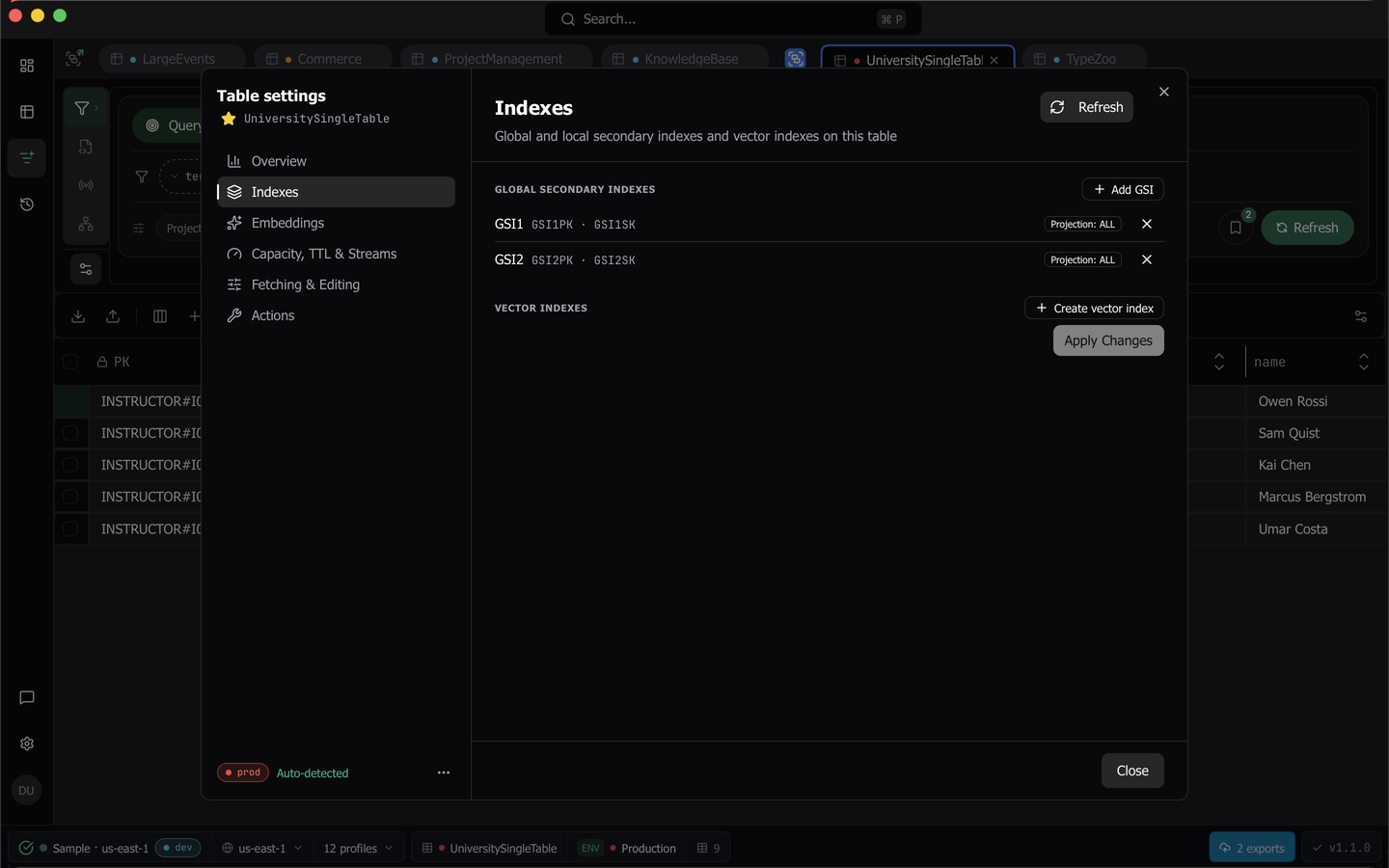
The dialog has seven sections, which are Overview, Indexes, Embeddings, Capacity, TTL & Streams, Replicas, Fetching & Editing, and Actions. The left navigation stays visible on all of them and carries Add to favorites and Change environment.
Refresh the table description
Every pane shows the table as DynamoDB last described it. The footer of the dialog shows when that was, for example Schema as of 10/2/26, 9:41:07 AM.
To read the table again now, click Refresh schema in the footer. Use it after a change made outside Dynomatic, such as a GSI, TTL, or stream change in the AWS console. The button is absent while the table’s workspace is not connected.
Dynomatic also reads the table again when you open its query tab and the description it has is more than five minutes old. Describing a table is a control-plane call, so it consumes no read capacity.
Overview
Overview describes the table as it is, listing its keys and its secondary indexes.
Vector indexes appear here with a VECTOR badge, showing the index name, the vector attribute, the dimension count, and the distance metric. Each vector row also carries a coverage line reading approximately how many of the table’s items are indexed, always labeled approximate and refreshed roughly every six hours. While DynamoDB is still indexing the items already in the table, the row carries an Indexing existing items badge and the coverage line says counts are unavailable until it completes.
While anything on the table is unsettled, whether the table itself, a global secondary index, or a vector index, the dialog refreshes the schema every ten seconds and stops once the last one goes ACTIVE. Your results grid stays on screen throughout. A refresh that fails, because the table was deleted elsewhere or permission was withdrawn, stops the refreshing rather than retrying forever.
Indexes
The Indexes pane lists local secondary indexes, global secondary indexes, and vector indexes, each in its own block, with a Refresh button beside the heading.
Add GSI opens a form for the index name and keys. Remove on an existing global secondary index marks it for deletion and swaps to Undo. Nothing is sent until you press Apply Changes, and a summary above the button says exactly what is about to happen.
Vector indexes sit in their own section after the local secondary indexes, and they never enter the pending-changes summary, because creating and deleting one is its own committed action. A new global secondary index may not reuse a vector index’s name. An index DynamoDB is still working on carries a Creating, Updating, or Deleting pill, a settled index carries none, and a status Dynomatic does not recognize is shown verbatim rather than hidden. See Vector indexes.
The dialog follows the live table description while it is open, so an index created or deleted from it updates in place.
Note: DynamoDB rejects further changes while an index is being created, updated, or deleted. The pane says so up front and names the index responsible.
Capacity, TTL and streams
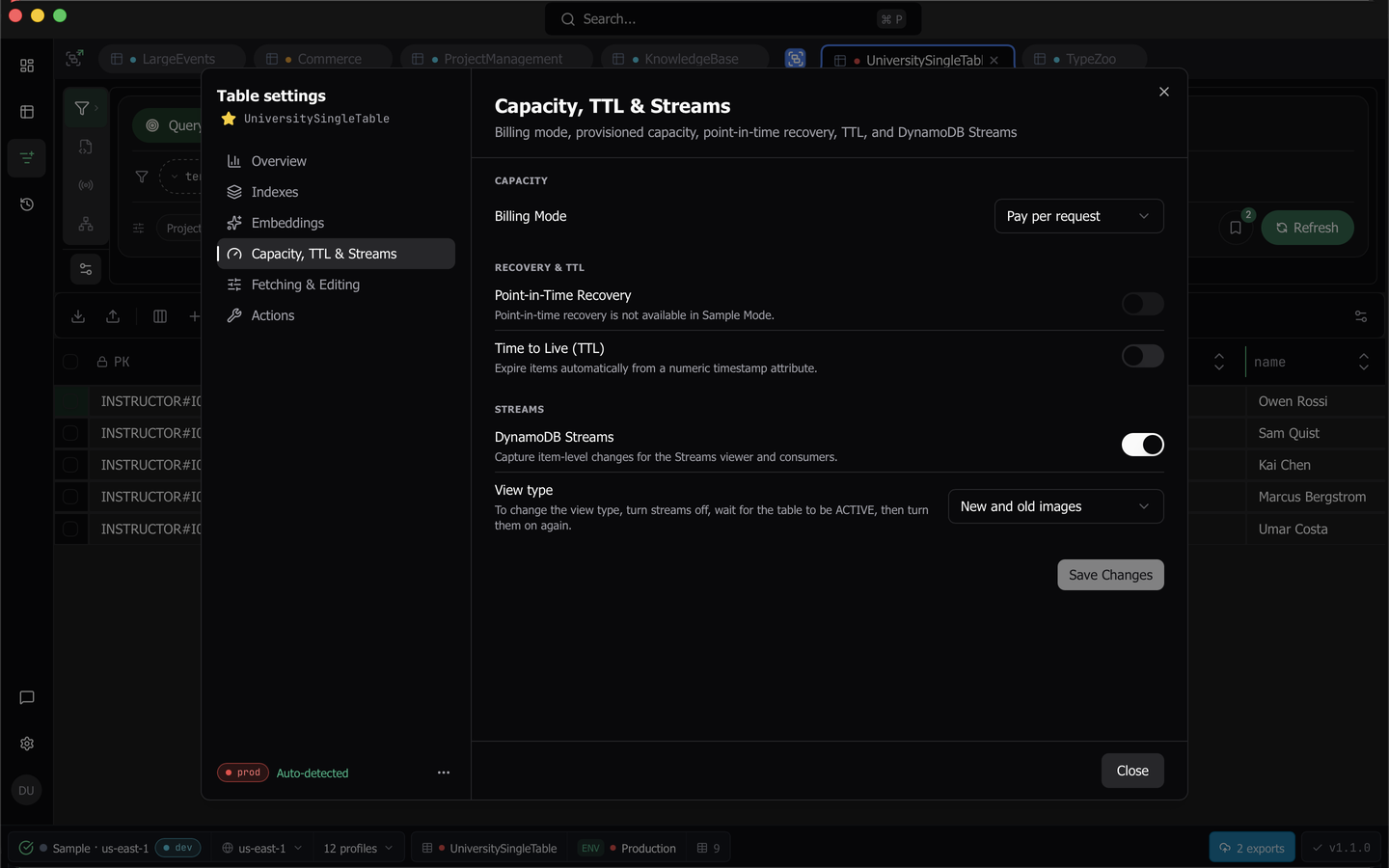
This pane carries the settings AWS charges for.
- Billing Mode switches between on-demand and provisioned, with a cost warning, and reveals read and write capacity units when provisioned.
- Point-in-Time Recovery shows the table’s current PITR status, which Dynomatic reads from DynamoDB each time the pane opens. The switch stays inert with
Checking point-in-time recovery status…until the status arrives. If the read fails, the switch stays inert and the pane shows the error. Turn the switch on or off and press Save Changes to change PITR on the table, after which the pane reads the status again. - Enable TTL turns time to live on and reveals the attribute name field. AWS rate-limits TTL changes to once per hour, and Dynomatic reports that limit as itself rather than as a generic error.
- Enable streams turns DynamoDB Streams on or off, with a view type. Streams are sent as their own UpdateTable call, and the view type of an enabled stream is locked until you turn the stream off and back on. When you save, the table’s stream changes on AWS, and the query tab shows the Streams mode while the stream is on.
Save Changes stays disabled until something actually changes.
Table create, update, and delete need Pro or Team. In Sample mode the point-in-time-recovery toggle is inert with an explained reason, because the local endpoint cannot serve PITR.
Replicas
The Replicas pane lists the table’s global table replicas, which DynamoDB keeps in sync in other AWS Regions. The pane names the table’s own region, for example This table is in us-east-1. Each replica shows its region and its status, such as Creating, Active, Deleting or Creation failed. While DynamoDB creates a replica, the row also shows DynamoDB’s percent. A table without replicas shows This table has no replicas.
- Add replica takes a region from a picker. The picker leaves out the table’s own region and every region that already has a replica. A typed region in another AWS partition holds Add replica back and says why.
- Remove asks first with
Remove the replica in <region>?, because DynamoDB deletes the replica table and every item in it. The table in its own region and any other replicas keep their data. Press Remove replica to go ahead.
Each change runs as a Replica change background job. After you start one, the pane says, for example, Adding the replica in eu-west-1. Follow it in Jobs. The job follows DynamoDB until the replica settles, so it keeps going with the dialog closed and through a restart. Dynomatic records the job before it sends the request, so a quit mid-request never sends the change twice. While a replica is changing, the pane reads the table again every few seconds.
Some states hold Add replica and Remove back, and the pane says why:
- Adding a replica needs DynamoDB Streams on with the New and old images view type. Without it, the pane shows Open Capacity, TTL & Streams, which goes to the pane that turns streams on. Dynomatic never turns streams on by itself.
- DynamoDB changes one replica at a time, so both buttons wait while another replica is changing.
- A version 2017.11.29 global table is listed but not changed. The pane says to manage its replicas in the AWS console.
Changing replicas needs Pro or Team. In Sample mode the pane says Replicas aren't available in Sample Mode.
Fetching and editing
This pane holds the per-table preferences Dynomatic uses when it reads the table, rather than anything stored on AWS.
- Page Size sets how many items each read requests.
- Stream Batch Size sets the same for the streams viewer.
- Auto-Scan on Open decides whether opening the table runs a scan immediately.
- Lock Key Editing protects key attributes from inline edits in the data grid.
Each row carries a Reset action that drops the override and returns to whatever the table inherits.
How a value is resolved
Four levels feed each setting, and the most specific one that is set wins. The order is table, then environment, then workspace, then global. Setting a value equal to the one it inherits collapses back to inherit.
Global defaults live in Settings under Tables, and workspace overrides under Workspace. Environment defaults, which apply to every table the classification engine puts in a given tier, live under Environment and need Pro or Team. They are deliberately restrictive-only for the two switches, so a tier can force auto-scan off but never on, and key locking on but never off. Out of the box, production auto-scan defaults to off.
Changes apply the next time you open the table. Tabs already open are left alone.
You can reach the same overrides from the override popover on the results bar, without opening the dialog.
Note: These settings are shared across every live workspace verified to reach the same AWS account at the same region. An override you set under one role shows up under another the moment it is saved. Both places you edit them say “Shared with …, same AWS account” when that applies. Workspaces whose account could not be verified never share in either direction.
Actions
The Actions pane carries Create in workspace, which clones the table’s definition into another connected workspace, and Delete Table, which opens the typed-name confirmation. Table browser describes both.
Last updated on