
Querying
Visual query builder
Build DynamoDB Query and Scan operations from pills instead of writing key condition and filter expressions.
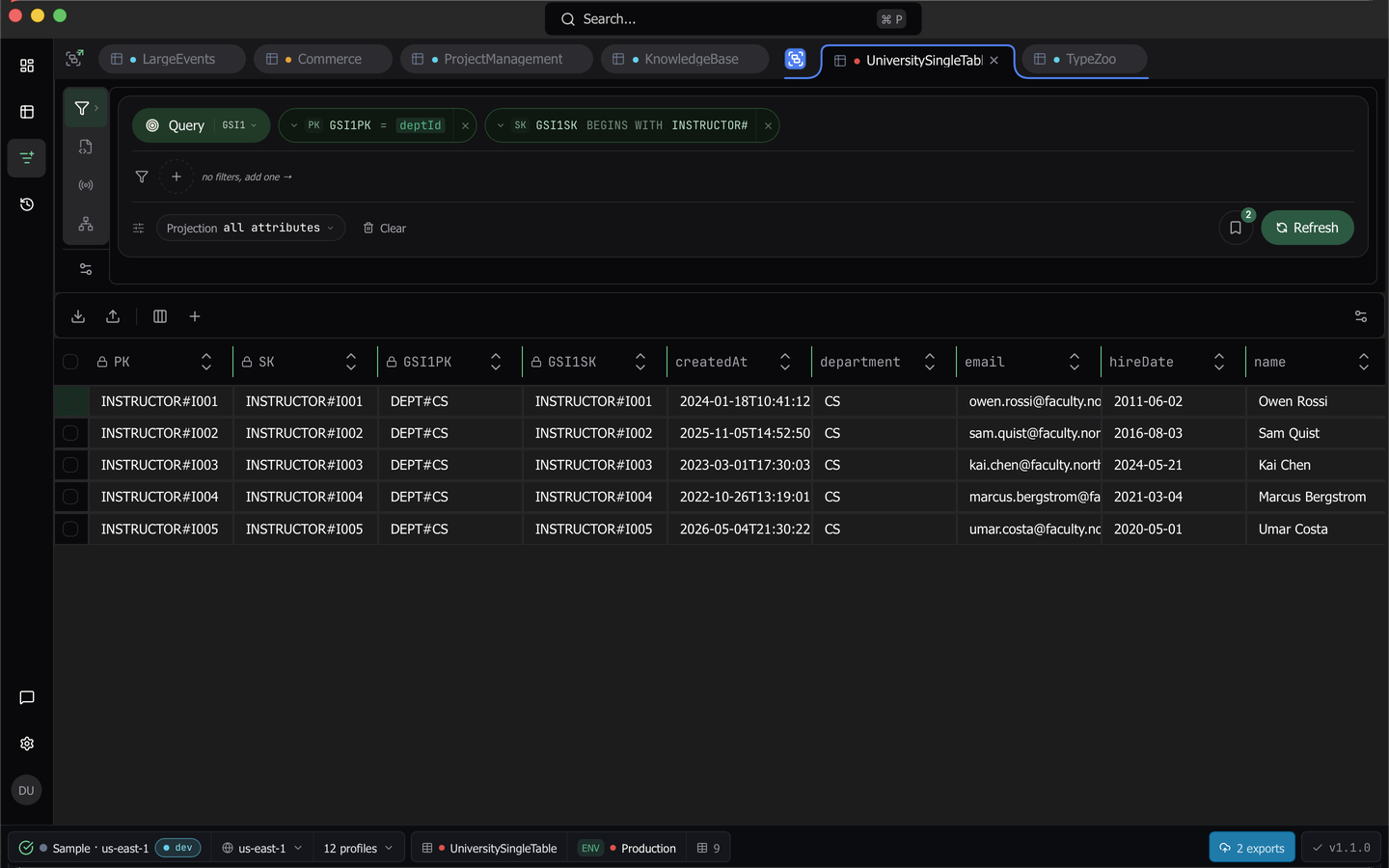
The query builder is the Filters view of the Query mode in every query tab. You pick key conditions, filters, an index and a projection from pills, and Dynomatic compiles the expressions and streams the matching items into an editable grid.
Open a table and run it
Open a table from the Tables popover, from the command palette, or from the dashboard’s Recently Opened list. Each table gets its own tab.
A new tab does not read anything until you ask it to. Press Run, or press Cmd+Enter (Ctrl+Enter on Windows and Linux). A readout above the grid reports what came back, for example Fetched 4 items (1KB) in 12ms. After the first fetch the same button is labeled Refresh.
Query by key instead of scanning
A fresh tab starts in Scan mode with the hint no filters, add one →. To switch to a Query, press Add PK / SK condition and choose a partition key from the Partition key group. Choosing one puts the tab into Query mode. Sort key conditions live under the Sort key group, and they stay in Scan until a partition key is added.
Each condition renders as a pill with a field picker, an operator and a type-aware value editor. Booleans, numbers, binary values, ranges, lists of values, lengths, type codes and operators that take no value each get the editor they need, and you can override the datatype or type a nested map path. Filter on any type covers each editor. Partition keys lock to =, since that is the only operator DynamoDB accepts there.
Sort key operators follow the key’s type. A String or Binary sort key offers =, >, >=, <, <=, BETWEEN and BEGINS WITH. A Number sort key offers the same list without BEGINS WITH, because DynamoDB’s begins_with takes only a string or binary. A saved query or a rerun that holds BEGINS WITH on a Number sort key reopens as an incomplete = for you to fill in, and it does not run.
Choose an index
The mode pill on the left of the builder names the current operation. Click it to open a menu listing the primary key and every LSI and GSI, each showing its own partition and sort key. Picking one rewrites the key pills for that index and renames the pill to Configure query on index <name>. Three behavior toggles sit below the index list:
- Scan forward returns items in ascending sort key order.
- Consistent read requests a strongly consistent read. It costs twice the read units, so the pill adds a
· consistent 2×tag while it is on, and it is unavailable on GSIs. - Force scan treats the request as a Scan and unlocks every operator on the partition and sort keys.
Below the toggles, Limit sets how many items each Run or Load more reads, instead of the table default. The row reads table default until you change it and set for this query after. Open it to type a whole number or pick 5, 10, 25, 50 or 100, and choose Use the table default to clear it. While a limit is set, the pill adds a · limit <n> tag. The limit is saved with the query, so a saved query keeps it. The table default is Page Size under Fetching & Editing in Table settings.
Vector indexes never appear here. They are queried from the Vector search view instead.
Add filters
Press Add filter to open a searchable attribute list. The list includes the attributes Dynomatic has captured for the table, so it is filled in before your first read. See Schema Explorer. Pick an attribute, or type a name and choose + Custom attribute name for one that has not been seen in a result yet.
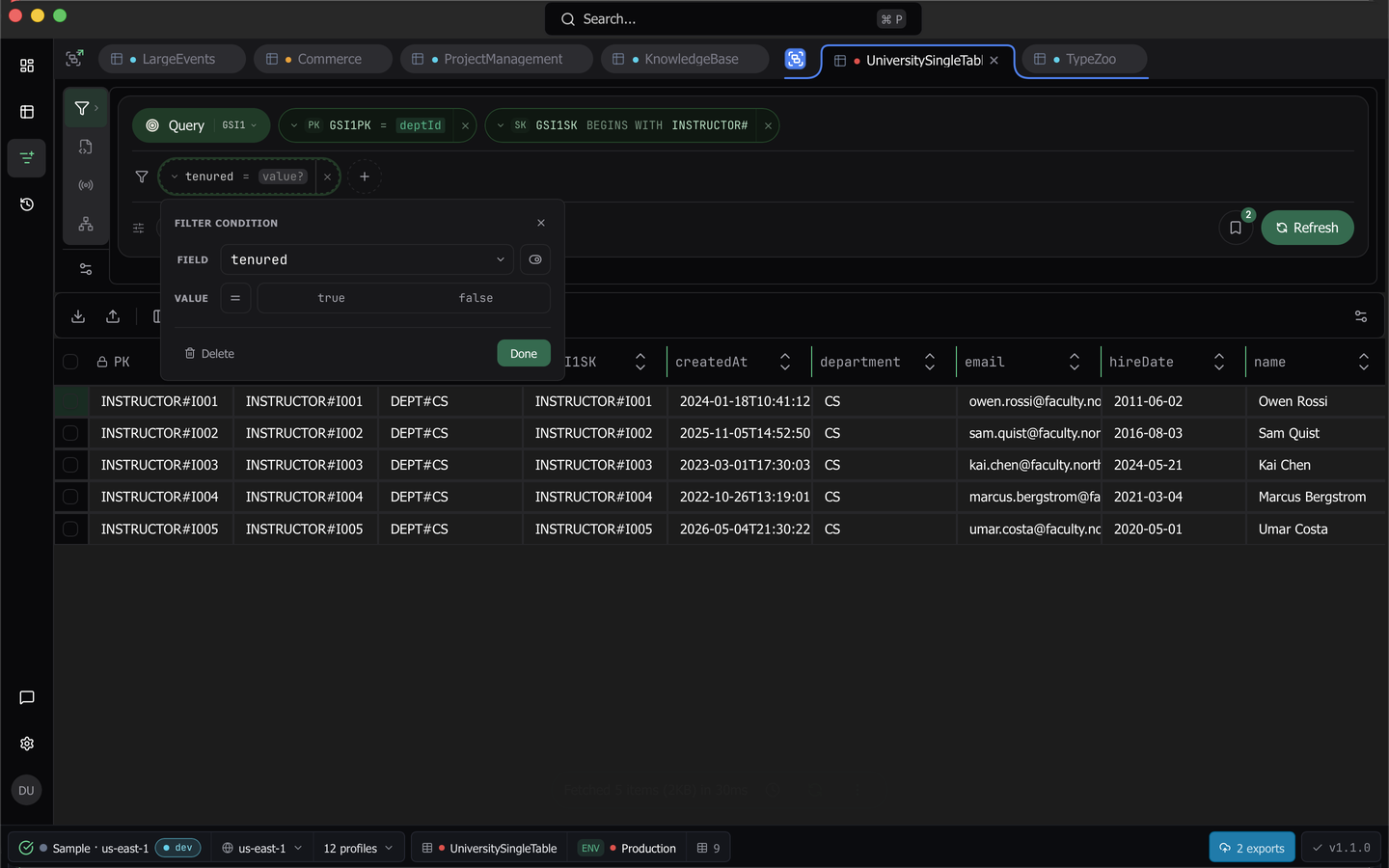
With two or more filter pills present, a connector button sits between them. Click it to flip and to or. Paren glyphs on the pills mirror the precedence of the compiled expression, so (a AND b) OR c reads the way it will run. Clear all conditions empties the builder.
Note: The free plan allows two filter conditions per query. A third requires the Pro plan.
Filter on any type
A filter can claim any DynamoDB type: String, Number, Binary, Boolean, Null, the three sets, List or Map. The operator menu lists only what DynamoDB evaluates on that type. The operators fall into these groups:
- Comparisons:
=,!=,>,>=,<and<=. - Prefix: BEGINS WITH and NOT BEGINS WITH.
- Membership: CONTAINS, NOT CONTAINS, CONTAINS ANY and CONTAINS ALL.
- Ranges and lists: BETWEEN, NOT BETWEEN, IN and NOT IN.
- Presence: EXISTS, NOT EXISTS, IS NULL and IS NOT NULL.
- Size: SIZE, SIZE BETWEEN and IS EMPTY.
- Type tests: TYPE IS and NOT TYPE IS.
| Type | Operators offered |
|---|---|
S string |
Every group |
B binary |
Every group. CONTAINS matches a sequence of bytes |
N number |
Comparisons, ranges and lists, presence and type tests |
BOOL |
=, !=, IN, NOT IN, presence and type tests |
NULL |
=, !=, presence and type tests |
SS, NS, BS sets and L list |
Membership, presence, size and type tests. A set or list is compared by member, so it never takes = or < |
M map with no path |
Presence, size and type tests. Type a path to filter on a leaf by the leaf’s own type |
When you switch a filter to a type that does not take its operator, the filter moves to the type’s first operator, such as CONTAINS for a set or list and EXISTS for a map, and its value is cleared. The pill then waits for a new value instead of running a different query. A saved query or a restored tab that holds such a filter loads the same way. A condition that compares a whole list or map with = says that the value can’t be compared whole, and suggests CONTAINS for one list element or a path for a map leaf.
Binary values
A binary value has a Base64 / Hex toggle. This applies to a Binary filter, a member of a binary set, a binary list element, and a Binary partition or sort key condition. Base64 is how the grid shows a binary value and how Copy value copies it. Switching the toggle rewrites a valid value in the other encoding.
Dynomatic never guesses the encoding. cafebabe is valid as both, and it names different bytes in each, so the line under the input counts the bytes, for example 4 bytes as hex and 6 bytes as base64. A value that does not parse keeps the pill incomplete and never runs. The message under the input says why: Not valid base64. Enter the bytes as base64, the way Copy value copies them. or Not valid hex. Enter two hex digits per byte, such as cafebabe.
Sets and lists
A set filter takes one member of the set’s own type, so a number set takes one number. A list CONTAINS has an Element type picker with String, Number, Binary and Boolean, because the string "42" is not the number 42. Changing the element type clears the value. A Number element that is not a number keeps the pill incomplete.
CONTAINS ANY and CONTAINS ALL take a list of values, entered the same way as IN. They keep items whose string, binary, set or list contains at least one of the values, or every one of them. The pill reads tags CONTAINS ANY [red, blue]. On a list, the element type applies to every value.
Size and type
SIZE compares an attribute’s length: the characters of a string, the bytes of a binary, the entries of a list or map, or the members of a set. Pick a comparator first (=, !=, <, <=, > or >=), then type the number. The pill reads tags SIZE > 3. SIZE BETWEEN takes a minimum and a maximum length and reads tags SIZE BETWEEN 2 … 5. IS EMPTY needs no value. It matches an item without the attribute, or one whose string, binary, list or map has a length of 0.
TYPE IS and NOT TYPE IS test an attribute’s DynamoDB type. The value is one of the ten type codes (S, N, B, SS, NS, BS, M, L, NULL and BOOL), whatever type the filter claims.
IS NULL and TYPE IS NULL
IS NULL and IS NOT NULL need no value, and every type offers them beside EXISTS. They treat a missing attribute as null.
- IS NULL matches an item without the attribute, or one where the attribute holds the NULL type.
- IS NOT NULL matches an item that has the attribute with any type other than NULL.
- TYPE IS
NULLmatches only an item where the attribute holds the NULL type. Use it when a missing attribute must not match.
The negated operators also match an item without the attribute. NOT BEGINS WITH, NOT BETWEEN and NOT CONTAINS each keep an item that lacks the attribute. A note under the value says what IS NULL, IS NOT NULL, IS EMPTY, CONTAINS ANY and CONTAINS ALL match.
Choose which attributes come back
The Projection pill on the action row states what the next read returns, either Projection all attributes or a list of what is left out. Its popover lists every attribute previous queries and scans have observed as a checkbox, names the key attributes once in an Always projected: line, and offers Reset to default.
Vector attributes are unchecked by default, so a scan of a table carrying embeddings does not drag megabytes of vectors back with it. The choice is saved per table.
Work with the results
Results stream in as they arrive. Below the grid you get Load more results, Cancel loading and Refresh results, plus a live progress label showing items, bytes and elapsed time. The byte figure is the measured size of the payload that came back, not an estimate. A strip under the builder estimates what the next Run will read, and the progress label warns when a filter discards most of what a run scans. See Know what a read costs.
Once results exist, an Auto-refresh control appears. It offers Off, 5s, 10s, 30s, 1m and 5m, plus a Skip command history checkbox so a polling tab does not fill up your history. The setting lives on that tab for the session only.
Editing, bulk actions and committing changes are covered in the data grid.
Open the filter as a script
To turn the current filter into code, click the Open filter as script button beside Saved queries, then choose TypeScript or Python. You can also run Open filter as TypeScript script or Open filter as Python script from the command palette.
Dynomatic writes a script that sends the same request as the next Run, with the index, key condition, filter, projection, sort direction, and consistent read. The script follows every page until the read is complete and returns the matching items. It does not carry the Limit.
The script replaces the Scripting editor’s contents for that language, and the tab switches to the Scripting mode. The other language’s script is kept. A saved script is never changed. Opening a filter as a script is part of the paid plan, like Scripting itself.
Save a query for later
Saved queries stores the current pills under a name, per table. Reopening one restores the conditions, the index and the mode. The popover lists each saved query with its age and a delete button, and the trigger shows the count. Saved queries require the Pro plan.
When nothing loads
When a tab opens with an empty grid, Dynomatic deliberately read nothing and the empty state says why. Auto-scan is off for production workspaces, off for tables that carry a vector index (a scan is charged for every item’s full vector even when the vector is left out of the results), and off wherever you turned it off yourself at the table, workspace, environment or global level. Each message carries a link to the setting that governs it. Press Run whenever you are ready to read.
Last updated on