
Import and export
Import a DynamoDB JSON file
Load a DynamoDB JSON file from disk into a table, by drop or click, at any size, plain or gzipped, with the run as a background job.
A DynamoDB JSON file already has a type on every value, such as {"S": "text"}. Dynomatic’s own DynamoDB JSON export writes one, and so does each data file of a DynamoDB export in S3. The DynamoDB JSON file source reads such a file from disk in place, so it can be any size, and writes the items exactly as the file holds them.
Use it to restore a backup you took with Export, or to load one data file of an S3 export you have downloaded. It goes only into the table the wizard opened from.
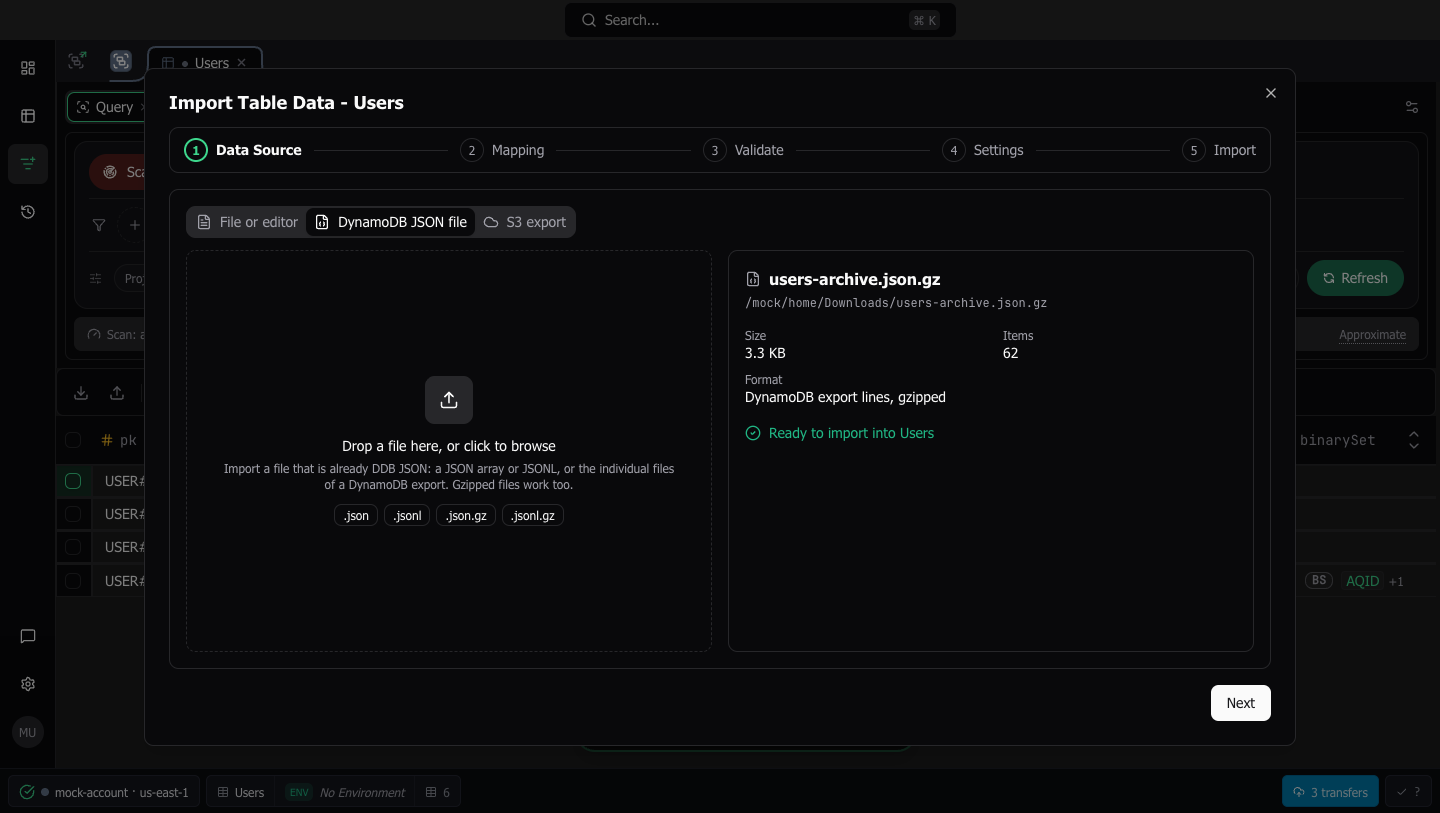
To start, click Import in the query tab’s action bar and choose the DynamoDB JSON file tab on the Data Source step. The steps are the same five as a text import, Data Source, Mapping, Validate, Settings, and Import.
This source needs no plan beyond the free plan’s import row limit, and it works in Sample Mode.
Choose the file
Drop a file onto the zone, or click it to browse. The zone reads “Drop a file here, or click to browse”, and its badges name the usual extensions, .json, .jsonl, .json.gz, and .jsonl.gz. The badges and the file dialog’s filter describe files, and never refuse one.
A file you pick in the dialog is read where it is. A dropped file is first copied to Dynomatic’s cache, in 4 MB pieces, because a drop does not say where the file lives. The copy is deleted when its import ends, when another file replaces it, when the dialog closes without an import, and at the next launch. A drop of more than one file asks for one.
Accepted shapes
The file’s shape is read from its contents, not its name. Three layouts are accepted, each plain or gzipped:
- a JSON array of items, which is what Dynomatic’s DynamoDB JSON export writes
- JSON Lines, one item per line
- JSON Lines of
{"Item": ...}, which is what a DynamoDB export’s data files hold
The opened file shows its name, its path when you picked it, its size, its format, and its item count. A file longer than its first 100 items shows “More than 100, counted as it imports”.
A file of plain JSON is refused with the reason and a Use File or editor button, because that import types each value for you and this one does not. An empty file, a file that is neither a JSON array nor JSON Lines, and a file that cannot be read are refused with their reasons. Choosing or dropping another file drops the one opened before.
Map, validate, and set how it writes
Mapping and Validate work on the file’s first 100 items, the way they do for an S3 export. Every attribute keeps its own name unless you rename or ignore it, and attributes the sample never showed are imported unchanged. Validate checks the sample and says that the rest are checked as they import.
Settings keeps the conflict choice. In place of concurrency and batch size, a note says that the file is read from disk and written to the table 25 items at a time.
The run
The Import step starts on arrival, and the run is a background job, so Close stays enabled while it runs and the job’s row in the Background jobs panel keeps counting. A file counted when it opened shows items read against its total. A longer file shows items read on an open-ended progress bar, with no Remaining tile until the run reaches its end.
When the import starts, the job copies the file into its own folder and reads only that copy, so a later change to the file does not reach the import. The job deletes its copy when it ends.
Stop import, View rejects, and Run again work as they do for an S3 export. See The run. A rejected item is listed by line, or by item position for a JSON array. A file that turns out to be cut short or corrupt partway stops the run with the reason and keeps what was written.
In Background jobs the row reads Import <file name> into <table>, and a reload or a quit does not lose it. After a quit the row reads Paused: the app quit, and Resume continues from where the job stopped. See Run large writes as background jobs.
A dropped file’s row and summary name the original file. Because its copy is deleted when the run ends, the summary offers no Run again, and a cancelled one says to drop the file again to import the rest.
Last updated on