
Import and export
Import from S3 into a table
Stream a DynamoDB export in S3 into an existing table. Point at the export, keep or rename its attributes, and follow the run in Background jobs.
A DynamoDB export in S3 imports into an existing table without a download. Dynomatic reads the export’s manifest, shows you its first 100 items to map and check, and then streams every data file from S3 into the table. The items never pass through the window, so the export can be any size.
Use it to restore a table from a native export, to copy a table between accounts or regions, or to load a copy of production into a development table.
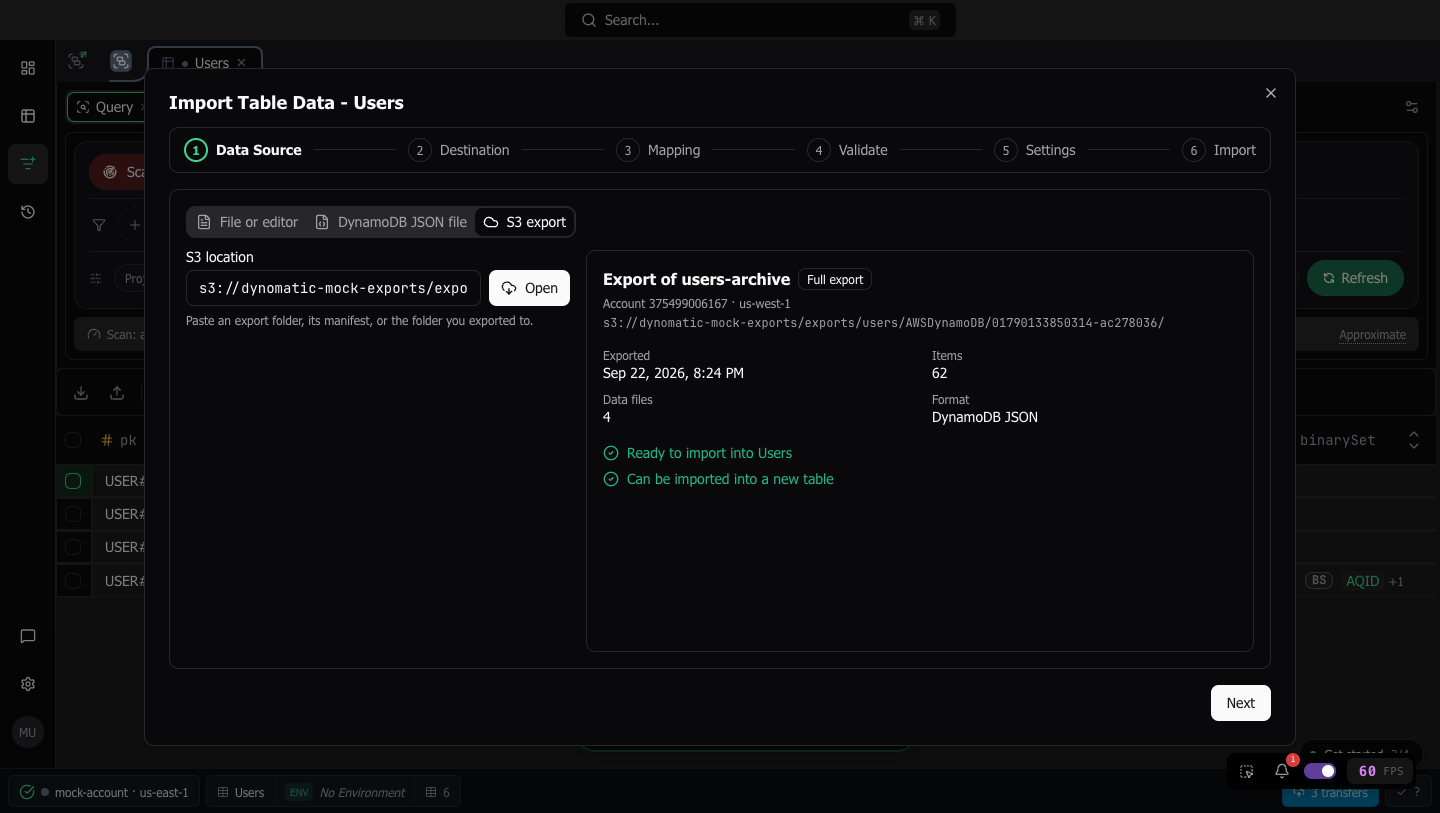
To start, click Import in the query tab’s action bar and choose the S3 export tab on the Data Source step. The wizard then runs Data Source, Destination, Mapping, Validate, Settings, and Import. To create a new table from the export instead, see Import from S3 into a new table.
Note: Importing from S3 is part of the paid plan. Without it the tab shows an upgrade prompt, and in Sample Mode it stays visible but inert with the reason shown. Importing a file or pasted data works on every plan and in Sample Mode.
What counts as an export
The source is a DynamoDB native export, the folder that ExportTableToPointInTime writes. Dynomatic’s own Export to S3 writes one with its Native export mechanism, and so do the AWS console and the CLI. The folder holds a manifest-summary.json, a manifest-files.json, and gzipped data files under data/.
Three kinds of export open but cannot go into an existing table, and the wizard says which.
- An Amazon Ion export. Dynomatic streams DynamoDB JSON only. An Ion export can still go into a new table, because DynamoDB reads Ion itself there.
- An incremental export. It holds changes over a window, not items, so no table can take it. A file from an incremental export’s shared
AWSDynamoDB/data/folder gets the same refusal. - A scan-based export. Dynomatic’s Scan & upload mechanism writes a single CSV or JSON file, not an export folder. Download it and import it with File or editor.
Point at the export
Paste an s3:// URI or an S3 https URL into S3 location and click Open, or press Enter. Any of these opens the export:
- the export folder,
…/AWSDynamoDB/<exportId>/ - its
manifest-summary.json, or any file inside the folder - the folder you exported to
- any folder above that
Dynomatic finds exports at any depth under a pasted folder. When the folder holds several, the wizard lists the newest 20 under Exports in this folder, each with its table, its export time, and its item count, and you pick one. A folder with more files than one search reads, which is 10,000, asks for a folder closer to the export rather than listing part of it. A folder with no export says so and points you to File or editor.
An export copied to another bucket or prefix opens too. Native exports you finished in this session appear as Recent exports buttons under the field, so a table you just exported is one click away.
An s3:// location is read literally, as the console and the CLI print it. Only an https URL is percent-decoded. Opening a new location drops the export opened before.
Credentials and the bucket region
The export is read with the destination table’s own workspace credentials, so those credentials need read access to the bucket. If that workspace is not connected, nothing opens and the step says why.
Dynomatic asks S3 for the bucket’s region. When S3 will not say, a Bucket region field appears, and the export opens once you fill it in. The region is never guessed.
What the opened export shows
The summary names the source table and its account and region, the export time, the item count, the number of data files, and the format. Under it, Ready to import into {table} says the table can take it, or the reason it cannot. The Destination step then offers Into {table} and Create a new table, and starts on Into {table} whenever the table can take the export.
Map the attributes
Every attribute keeps its own name, including attributes the table has never been seen with. Each row of the Mapping step shows the attribute as its own destination, so a plain restore needs no changes here.
To rename an attribute, pick one of the table’s fields or use Create new. Clearing a rename returns the attribute to its own name. Only Ignore drops an attribute. Attributes the first 100 items never showed are imported unchanged, under their own names.
A mapping that would drop the table’s key, or put two attributes on one name, is refused before anything is written. Mapping starts over whenever the source changes, so rows made for pasted text never carry into an export.
Validate on a sample
Validate checks the export’s first 100 items against the table’s key and says so: “Checked the first 100 of 2,631 items. The rest are checked as they import, and every rejected item is counted and listed when the import ends.” A sampled item that would be rejected is listed, but it does not block the import unless no sampled item could be written.
Set how it writes
Choose overwrite or merge for a collision with an existing item, as for a text import. In place of concurrency and batch size, Files at once sets how many data files are read and written in parallel, from 1 to 8, with a default of 2. More files at once finishes sooner and uses more write capacity on the table.
The summary chip counts the export’s items and says that its field count comes from the first 100 items, for example 2,631 items · 28 fields in the first 100 → Users.
The run
The Import step starts on arrival and shows items read against the export’s total, over Written, Rejected, and Remaining tiles, with Stop import.
The run is a background job, not part of the dialog, and the step says “This import runs as a background job. You can close this dialog; Background jobs keeps its progress, and it can pause and resume there.” Close stays enabled with the note “Keeps running in Background jobs if you close this dialog”, the job’s row keeps counting, and clicking Import again opens a fresh wizard. See Follow it in Background jobs.
Stop import sends no new writes and lets the writes already sent finish, so the written count matches what the table holds. When the run ends, the summary shows Written and Rejected, plus Not attempted when a stop left items that were read but never sent. Read always equals written plus rejected plus not attempted.
When items were rejected, View rejects opens the job’s Failures dialog, Failures: Import <source table> into <table>. It lists each rejected item with its key, its reason, and the number of the data file and the line it came from. The reasons are a line that is not valid JSON, a line with no Item, an attribute that is not DynamoDB JSON, a missing or wrongly typed key attribute, two attributes on one name after a rename, a write DynamoDB refused, and an item DynamoDB kept returning as unprocessed. The dialog lists 50 at a time, and Load more shows the next page. A note in the summary says when a data file held a different number of lines than its manifest lists.
A cancelled or failed run offers Run again, which imports the whole export again as a new background job. Items already written are written again, which leaves the same result under either conflict mode.
Expired credentials and access denied pause the job, as Paused: credentials expired or Paused: access denied, and keep its counts. A data file read that breaks off pauses it as Paused: reading the source broke off. Fix the cause, reconnect the workspace if it needs it, and click Resume on the job’s row. The import reads on from where it stopped. Any other write failure rejects only the items it carried, and a request DynamoDB throttles is retried with backoff before its items count as unprocessed. The job paces its writes to the table’s capacity. See How job pacing works.
On the free plan the import row limit counts across the whole run, and the summary reads “Import stopped at the plan limit”.
The data lands as exported
Items are written as DynamoDB JSON all the way, so numbers, binary values, and sets keep their exact values. A ${...} in a value is never read as a template variable.
Follow it in Background jobs
The jobs pill in the status bar counts the run and opens the Background jobs panel. The import’s row reads Import <source table> into <table>, with its kind, Import, and the table and workspace. While it runs, the row shows the items written so far, the items read against the export’s total as N of M read, its rate, its write rate against its ceiling, and the time left. Once items fail, it also shows the failed count. When the plan’s row limit ended the run, the row’s state adds stopped at your plan's N row limit.
Pause, Resume, and Cancel work as for any job. See Pause, resume, or cancel a job. A reload or a quit does not lose the run. After a quit the row reads Paused: the app quit, and Resume continues from where it stopped.
A stopped import offers View failures when items were rejected, and Dismiss. It offers no Retry failed. To import the rejected items, fix the cause and run the import again.
Last updated on