
Environments and variables
Template variables
Reference reusable values with ${[ var ]} tags in pills, PartiQL, scripts, and JSON, and manage them per workspace, tier, and table.
Template variables let you write a value once and reference it everywhere Dynomatic accepts a value. Use them for the things that differ between environments, such as a tenant id, a term code, or an API base URL.
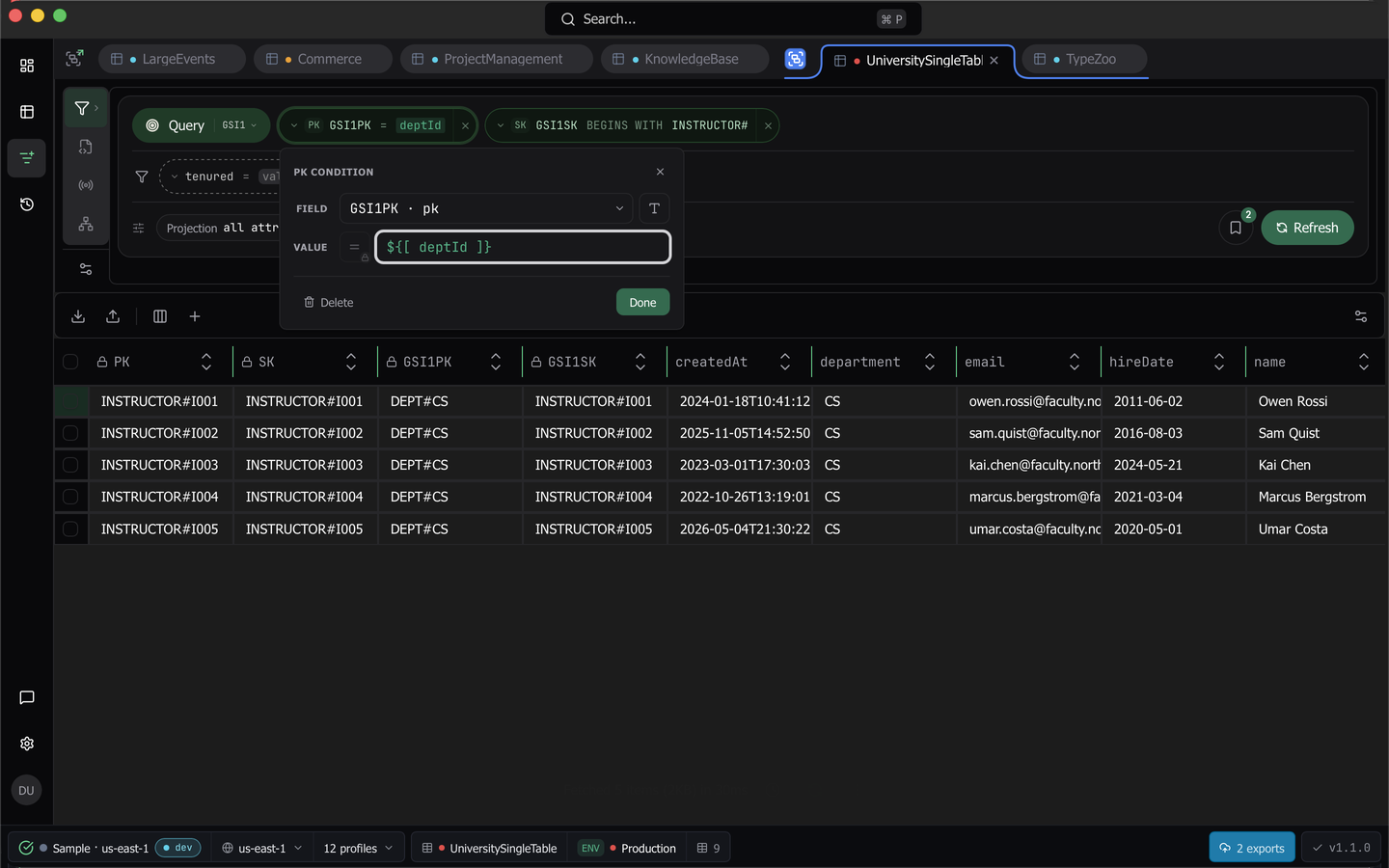
Insert a reference
Type ${[ anywhere you can enter a value. That covers query and schema-aware query pills, the PartiQL editor, scripts, and JSON sheets. A completion list opens as you type a plain prefix, and dot-namespaced names complete one segment at a time. To open the list on demand, press Ctrl+Space in a code editor, or Ctrl+Space or Cmd+Space in a pill. Pressing Escape on a list you opened that way removes the auto-inserted ${[ opener and keeps anything you typed inside the tag.
A finished reference collapses into a colored chip. Green means the name resolves, neutral means the tag is a built-in function, and red means the name is unknown. Hover a chip to see what it resolves to. Click one to edit the variable. Click a red one to create the missing variable, which opens the editor for the active tier so you can add the name there.
Syntax reference
| Form | What it does |
|---|---|
${[ name ]} |
Inserts the value of name from the resolved environment chain. |
${[ uuid() ]} |
Calls a built-in function that takes no arguments. |
${[ random.range(min=1, max=10) ]} |
Calls a function with named arguments, separated by commas. |
${[ casing.lower(value='ORG#Acme') ]} |
Passes a single-quoted string literal. |
${[ casing.upper(value=deptId) ]} |
Passes a variable as an argument, by bare name and without quotes. |
${[ casing.lower(value='${[ deptId ]}') ]} |
Nests a reference inside a string argument. The inner tag resolves first, then the outer function transforms the result. |
\' and \\ |
Escape a single quote or a backslash inside a string argument. |
\${[ name ]} |
Escapes the whole tag. The text renders as the literal ${[ name ]}. |
Tags are scanned depth first, so a tag whose argument contains another tag closes at its own outer ]} and is never cut short.
Note: A variable name must start with a letter or underscore and can then contain letters, digits,
_,., and-.
Built-in functions
| Function | Returns |
|---|---|
uuid() |
A new UUID. |
date.iso() |
The current UTC time in ISO 8601 with milliseconds. |
date.rfc3339() |
The current time in RFC 3339, with a numeric offset. |
date.rfc2822() |
The current time in RFC 2822. |
date.date(), date.time(), date.datetime() |
The calendar date, the time of day, or both. |
date.unix() |
Unix epoch seconds. |
date.unixMs() |
Unix epoch milliseconds. |
random.range(min=, max=) |
A random integer in the inclusive range. min defaults to 0 and max to 100. |
casing.upper(value=) |
The value argument upper-cased. |
casing.lower(value=) |
The value argument lower-cased. |
keychain(service=, account=) |
A password read from the OS keychain. |
secure(value=) |
The plaintext of a value encrypted with the app’s own key. |
Warning:
keychain(...)andsecure(...)fail with a render error rather than an empty string when the entry is missing or cannot be decrypted. The key thatsecure(...)uses is held in the OS keychain, so an encrypted value does not travel to another machine.
When that key cannot be read, for example because the keychain is locked or refused access, Dynomatic keeps the stored key as it is and never makes a new one. A secure(...) value then fails with a message saying the key could not be read, and every other template function still renders. Once the key reads again, existing secure(...) values decrypt.
Where variables live
Variables are grouped into environments, and each environment is scoped. Four scopes can contribute to a single render.
- Global, shared by every workspace.
- Workspace, for one profile and region pair.
- Tier, for Production, Staging, or Development inside a workspace.
- Table, for one table inside a workspace.
Dynomatic merges the four in that order and the most specific scope wins, so a term defined on the table overrides the same name on the tier, on the workspace, and in Global. Only enabled variables take part. Which tier applies comes from environment classification unless you pin one yourself.
Switch or pin the tier
The status bar carries an environment segment. It reads Environment: Production (auto) when the tier came from classification and (pinned) when you chose it. Open it to see the tiers configured for the workspace, pick one to pin it, and use Clear pin to return to auto.
Manage Environments
Open the status bar environment segment and choose Manage Environments. That is the only way into the dialog.
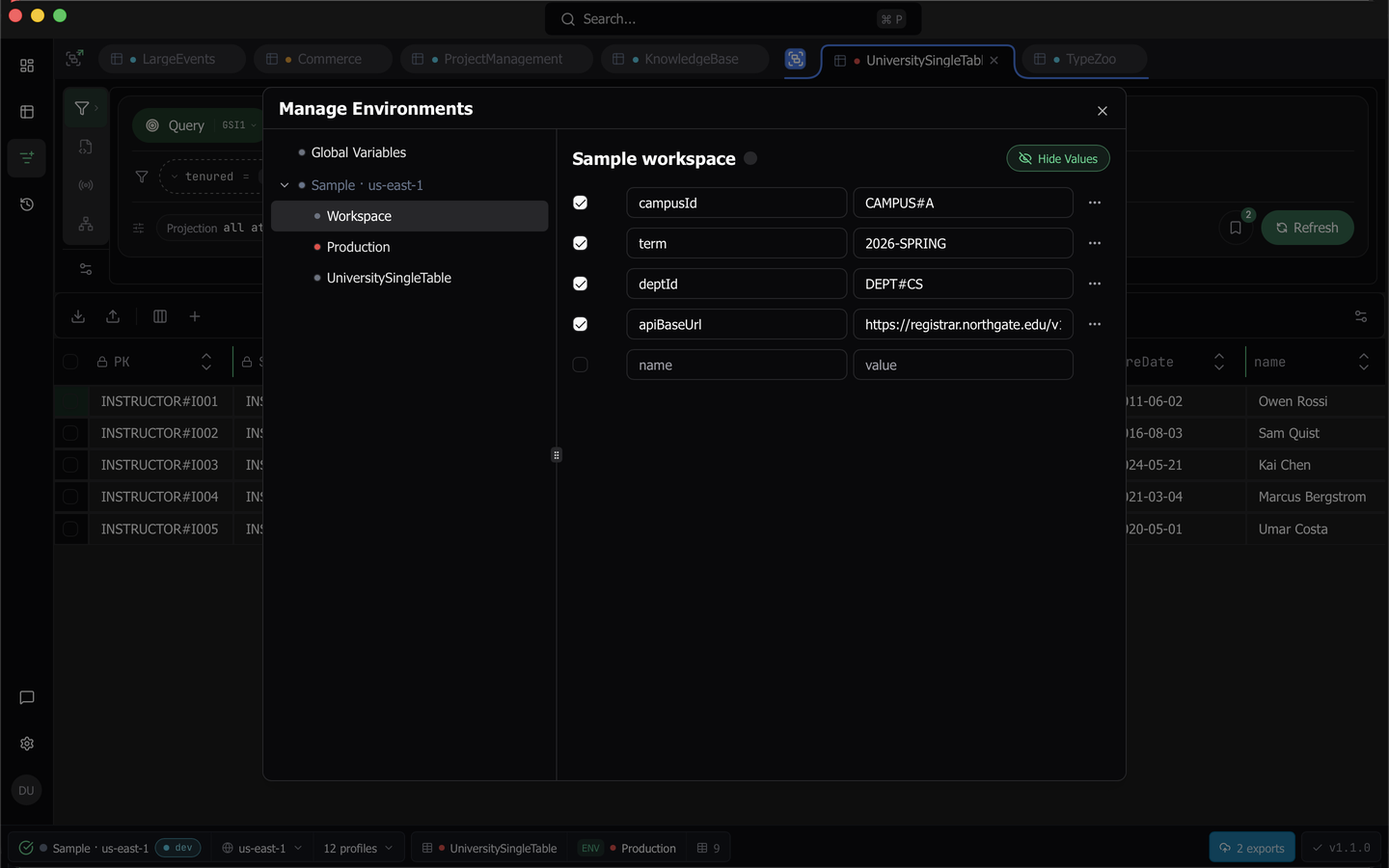
The left side is a tree holding Global Variables and one branch per workspace, with that workspace’s Workspace, tier, and table environments inside. Right-click a node for its menu.
- On a workspace branch, Add environment adds a tier that does not exist yet, and Create scoped environment adds one scoped to a table.
- On a tier or table node, you get Rename, Duplicate, Change color, and Delete. Delete asks for confirmation and cannot be undone.
- Each node has a reorder handle you can drag to change its position.
Edit variables
The right side is a pair editor. Type into the trailing empty row to create a variable. There is no save button, and every change is written immediately.
- The checkbox at the start of a row enables or disables that pair. A disabled pair stays in the environment and takes no part in resolution.
- Hide Values masks every value in the pane, and a masked row gains a Reveal value button.
- Pair actions on a row opens Edit Multi-line, which gives one value its own editor, and Delete.
- Switch to bulk editor replaces the rows with
name: valuetext, one pair per line, with disabled pairs prefixed by#. Switch to form editor brings the rows back. The round trip is lossless. - An environment with more than 30 pairs renders the first 30 plus a Show N more button.
Casing in composed keys
An imported schema can declare a casing for a composed key, which is what ElectroDB does when it lowercases key segments. When Dynomatic composes such a key it cases the literal segments and wraps each template tag in the key’s casing function, so the stored template reads ${[ casing.lower(value='${[ orgId ]}') ]}. The inner tag resolves first, which keeps the variable name case-sensitive, and the casing is then applied to the resolved value. A casing of none leaves both literals and tags exactly as written, and a tag that is already wrapped is never wrapped twice.
When references render
References resolve at execution time in the Rust backend, not in the interface. Expression values, item keys, whole items, PartiQL statements, and script source all pass through the renderer. A preview blanks a reference it cannot resolve so you can keep working. A run fails on that same reference with the error the operation itself would produce.
Last updated on