
Import and export
Export
Write items to a file, the clipboard, or S3, from the loaded rows, a selection, or every item the query matches.
Export writes items out of DynamoDB as JSON, JSON Lines, CSV, or DynamoDB JSON. Use it to hand data to a colleague, to feed a spreadsheet, to take a backup you can import again, or to move a whole table into S3.
The Export menu in a query tab’s action bar holds Export…, which opens the dialog, Export to S3, Copy JSON to Clipboard, Copy DynamoDB JSON to Clipboard, and Copy CSV to Clipboard.
Choose a scope
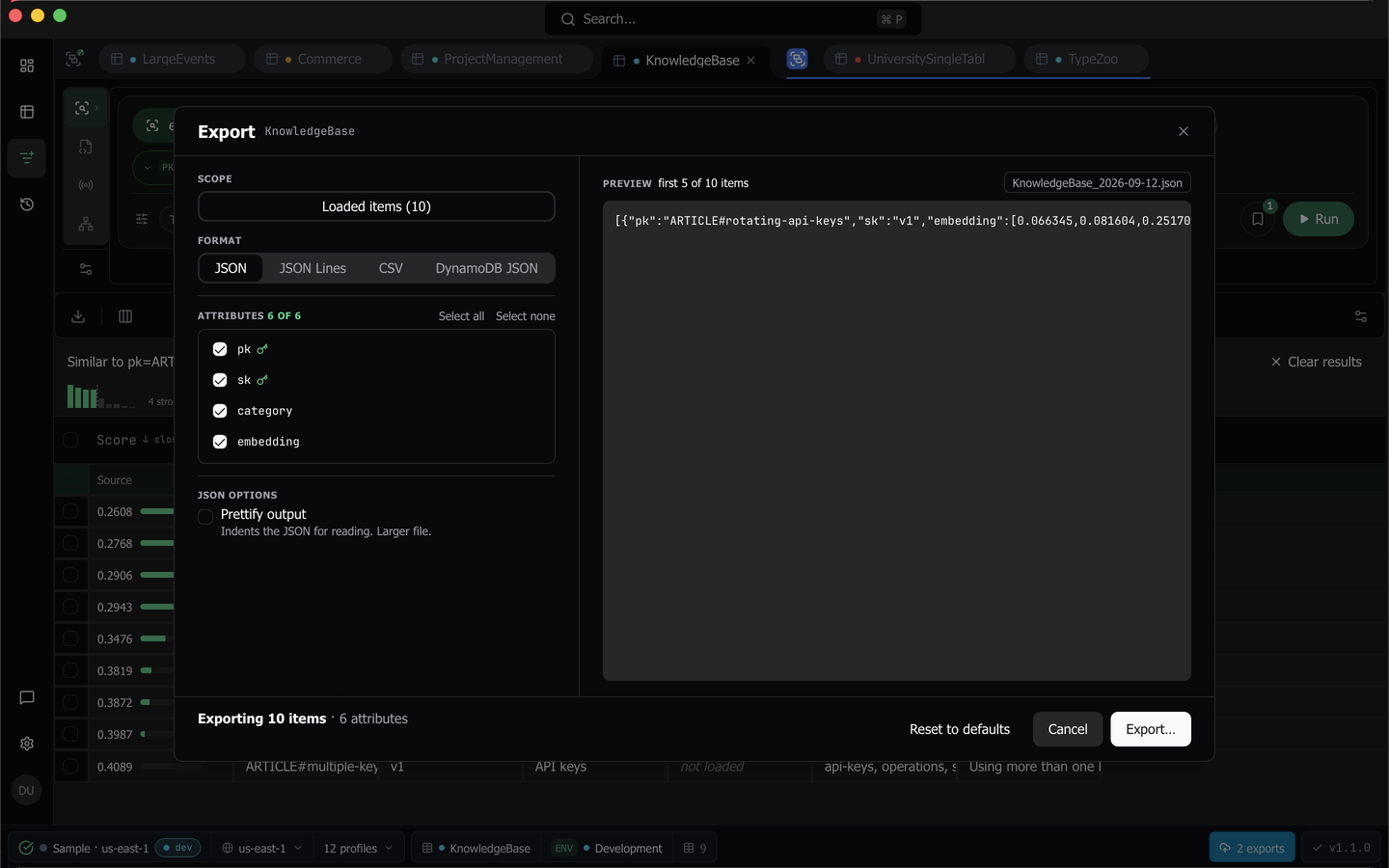
The Scope control at the top of the dialog decides which items are written.
- Loaded items writes the rows already in the grid.
- Selected items writes the rows you have selected. It appears only while a selection exists, and it is the default then.
- All matching items re-runs the tab’s current query or scan, with the same key conditions, filters, index, projection, and consistent-read setting, and streams every item it finds.
All matching items appears only on the Filters stream, because it re-runs that stream’s query or scan, and the tab has to be bound to a connected workspace. Under that scope the footer carries an estimate from the cached table description, with a refresh button that re-describes the table. A production-classified table always asks for a red confirm naming the table and the estimated read cost before anything is read. A table that is not classified as production asks only above 100,000 estimated items or 10,000 estimated read units.
Choose a format
- JSON writes an array of plain objects, and is the default.
- JSON Lines writes one object per line as
.jsonl, and streams better on large exports. - CSV flattens to a spreadsheet.
- DynamoDB JSON writes marshalled items that preserve types exactly, including large numbers, which is what you want for re-import or backup.
JSON and DynamoDB JSON write on one line. A Prettify output checkbox in their options region, off by default, indents the result for reading at the cost of a larger file.
CSV adds a dialect, chosen from Standard (comma, UTF-8), Excel (US), Excel (Europe, semicolon), and Tab-separated, where the two Excel presets start with a UTF-8 byte order mark so Excel decodes accented and CJK text. You also choose whether to write a header row, whether nested attributes are embedded as JSON or flattened to dotted paths such as address.city and tags[0], whether to protect against spreadsheet formulas, and whether a missing attribute becomes an empty cell or NULL.
Choose attributes
The attribute checklist is seeded from the rows plus the table’s known fields, with keys first, then the grid’s visible columns, then the rest alphabetically. Select all and Select none are the bulk controls, the export’s column order follows the list, and keys cannot be unchecked for DynamoDB JSON. Under the All matching items scope the checklist is still seeded from the loaded rows, so a note says that attributes not seen in those rows are exported unless you uncheck them here.
The preview re-renders from rows already in memory on every change, so no DynamoDB read is spent on it, and it names the dated default file name the save dialog will offer. Your option set is remembered per table and restored when you reopen the dialog, and Reset to defaults clears it.
Exports run in the background
The dialog closes as soon as the native save dialog returns, and the export streams to the file behind a footer pill, so a 200,000-row export never freezes the interface. The pill reads “{n} transfers running” while anything runs. Click it to open the Transfers panel above the status bar, which lists your exports. Imports run in Background jobs instead.
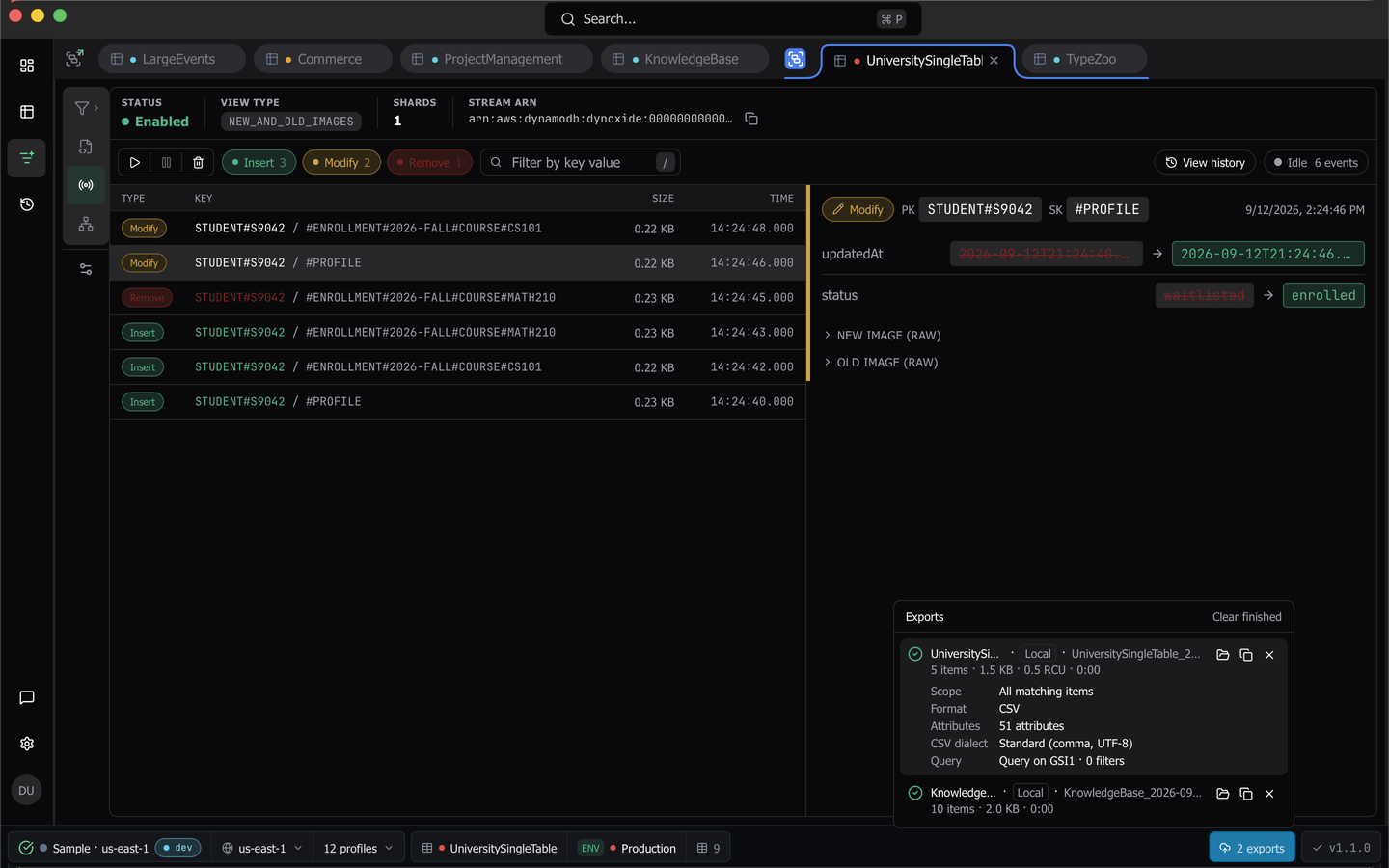
One row per job, newest first, names the table, whether it is local or S3, and the destination. A running job shows a progress bar with live item, byte, and read-unit counters, plus an estimated time remaining once enough of the estimate is in. A finished local job offers Reveal in Finder on macOS, Show in folder elsewhere, and Copy path, a finished S3 job offers Copy S3 URI, a failed job offers Retry, and any finished job offers Remove. Clear finished removes done, failed, and cancelled rows and never a running one.
Click a row to expand a read-only detail showing the scope, format, attribute count, CSV dialect, and the resolved query, plus the full error for a failed job. Jobs survive closing the tab and switching workspaces. One export per table runs at a time, and two exports aimed at the same file are refused.
Resume an interrupted export
A local export writes a checkpoint next to its destination after every page, so an export that is cancelled, fails, or dies with the app is not lost.
Cancelling asks whether to Keep partial file or Discard. Keeping it, and any failure such as a lost connection or a full disk, leaves the row Interrupted with how far it got, the failure message, and a note that a resumed export may include items changed between runs. Interrupted exports the app never finished come back in the panel at the next launch.
Starting a new export to a file that an interrupted export still owns is refused with An interrupted export already targets <file>. Resume or discard it first. A checkpoint can also be left at a path with no export to account for it, for example after a crash. Then the start is refused with <file> still has a checkpoint from an export that can no longer be resumed. Discard it to export here. That message stays until you close it and offers Discard and export. It removes only the leftover checkpoint and its error report, never a partial file, and then starts the same export.
Resume continues from the last read position under the same connection the export started with, appending to the same partial file and carrying the counters on rather than restarting. It refuses with a reason when the workspace is disconnected, the profile now resolves to a different AWS account, the table or its key schema changed, the partial file lost its tail, or the checkpoint cannot be read, and then offers Start over, which discards and reopens the save dialog with the same options, and Discard.
The per-item error report
An item the chosen format cannot represent is skipped rather than dropped silently or treated as fatal. The skipped count rises live in the panel row, and one JSON line per item goes to a .errors.jsonl file beside the export naming the item’s primary key, the attribute path, and the reason. The completion toast says how many were skipped and offers Show errors, and the row keeps a Show errors button. Above a tenth of the items read the row takes a warning treatment, so a bad format choice is obvious. A clean export writes no error report, and binary attributes are never skipped, because CSV carries them as base64 text.
Copy to the clipboard
Copy JSON to Clipboard copies compact plain objects. Copy DynamoDB JSON to Clipboard copies the marshalled rows as a compact array, so numbers keep their exact digits, binary stays base64, and sets and NULL keep their types. It writes the same bytes as a DynamoDB JSON file export. The command palette offers the same copy as Copy results as DynamoDB JSON. Copy CSV to Clipboard resolves the same option set the dialog would open with, so it is byte for byte what a file export of the same rows would produce.
Export to S3
Export to S3 exports the whole table, through one of two mechanisms.
- Native export uses the server-side
ExportTableToPointInTimeoperation to write DynamoDB JSON or Ion. It is fast, costs no read capacity, and works on any table size, but it requires point-in-time recovery, which the dialog can enable for you after warning that it is a billable account-level change. A native export is what Import from S3 reads back, and one you finish in this session appears under Recent exports in the import wizard. - Scan & upload scans the table, streams DynamoDB JSON, JSON, or CSV to a temporary file, and uploads that. DynamoDB JSON is the default. It writes one
{"Item":{…}}record per line, the layout DynamoDB’s ImportTable reads, and once downloaded it imports back with every type through the import wizard’s DynamoDB JSON file source. JSON and CSV carry plain values. Scan & upload works on any table, consumes read capacity, and reports progress through the same footer pill and Transfers panel. The result is a single file, not an export folder, so Import from S3 does not open it.
Verify the bucket before you start. Dynomatic warns when the bucket’s region differs from the table’s, because cross-region transfer costs money, and cautions about the read cost of a scan.
Note: Export to S3 is a paid-plan feature. In Sample Mode the S3 entry points stay visible but inert, with the reason shown, and local file and clipboard exports are unaffected. On the free plan an export is clamped to the first 25 rows.
Last updated on