
Data modeling
Schema import and schema-aware query
Import your ElectroDB or DynamoDB Toolbox definitions, then query by entity and access pattern instead of by raw keys.
If your application defines its DynamoDB access with a schema library, Dynomatic can read those definitions straight out of your project and turn them into a query surface. You pick an entity and one of its access patterns, fill in the values you know, and Dynomatic composes the real keys for you. Schema import requires the Pro plan.
Supported schema sources
Two libraries are supported, and the importer detects which one a project uses from its dependencies and its imports.
- ElectroDB, including entities, services and collections.
- DynamoDB Toolbox, including entities, tables and access patterns.
A project using both produces a mixed result, with each entity tagged by the library it came from. A third source needs no import at all, covered under Inferred models below.
Set member types and null come through the import. An ElectroDB set with items: "number", or with a numeric enum, imports as a number set. A DynamoDB Toolbox set(number()) imports as a number set and set(binary()) as a binary set. A set with no declared member type stays a string set. A DynamoDB Toolbox nul() attribute imports as Null rather than String.
Import a schema
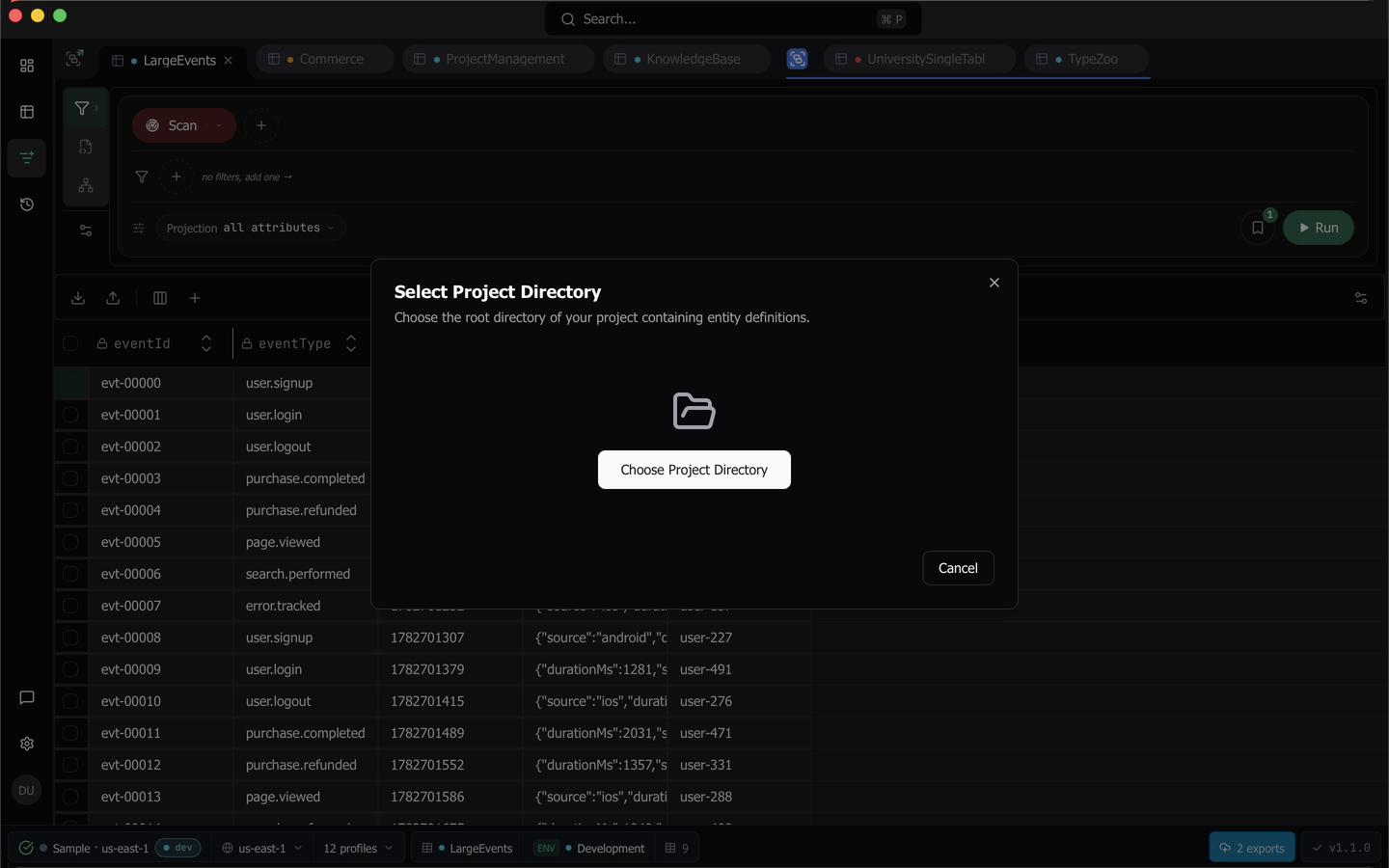
Open the import wizard from the command palette, from All Schemas… in a tab’s schema settings menu, or from the schema flavor of a table that has no schema yet, where the icon carries a green plus. The wizard has six steps.
- Select Project Directory. Choose the root of the project holding your entity definitions.
- Confirm Entity Files. Dynomatic lists what its scan found, badged Definite or Probable. Definite matches are checked for you.
- Evaluating Schemas. Each file is bundled and evaluated, and its configuration is shown as it lands.
- Resolve Attribute Names. Entities using generic key names such as
idare mapped to semantic names, so cross-entity links can be made. - Map to DynamoDB Tables. Map each entity to its table, profile and region. A schema can carry several environments, with per-entity overrides.
- Summary. Review entities, access patterns, collections and environments, then Save Schema.
Note: Your schema files are never executed against AWS. Each file is bundled with esbuild and evaluated inside a sandboxed QuickJS runtime against shims that capture the configuration instead of initializing a client.
Keep a schema current
The schema settings menu on a tab’s query bar manages the schema that tab is using.
- Refresh re-scans the project, honoring your decisions on files you have already seen and prompting only for new ones. It produces a reviewable diff of added, removed and modified entities, plus any orphaned mappings.
- Edit Environments… changes the workspace, region and table each environment points at.
- Manage Ignored Files… lists every tracked source file as imported or ignored. Saving re-runs the extraction, so un-ignoring a file imports its entities and ignoring one removes them. At least one file must stay imported.
- All Schemas… opens the Manage Schemas dialog for every schema, with edit, re-scan and delete per row. Delete… removes this one everywhere, and any other schema mapped to the table takes over.
Query by entity and access pattern
With a schema mapped to a table, the tab’s Schema flavor becomes available, and opening that table lands there by default.
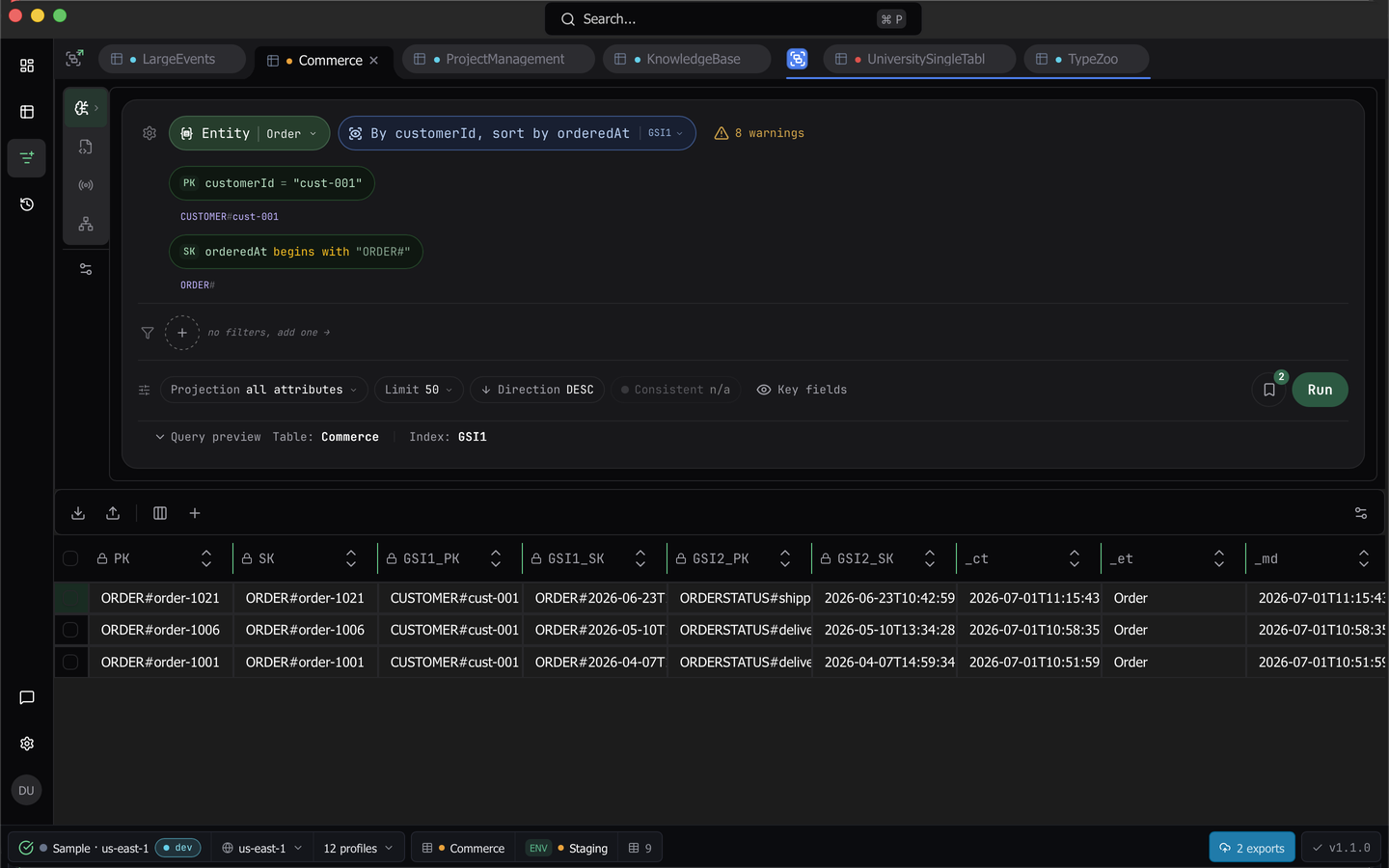
Press Select Entity or Collection and pick an entity. The bar then offers that entity’s access patterns in readable form rather than as index names, and choosing one lays out a key pill per key part.
Click a key pill and type its value. The composed key preview updates live, so you see PRODUCT#prod-001 build itself as you type. Run stays inert until every required key has a value.
A composite sort key can be filled partially. Supply the leading parts and Dynomatic narrows with begins_with, stating which parts are still missing. An entity using custom key composition switches to raw key mode, where you enter the final DynamoDB key values yourself.
Beyond the keys, the bar carries filter pills with AND, OR and parens, plus Projection, Limit, Direction and Consistent options. The consistent option keeps a visible cost hint, since a strongly consistent read costs twice the read units. A Key fields toggle hides the table’s physical key columns, and is remembered per table.
Schema filters take the same operators and value editors as the Filters view, described in Filter on any type. Each filter fits the attribute’s declared type. A filter on a number or binary set compares numbers or binary, not strings. A set attribute, or a set inside a map, offers only the member and whole-set operators. A list CONTAINS starts its element type at the schema’s item type. A binary attribute takes Base64 or Hex, and a map with no path offers the whole-map operators.
Results stream into the same grid the query builder uses, with the full editing, selection, export and commit behavior described in the data grid.
Collections and pivots
Switch the picker to Collections to read a whole item collection in one query. Results arrive in one grid grouped by owning entity, with collapsible headers carrying counts and a Group by entity toggle that flattens them into a list with a leading Entity column. Rows matching no member group under Unrecognized rather than being dropped, and every row stays editable.
In entity results, a cell whose column matches another entity’s access pattern key is underlined and carries a pivot glyph. Click it, or press Cmd+Enter on the cell, to pick a matching pattern and hop. Each hop pushes a crumb onto a query trail above the results, and clicking a past crumb restores that step.
Saved schema queries
Saving a schema query stores the whole form, meaning the entity, the pattern, key values, filters, options and any collection selection, and values can hold template variables. Opening one restores that form in a new tab against the environment it was pinned to, and aborts with an explanation rather than guessing if that environment is gone.
Schemas are also reachable from the dashboard’s Recent schemas and Saved schema queries cards and from the command palette. When a schema maps to more than one environment, a picker always appears, with the one you used last sorted first.
Inferred models
A table with no imported schema but a usable inferred data model offers the same Schema flavor, marked with an Inferred badge. Pickers show confidence bars, key inputs come from the observed key templates, and literal-only key parts render as locked pills. Opening such a table still defaults to the builder, so an inferred model is offered rather than assumed, and saved schema queries are unavailable. See Data Model inference for where that model comes from.
Last updated on