
Tables
Table browser
Find, favorite, open, create, clone, and delete tables from the Tables popover.
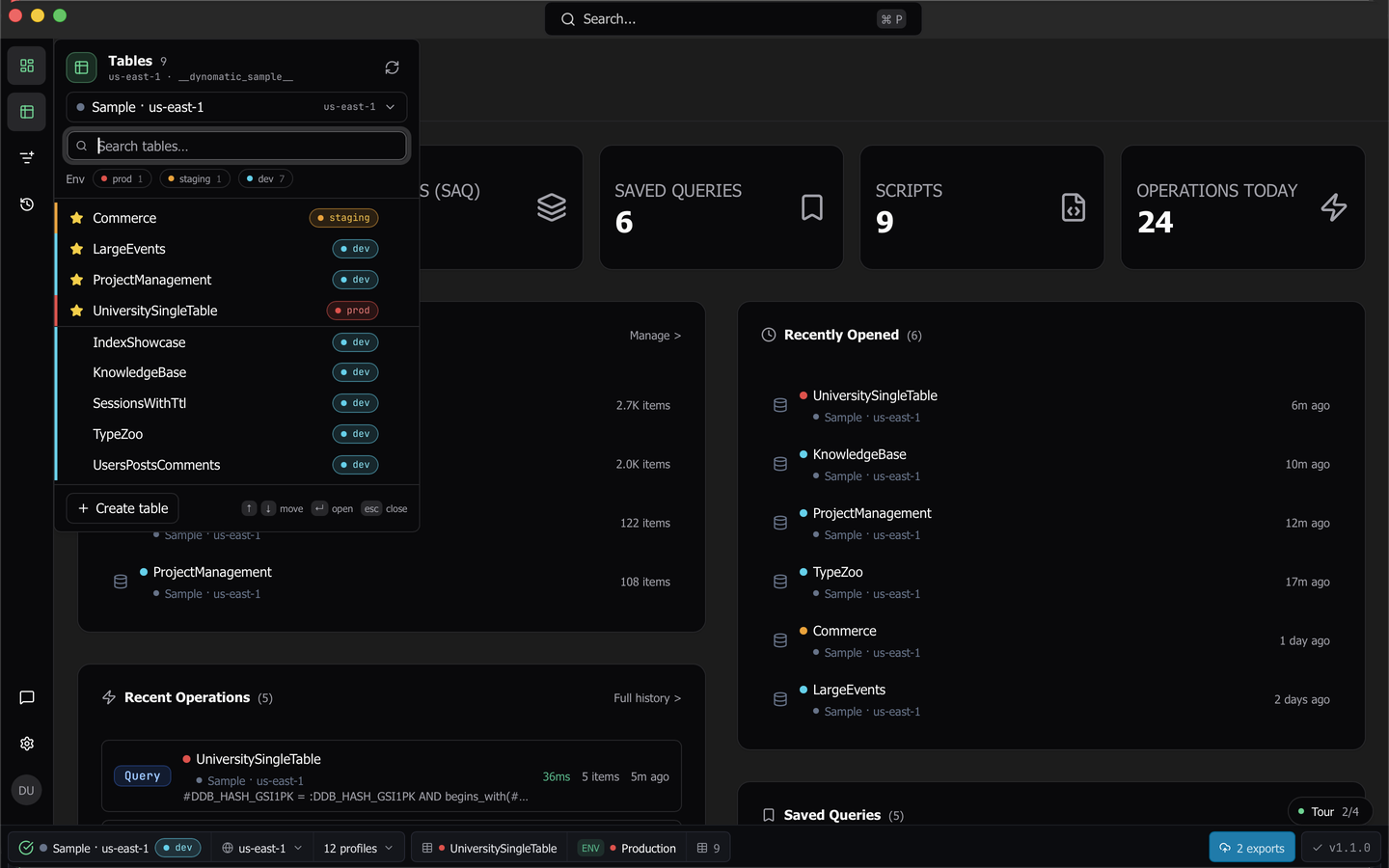
The Tables popover is how you find a table and open it. It lists the active workspace’s tables with search, environment filters, favorites, and a right-click menu covering every lifecycle action. Press ⌘ 2 on macOS, or Ctrl + 2 elsewhere, to toggle it from anywhere.
Open the popover
Three things open it.
- The rail’s Tables button.
- The dashboard’s Favorite Tables card, via Manage >.
- The status bar’s table-count pill.
The shortcut toggles the popover from anywhere, including from inside the popover itself. Escape closes it.
Find a table
The header reads Tables, the visible count, the region and profile of the active workspace, and a Refresh button. Below it a workspace selector lists your open workspaces by color dot, name, and region. Pick one and the popover reloads in place, so you can browse a workspace that has no tabs open without leaving for the dashboard.
The search box is focused when the popover opens. Typing fuzzy-filters the names after a short debounce. Environment filter chips carry counts and can be combined, and a note under them reports any tables hidden by the workspace’s prefix filter. Search, chips, and selection all start blank on every open.
Use the arrow keys to move the selection while you keep typing in the search box. Home and End jump to the ends. Enter opens the selected row, or the first match while a query is typed. When the selected row is filtered out, the selection clears.
Each row is a single line carrying an environment stripe, a favorite star, the table name, an environment pill, and a Table settings link that appears on hover, focus, or selection. Favorites sort above everything else, separated by a hairline. Favorites need Pro or Team.
Clicking a row opens that table in a query tab and closes the popover. If the open is refused, because a sample session blocks it, because you hit the tab cap, or because you cancelled the duplicate-tab prompt, the popover stays open and a toast says why.
The Table settings link opens the table settings dialog for that table without opening the table itself.
The row menu
Right-click a row for every lifecycle action, in this order: Open, Favorite, View Schema, Schema Capture, Export to S3, Set Environment, Clear Override, Update Settings, Manage Indexes, Create in workspace, and Delete Table.
Every dialog these open is hosted outside the popover, so the popover closes and the dialog stays.
Setting an environment that matches a suggested classification rule shows a success toast with a Create rule action, which opens the rule dialog already filled in. See Environment classification.
Create a table
Create table sits in the popover footer and needs Pro or Team. It opens a four-step wizard.
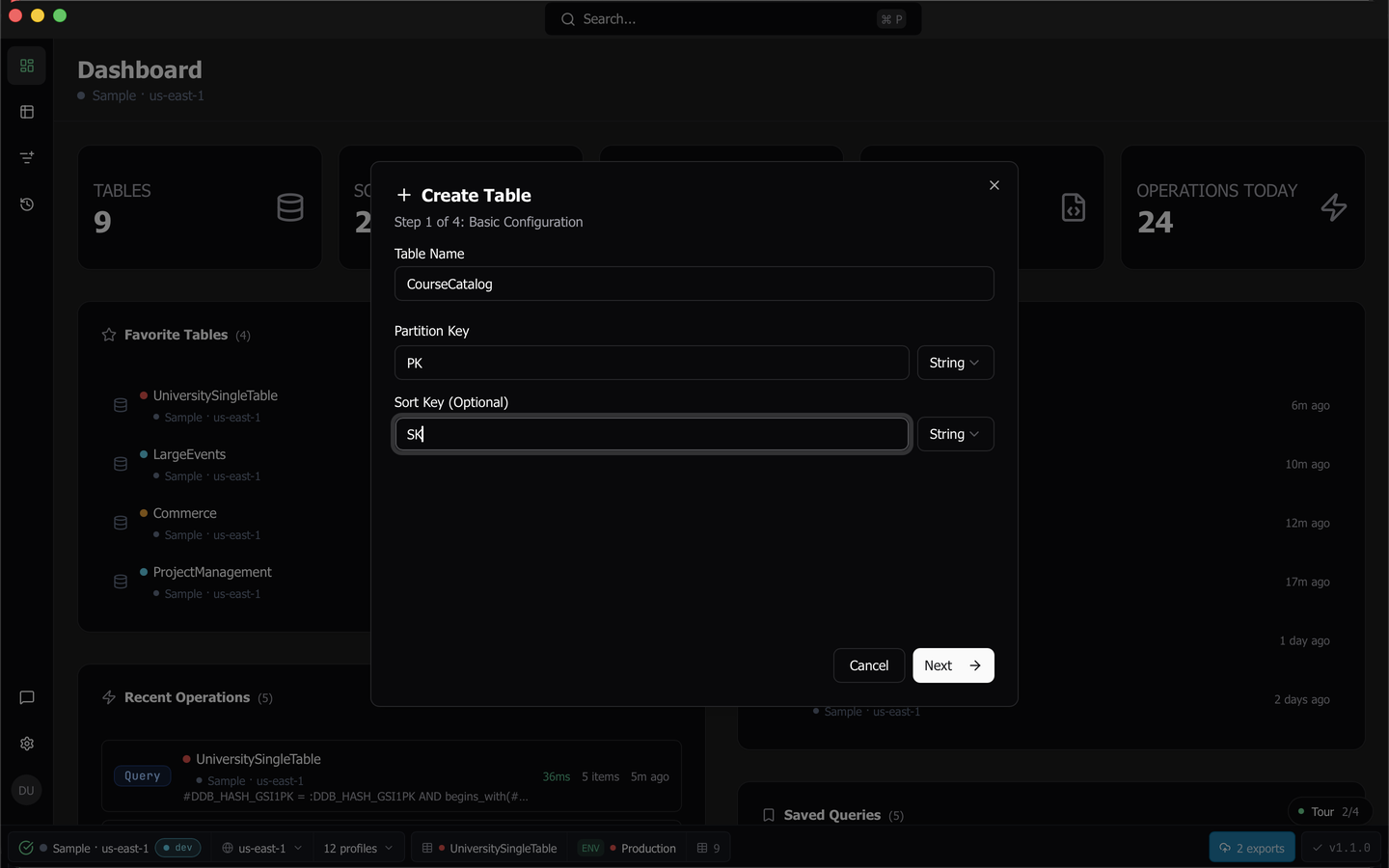
- Basic config takes the table name and the partition key and optional sort key, each with its type.
- Secondary indexes takes up to 5 local secondary indexes and up to 20 global secondary indexes, with projection types and per-index capacity.
- Advanced takes the billing mode, TTL, point-in-time recovery, and DynamoDB Streams with a view type.
- Review shows the whole configuration with a cost warning before you commit.
Templates fill in common shapes, and roughly 25 validators run as you type, so Next stays disabled until the step is valid.
Warning: Do not press Escape between wizard steps. It closes the whole dialog.
Clone a table into another workspace
Create in workspace recreates a table’s definition, not its data, in another connected workspace. Eligibility rules prevent a name collision inside the same account, and a notice appears when the target is a different account.
Vector indexes are never copied. When the source table has any, the dialog says “Vector indexes are not copied. Recreate them from Manage indexes after the table is created.” and the action stays enabled. See Vector indexes.
View a table’s schema
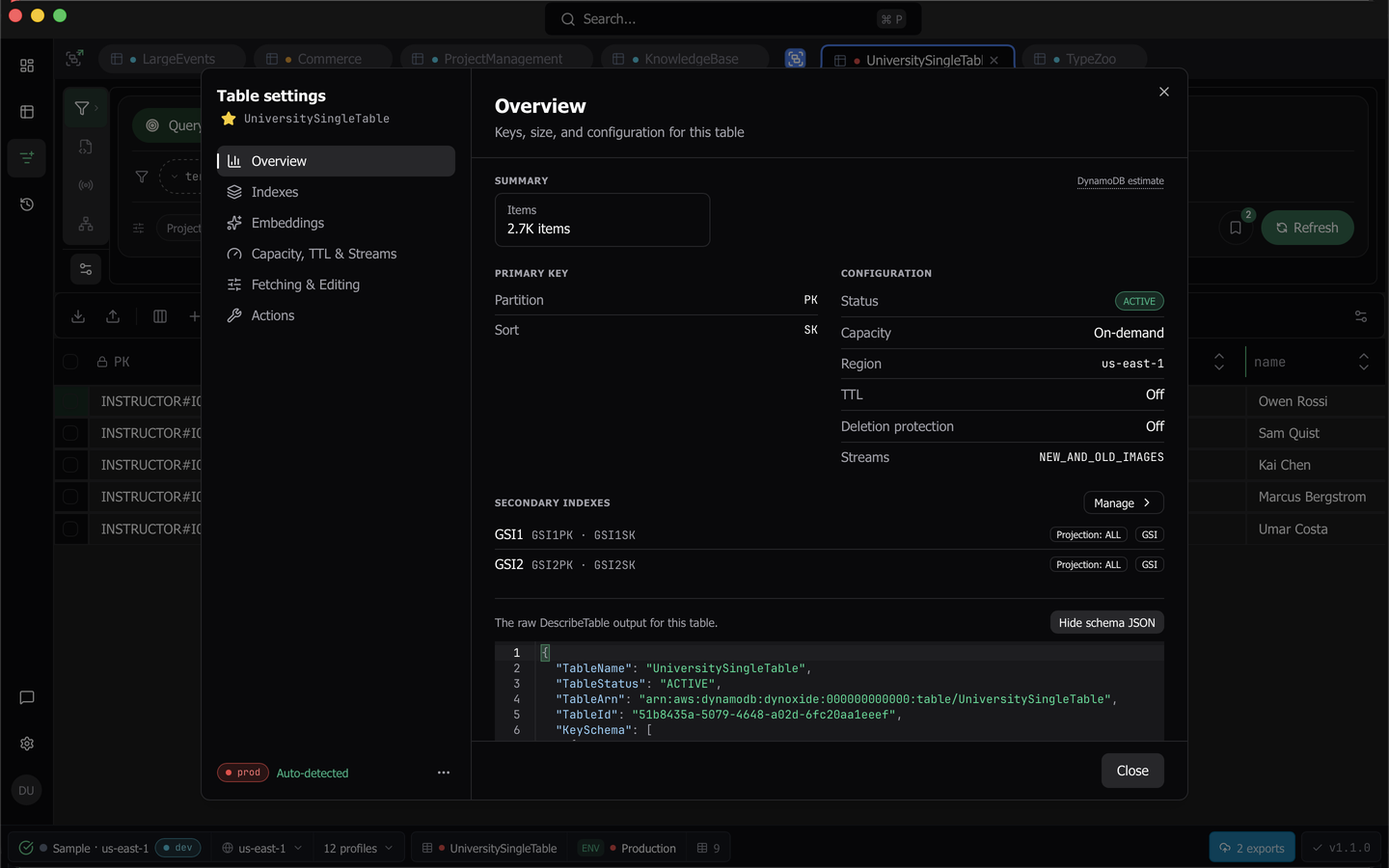
View Schema opens the table definition as read-only JSON, including the raw VectorIndexes block on a table that has vector indexes. When DynamoDB cannot describe the table, the dialog shows the error with Retry. When the table’s workspace is not connected, it says This table's workspace is not connected. instead of describing the table.
Delete a table
Delete Table opens a confirmation that requires you to type the table’s name. Copy name, beside the field, copies the name and puts focus back in the field so you can paste it. The dialog shows one card for the table, naming the workspace, the region, and the item count.
The delete runs against the workspace that owns the table, never the active one. That holds when you run Delete table from the command palette on a tab from another workspace. When the table’s workspace is not connected, no dialog opens, and a toast says <table> was not deleted. Its workspace is not connected, so there is no account to delete it from.
On a table classified as production, the card carries a Production badge and the confirm button reads Delete from prod. The typed-name gate is the same either way.
If one of the table’s vector indexes is still being created, updated, or deleted, the dialog says so and names the index, because DynamoDB refuses the delete while that is in flight. That message only informs. The typed-name gate is still the only thing blocking the button.
A successful delete closes every open query tab on that table and skips the unsaved-changes prompt, because pending edits on a deleted table can no longer be applied.
The table leaves the Tables popover, the command palette and the Dashboard at once, without waiting for DynamoDB to finish deleting it. Its favorite and recently opened entries are removed, and Dynomatic forgets what it captured about the table: its fields, entities, inferred data model and capture settings. The table stays out of the list while DynamoDB is still deleting it, even across Refresh.
What you wrote yourself is kept: saved queries, saved scripts, saved schema queries, table settings, environment overrides, table groups, relationships you curated, embedding recipes and command history. A table you recreate with the same name picks them up again.
A table deleted outside Dynomatic gets the same cleanup once a refresh of its workspace’s table list no longer shows it, or once opening or reading it finds no table. Its open tabs close with the notice Table '<name>' no longer exists. A tab with unsaved changes stays open so you can review them, but they cannot be committed. A table deleted while Dynomatic was closed keeps its favorite and recent entries until one of those things happens.
Note: When AWS refuses a control-plane change because the table is busy, Dynomatic reports “Table is busy” with DynamoDB’s own explanation rather than a generic failure.
Last updated on