
Settings and platform
Settings
Every pane in the Settings dialog, in the order it appears, and what each option changes.
Settings is one dialog holding everything you can configure, grouped into APP, DATA, and FEATURES. Open it from the gear at the bottom of the rail, with Cmd+Shift+Comma, or from the command palette. Changes apply as you make them and there is no save button.
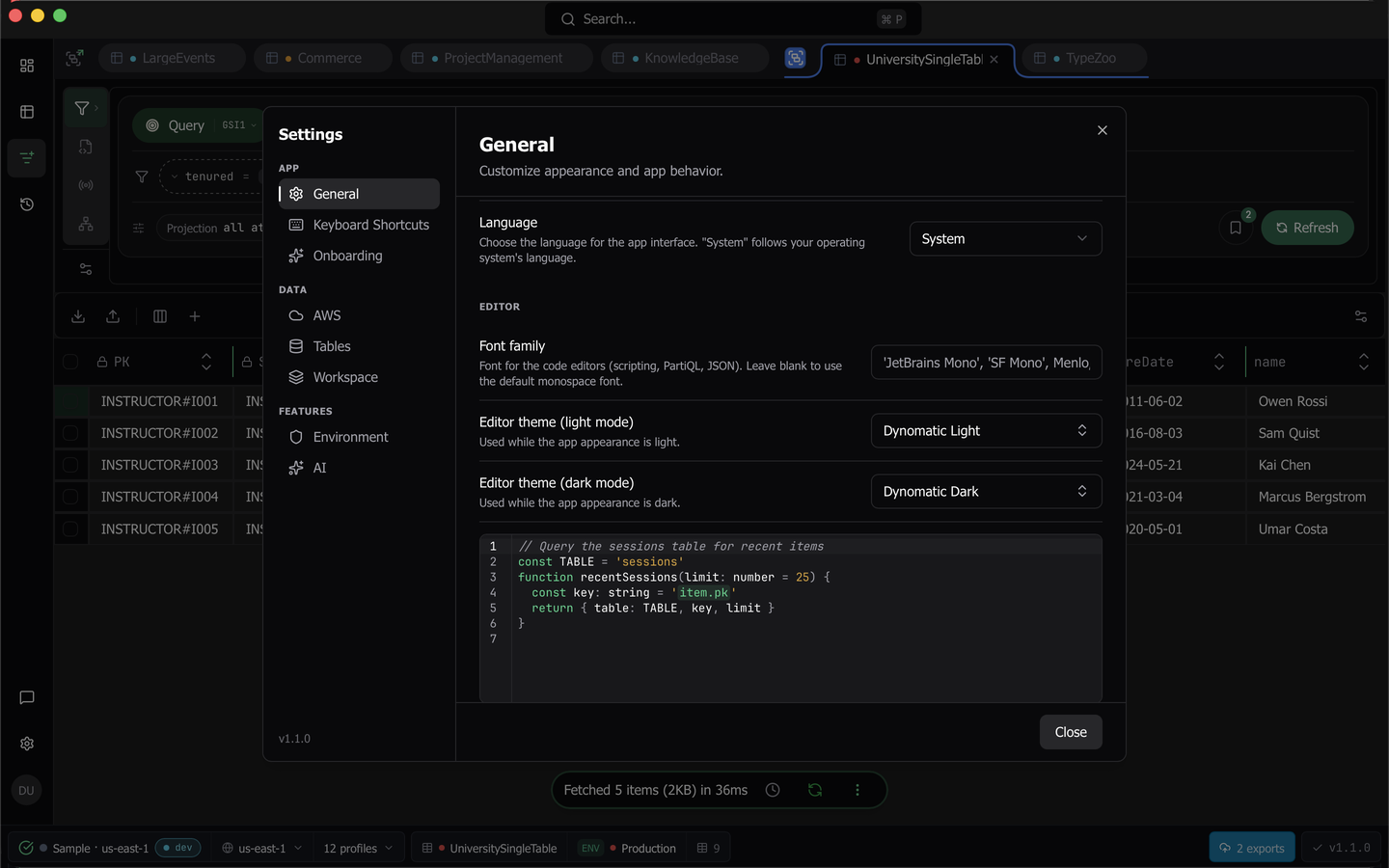
The version you are running is stamped at the bottom of the section list. Panes that need a plan you do not have keep their place in the list and show a lock, so nothing disappears from view.
APP
General
Appearance, the editor, and app behavior.
- Theme is three preview cards, Light, Dark, and System. The app repaints without a reload.
- Language follows your operating system by default and can be set to English or 日本語.
- Font family sets the font for every code editor, which covers scripting, PartiQL, and JSON. Leave it blank for the default monospace font.
- Editor theme (light mode) and Editor theme (dark mode) are searchable pickers with a live preview, one for each app appearance.
- When Dynomatic opens chooses between Ask when I quit, which is the default, Where I left off, and Dashboard. Where I left off opens the app on the section you quit from, either your query tabs or History.
- Restore Tabs on Restart reopens the tabs you had open when the app starts.
- Group Single Tabs shows the workspace group indicator and bracket even when only one tab is open in that workspace.
- Group by Workspace Only When Multiple Open hides workspace brackets until a second workspace has tabs.
- When opening a table that’s already open chooses between Ask each time, Focus existing tab, and Always open a new tab.
With Ask when I quit, quitting from anywhere other than the Dashboard asks Pick up where you left off? Resume opens the next launch where you quit, Start on Dashboard opens it on the Dashboard, and Cancel keeps the app open. Check Don’t ask again to save your answer as the When Dynomatic opens setting. If background jobs are running, the prompt says that they will pause. Your tabs come back on the next launch only while Restore Tabs on Restart is on, whichever answer you give.
Keyboard Shortcuts
The full hotkey editor. It lists every command, grouped by area, whether or not the command has a binding, so you can give any command a shortcut. The Search shortcuts field above the list keeps the commands whose title, group, or keywords contain every word you type. The palette’s Show Keyboard Shortcuts command opens this pane.
Every row can take a new binding through Add keyboard shortcut or drop one through Remove shortcut, conflicts are detected as you capture, and Reset All returns every binding to its default.
Tip: The capture dialog swallows keystrokes while it is open, so close it before you use a shortcut elsewhere in the app.
Onboarding
Everything to do with first-run guidance.
- Explore sample mode starts a local sample database so you can try the app without AWS.
- Enable page tours shows the per-page tour checklist on your own data. Sample mode always shows it.
- Reset progress clears per-page tour completion and un-hides dismissed page tours.
- Reset tours replays the in-app feature walkthroughs the next time you reach their screens.
- Reset clears every completed onboarding item, restores dismissed panels, and disconnects the active profile so the empty state reappears. Saved profiles, auth sessions, queries, and history are not touched.
- Dismissed panels restores the Setup panel or the Tips panel if you dismissed one permanently.
DATA
AWS
Connection defaults for the whole app.
- Default Profile is the AWS profile used when the app starts.
- AWS Regions is a multi-select of the regions offered for table browsing. It accepts a typed region as well as the listed ones.
- Max Connections caps the sockets the HTTP agent uses.
- Proxy URL routes AWS requests through an HTTP proxy.
Tables
The genuinely global table defaults. Each one notes that a workspace or table override wins over it.
- Page Size (Limit) sets the items per scan or query page.
- Stream Batch Size sets the items fetched per stream batch.
- Auto-Scan on Open scans a table the first time you open it. Tables with a vector index stay off unless a table override turns it on.
- Lock Key Editing prevents edits to partition and sort key values, including index keys, on existing items.
- Show Raw Table Names renders the raw AWS name everywhere, for every profile, and overrides per-profile and cleanup settings.
Workspace
One home for everything configured per workspace, with a workspace picker at the top that the rest of the pane follows.
- Workspace details holds Edit workspace, which opens the workspace dialog for the name, icon, color, and table prefixes. See Add or edit a workspace.
- Table Settings overrides page size, stream batch size, auto-scan, and lock key editing for this workspace. An unset value inherits the global default, a per-table override still wins, and a value equal to the one it inherits collapses back to inherit. For a table the classification engine has placed in an environment, environment defaults take precedence. Changes apply the next time you open a table and leave open tabs alone.
- Table Name Cleanup holds the per-profile show-raw bypass and the prefix and suffix cleanup rules for this workspace’s profile and region. It needs a Pro plan, and the bypass is inert with a stated reason while the global raw-names switch is on.
FEATURES
Environment
Environment classification and its rules, on Pro plans. Auto-Classification turns the engine on or off, Classification Rules holds your glob rules with a live impact preview, and Re-classify All runs the engine again. Below them, Environment defaults gives Production, Staging, and Development one row each with four table-setting pills. Environment classification covers all of it in detail.
AI
Two capabilities configured independently, each with its own provider, model, and Test connection. The pane is gated with Data Model, and either capability can be Off, which is the default and keeps the features that depend on it out of sight.
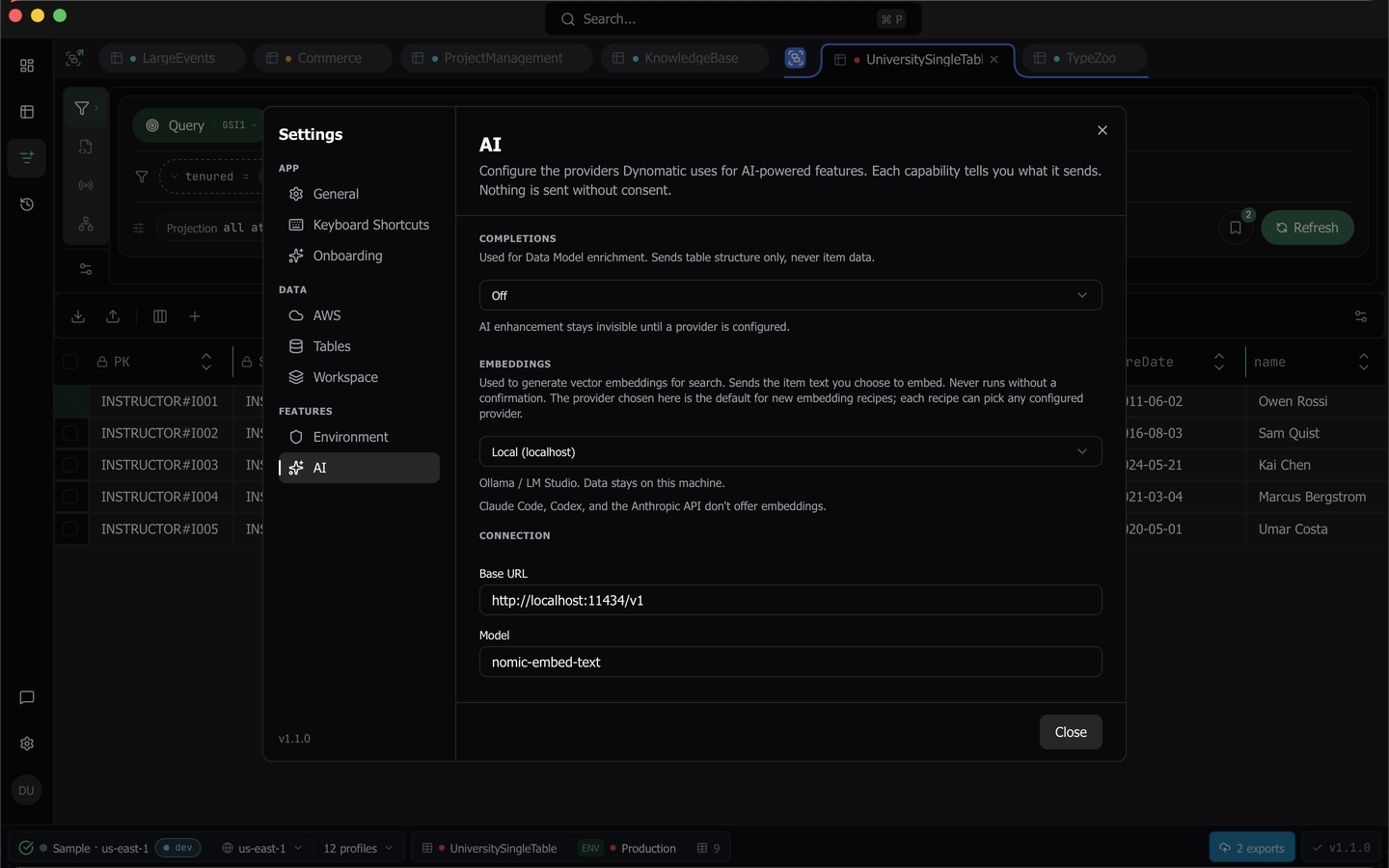
Completions powers Data Model enrichment and sends table structure only, never item data. Its providers are a detected Claude Code or Codex CLI, the Anthropic API, the OpenAI API, Amazon Bedrock, a custom OpenAI-compatible base URL, Local (uzu) on Apple Silicon Macs, and Local (localhost) for Ollama or LM Studio.
Embeddings generates the vectors that power search. It sends the item text you choose to embed and never runs without a confirmation. Only the embedding-capable providers are offered, meaning the OpenAI API, Amazon Bedrock, a custom base URL, and Local (localhost). The provider you pick here is the default for new embedding recipes, which can each choose any configured provider. Its Test connection embeds a fixed string and reports the dimension count a vector index would be created against.
Connection credentials are entered once per provider kind and shared by both sections, so a key saved under one shows as Key stored in the other. Model choice stays per capability. Keys are held in the OS keychain and never displayed back, so the pane offers Save and Remove rather than a readable field. When the keychain cannot be read, the pane says Couldn't check whether a key is stored. If your keychain is locked, unlock it, then reopen this page. and keeps Remove.
Amazon Bedrock uses an AWS profile instead of an API key. Pick the profile and the invocation region, and the model field becomes a searchable picker built from your own account’s Bedrock catalog. Local (uzu) downloads a small model and runs it on your Mac, so schema data never leaves the machine.
MCP Server
The built-in MCP server, which lets an AI agent work through Dynomatic. Run the server turns it on, and the server stays off until you do. The pane also holds the Port, the Access token, What an agent may do (a grid of Allow, Ask or Deny for each capability in each environment, filled by the Read only, Writes outside production or Everything preset, with Read only the default), Workspace overrides, the Connected clients list, and Add Dynomatic to a client. Unlike the locked panes, this one is absent from the list without a plan that includes the MCP server. Sample mode shows it for the session. The MCP Server settings pane covers every option.
Note: Two more panes, Table Groups and Experimental, exist in the app but are hidden by build flags in the current release.
Last updated on