
Import and export
Import from S3 into a new table
Have DynamoDB create a table from an S3 export with ImportTable. Pick the workspace, copy the source table's key and indexes, and follow it in Background jobs.
DynamoDB can create a table from an export and load it in one operation, ImportTable. AWS reads the export from S3 itself, so no item passes through Dynomatic, and the import keeps running if you close the app. Use it to restore a table under a new name, to copy a table into another account or region, or to import an Amazon Ion export, which the streamed import cannot read.
Note: This path needs the paid plan’s S3 transfers and table management. It is not available in Sample Mode, and the Sample Mode workspace is not offered as a destination.
Reach it
There are two ways in.
- From a table, click Import, open the export on the S3 export tab, and choose Create a new table on the Destination step. The wizard starts in that table’s own workspace.
- From anywhere, run Import from S3 in the command palette or click it in the footer of the Tables popover. This opens the wizard with no table, on the Destination step, with only Create a new table offered. Nothing is chosen until you pick a workspace, and Next says so.
The steps are Destination, Data Source, Table, and Review. Point at the export describes the Data Source step. From Import from S3 the export is read with the chosen workspace’s credentials, which is why the workspace comes first.
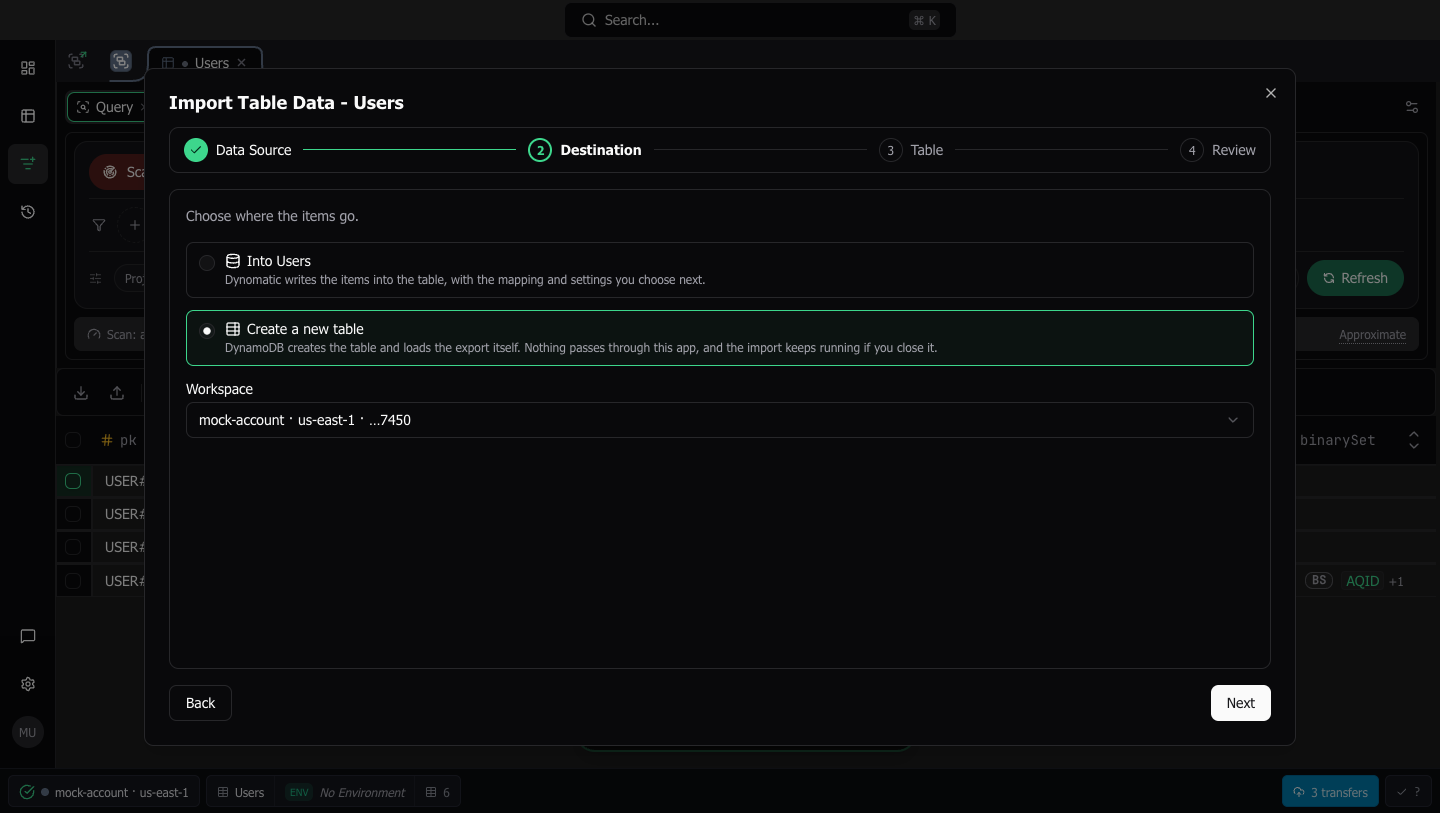
Pick the workspace
The Workspace list holds your connected workspaces, each with its region and account. The new table is created there, and the export is read with its credentials.
A destination that cannot take the export stays focusable and says why. Create a new table is inert for an incremental export, which holds changes rather than items, and without the table management plan.
Set up the table
The Table step is the create-table wizard’s Basic and index steps and its billing mode. It has no local secondary indexes, Time to Live, point-in-time recovery, or stream, because ImportTable cannot create them.
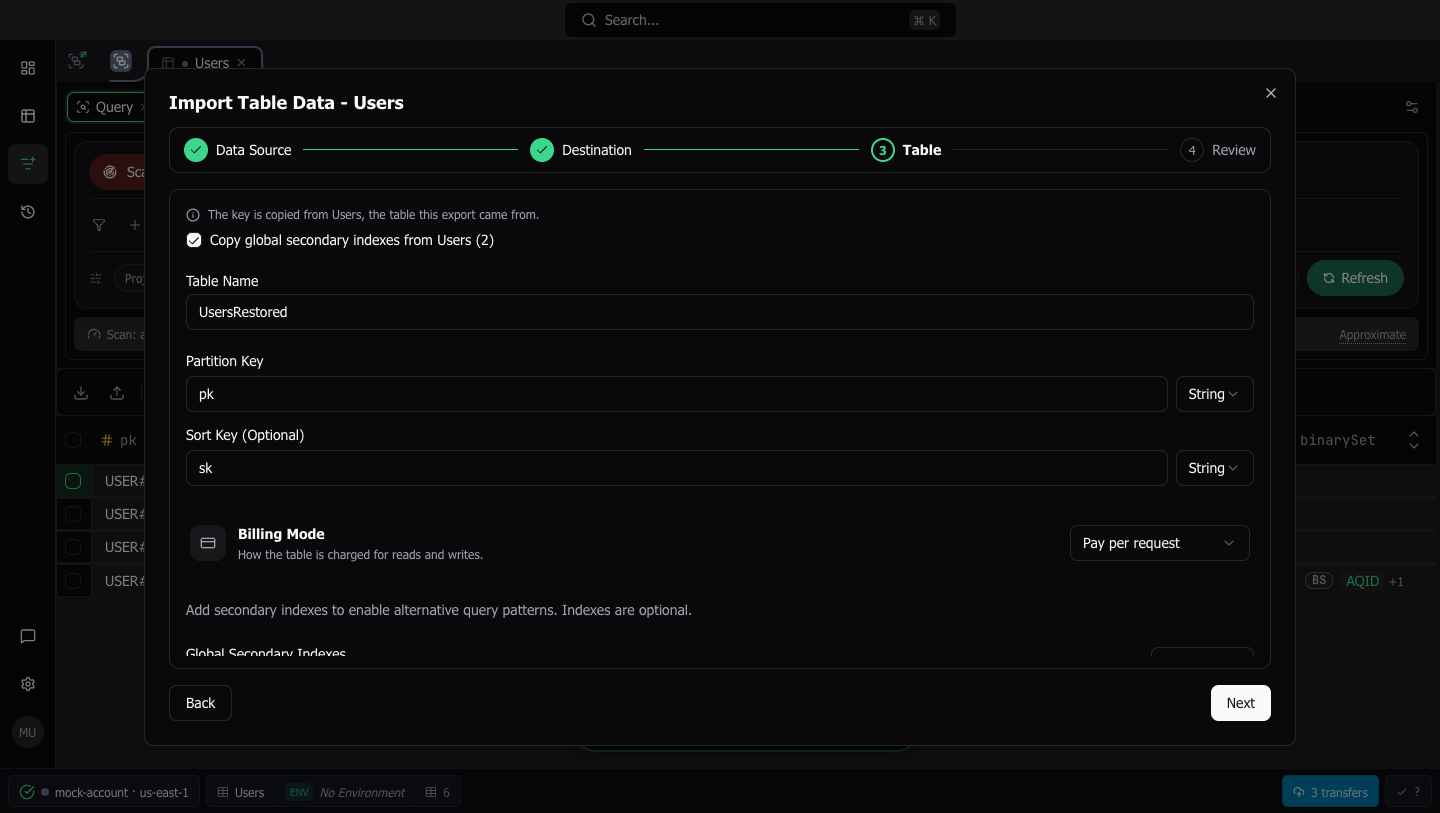
When the chosen workspace is in the export’s source table’s account and region, and that table can be read there, its key is filled in for you, and the step says so. Copy global secondary indexes from {table} (N) starts checked and fills one editable row per index, with its name, its keys and their types, its projection, and, on a provisioned source, its capacity. Unchecking it takes those indexes out and keeps any you added. Removing one of the copied rows unchecks it.
A source with vector indexes offers Copy vector indexes from {table} (N) too. A vector index that DescribeTable reports only in part is named with what it left out, never copied, and listed on Review under Not carried over.
The new table starts on the source table’s billing mode, and on a provisioned source with that table’s capacity, so copied index capacities go out without a mode switch. On a provisioned table each index row shows its read and write units, and the index form edits them. A copied index keeps the source’s capacity, an index you add starts at the table’s, and an on-demand table gives indexes no capacity.
When the source table is in another account or region, or cannot be read, the key starts blank, billing starts on-demand, and the copy choice stays visible but inert with the reason. Enter the key the table should have and add the indexes it needs. No index is guessed from the export’s items.
Review and start
Review lists the export, its item count, the workspace, the table name, the key, the global indexes, the vector indexes when copied, and the capacity. Not carried over names what the import will not set: local secondary indexes, listed by name when the source has any, Time to Live, point-in-time recovery, and DynamoDB Streams. Set those on the table once the import is done.
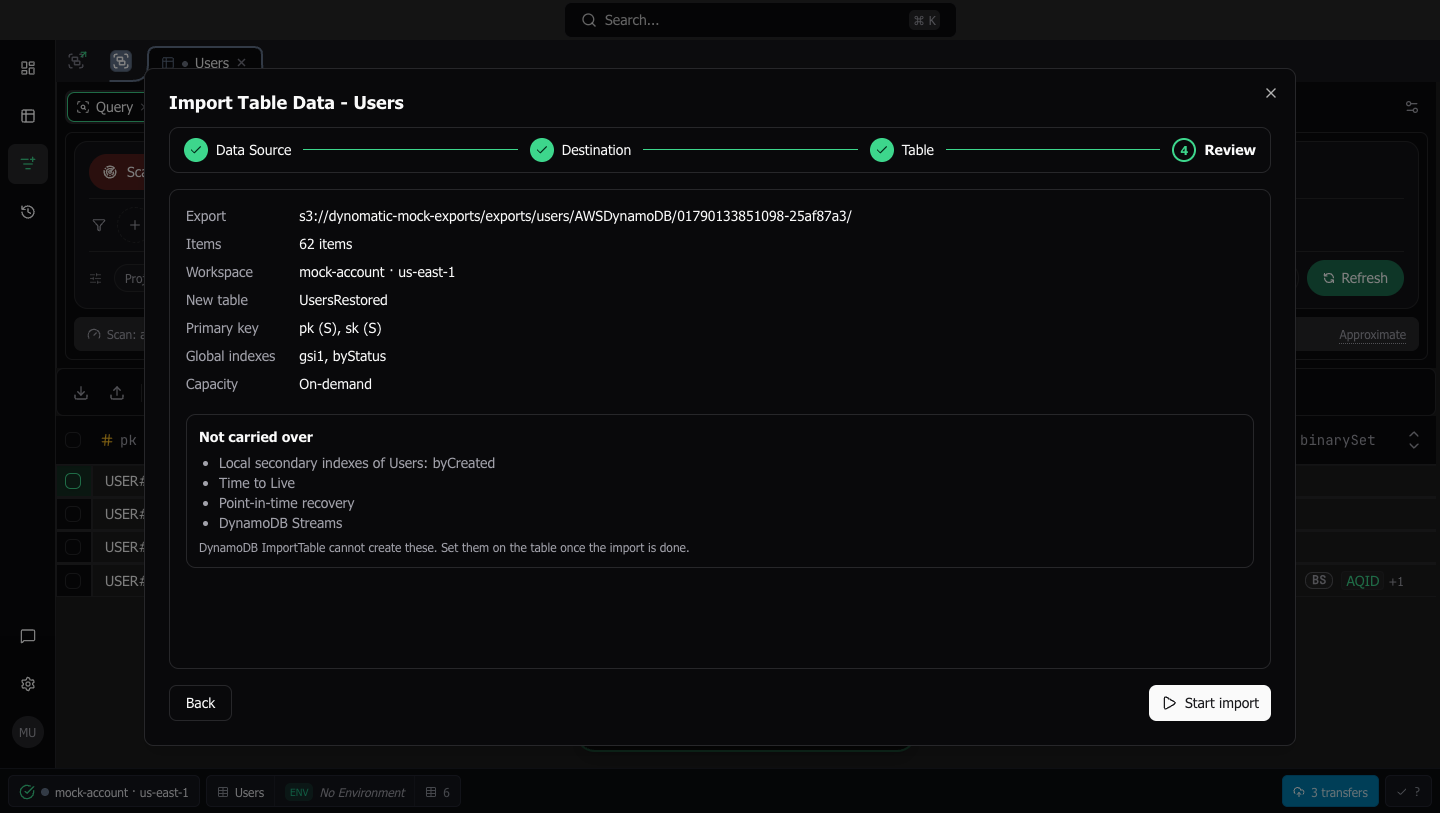
Start import sends the request and closes the dialog once AWS accepts it. A refusal, such as a table name the workspace already has, stays on Review with the reason until you change the draft. A retry of the same request never starts a second import, and an edited table goes out as a new request. If the workspace disconnects before you start, Review says so and Start import stays inert until it is reconnected or you choose another.
Follow it in Background jobs
Once AWS accepts the import, a toast reads “Importing into {table}. Follow it in Background jobs.” The Background jobs panel then lists a background job that reads Import {table} from S3, of the kind Import into a new table. The job writes nothing. It asks DynamoDB for the import’s status every 10 seconds, and while DynamoDB works the row shows an indeterminate bar and N so far · N processed.
The row has no Pause or Cancel, because DynamoDB cannot cancel an import once it has started.
When DynamoDB finishes, the row reads N of M · N failed · N processed, with the failed part only when DynamoDB could not import some items. Its state is Completed, or Completed with failures with “DynamoDB logged the items it could not import to {log group}”. The workspace’s tables list refreshes so the new table appears. A failed import reads Failed: DynamoDB reported that the import failed, with DynamoDB’s message under it. A finished or failed row offers only Dismiss.
The import keeps running in AWS when you quit Dynomatic. On the next launch the row reads Paused: the app quit, or Interrupted after a crash. Click Resume to follow the import again, or Stop following to remove the row and leave the import running in AWS. The job also pauses as Paused: DynamoDB's status could not be read when about five minutes of status requests fail in a row.
Last updated on