
Querying
The data grid
Edit items in place, review pending changes, and commit them in one pass.
Every result in a query tab lands in the same grid, and every cell edits in place. Nothing is written to DynamoDB until you commit. Edits, added rows and deleted rows accumulate as pending changes that you review and apply in one pass.
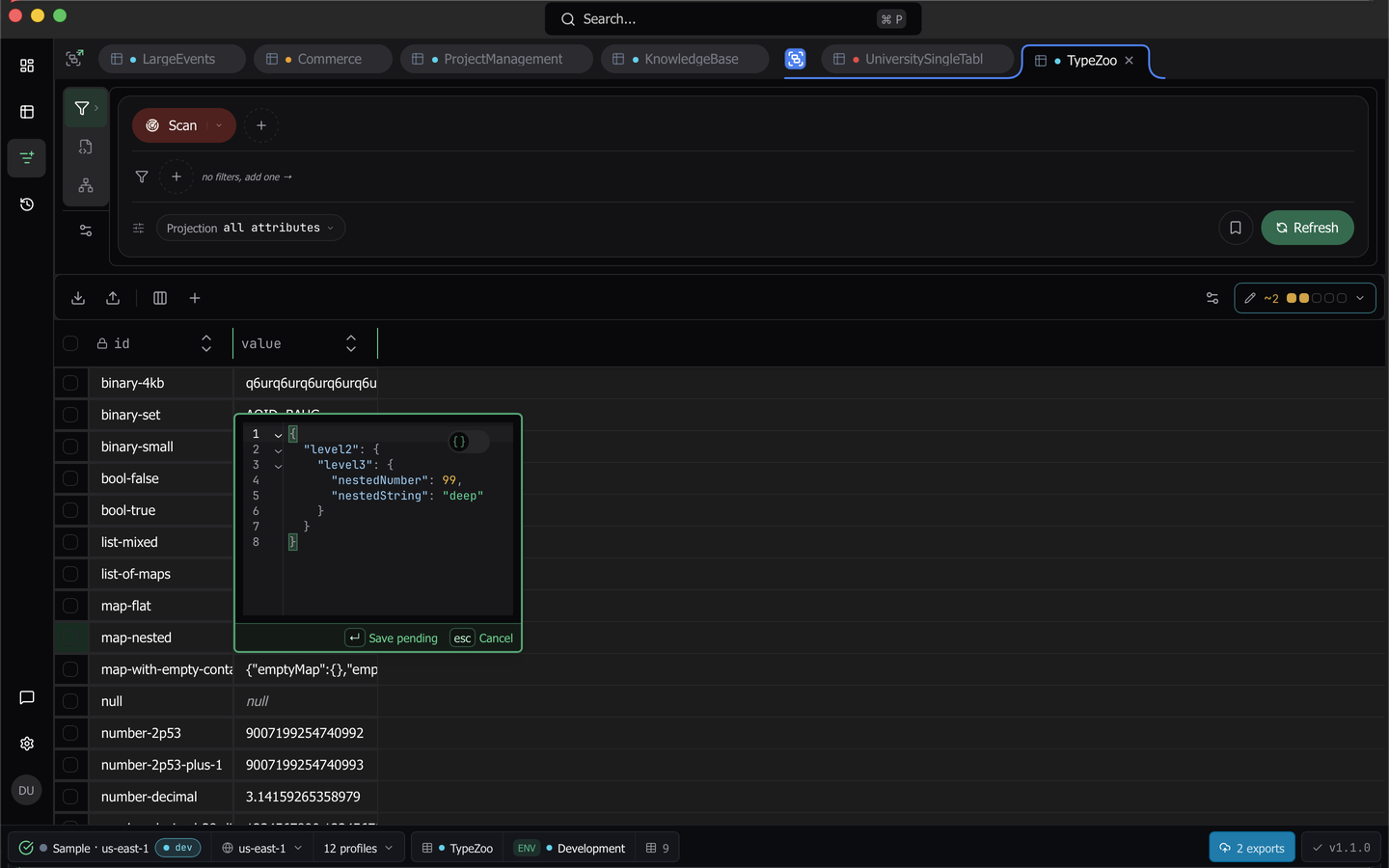
How the grid shows each value
Each cell draws its value by DynamoDB type, in the colors of the editor theme you picked in Settings. Changing the theme, or switching between light and dark, recolors the grid at once. Where a theme leaves a color unset, the grid uses the app’s own.
| Type | In the grid |
|---|---|
S string |
The text, in the normal text color and with no quotes |
N number |
The stored digits, right-aligned in tabular numerals |
BOOL |
A TRUE/FALSE segmented pill |
B binary |
A B tag, then the value in base64. A narrow column drops the start of the value first, behind an ellipsis, and keeps the end. Hovering shows the byte length |
NULL |
A dim italic null |
SS, NS, BS sets |
A small SS, NS or BS tag, then the members as chips |
L list of one scalar type |
An L tag, then the elements as chips in their stored order |
L mixed list, M map |
Inline JSON, with keys, values, booleans and punctuation each in their own color |
| Vector attribute | vector · N dims. Hovering shows the first values. When the projection left it out of the read, the cell reads not loaded |
A chip row fits as many chips as the column has room for and adds a +N count for the rest. Widening the column shows more chips, and narrowing it shows fewer. A member wider than the whole column shows as one clipped chip and the count. Hovering the cell lists the members.
A cell draws at most 500 characters of its value, and the hover text of a set, list or map holds at most 2,000. Past either limit the text ends in …. The inline JSON of a map or a mixed list, in the cell and on hover, shows at most 24 entries of each map, list or set inside it. A very large string, map, list or set therefore scrolls like any other cell. The cell’s editor, Copy value and the Edit sheet still work on the whole value.
A vector attribute is one named by a vector index on the table, never one guessed from the shape of its value.
Every map in a column lists its keys in the same order. The keys that most of the column’s maps hold come first, and ties sort in natural order, so line2 comes before line10. A map without one of those keys leaves no gap, and a nested map follows its own order. Loading more rows keeps each key where it was and adds keys seen for the first time after them. A new query, a filter change, or a refresh ranks the keys again. The hover text, the map editor, the Edit sheet, and copied JSON use the same order as the cell.
Key columns in the header
The two columns that make up the table’s primary key carry a mark before their title. A # marks the partition key and a ⇄ marks the sort key. A GSI or LSI key column carries no mark, so the mark always means the attribute is part of the item’s identity.
When Lock Key Editing is on, every locked key column also shows a small lock icon in the top-right corner of its header.
Entity keys read segment by segment
When the data model Dynomatic inferred for the table gives a key attribute a key template, a value that matches the template splits on its delimiter and each piece takes its own color. The entity name, the literal markers such as COURSE, the values between them, any date inside the key and the delimiters each read differently, so ENROLLMENT#2026-SPRING#COURSE#CHEM301 reads as labelled pieces rather than one run of text.
Narrowing the column shortens each piece on its own, longest first, and the delimiters never shrink. Hovering shows the whole value. Only key columns are read this way, which means the table’s partition and sort keys and each index’s keys. A value that matches no inferred template stays plain text, and sorting and filtering always use the stored value.
Dates
A column the schema registry has learned holds timestamps shows each cell as its calendar date, followed by the time in muted text at the precision the value was stored with. The grid recognizes these formats:
- ISO 8601
- RFC 2822
- Unix seconds
- Unix milliseconds
Times show in your own timezone. Hovering a cell shows the stored value, and nothing is reformatted in DynamoDB.
An epoch column, whether it stores numbers or strings, reads as dates only when its name ends in At, Date, Time or Timestamp. A quantity or an ID that happens to look like an epoch stays as it is. A value in a date column that does not parse as a date, such as a USER marker in a sort key of timestamps, shows as itself.
The TTL column
On a table with Time to Live enabled, or still being enabled, the attribute DynamoDB expires items on shows a green TTL badge, the local expiry date and how far off it is, for example in 8d. An item that expires today reads today in the alert color. An item already past its expiry reads expired. Hovering shows the stored Unix seconds.
A value in that column that is not a readable time, such as a string, shows as itself with no badge. On a table with TTL off, the same numbers show as plain numbers.
Edit a cell
Double-click a cell, or focus it and press Enter. A single click only focuses the cell, so you cannot change a value by brushing past it. Press Enter to stage the edit, and Escape or a click outside to discard it. Committing the value the cell already held stages nothing.
Dynomatic routes the editor by the attribute’s DynamoDB type.
| Type | Editor |
|---|---|
S string |
Text box anchored to the cell. Shift+Enter adds a newline, Enter saves |
N number |
Number input. A value past DynamoDB’s 38 significant digits shows Invalid DynamoDB number and refuses to save |
BOOL |
Click a segment of the pill, or press Space or Enter on the cell. The change stages immediately, with no popover |
B binary |
Text box with a Binary encoding toggle between b64 and 0x. A bad value shows Invalid base64 |
NULL |
Not editable in the cell. Alt-click the row to change the type in the Edit sheet |
M map |
JSON editor in the popover, with parse errors blocking the save |
L list |
Tag editor when every element is a string, a number or binary. JSON editor for anything mixed |
SS string set |
Tag editor, which does not allow duplicates |
NS number set |
Number tag editor, which does not allow duplicates |
BS binary set |
Binary tag editor with the same b64 and 0x toggle |
| Date | The date editor, described below |
| TTL | The TTL editor, described below |
| Vector attribute | Read-only. No editor opens |
The number set and number list editors keep each member’s stored digits, so adding or removing one member leaves the others unchanged. An entry that is not a DynamoDB number, such as 0x1F, 1e400 or 1,000, shows Invalid DynamoDB number and is not added. Removing the last member of a string, number or binary set shows DynamoDB has no empty set, so saving removes this attribute. Saving then stages the removal. An emptied list stays an empty list.
An edit that changes only a value’s type, such as a set to a list or a number to a string, counts as a change and is saved. Two spellings of one number, such as 1.50 and 1.5, do not.
Edit a date
Double-click a date cell to open the date editor. It is headed by the attribute name and a badge naming the stored format, such as ISO 8601 · UTC, RFC 2822, Unix seconds or Unix ms.
- Precision starts at the value’s own precision and offers only what the format can carry, so a Unix seconds value never gains a Millis field. Choosing a coarser precision hides the finer fields and writes the coarser value.
- A month calendar sets the day, and Hour, Minute, Second and Millis fields set the time, in your own timezone.
- Now sets the current moment.
The popover shows the value it will write as you go, and Enter saves. The write keeps the format, the timezone offset and the DynamoDB type the value already had, so an epoch stored as a number stays a number.
Edit a TTL
Double-click a TTL cell to open the TTL editor. The value it will write, in Unix seconds, shows at the top beside its local date and time. Three modes set the same moment:
- Date and time has Date and Time fields.
- Duration sets a time from now with an Amount and a unit of minutes, hours, days or years. The +1 hour, +1 day, +7 days, +30 days and +1 year chips fill both in.
- Raw takes the Unix seconds directly.
Switching modes carries the current value across. Every mode writes whole Unix seconds, and a value that does not resolve to a time shows Enter a valid expiry time. and does not save. The editor ends with a reminder: DynamoDB deletes the item within 48 hours of this time.
Edit a whole item
Alt-click a row, middle-click it, or right-click it and choose Edit Row, to open the Edit sheet. A middle press anywhere outside a grid row keeps its usual behavior, such as autoscroll. The sheet holds the full item, and a JSON / Document switch picks how you edit it. Both views edit one draft, so a change made in one shows in the other.
The JSON view has a Marshalled toggle between DynamoDB JSON and plain JSON, schema validation and template variable chips. When you leave it with text that is not a valid item, the sheet stays in JSON and shows the reason.
The Document view
Document lists the item one attribute per row, in the grid’s column order: the table’s key attributes, then index key attributes, then the rest alphabetically. Each row shows the attribute’s name, its type (S, NS and so on) and its value, drawn the way the grid draws it.
- Double-click a value, or press Enter on it, to open the same editor the grid opens for that type.
- Each value is a Tab stop, and Up and Down move between values.
- Key attributes covered by Lock Key Editing, and vector attributes, are read-only, as they are in the grid. A locked key shows the lock beside its name.
- Each row ends with a delete button named
Delete <name>, shown on hover and on keyboard focus. It removes the attribute from the draft, moves focus to the next row and announcesDeleted <name>. There is no confirmation, and Cancel discards the draft. The table’s own key attributes have no delete button, and index keys get one only while Lock Key Editing is off.
Step through rows
Previous row and Next row sit beside the sheet’s title, with the row’s place in the grid, for example Row 3 of 20. They follow the grid as you see it, with its current sort and filters. Rows in collapsed groups are skipped, and group headers are never counted.
Moving stages your changes to the current row exactly as Save does, then shows the next row in the same view. Anything Save would refuse also stops the move and says why, including JSON that does not parse, so an edit is never dropped. A row you did not change is left as it was.
At the first or last row, the matching button stays focusable but does nothing, and says This is the first row in the grid. or This is the last row in the grid. The buttons have no keyboard shortcut. They are Tab stops, because the free key combinations already belong to the JSON editor or the app. Add row has no Previous or Next.
Save the item
Save refuses an item DynamoDB would reject, and the sheet’s error names the attribute path and the reason. It catches binary values that are not valid base64, numbers DynamoDB cannot store, empty sets, duplicate set members, and values that are not wrapped in a type, at any depth. A value holding a template variable is not checked, because it is filled in at write time.
On a table with vector attributes the vector opens folded behind a N dims placeholder, and a save that changes it is refused. Adding a row is the one place a vector can be authored.
Add and delete rows
Add row opens the same sheet, titled Add row and seeded with the table’s key attributes. Each key starts with the type the key schema declares, so a Number key saves as N and a Binary key as B. Saving queues an added row.
To start from an existing item, select exactly one row and press New row from this row in the selection row. You can also choose New Row From This Row in the row’s context menu, or run New row from selected row from the command palette. The Add row sheet opens with a copy of that row, including any staged edits, and its description reads Copy of <key>. Change the key to add it as a new item. Every attribute, keys included, can be changed in either view. A read-only result set does not offer it.
Every added row needs a free key
Before Save adds a row, blank or copied, it checks the key: the partition key, plus the sort key when the table has one. The sheet shows Checking that no item has this key… while it reads the table with a strongly consistent read. It also looks through the pending changes in every tab open on the same table. Save refuses the row, and the sheet says why, in these cases:
- An item with the key already exists:
An item with this key already exists in the table. Change the key, or edit that item instead. - Another pending change already puts an item at the key:
Another pending change already puts an item at this key. Change the key, or commit or revert that change first. - The item with the key is only staged for deletion. The table still holds it until you commit the deletion.
A blank key attribute is asked for by name. Number keys compare by value, so 1.0 is the key 1. When the read cannot run, for example because the session expired, the sheet says the key could not be checked and the row is not added. Closing the sheet or switching tabs while the read runs discards its answer.
A row you commit on its own is written only if no item has its key by then. A row someone else added in the meantime is reported as a failed commit instead of being replaced.
Delete rows
To delete, tick the row checkboxes and press Delete N rows. There is no confirmation dialog, because the deletion is queued rather than performed. Shift-click a second checkbox to select a range.
Review and commit
The action bar shows a diff chip reading N pending changes with one colored square per kind. Clicking a square opens the review sheet filtered to that kind.
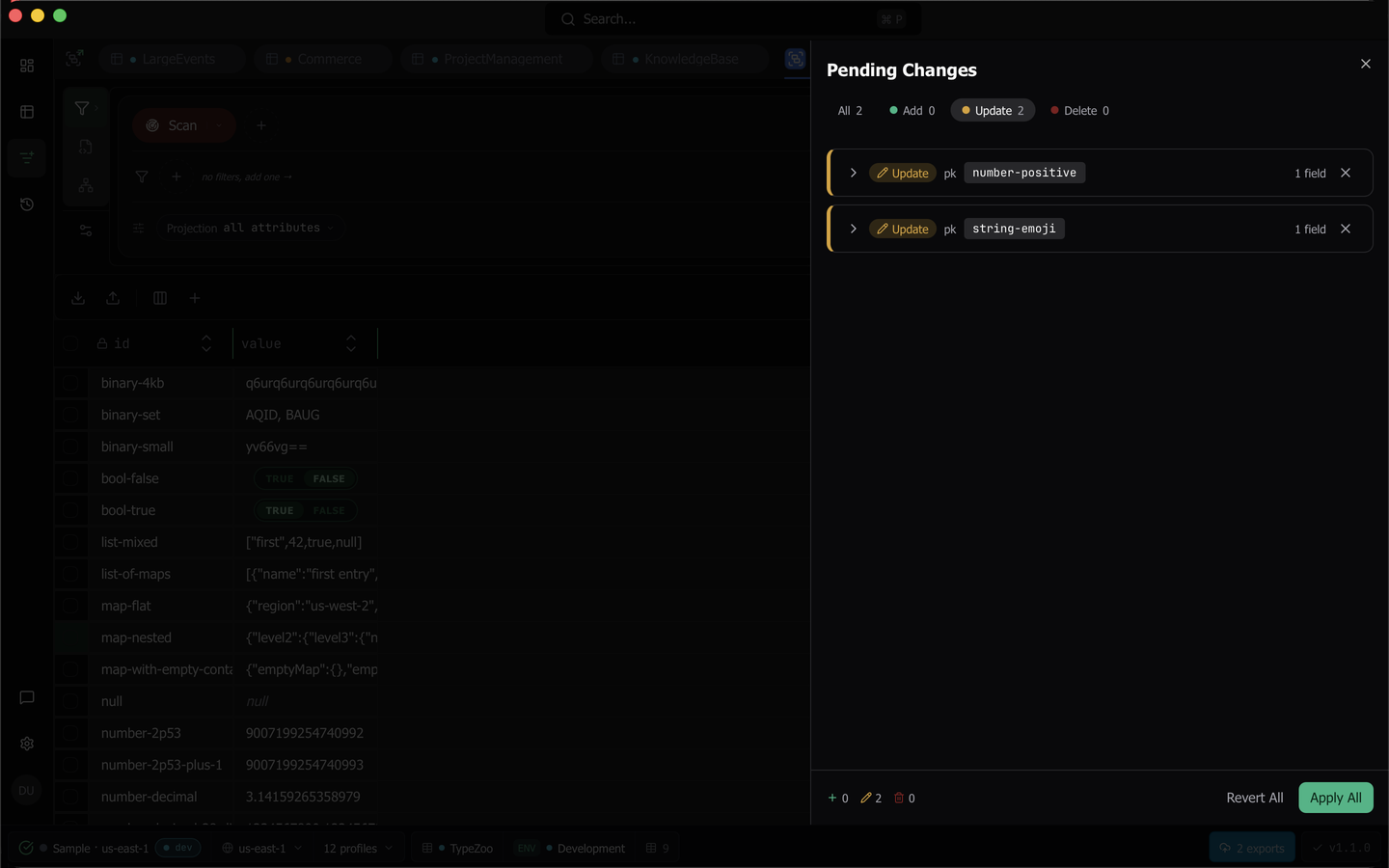
The Pending Changes sheet has All, Add, Update and Delete tabs with counts, field-level diffs for each row, Revert All, and Apply All to write everything in one pass. A toast reports how many rows were committed.
The chip’s popover and the sheet both have a Commit as one transaction checkbox. When it is checked, the commit sends every pending change in one TransactWriteItems call, so all of them are written or none are. A transaction holds at most 100 writes. Commit as one transaction covers its limits and what happens when DynamoDB refuses it.
A commit always writes with the tab’s own workspace, never the active one. If you switch workspace with changes pending on another workspace’s table, committing writes them to that table’s own account. When the tab’s workspace is no longer connected, or its profile is not loaded, nothing is written, every change stays pending, and a toast names the table and says why.
With the checkbox clear, on the Pro plan, a commit of 100 or more pending changes runs as a background job. An edit to a key attribute is not part of the job. It commits on its own, as one transaction that deletes the old item and puts the new one, and the toast says how many did.
Reverting needs no confirmation. Use Revert in the chip’s popover, the pinned status cell at the start of a changed row, or the revert button on each row of the Pending Changes sheet. Reverting the last change from the sheet closes it, and your next edit does not reopen it.
Warning: On a table classified as production the commit button turns red and reads Commit to prod, and a warning banner names the workspace you are about to write to.
A commit that runs as a background job asks you to type the table’s name first on any table not classified staging or development. Its Commit button in the sheet and the diff chip is red whenever it will ask, and reads Commit to prod only on a production table. Cancel returns you to the sheet with every change still pending. From the command palette, Commit pending changes then shows only the typed confirmation. Confirm a write into a production table lists what the dialog shows.
Selection and bulk actions
Selecting rows slides the action bar from its default row (Export, Import, Columns, Add row, and Bulk edit on a Filters result) to a selection row carrying the selected count, Bulk edit N rows, Delete N rows, Copy to Table and an export scoped to the selection. With exactly two rows selected it adds Compare 2 items, and with exactly one it adds New row from this row. Bulk actions require the Pro plan. On a plan without them, a selection keeps the default row, and New row from this row appears beside Add row.
To see how two items differ and copy values between them, see Compare two items.
To set or remove attributes across the selected rows or every row the filter matches, see Edit many rows at once.
The command palette offers the same actions for the current tab’s selection, titled with the live count, for example Delete 3 rows, Copy 3 rows as JSON and Clear 3 selected rows. It also has Compare two rows, New row from selected row and Bulk edit rows.
Right-click a cell
The context menu offers Filter by… (append the value as a filter, replace the current filter, or filter on an index key from its Index submenu), Select Row or Deselect Row, Edit Row, New Row From This Row, Copy value and Delete Row. A row with staged edits adds Revert Row Changes, and a row already marked for deletion offers Undo Delete instead. On a table with a vector index, a row carrying that index’s vector also gets Find similar.
Copy value writes the stored value of the cell you right-clicked, never the preview the cell draws. A string is copied as it is, a number as its exact stored digits, binary as base64, and true, false and null are written out. A map, list or set is copied as JSON, with set members as a JSON array.
Filter by compares with the clicked cell’s own type. On an attribute that holds both strings and numbers, a number cell filters by the number. A NULL cell filters by the NULL type. In PartiQL mode, Filter by writes the value as a PartiQL literal of its type, and it is not offered on a binary or NULL cell, because DynamoDB’s PartiQL has no binary literal and = NULL does not test for the NULL type.
Sort by a column
Each column header has a sort button. The first click sorts ascending, the second descending, and the third clears the sort. Numbers sort by exact value. A column that holds several types groups them, Numbers first, then Strings, then the rest, so the order never depends on how the rows arrived.
Columns and per-table settings
Columns searches, shows, hides and reorders columns, and the layout is remembered per table.
Per-table fetch settings live under Fetching & Editing in the tab’s Table settings dialog. The section holds Page Size, Stream Batch Size, Auto-Scan on Open and Lock Key Editing. Each row states which tier it inherits from and offers a reset.
With Lock Key Editing on, the partition, sort and index key attributes of existing rows open no editor, and hovering one says Key attribute, editing is locked and names where to turn the lock off. Their column headers show a lock icon. New rows are exempt, because typing the new item’s key is the whole job there.
Last updated on