
Import and export
Import
Load JSON, CSV, or TSV into a table through a five-step wizard that maps fields, validates types, and writes in batches.
The import wizard loads JSON, CSV, or TSV into the table a query tab is bound to. Use it to seed a table, to load a small DynamoDB JSON export, or to move a spreadsheet of records into DynamoDB without writing a script.
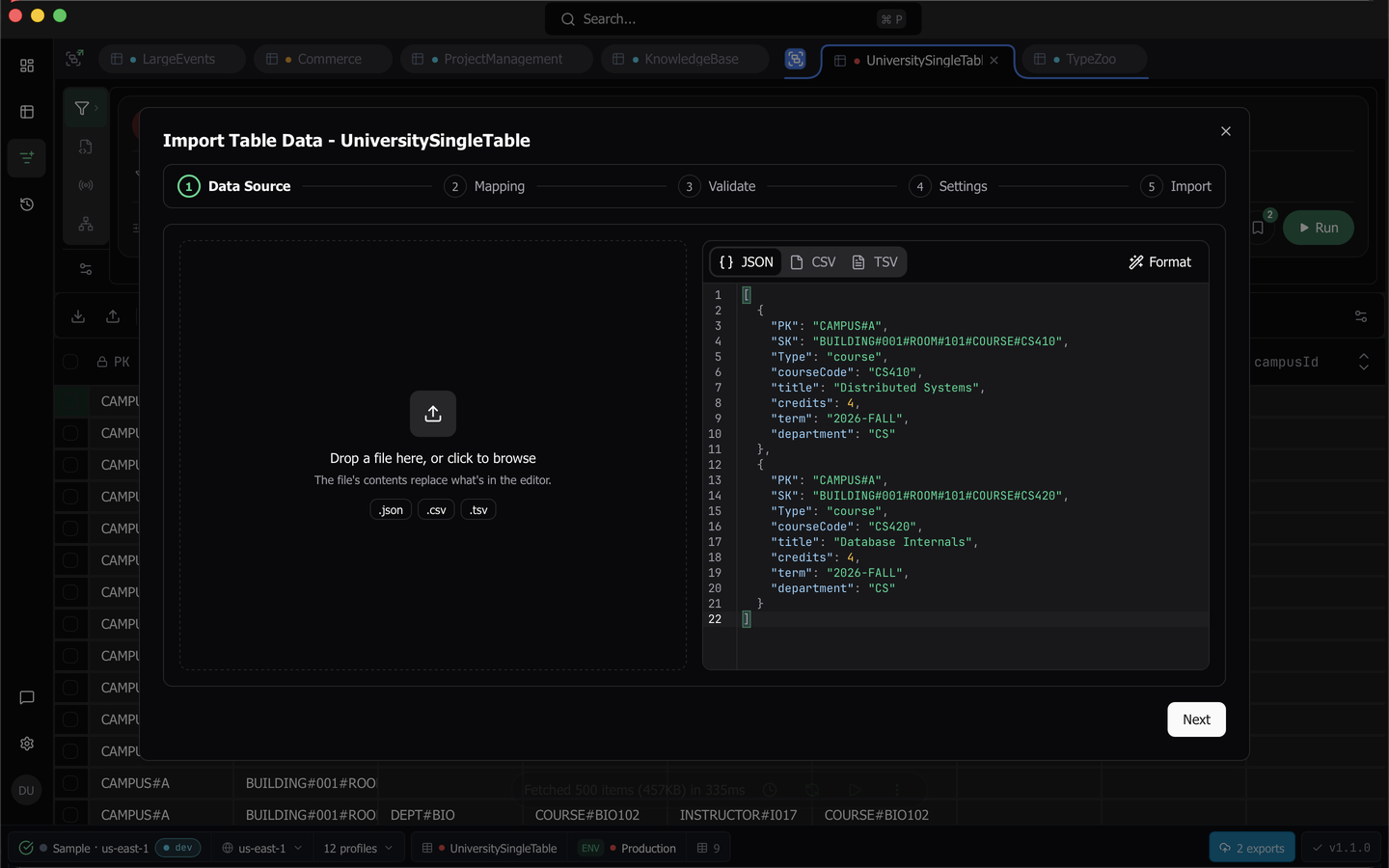
To start, click Import in the query tab’s action bar. The wizard is a modal with a step rail under the title, Data Source, Mapping, Validate, Settings, and Import, and a footer holding Back plus one primary action per step.
The Data Source step has three tabs, and this page covers the first.
- File or editor takes JSON, CSV, or TSV that you drop, type, or paste, and types each value for you.
- DynamoDB JSON file reads a file that already has a type on every value, from disk and at any size. See Import a DynamoDB JSON file.
- S3 export streams a DynamoDB export from S3 into the table, or has DynamoDB create a new table from it. See Import from S3 into a table and Import from S3 into a new table.
1. Choose the data
Drop a file onto the drop zone, or type or paste into the editor beside it. The editor is seeded with a template derived from the table’s schema, so a fresh JSON buffer already carries the key attributes.
The format switch is a tab strip in the editor header, with JSON, CSV, and TSV, plus a Format action that tidies the buffer.
Warning: Switching format replaces the editor contents with that format’s template, discarding what was there. Switch format before you paste, not after.
2. Map the fields
Dynomatic auto-matches each incoming field to a destination attribute. For each row you can search the destination list, create a new attribute, choose the DynamoDB datatype, or switch the field off with its ignore toggle. Key and required attributes carry chips, a sample value shows what the field actually holds, and a progress counter gates Next until every required field is mapped.
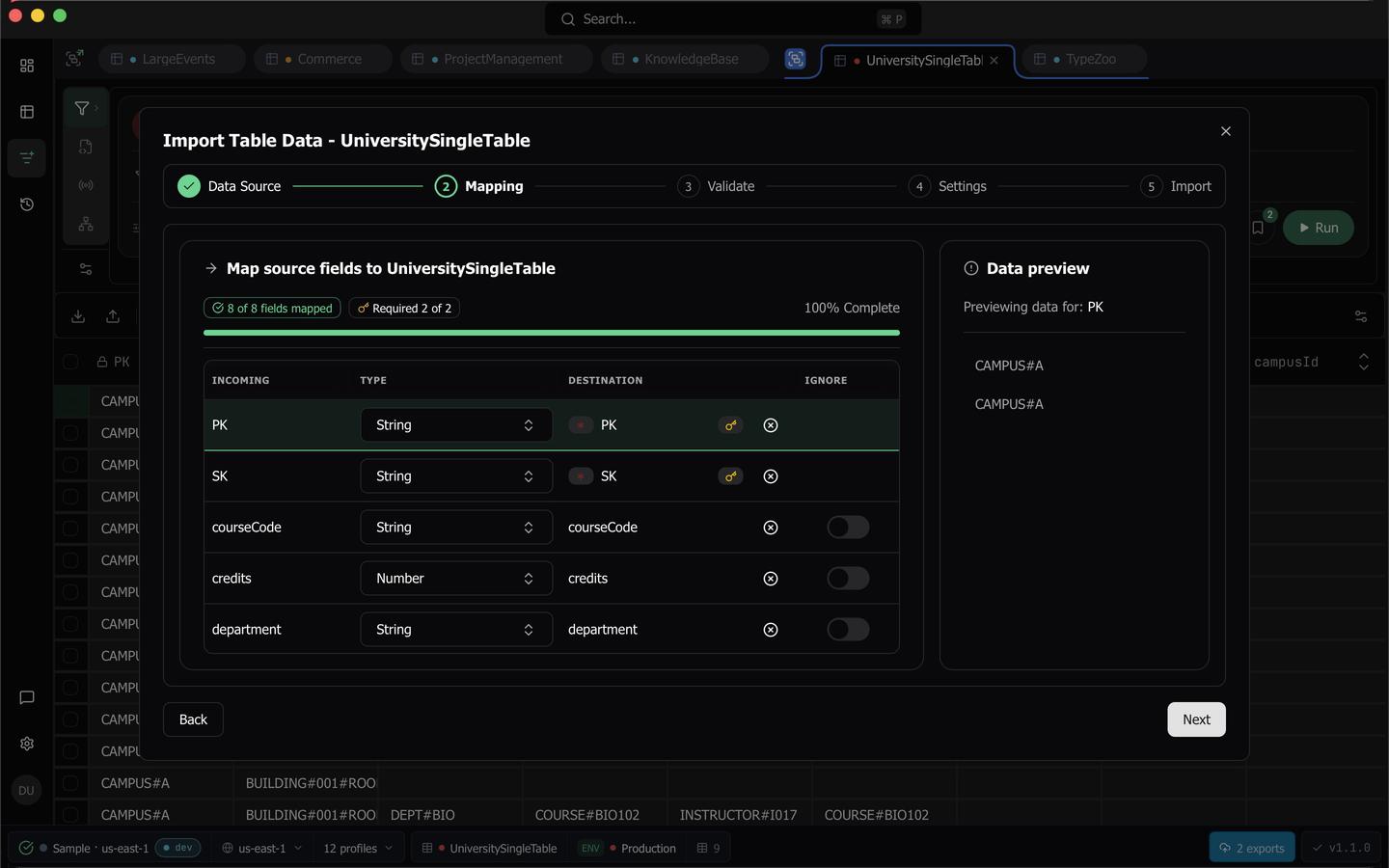
If Dynomatic only knows the table’s key fields, because no query or scan has run against it yet, the step offers Scan for fields. That runs one schema capture with the default settings and pulls the observed top-level attributes and their dominant types into the destination list.
The datatype you choose drives the wire format, so a value that should land as a number rather than a string is settled here.
A CSV or TSV cell is read as the text it holds, and only its column’s mapped type converts it. Dynomatic never guesses a type from the text.
| Mapped type | What a cell must hold |
|---|---|
| String | Any text, kept exactly as written, so 1.50, 007 and true stay strings |
| Number | A DynamoDB number, kept as written, so 12345678901234567890 keeps every digit |
| Boolean | true or false, in any case |
| Null | null |
| List, Map | JSON of that shape |
| String set, Binary set | A JSON array of strings |
| Number set | A JSON array of numbers or numeric strings |
| Binary | Padded standard base64 |
A cell that is not a value of its type fails Validate with '<field>' is not a valid <type>, for example 'amount' is not a valid Number. A blank cell writes nothing, except in a String column, where it writes an empty string. A column with no type picked writes its text as a String. Binary values from any source, key fields included, must be padded standard base64, which is the form Dynomatic writes.
3. Validate
Every cell is checked for coercion against its target type. The results grid is virtualized, sortable, and searchable, with failing rows and columns highlighted. Map and List values show as a one-line JSON summary, with the full JSON on hover.
An error panel under the grid lists each failing row with its field and message, showing the first 25 and then a count of the rest. Next stays inert, with the reason spelled out, until the errors are resolved.
4. Set how it writes
Choose how a collision with an existing item is handled, overwrite or merge, and pick the merge strategy when you choose merge. Then set concurrency, which is 1 to 100 parallel writes, and batch size, which is 1 to 25 items per batch. A summary chip restates the item count, the field count, and the destination table.
With the Vector Search plan, a table with a vector index also gets an Embeddings section on this step. For each index, a checkbox reading Generate embeddings for <attribute> starts checked when some incoming rows lack that attribute. After the import, Dynomatic embeds every item that lacks it, with the table’s embedding recipe, as a background job. Start import waits until that recipe has a passing dry run at the index’s dimensions, and Set up recipe builds one from here. Clear the checkbox to import without embeddings.
The primary action is Start import. On a table not classified staging or development, it first opens Import into <table>?, whatever the import’s size. The dialog says whether existing items are overwritten or merged and how many rows the import writes, and the import starts only after you type the table’s name. See Confirm a write into a production table.
5. Watch it run
The Import step starts on arrival. An import of 100 rows or more runs as a background job. A smaller import runs in the window.
Either way, the import writes with the profile of the table you are importing into, not the active workspace’s. When no profile with that name is loaded, the Import step shows an alert naming the profile and the table, and nothing starts.
An import of 100 rows or more
The step reads Importing into <table> over a progress bar and Written, Errors, and Remaining tiles, with the note “This import runs as a background job. You can close this dialog; Background jobs keeps its progress, and it can pause and resume there.” Close stays enabled, with “Keeps running in Background jobs if you close this dialog” beside it. Back stays inert while the job runs.
The job keeps going when you close the dialog, switch tabs, or reload the window. Click the jobs pill in the status bar to open the Background jobs panel, where the job’s row reads Import N rows into <table>. Pause, resume, or cancel the job there. The job paces its writes to the table’s capacity. See How job pacing works.
Stop import cancels the job. Rows it already wrote stay written, and the summary reads “Import stopped” with Back, which returns you to Settings to start again, and Done.
When the job ends, the summary reads “Import complete” or “Import finished with errors” over Written and Failed tiles. It also says how many rows were left out because a later row has the same key, how many were combined with an earlier row of the same key when you merge, and how many needed no write and were skipped. When some rows failed, View rejects opens the job’s Failures dialog, which lists each failed key with its error. To write the failed rows again, click Retry failed on the job’s row in Background jobs.
A merge import with a row that has too many attributes to merge in one request does not run as a job. It runs in the window, and the step says so.
A smaller import
A progress bar tracks written and failed items against the total, over Written, Errors, and Remaining tiles. A live Errors table lists every rejected batch with its batch id, item count, first and last key, message, and error code, showing the first 100 rows and then a hint to copy the rest.
Stop import halts the run. Batches already dispatched still finish, the counts are kept, and the summary reads “Import stopped” with Back, which returns you to Settings to adjust and start again, and Done.
When the run ends the summary reads “Import complete” or “Import finished with errors” over Written and Failed tiles, with Copy errors putting the full error list on the clipboard as JSON.
Note: While an import runs in the window the dialog cannot be dismissed. There is no close button, Escape and outside clicks are ignored, and Back and Close are inert with the reason shown. When the wizard is idle it closes like any other dialog. An import that runs as a background job can be closed, and so can every import from a DynamoDB JSON file or an S3 export, because those always run as background jobs.
Round-tripping an export
A DynamoDB JSON export pasted here imports back without loss. The wizard decides once per file whether the file is DynamoDB JSON, meaning every value in every row is a typed attribute whose value has that tag’s shape, and then writes the rows as they are, including a sparse row that lacks some attributes. A file that mixes shapes is treated as plain throughout. A marshalled numeric key is validated by its literal text, so large and high-precision numbers pass unchanged.
The editor holds the whole file in the window and takes a JSON array only. For a large export, for JSON Lines, or for a gzipped file, use the DynamoDB JSON file source instead. See Export for writing the file in the first place.
Things to know
- Template variables in the data resolve against the pinned environment tier. See Template variables.
- A JSON import of a vector attribute round-trips as a DynamoDB list.
- A CSV cell holding a JSON array lands as a string unless you change that field’s datatype on the Mapping step to List or a set.
- Import does not check vector dimension counts. DynamoDB rejects a mismatch through the normal error path.
- On the free plan an import is clamped to the first 25 rows, with an upgrade banner on the Validate step.
Last updated on